Using a Mobile Phone to Collect Small-Scale Spatial Data
In the Mega spatial data collection solution, in addition to using professional panoramic cameras for data collection, it also supports a solution for collecting spatial data using a smartphone. The mobile phone collection solution does not require purchasing additional equipment. You only need to install the Mega Toolbox app on your phone to start collecting data, which greatly lowers the threshold for data collection. Due to the limited field of view of mobile phones, it only supports collecting data in small-scale areas such as rooms and small squares. Before using a mobile phone to collect data, please carefully read the following data collection instructions.
Important
If the spatial area to be collected is too large, please use GoPro Max/Max2 for Mega Block spatial data collection.
Collection Preparation
Before starting to collect data, you need to select a suitable lighting environment and plan the collection route. Making sufficient preparations is the key to obtaining high-quality map data. Before each collection, you should make preparations according to the collection checklist.
Collection Environment
- The area to be collected should be a small or medium-sized scene (such as a store, exhibition hall, or office).
- The environmental light should be sufficient and uniform, avoiding areas that are too dark or overexposed (such as direct sunlight).
- There should be relatively fixed texture features in the scene (such as posters, decorative paintings, and unique architectural structures), and avoid collecting areas with extremely few textures (such as pure white rooms or glass mazes).
Planning the Collection Route
You should plan the route before collection to ensure that the starting point and the ending point coincide. The following are the route planning requirements for three different types of scenes:
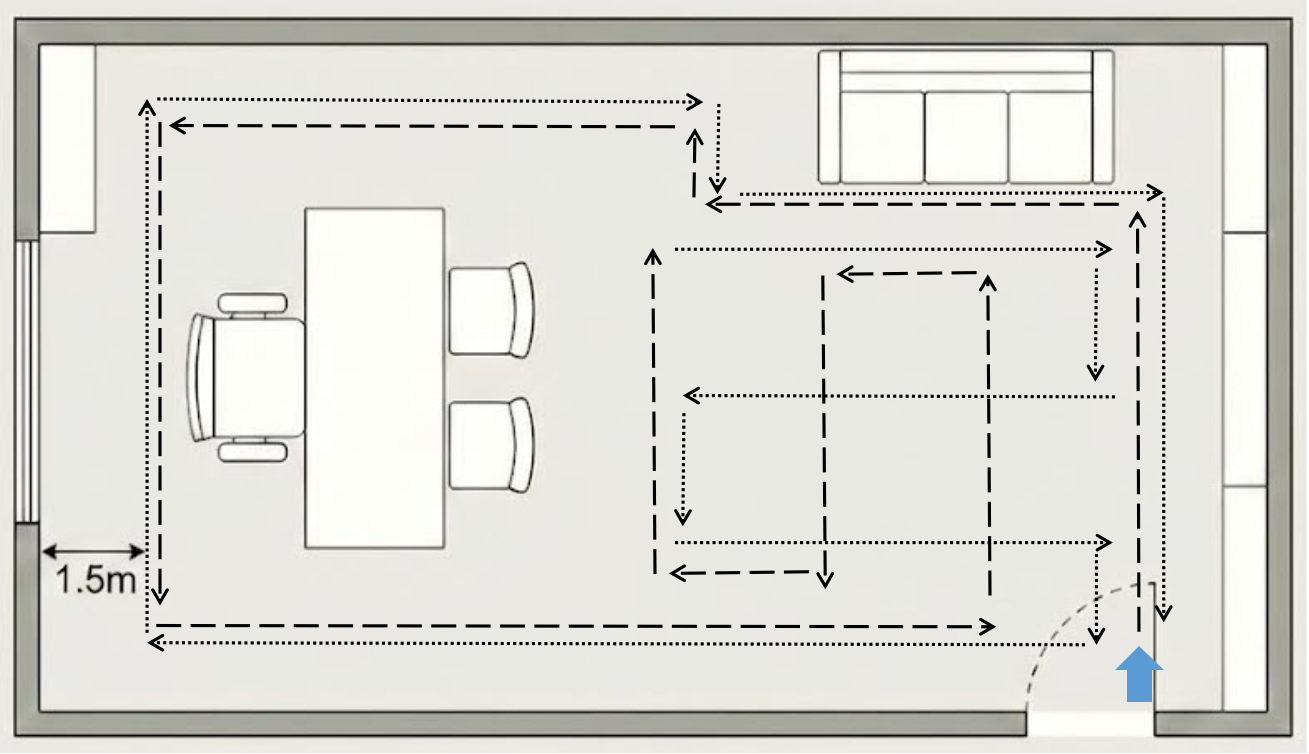
Indoor room type: Different strategies should be adopted according to the size of the room. If the room is relatively small, you can walk around the edge of the room (about 1 - 2 meters away from the wall). If the room area is large, you should deploy the movement route in a "field" shape to ensure that all blind spots are covered.
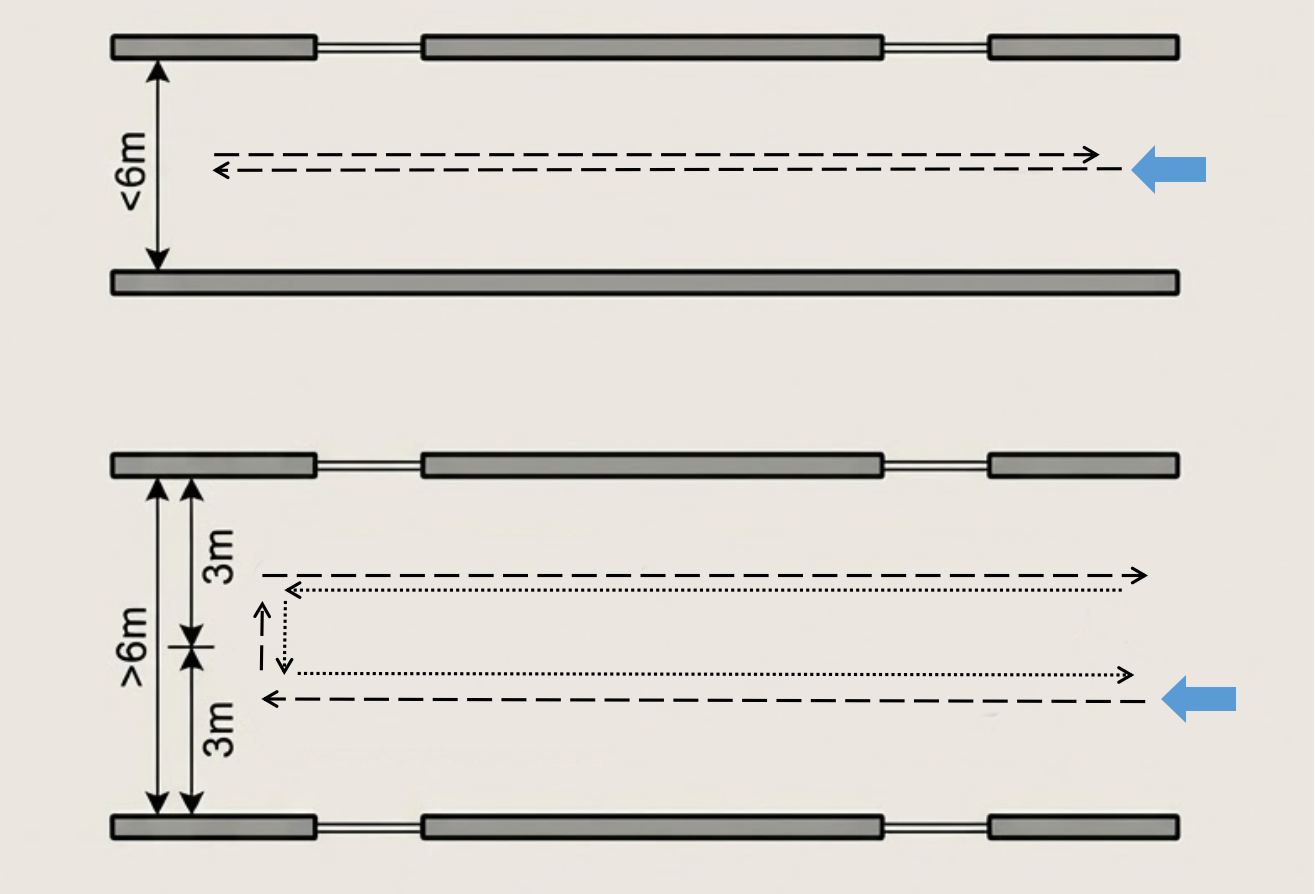
Passage type: If the width of the passage does not exceed 6 meters, you can just walk in the middle. If it exceeds 6 meters, you need to walk twice close to both sides respectively, about 3 meters away from the side wall each time. You need to shoot back and forth once.
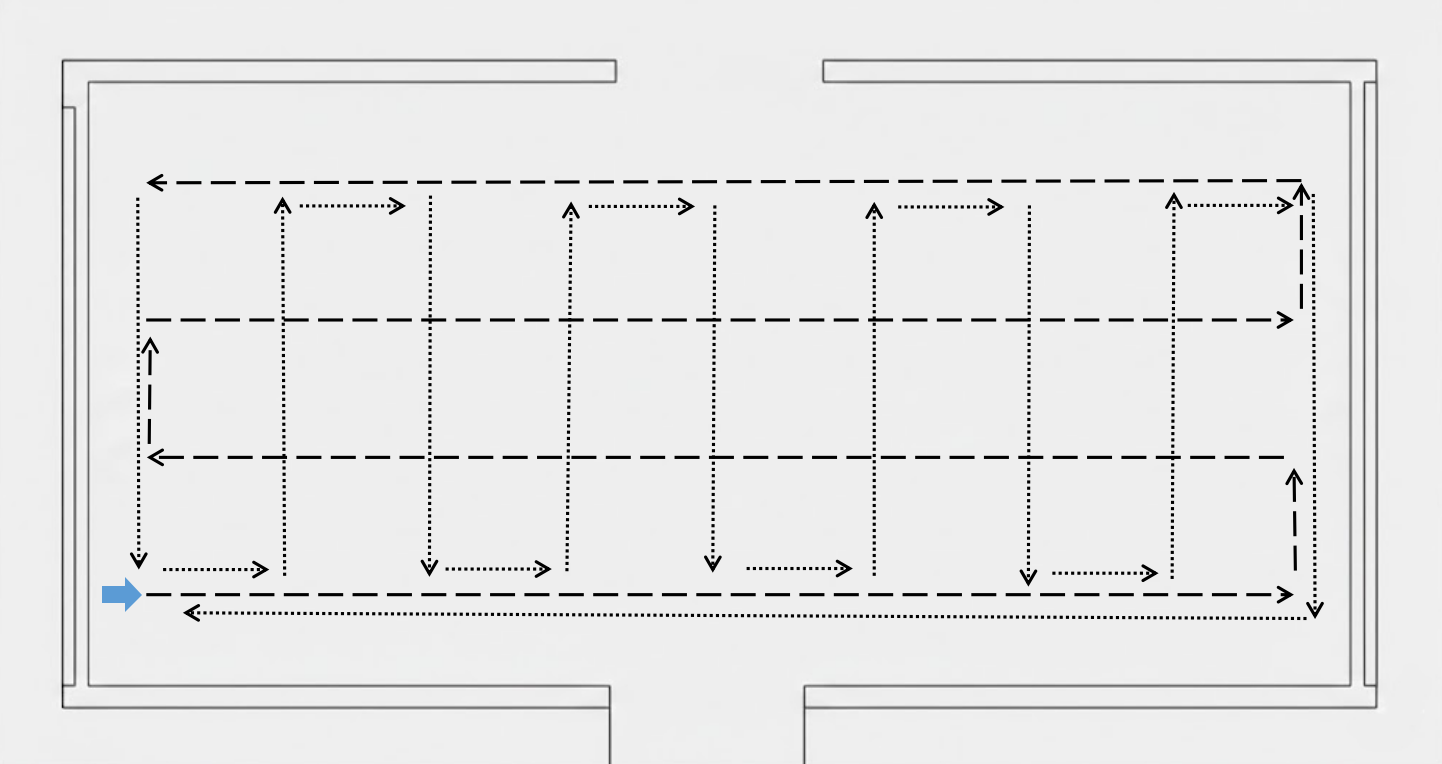
Open areas such as small squares: Deploy the route in a "field" shape, and set the interval of the grid at 3 meters.
Selecting a Suitable Mobile Phone Model
Before starting the collection, please ensure that your device meets the following requirements:
- iPhone users: iPhone 11 and above models.
- Android users: Devices that support ARCore (except for devices disabled by EasyAR), view details of supported devices.
Note
It should be noted that on ARCore-supported models, you need to install an additional "Google Play Services for AR APP" to run ARCore functions. Some models may have it pre-installed, and some models need to search for and install it in the app store by themselves.
Installing the Collection Tool
Download and install the data collection tool application package Mega Toolbox:
- iPhone users: Search for Mega Toolbox in the App Store, and download and install it.
- Android users: Find the "Development Tools" section on the EasyAR download page, and download the Mega Toolbox Android installation package. After the download is complete, you can copy the installation package to your phone and install it directly, or use
adb install EasyARMegaToolbox_***.apkon your computer.
Collection Process
The collection process is divided into three stages: starting Mega Toolbox, on-site path scanning and collection, and data saving.
Starting MegaToolbox
Open the installed
Mega Toolboxon your phone, click theMapping Data Collection Toolbutton, and enter the data collection mode.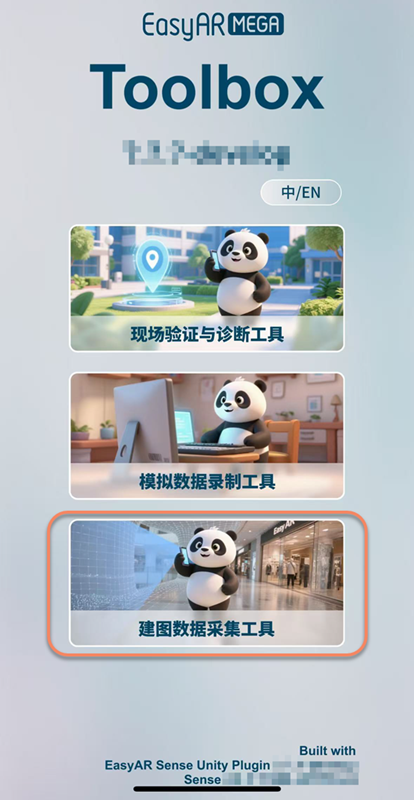
Click the blue
+at the bottom to enter the collection page.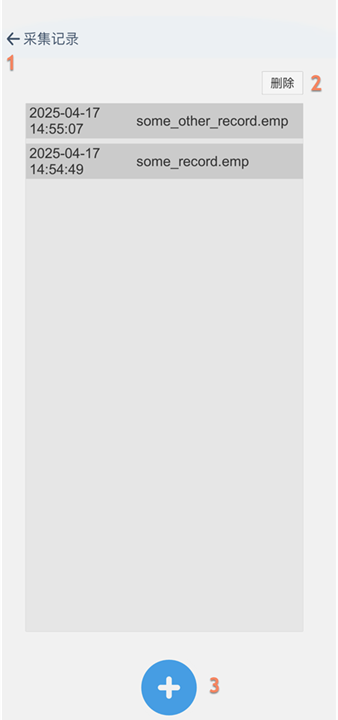
Function description
- Return to the main interface
- Delete records
- Enter the collection page
You need to allow MegaToolbox to access your camera for the first time you collect data.
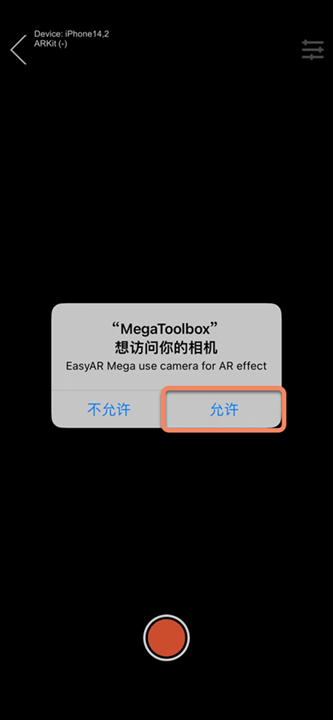
Device Initialization
After entering the collection interface, first point the camera at a nearby area with rich textures and slowly pan to initialize. After observing that the status in the upper left corner of the panel changes to Tracking, lift the phone and point it at the position to be collected, and click the start collection button.
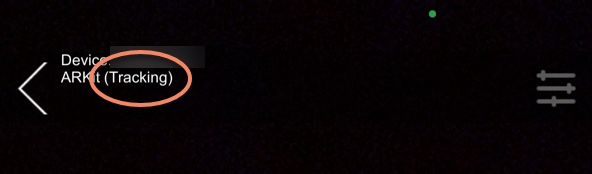
Performing the Collection
After entering the shooting interface, slowly move along the planned collection route and collect data by scanning while walking to build a complete visual map.
- Panoramic scanning: Keep the horizontal view of the phone during the collection process. After moving forward one meter, you need to pause briefly. Rotate the phone 90 degrees to the left from the forward view, pause for 1 second, return to the forward view, and then rotate 90 degrees to the right and pause for 1 second. Repeat this cycle to ensure that both sides of the field of view are covered.
- High-place collection: If there are tall buildings or landmarks in the space and the camera cannot capture the whole picture, you should keep your position, adjust the angle to look up, and collect data again.
Tip
- The collection should be a single continuous collection, and do not interrupt the process.
- You should move slowly during the collection process to avoid quick turns or running.
- Make sure to return to the starting position at the end to complete the path loop.
- The real-time trajectory line displayed during the collection can help you determine whether the collection path is closed and whether the target area is covered.
Ending and Saving
After completing the collection of all views, you need to stop recording and save the data persistently to the device.
After the collection is completed, click the red button in the middle at the bottom to stop the collection and enter the save page.

Enter the name of the collected data (only English and numbers are supported) on the save page, and click the
Savebutton. The collected data will be saved to your phone.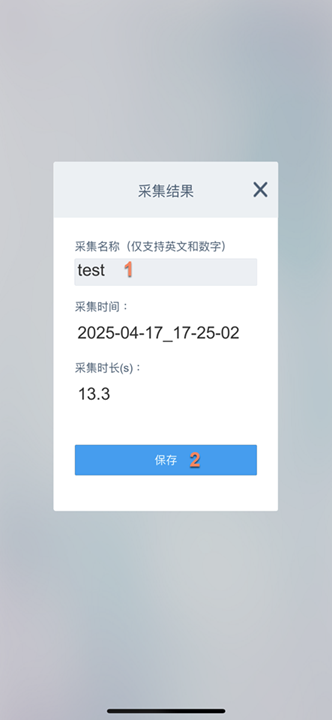
Precautions
- You must maintain the
Trackingstate throughout the collection process. Please keep a stable collection throughout and avoid quick turns or sudden stops. - The collection duration cannot exceed
15 minutes. If it exceeds15 minutes, the collection will be forcibly ended and you will enter the save page. - Do not switch to the background during the collection process, as switching to the background will cause the collection to fail.
- You should ensure that the environmental light is sufficient, uniform, and stable, and avoid areas that are too dark or overexposed.
- Do not point at pure-color surfaces such as white walls and metals, as well as reflective and transparent glass areas for a long time.
- If the collection fails, you should start the collection again.
Next Steps
After the collection is completed, refer to the Exporting Data document to export the data, and create a small-scale mobile phone collection task in the Mega Development Center for mapping.