Quick Verification of the Localization Service
This chapter explains how to quickly verify whether the localization service and the localization library are configured successfully. You can use the WeChat Mini Program or the native app provided by Mega Toolbox to quickly verify that the localization service is working properly either on-site or through photos (off-site), which is convenient for preliminary troubleshooting of configuration and data issues.
Preparation
- You have created a localization library and added the Mega Block localization map to the localization library. Refer to the previous topic: How to Prepare the Cloud Localization Library
- Download and install Mega Toolbox (for quick verification)
Mega Toolbox
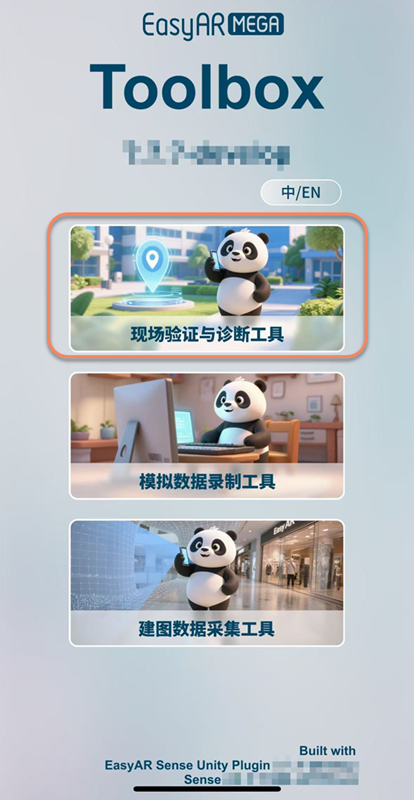
Mega Toolbox is a verification tool provided by EasyAR, supporting the following platforms:
- Native app, supporting Android and iOS
You can find the download channel on the EasyAR official website. Go to the download page -> Select to download
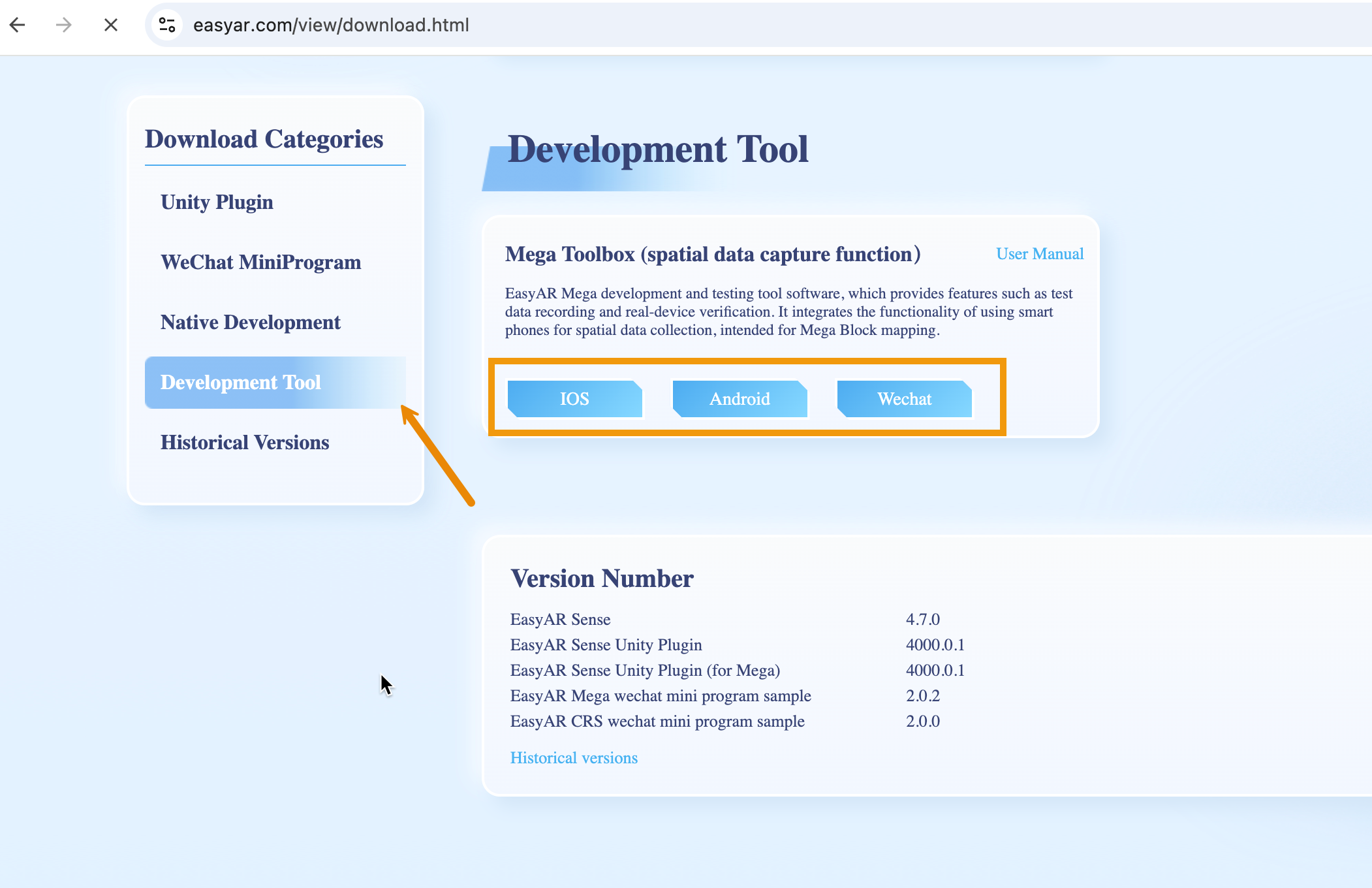
- WeChat Mini Program
Scan the QR code with WeChat

Quick Verification of the Localization Service
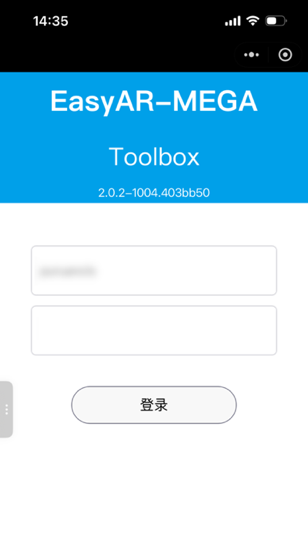
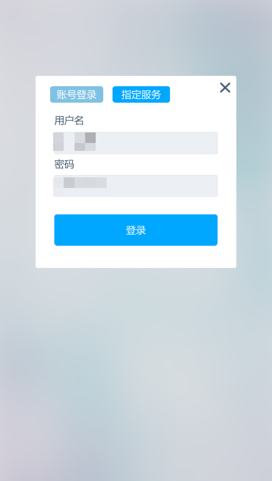
Open the Mini Program and log in with your EasyAR account
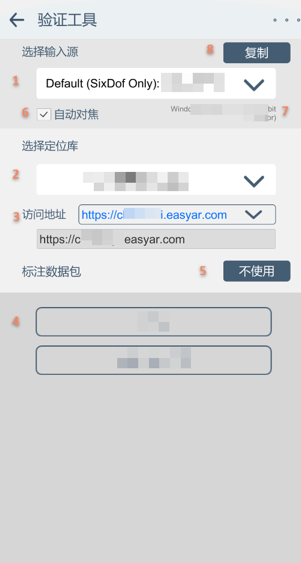
Select the localization service group and the localization library to be verified
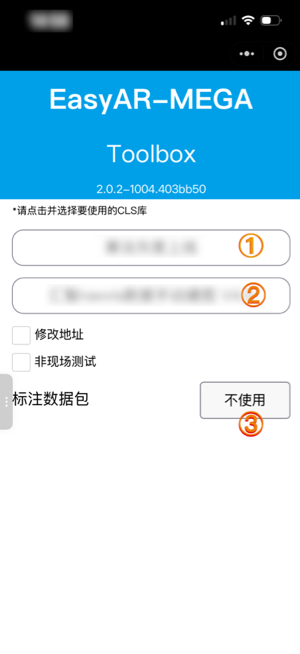
- Select the
Cloud Localization Service Group, and choose from the drop-down box after clicking. - Select the corresponding
Cloud Localization Library, and choose from the drop-down box after clicking. - Click
Do not useto directly enter the localization page.
- Select the
Allow authorization To use the localization function properly, you need to authorize the camera and location information permissions before normal use.


Quick
On-siteverification (recommended): After entering the "On-site" verification page, multiple status characters will be displayed at the bottom of the interface. S indicates successful localization (Success), and F indicates failed localization (Failed); multiple S's indicate stable and successful localization.
Quick
Off-siteverification: Check "Off-site test" and aim at the on-site photo for simulated localization. Many S's in the status output at the bottom indicate successful localization.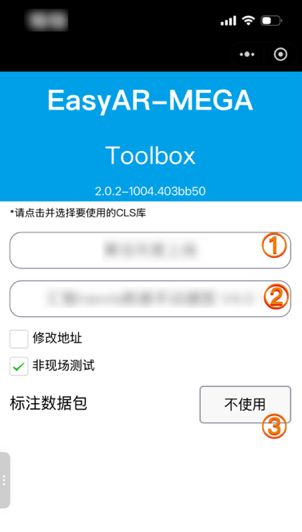
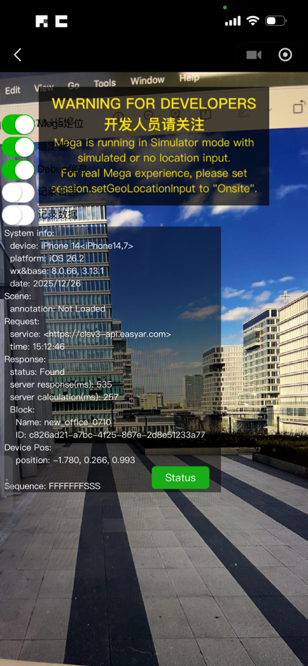
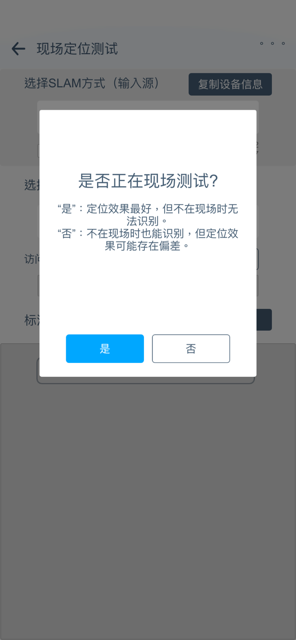
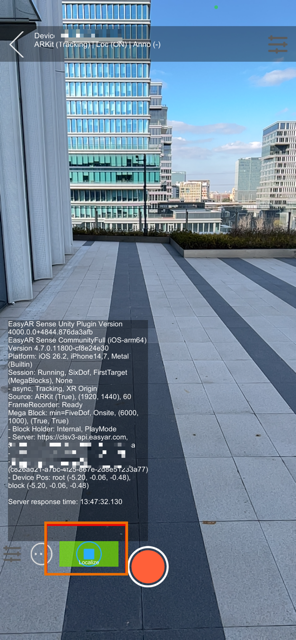
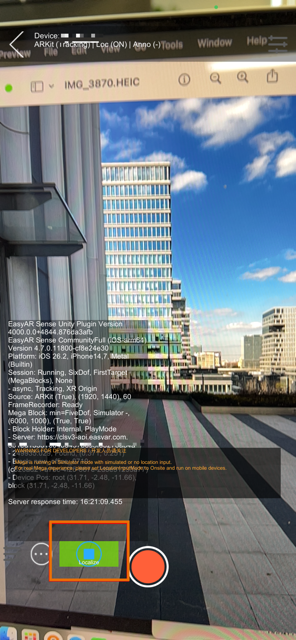
If the localization debugging information returns the text prompt
status: QpsLimitExceeded, it means that the localization service is running normally, but the current QPS exceeds the limit. To solve this problem, please refer to Localization Service Capacity Limit and Expansion.If the localization debugging information returns the text prompt
UnKnownError, it means that the localization service is running abnormally. Please turn onRecord LogsandRecord Datato record the error information and contact EasyAR customer service.