Login Component
Mega Studio includes three components: Block Viewer for Unity Developer, Block Viewer, and Annotation Tool. Each component requires logging in to the cloud service when in use to access Mega's mapping or positioning services. The three components use the same login method. Mega Studio offers two service methods: "Access your own services" and "Access others' services".
Note
Starting from version 2.13, you should use the block editor tool to develop Unity applications.
Access Your Own Services
If you have an account and password for the EasyAR Developer Center, you can directly use the account and password to log in.
Select the required
EasyAR.Mega.*component in theHierarchy. In theInspectorpanel, selectAccountas the access method, fill in the account information, and then clickLogin.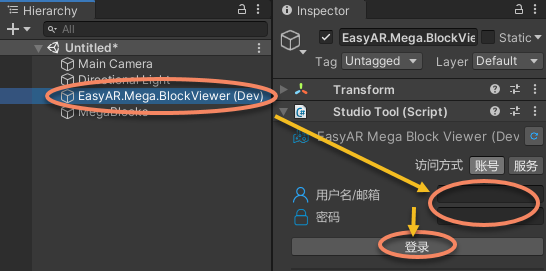
Click the button on the right side of
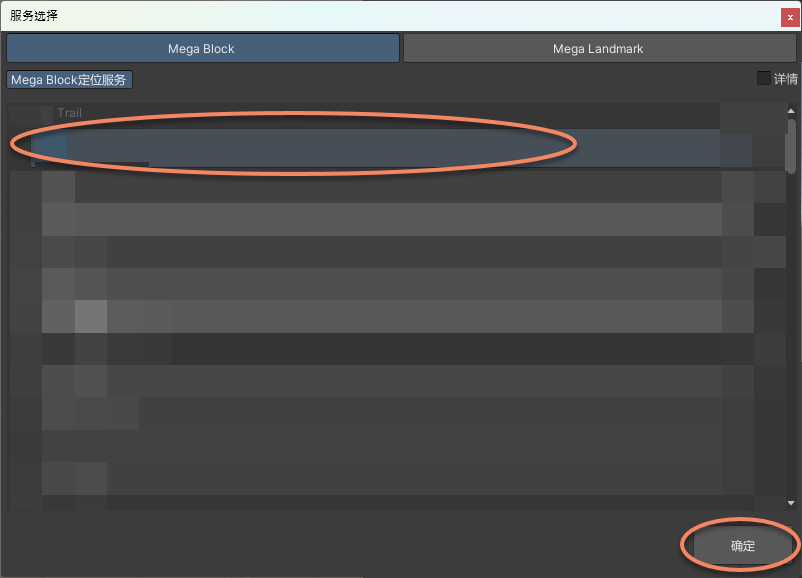
Mega Cloud Service. TheMega Positioning Servicewindow will pop up. Select the positioning service you need and clickOK.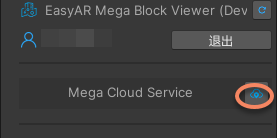
Access Others' Services
If you don't have an account and password for the EasyAR Developer Center, you can use the Mega Positioning Service to log in.
Select the required
EasyAR.Mega.*component in theHierarchy. In theInspectorpanel, selectServiceas the access method and clickEnter.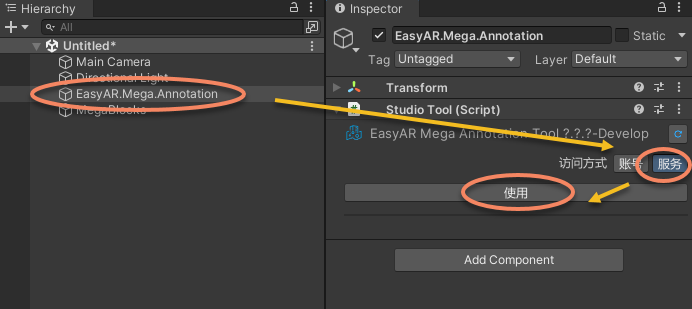
Click the button on the right side of
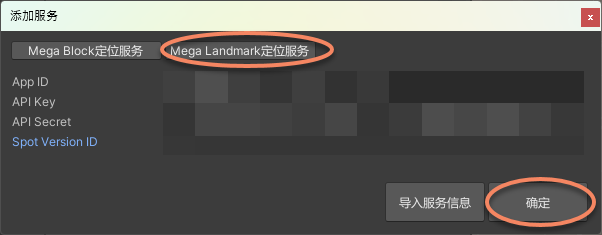
Mega Cloud Serviceand enter one of the following methods in theMega Block Positioning Service.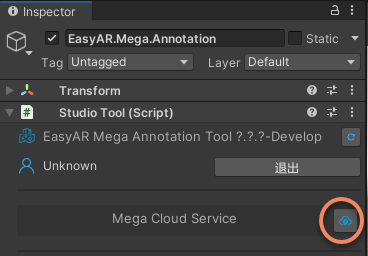
Directly import the service information, which is exported from Mega Studio. For details, please refer to Cloud Service Component.
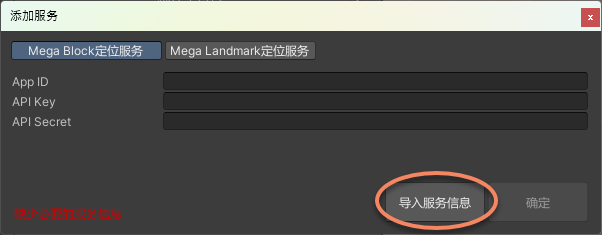
Directly add
App ID,API Key, andAPI Secretin the interface and clickOK.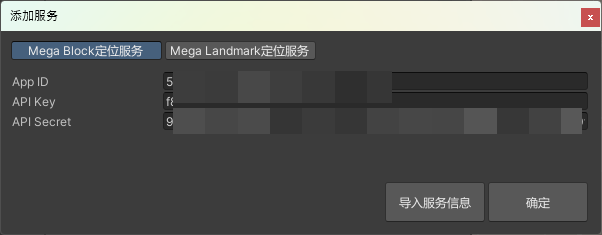
Click the button on the right side of
Mega Cloud Serviceand enter one of the following methods in theMega Landmark Positioning Service.Directly import the service information, which is exported from Mega Studio. For details, please refer to Cloud Service Component.
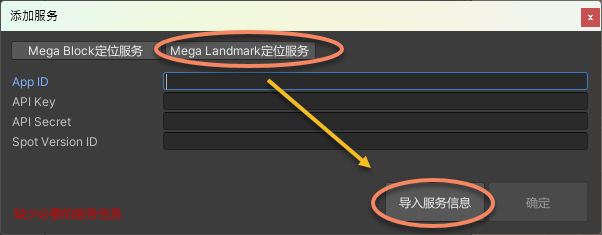
Directly add
App ID,API Key,API Secret, andSpot Version IDin the interface and clickOK.