Guide to Troubleshooting Abnormal Tracking Effects in Mega
Mega uses cloud-edge integration technology. After successful positioning in the cloud, it combines with the device's SLAM to maintain continuous tracking, ensuring that AR content is accurately anchored in the real world. An ideal tracking state should be characterized by no drift, low jitter, and high fluency. This document focuses on the abnormal tracking problems during the Mega positioning process, helping you understand the correct expectations, common error classifications, the impact of device differences, and clarifying when you need to contact EasyAR technical support.
Expected Effects
Abnormal tracking usually stems from the quality of mapping data, environmental factors, or device compatibility. You can use MegaToolbox to troubleshoot problems. If the problem involves the runtime application effects, you can also directly use your application for experience.
In a high-quality Mega Block and a good environment, the tracking effects should meet the following standards:
- Stable anchoring: After successful positioning, the virtual content is fixed at the world coordinates without obvious drift.
- Robust recovery: After brief occlusion, rapid rotation, or light changes, the tracking will automatically resume.
- Smooth performance: The content is rendered normally without obvious jitter.
- Environmental limitations: The tracking effects will decline near solid-color walls, empty floors, glass, or highly reflective surfaces.
If your experience matches the above description, then the tracking effects are basically normal.
Normal phenomena: Slight jitter or brief loss is within the acceptable range, especially during the verification stage of the creation process. If it remains stable for a long time, it is considered normal.
Self-diagnosis Using Mega Toolbox
Abnormal tracking usually occurs after successful positioning. If the abnormal tracking effects appear in your developed application, you need to check the positioning situation in Mega Toolbox (see Mega Toolbox Operation Manual - On-site Verification and Diagnostic Tool). If the effects are inconsistent between the two, please first check if there are any problems with the program implementation.
Operation Steps
- Install Mega Toolbox on your test phone.
- Open Toolbox, enter the
On-site Verification and Diagnostic Tool, and log in with your account and password. - Select the SLAM method and the positioning library.
- Take the phone to the exact location where the problem occurred and observe the display on the Toolbox interface.
For details on how to configure the positioning library and how to conduct on-site tests, you can refer to Preview of On-site Real Running Effects.
Judging Based on the Display Results of Toolbox
Mega Toolbox is the most important diagnostic tool. It is an independent mobile App that can help you determine whether the problem lies with Mega or your application.
Abnormal positioning
If the Toolbox interface shows states other than
FoundandNotFound, you can refer to Guide to Handling Localization Failures for solutions.Successful positioning
The status on the Toolbox interface shows
Found, and the placed content is also displayed normally.The following are normal situations:
- The content fits the scene well and will move slowly over a period of time.
- If the virtual content exceeds a certain range from the scene, it will be directly corrected.
The following are abnormal situations:
- The content in the scene will keep drifting in one direction.
- The content drifts in one direction and then is pulled back, then drifts again and is pulled back again.
- The content becomes larger or smaller, etc.
- The content jumps between several places.
Classification and Troubleshooting of Error Situations
Use Toolbox for testing. Based on the abnormal phenomena, you can check the corresponding suggestions.
| Abnormal Classification | Possible Causes | Handling Suggestions |
|---|---|---|
| The device status always shows NotTracking | The environment has no obvious features, the lighting is poor, or the phone model is not good, etc. | Determine whether it is caused by the environment or the phone model. You can try to change the test area or the phone model. |
| The content in the scene will keep drifting in one direction | The phone model is not good, and there is drift in SLAM. | Try using a better phone model. |
| The content drifts in one direction and then is pulled back, then drifts again and is pulled back again | The phone model is not good, and there is drift in SLAM. | Try using a better phone model. |
| The content becomes larger or smaller, etc. | The phone model is not good, and there is drift in SLAM. | Try using a better phone model. |
| The content jumps between several places | There may be several similar areas in the scene. When you start positioning from these areas, interference may occur. | Start positioning from other unique areas or use Bluetooth assistance. |
Further Testing
To better determine the problem, you can further test in the following ways. If you are a developer, you can refer to Devices and Platform Applications Supported by Mega.
Testing with a Better Phone Model
There are differences in tracking effects among different devices, mainly affected by camera quality, sensor accuracy, and processor performance. During the verification of the creation process, it is recommended to test with several different phone models to ensure compatibility. If the tracking effects are normal on ARKit or ARCore devices, it is determined that the problem is caused by the performance of the problem device. For devices with weaker performance, you can try to select different SLAM methods for testing.
Selecting Different SLAM Methods
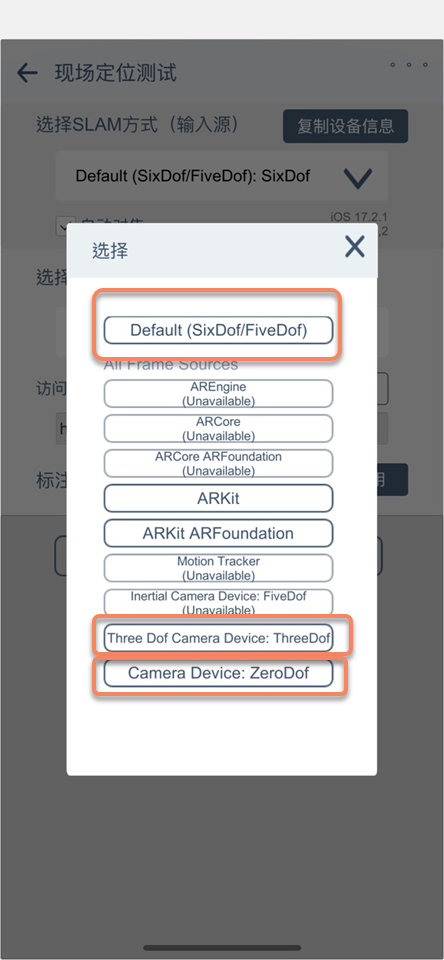
For some poor phone models, affected by the accuracy of the phone's sensors and computing power, the SLAM accuracy is relatively poor. On the On-site Verification and Diagnostic Tool page of Toolbox, try to select different SLAM methods for testing. You can choose to use FiveDof, ThreeDof, or ZeroDof to experience different tracking effects.
Situations Requiring Feedback
Most abnormal tracking problems during the creation process are caused by the device. However, the following situations may involve Block algorithm or service issues. It is recommended to provide feedback to EasyAR support:
- After testing with multiple phone models and in multiple areas, frequent drift still exists.
- Toolbox cannot perform positioning or the positioning is abnormal.
- The effects of the same Block vary greatly under different weather and lighting conditions, and cannot be resolved through supplementary updates.
If you still have problems, you need to provide a description of the on-site problem, device information, a screen recording of the on-site runtime, the EIF file, and Mega service information/Block diagnostic information to EasyAR staff. Before providing feedback on the problem, you should confirm in Mega Studio that the problem can be reproduced with this EIF.
Through this guide, you can quickly troubleshoot abnormal tracking during the creation stage and improve the overall quality of Mega Block.