Crash Analysis on Windows
For crashes on native Windows and the Unity Editor on Windows, refer to the following description.
Obtaining the Crash Location During Development
The information needed when debugging in Visual Studio is shown below.
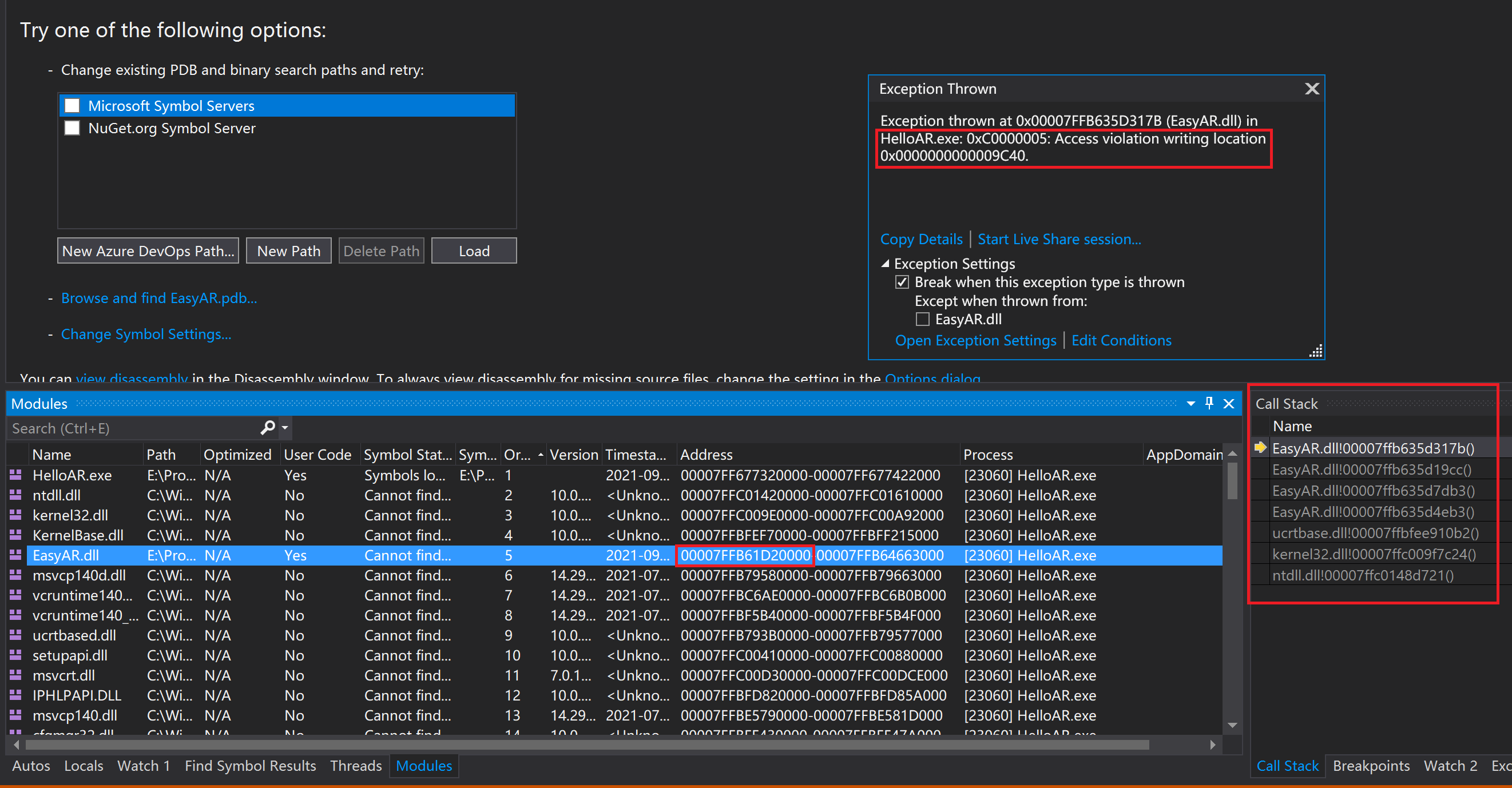
The crash reason is:
Exception thrown at 0x00007FFB7747317B (EasyAR.dll) in HelloAR.exe: 0xC0000005: Access violation writing location 0x0000000000009C40.
The call stack is:
>	EasyAR.dll!00007ffb7747317b()	Unknown
    EasyAR.dll!00007ffb774719cc()	Unknown
    EasyAR.dll!00007ffb77477db3()	Unknown
    EasyAR.dll!00007ffb77474eb3()	Unknown
    ucrtbase.dll!00007ffbfee910b2()	Unknown
    kernel32.dll!00007ffc009f7c24()	Unknown
    ntdll.dll!00007ffc0148d721()	Unknown
The dynamic library load address is:
0x00007FFB75BC0000
When the call stack contains EasyAR.dll entries, the crash may be related to EasyAR. If it does not, the crash is very likely unrelated to EasyAR.
Obtaining the Crash Location During Development (Unity)
When developing an application with Unity, you can also use Unity logs to analyze crashes.
Unity logs include Unity Editor logs and Unity Player logs. You can obtain them as follows.
| Unity environment | Operating system | Log path |
|---|---|---|
| Editor | Windows | %LOCALAPPDATA%\Unity\Editor\Editor.log |
| Player | Windows | %USERPROFILE%\AppData\LocalLow\CompanyName\ProductName\Player.log |
Editor logs can also be opened from the Open Editor Log command in the menu at the upper-right corner of the Console window.
Managed exceptions, C#, can be viewed in the Console window of the Unity Editor, Unity main menu Window -> General -> Console.
Other Crash-Related Information
Version number of EasyAR Sense and EasyAR Sense Unity Plugin
For example, 4.7.0.11800-cf8e24e30
Community Edition/Enterprise Edition
Platform
Win32
CPU architecture
x86_64/x86