Log analysis on Windows
For logs on native (Windows) and Unity Editor (Windows), refer to the following instructions.
How to obtain logs
If the program has a console, logs can be obtained from the console.

Otherwise, you need to use Log.setLogFunc for log redirection and provide your own method for outputting logs.
Unity built-in logs
When developing applications with Unity, in addition to the log analysis methods provided by the platform, Unity Editor also provides extra debugging methods.
Unity logs are divided into Unity Editor logs and Unity Player logs, which can be obtained using the following methods.
| Unity environment | Operating system | Log path |
|---|---|---|
| Editor | Windows | %LOCALAPPDATA%\Unity\Editor\Editor.log |
| Player | Windows | %USERPROFILE%\AppData\LocalLow\CompanyName\ProductName\Player.log |
Editor logs can also be opened through the Open Editor Log command in the upper-right menu of the Console window.
Understanding logs
Generally, errors with output level Error (shown in red) are important issues that need to be checked. The following is an example of an error where the camera cannot be found.
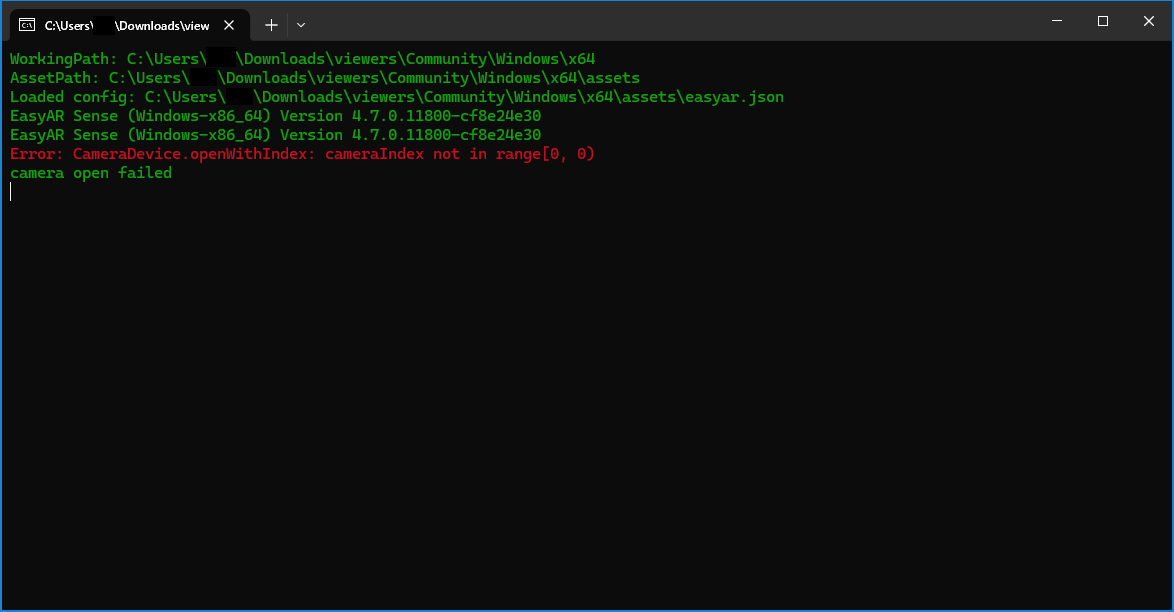
When analyzing errors, it is often necessary to clarify the conditions under which the error occurs, such as the called function, parameters, and related state.
Notes when giving feedback
The following information must be attached when giving feedback.
Version numbers of EasyAR Sense and EasyAR Sense Unity Plugin
Such as 4.7.0.11800-cf8e24e30
Community edition/Enterprise edition
Platform
Win32
CPU architecture
x86_64/x86