Problem Report and Feedback
We highly value your feedback, which is crucial for us to improve the EasyAR Mega products and services. To enable us to quickly and accurately locate and resolve the issues you encounter, please take a few minutes to read this guide before submitting a report.
Our Contact Information
You can submit problem reports to us through the following channels:
- Official Developer Community/Forum - Recommended for general questions and community communication.
- Enterprise WeChat Group - Suitable for enterprise-level users who require confidentiality or more formal support.
- Scan the QR code below to join the group.

- Scan the QR code below to join the group.
- More Contact Information - As an alternative.
- Click here to get the contact information.
Core Elements of Submitting a High-Quality Report
A report containing the following information will greatly assist us in reproducing and resolving the problem. The more complete the information, the faster the problem will be solved.
General Report Checklist (Required for All Problems)
- Clear Problem Description:
- What effect do you expect to achieve?
- What actually happened? (For example, the app crashes, positioning fails, or the content drifts.)
- What is the frequency of the problem (always occurs/occasionally occurs)? Under what conditions does it occur?
- Device and Environment Information:
- Device Model: For example,
iPhone 14 Pro,Samsung Galaxy S23 Ultra,Apple Vision Pro. - Operating System Version: For example,
iOS 17.2,Android 14,visionOS 26. - EasyAR SDK Version: For example,
EasyAR Sense Unity Plugin v4.6.0. - Test Environment: Indoor/outdoor, lighting conditions, and whether it is a dynamic environment.
- EIF Data (The Most Important Evidence):
- Please provide an EIF recording file that can reproduce the problem.
- EIF data contains all sensor and image information when the problem occurs and is the most powerful tool for us to diagnose the problem. Please refer to Collecting Simulated Runtime Data to learn how to record.
- Log File (Log):
- Please provide the complete application log when the problem occurs.
- Android:
Logcatoutput. - iOS:
Console.applog or Xcode console output. - Unity:
Consolelog of the Unity Editor. - WeChat Mini Program: Log file obtained from
session.dumpLog().
- Screen Recording or Screenshot:
- A screen recording or high-definition screenshot when the problem occurs, which can intuitively show the phenomenon you described.
- The operation guides for different devices can be found at: Mobile Screen Recording, Headset Screen Recording.
- Mega Positioning Library Information
- Export the block diagnostic information used by the application or the service information of the Mega positioning library in Unity. The export method is as follows:
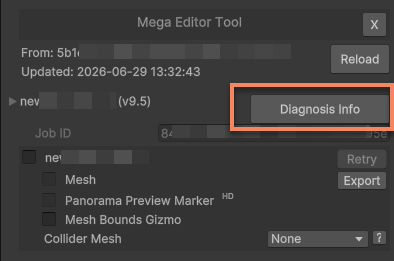
# [Unity Development, Plugin Version 4.7 - 4002](#tab/4002)
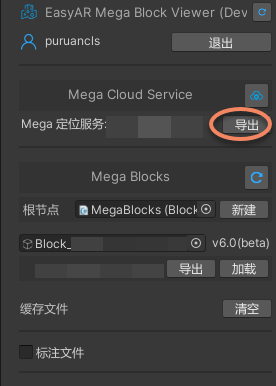
# [Mini Program Development](#tab/wechat)
Supplementary Checklist for Specific Problem Types
To more accurately locate the problem, please provide the following additional information according to your problem type:
A. Positioning Fails or Is Unstable
You have tried to use the Mega Toolbox or PC tool to verify at the same location and explained the result.
You have confirmed that the map loaded in the positioning library is consistent with the current physical space.
You have described the approximate location where the problem occurred (for example, the mall atrium, the entrance of a scenic area). B. Content Does Not Display
You have provided the result of verifying the positioning using an external tool.
You have confirmed that there is no problem with the content placement or code logic.
If it is a rendering problem, please provide a screenshot or description of the model, Shader, or special effects used. C. Content Jumps or Drifts
You have described the movement mode of the device (smooth movement/rapid movement).
You have described the texture and lighting conditions of the environment and whether there are extremely similar confusing areas.
You have explained the internal attitude processing logic of the application and that the content is placed correctly. D. WeChat Mini Program Problem
You have provided a screenshot of the user enabling the Mega service permission in WeChat.
You have explained whether the user's mobile phone model is on the official WeChat support list.
You have provided the AppID of the mini program and a specific description of the business scenario. E. Performance Problem (Lag, High Power Consumption)
You have described the device model where the problem occurred.
You have provided the CPU/GPU occupancy rate or device temperature information during the application runtime (if possible).
You have described the complexity of the 3D content (number of model faces, texture size).
You have explained whether multi-image configuration is used.
Exporting Unity Development Information Using the EasyAR Sense Unity Plugin
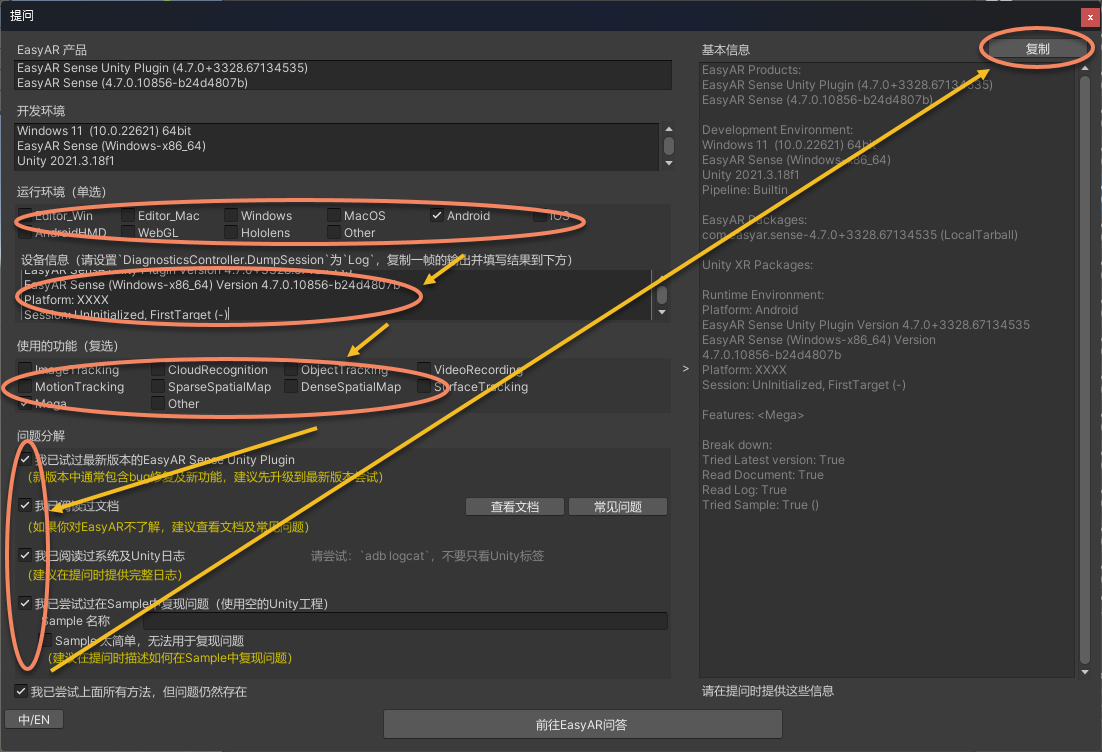
Specifically, for Mega application development on the Unity platform, we have prepared a more convenient feedback information generation tool. The detailed operation steps are as follows:
- Open
EasyAR > Sense > Ask a Questionin the menu bar.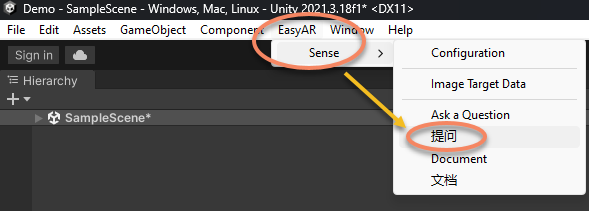
- Provide the following information in
Ask a Question:
- Select the running environment (single selection), such as Android.
- Copy the device information. Set
DiagnosticsController.DumpSessiontoLoginARSession, copy the output of one frame, and fill in the result in the device information box.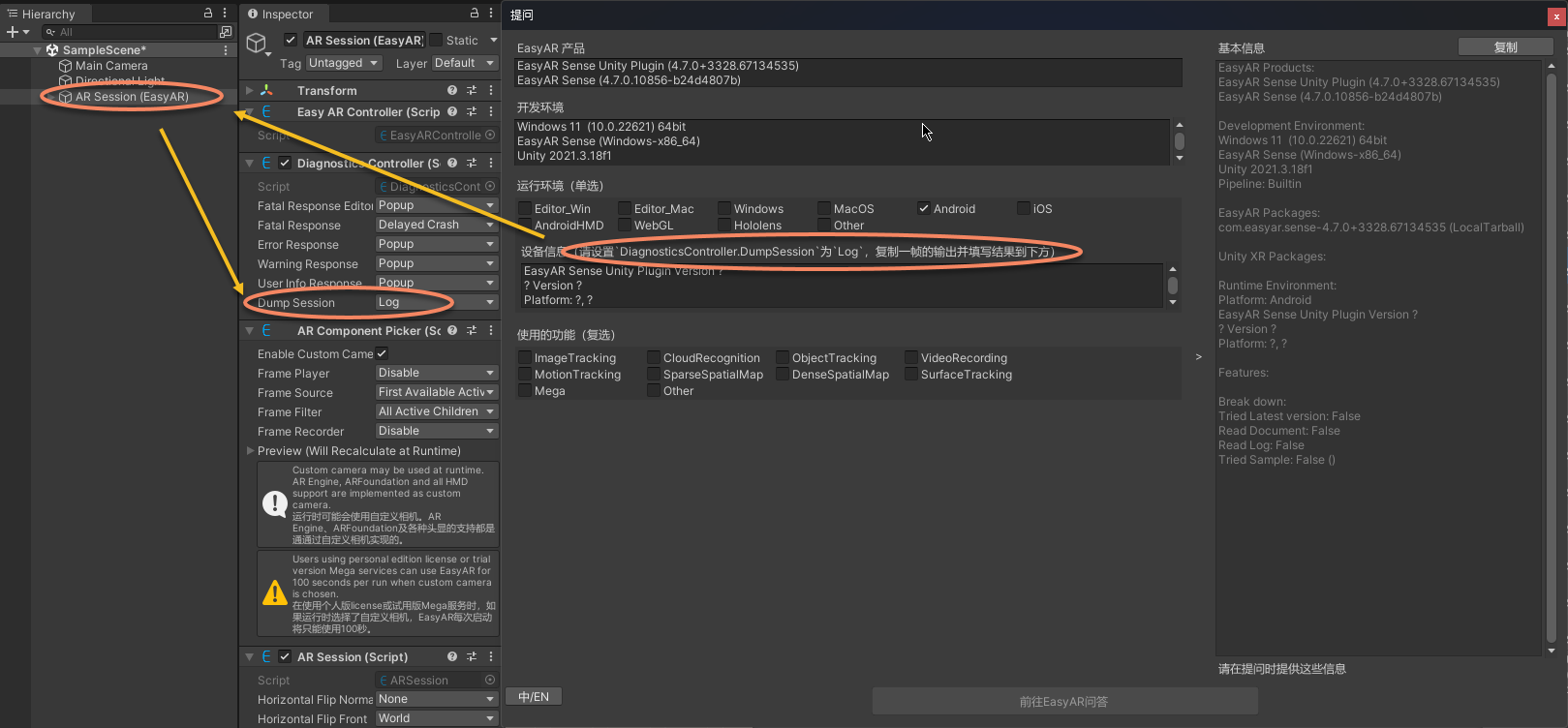
- Select all the EasyAR functions used in your application. Multiple selections are supported.
- Confirm that you have completed the four checks on the page and tick them. It is recommended to describe how to reproduce the problem in the Sample when asking a question.
- Click the copy function in the upper right corner to complete the collection of Unity development information.
Suggested Report Submission Process
- Prepare Materials: Collect EIF, logs, screenshots/screen recordings, service information, development information, etc. according to the above checklist.
- Write a Report: Clearly describe the problem and attach all the materials.
- Submit: Submit the report through the channel you selected.
- Follow Up: After receiving the report, we will contact you through business or email. Please stay tuned. Thank you for your time and support for the EasyAR Mega products! Every piece of your feedback helps us build a better future for spatial computing.