UI messages
EasyAR Sense Unity Plugin has three types of messages at runtime.
- Runtime exceptions, including Sense Error, Session Error, Error, Warning
- Session Dump
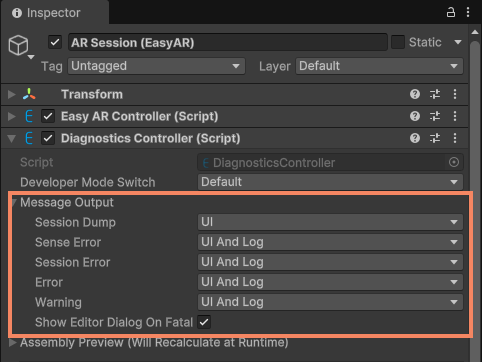
- EasyAR Mega development special exceptions You can adjust the output method of the first two types of messages as needed. Configuration can be done in the editor via the DiagnosticsController component on the session, or programmatically using the DiagnosticsController.MessageOutput interface.
Tip
In version 4000, if a scene is created with an older plugin version, DiagnosticsController is automatically added to the session when opening the scene. It might not be automatically added in some Unity versions. In those Unity versions, DiagnosticsController will be created with default values at runtime.
Runtime exceptions
During plugin runtime, issues detected by internal components appear as messages in the system. These messages can range from critical failures preventing further use, intentionally triggered alerts, to unsupported devices, etc. They are categorized by severity level from high to low as follows:
- SenseError: EasyAR Sense error, usually related to the EasyAR Sense license.
- SessionError: ARSession error, often related to unsupported device features or incorrect configuration.
- Error: Other error information.
- Warning: Warning information. Due to the nature of Unity development, we display these messages on the UI by default to assist development.
You can control how these messages are displayed in the editor or via scripts. The available output modes are:
- UIAndLog: Output to UI and log. Displayed 5 meters in front of the user in head-mounted displays.
- Log: Output to the system log.
Tip
- It is recommended to use the default configuration UIAndLog during development and testing.
- It is recommended to change the option to Log for release builds. You can keep UIAndLog, but these UI messages are generally not user-friendly for end-users.
- It is recommended to check session availability and device support before running and provide appropriate prompts for unsupported devices.
Sense error
Sense Error is a special type of error. When it occurs, EasyAR functionality cannot be used further. Common causes:
- License not configured correctly or validation failed. This error can be recovered by reinitializing with a valid license.
- Using trial products (personal license, trial XR license, or trial Mega service, etc.) on certain devices (including all devices using custom cameras like AR Foundation, AR Engine, or various head-mounted displays) beyond the fixed limited time. This error cannot be recovered.
Session error
Session Error indicates that the current ARSession cannot continue working. Modifying the configuration and restarting the ARSession might resolve these errors. These errors are generally caused by configuration errors, exceptions thrown during the startup process interrupting assembly, the device not supporting the current ARSession configuration, or loss of ARSession components during runtime.
Common situations include:
- Session assembly error: e.g., device not supported or a Frame Source supporting the device not correctly configured in the ARSession.
- Session startup error: Incorrect cloud service configuration information causing failure to create cloud service features, or missing configuration information (including Mega service, cloud recognition service, SpatialMap service).
- Session runtime error: ARSession component destroyed externally, RendererFeature not correctly configured in URP environments, etc. Generally, configuration errors and exceptions during the startup process interrupting assembly should be avoided during development. Device support issues mainly occur with features requiring motion tracking capabilities. Refer to Motion tracking and EasyAR features to understand which features require attention to device support and choose suitable devices for debugging during development.
Session dump
SessionDump messages display the runtime status of the ARSession collected by the plugin during operation, including key states of various components. This status information is very helpful for understanding EasyAR's operation and analyzing problems.
You can control how this status is displayed in the editor or via scripts. The available output modes are:
- UI: Displayed on the UI and updated every frame. In head-mounted displays, shown 5 meters in front of the user.
- Log: Output to the system log. Since it outputs every frame, it impacts runtime performance. Recommended for use during development or testing.
- None: No output.
Tip
- It is recommended to use the default configuration UI during development and testing. The information displayed is essential for communication with EasyAR staff.
- It is recommended to change to None after official release, while retaining a software switch to turn UI back on, or use other systems for data collection. When reporting issues to EasyAR, EasyAR will request this information from you or your users to determine the application's runtime status.
- In the vast majority of cases, if problems occur after the application is released, the application side still needs to perform troubleshooting and analysis first. Only after ruling out application issues and gathering sufficient information can reported problems be effectively resolved. Many third-party SDKs and platforms exist for log collection and analysis; it is recommended to use them before release. If you lack experience or resources with these platforms, retaining a switch to turn on UI (e.g., using a hidden switch) for user feedback is a simpler alternative.
EasyAR Mega development special exceptions
During Mega development, there is another type of uncontrollable warning message. These messages appear on the UI when specific configuration conditions are met, and developers cannot directly turn them off.
It is recommended to focus on the message content itself, as the text clearly states the cause and configuration method. Developers need to understand the requirements of different configurations for different usage scenarios and make appropriate choices based on development progress.
These messages are intentionally displayed because, under specific usage conditions, these features are meant to assist content workflow development but cannot yield reasonable runtime results. Be careful not to release the application with these messages visible.