Configure camera
Through the following content, you will learn how to configure the camera of an AR scene in Unity to achieve the best AR experience.
Before you begin
- Learn about the role of the camera in an AR scene through Camera, and how session controls camera properties to ensure a correct AR experience.
Camera configuration for phones and PC devices
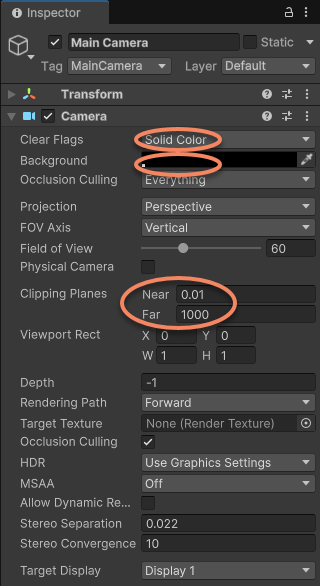
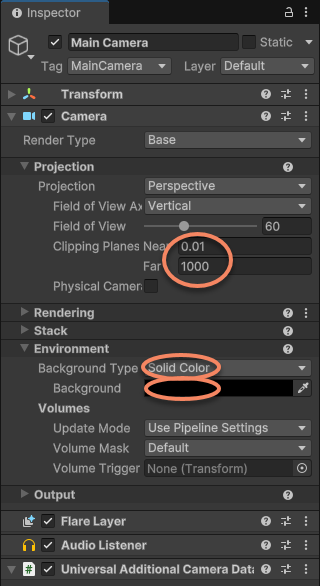
When using AR on phones and PC devices, it is recommended to configure as follows:
- Clear Flags: set to
Solid Colorto ensure that the camera image can render correctly. If the default Skybox is kept, the camera image will not be displayed. - Background: optional. Considering user experience, it is recommended to set the background color to black so that black is used as the transition before the camera device is opened and while switching.
- Clipping Planes: in addition to normal rendering and performance requirements, the physical size and distance of recognized and interactive objects or real scenes need to be considered together. For example, set
Nearto 0.1 (meters) to avoid objects not being displayed when the camera is close to them, and setFarto 1000 (meters) to avoid distant objects not being displayed.
Note
When using a camera under AR Foundation or another Unity XR Origin, Unity usually presets its clipping planes to (0.1, 20), which may cause objects more than 20 meters away from the real-world device to fail to display. Modify it according to specific requirements before use.
Camera configuration for headsets
When using a headset, the camera is usually configured and controlled by the device SDK, so it is recommended to keep the device SDK default configuration or configure it according to the device SDK requirements. In addition, Clipping Planes can be modified as needed.