Device support and session report
Due to differences in device hardware and performance, AR features often cannot run on all devices. Therefore, accurately determining the current device's support status is crucial when using AR features. This article explains how device availability is expressed in Unity and how to obtain information about device support and session availability through session reports (ARSession.Report).
Before you begin
- Understand the basic concepts, components, and workflow of sessions through ARSession introduction
Device support, session availability and assembly
Each AR feature supports different devices. For example, motion tracking requires specific hardware components and usually requires device calibration, while image tracking can run on almost any device with a functional camera. Therefore, determining whether an AR application can run on a specific device typically requires knowing which AR features are currently being used, or in other words, determining whether a session can run on the device.
In Unity, this determination process is completed during the session assembly (Assemble()) phase. The assembly process determines the final state of the session before startup based on the components it contains and the current device's support status.
If assembly succeeds, the session enters the Ready state and can proceed to start and run. If assembly fails, the session enters the Broken state, and the specific cause of failure can be queried through the session report (ARSession.Report).
Session report
The ARSession.Report property provides a runtime report of the session. A session report contains the following fields:
| Property | Description |
|---|---|
| Availability | Complete availability report |
| BrokenReason | Session broken reason, valid when session state is Broken |
| Exception | Specific exception causing session breakage, valid when session state is Broken |
In the session report, you can query the availability of each component through Availability, or check the detailed reason for breakage through BrokenReason when the session is broken.
A session report example
For example, on Windows, if a session contains ImageTrackerFrameFilter, CameraDeviceFrameSource, and several other frame source components, the assembly process checks the availability of each component and generates the following report:
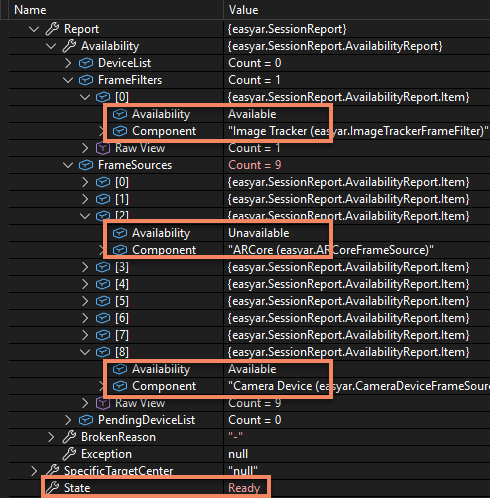
As seen in the image, although the ARCoreFrameSource component's Availability is Unavailable, since both ImageTrackerFrameFilter and CameraDeviceFrameSource have Availability as Available, the entire session assembly is successful, and the session enters the Ready state.
If we remove CameraDeviceFrameSource from the session, the assembly process generates this report:
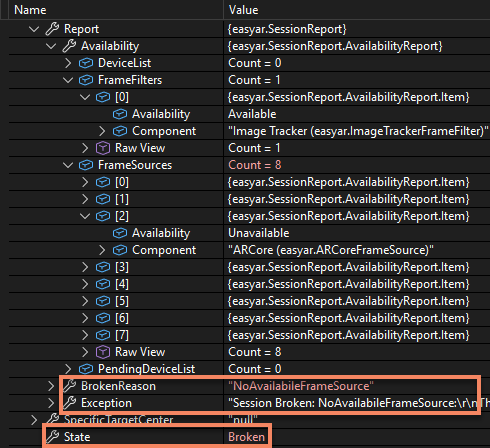
We can see the FrameSources list count decreases from 9 to 8. Although the ImageTrackerFrameFilter component's Availability remains Available, the entire session assembly fails because no frame source component is available. Consequently, the session enters the Broken state. At this point, the BrokenReason field in the report is NoAvailabileFrameSource, indicating no available frame source.
Besides the assembly process, sessions may also break during runtime, such as when a running component is unexpectedly removed. In such cases, the specific cause of breakage can also be queried through the session report.
Report updates
Session reports change at the following points:
- Completion of assembly phase one A complete session report is generated, including component availability reports. The Availability section of the session report is finalized and will not change after this. Component availability report updates can be obtained through the AssembleUpdate event. If the session starts immediately after assembly, session report updates can also be obtained through the StateChanged event. Session states to watch include: Ready and Broken.
- Completion of assembly phase two A new component availability report is generated. The session report does not update unless the session is restarted. Component availability report updates can be obtained through the AssembleUpdate event.
- When session breaks during startup or runtime The BrokenReason and Exception fields in the session report are updated. Session report updates can be obtained through the StateChanged event. The session state to watch is: Broken.
Report content: session broken reasons
BrokenReason indicates the reason for session breakage, including:
| Reason | Description |
|---|---|
| Uninitialized | Assembly process, EasyAR Sense failed to initialize |
| LicenseInvalid | Assembly process, EasyAR Sense license validation failed or is invalid for current use |
| SessionObjectIncomplete | Assembly process, session object is incomplete. E.g., RendererFeature not properly configured in URP |
| NoAvailabileFrameSource | Assembly process, no available frame source. E.g., all frame sources are unavailable or no frame source is added. Under default session configuration, this indicates the device lacks support for the currently selected AR feature |
| FrameSourceIncomplete | Assembly process, frame source is incomplete. Typically occurs when custom frame source interfaces aren't properly implemented |
| FrameFilterNotAvailabile | Assembly process, unavailable frame filter exists. Only occurs under certain assembly options |
| StartFailed | Failed to start. E.g., exception occurred during startup |
| RunningFailed | Runtime failure. E.g., running component unexpectedly removed, or RendererFeature not properly configured in URP |
Report content: availability information
Availability provides availability information for each component in the session. It contains these fields:
| Field | Description |
|---|---|
| FrameFilters | List of frame filter availability checked during assembly |
| FrameSources | List of frame source availability checked during assembly |
| PendingDeviceList | Pending device list download tasks |
| DeviceList | Device list download results |
The PendingDeviceList and DeviceList fields indicate the download status of device support lists. When assembly phase one completes, assembly proceeds to phase two if and only if PendingDeviceList is non-empty. This condition can be used to determine if AssembleUpdate will execute a second time.