Use XGRIDS devices to acquire 3D Gaussian data for Mega
This section describes how to use laser scanning devices from XGRIDS to acquire an environment, then use LCC Studio for reconstruction and export the 3D Gaussian data required by EasyAR Mega.
Overall workflow
Using XGRIDS devices for Mega usually requires the following steps:
- Acquisition route planning. Before acquisition, plan the acquisition route in advance according to the area to be acquired, especially when acquiring large-scale scenes.
- Onsite data acquisition. Use supported laser devices to acquire onsite environment data.
- Process raw data with LCC Studio. Use LCC Studio on the computer to import onsite acquisition data and reconstruct the 3D data of the scene.
- Upload data to the Mega cloud to generate a localization map. Select the files required by Mega from the LCC Studio results and upload them to the server.
- AR content placement and remote testing. View the reconstructed scene in Unity or other 3D engines, design AR content, perform remote debugging, package the application, and so on.
- Onsite testing and experience.
XGRIDS device types supported by Mega
The XGRIDS devices currently supported by Mega include:
- PortalCam P1
- Lixel series
Note
EasyAR Mega currently does not support directly uploading raw data scanned by XGRIDS devices. The data must first be processed and exported in the required format by LCC Studio. To check the devices supported by the current version of LCC Studio, refer to the corresponding user manual.
Route planning and onsite data acquisition
For how to use XGRIDS devices to acquire high-quality data, refer to the guides and tutorials provided on the XGRIDS developer website.
We recommend reading the LCC acquisition tutorial to learn high-quality scanning techniques.
- Read the official XGRIDS LCC acquisition guide to learn acquisition notes.
- PortalCam P1 acquisition guide, to learn how to operate and use PortalCam P1 for acquisition.
Process scan data with LCC Studio
For how to use LCC Studio to process onsite scan data, refer to the official LCC Studio tutorials for detailed operation guides.
Download LCC Studio, the user manual, and release notes from the official LCC Studio website.
View the LCC Studio tutorial series to learn how to generate and edit scenes.
Find the files required by Mega from LCC Studio results
After completing scene generation in LCC Studio, you can view the files required for Mega development on your computer. The method is as follows:
In LCC Studio, under
My scenes, click...in the upper-right corner of your environment.Select
Open file location. This opens the disk location of the related files. In this directory, you can find the files required by Mega.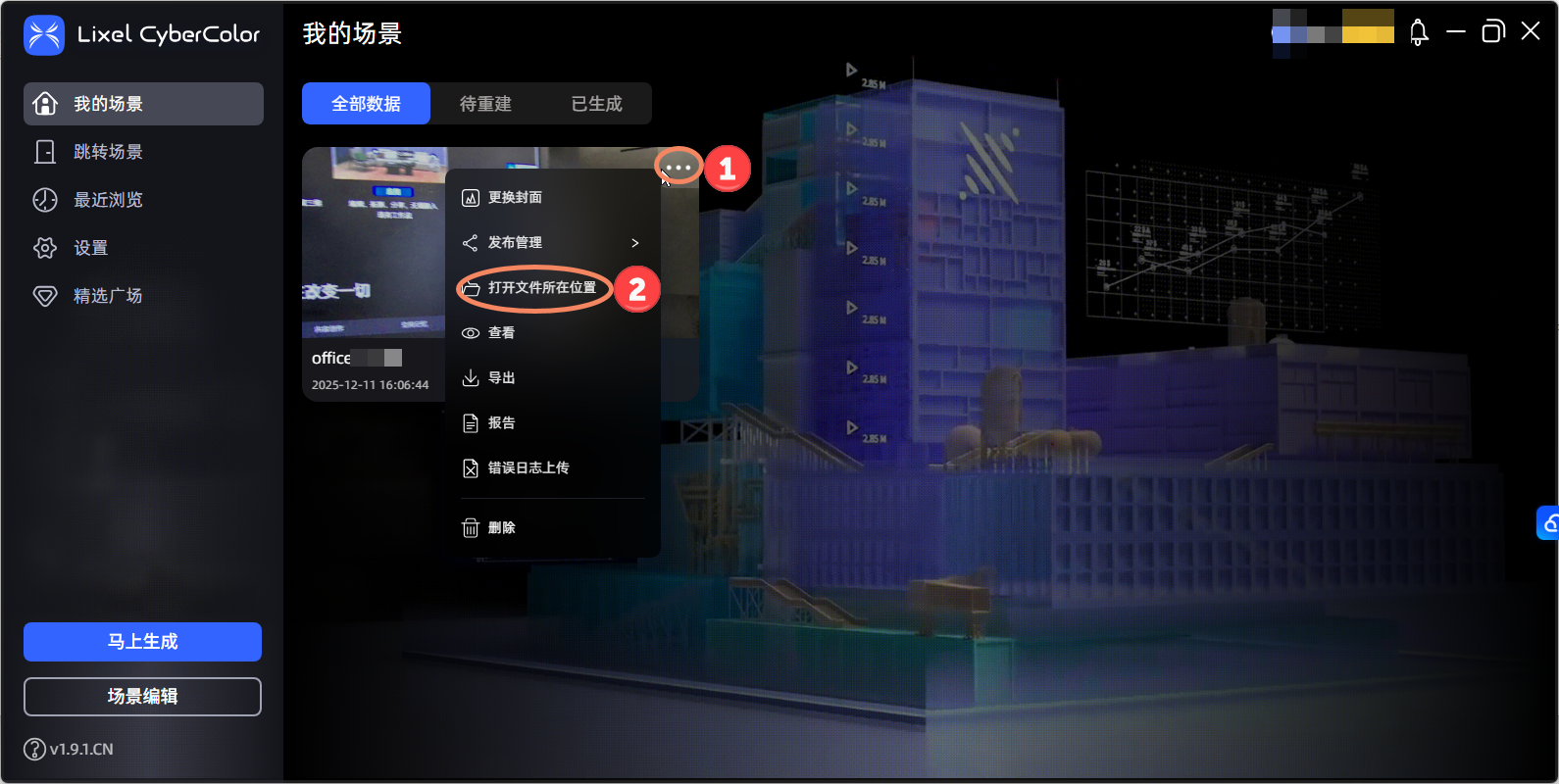
- In the
ply-result\point_cloud\iteration_100directory, a 3D-GS file inpoint_cloud.plyformat is stored.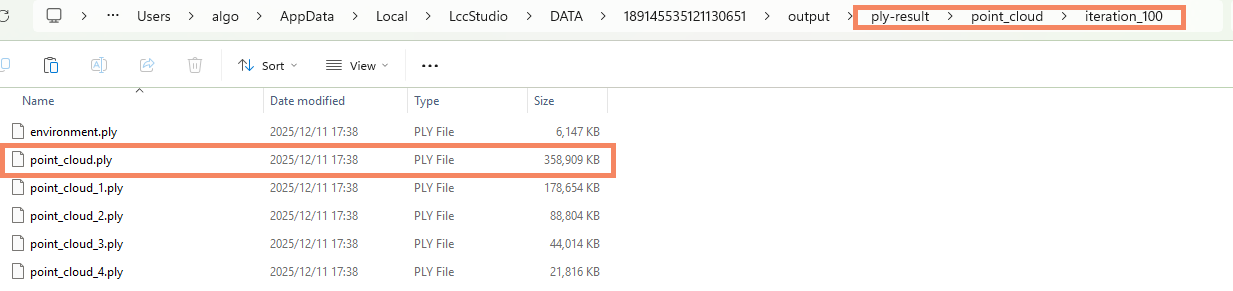
- In the
renderdirectory, a 3D-GS file inlccformat (*.lcc, ) is stored.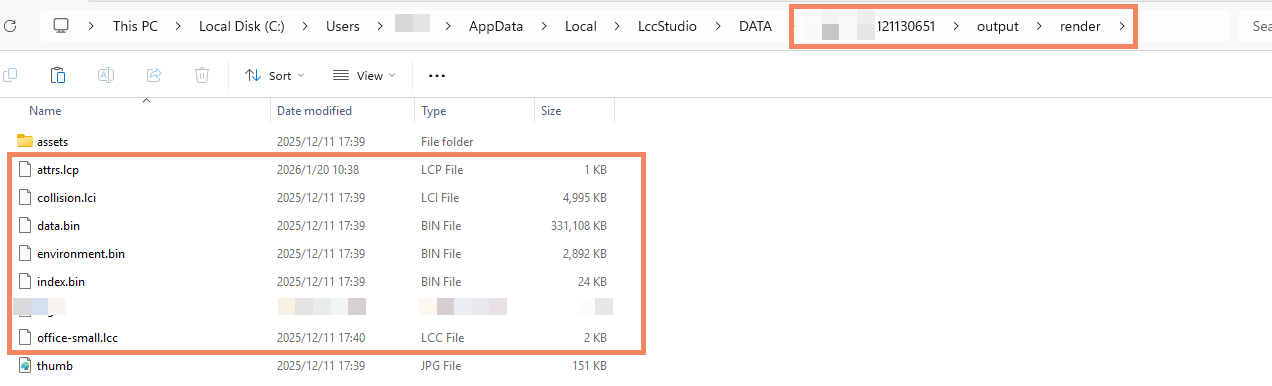
- In the
render\assetsdirectory, a poses.json file is stored, recording the acquisition trajectory.
- In the
Note
You can also use the File -> Export function in LCC Studio and select the ply format 3D-GS file to export to a custom directory for Mega.
Next steps
You need to upload the above LCC Studio reconstruction result files to the EasyAR server. For details, see Upload XGRIDS data to the Mega server.