Validation component
The validation component is used to simulate running and validate Mega effects on a PC.
Note
To develop Unity applications, use the session validation tool.
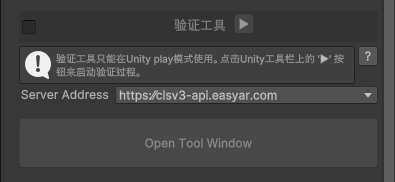
Overview of the interface when not running
When not running, the tool panel displays
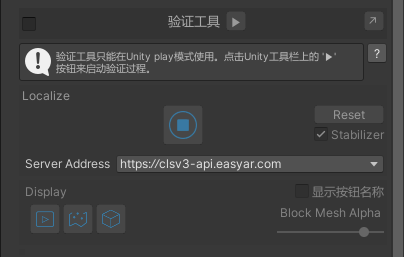
Overview of the interface while running
After running, the tool panel displays
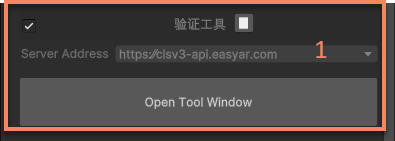
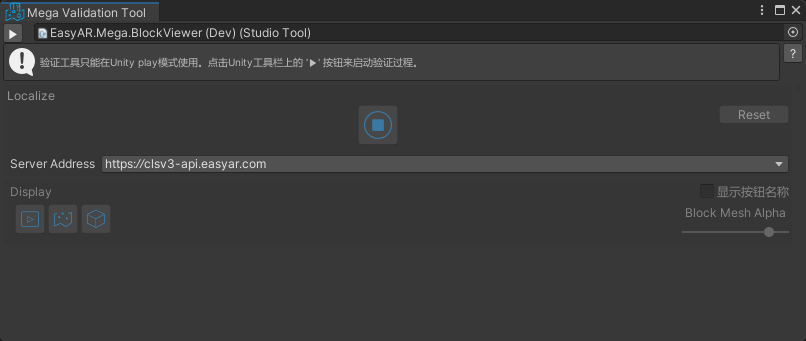
After opening the tool window, the tool window displays
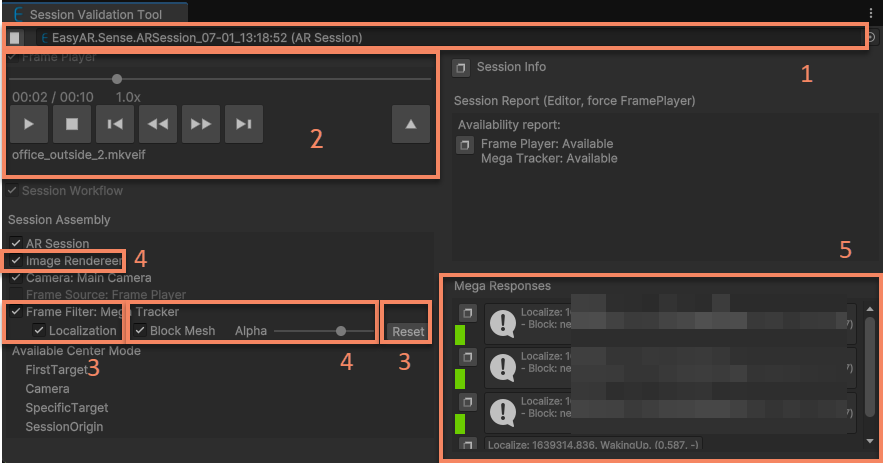
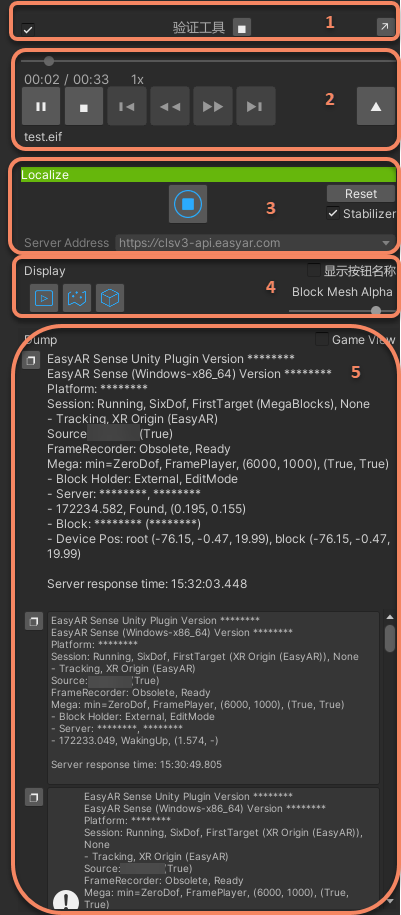
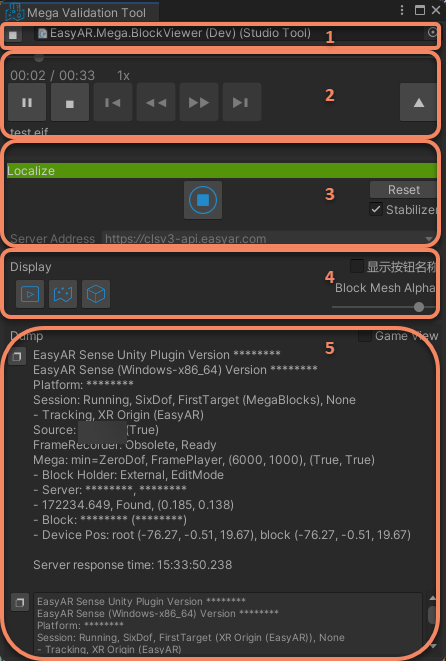
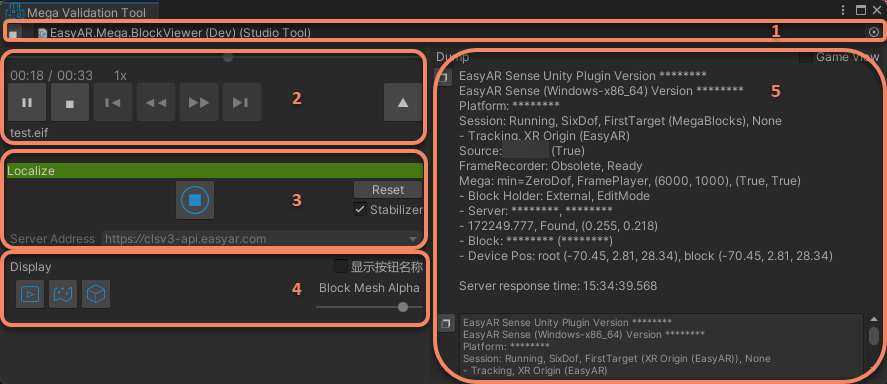
Tool area description
- Run control area
- EIF playback area
- Localization control area
- Display control area
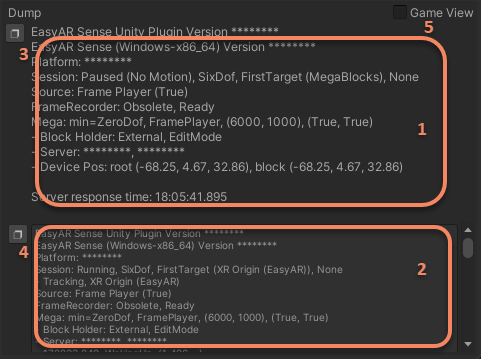
- Status information area
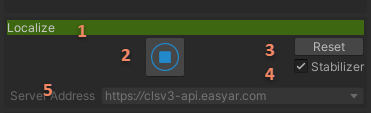
Run control area
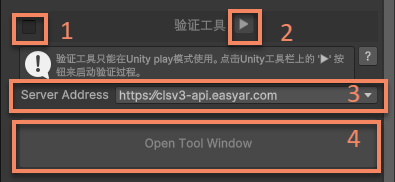
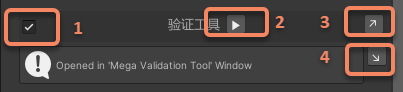
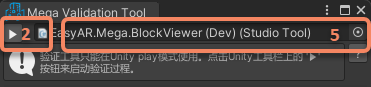
- Enable/disable the validation tool
- Start/stop the validation tool
- Localization url selection
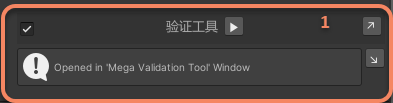
- Open the validation tool runtime control window
- Open the session tool
EIF playback area
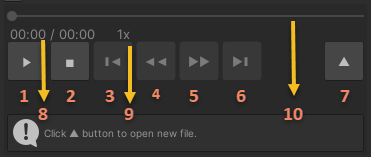
- Play/pause
- Stop
- Forward 5s (available for new-format data, except abnormal recording stop)
- Slow down playback (available for new-format data)
- Speed up playback (available for new-format data)
- Backward 5s (available for new-format data, except abnormal recording stop)
- Open EIF file
- Current time/total time
- Current speed
- Playback progress (new-format data can be dragged, except abnormal recording stop)
Localization control area
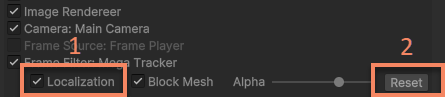
- Start/stop localization (started by default)
- Reset tracking status
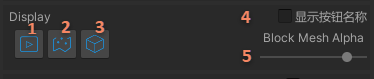
Display control area
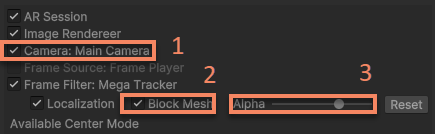
- Show/hide video background
- Show/hide Block model (under URP, the model in the Scene window is also hidden)
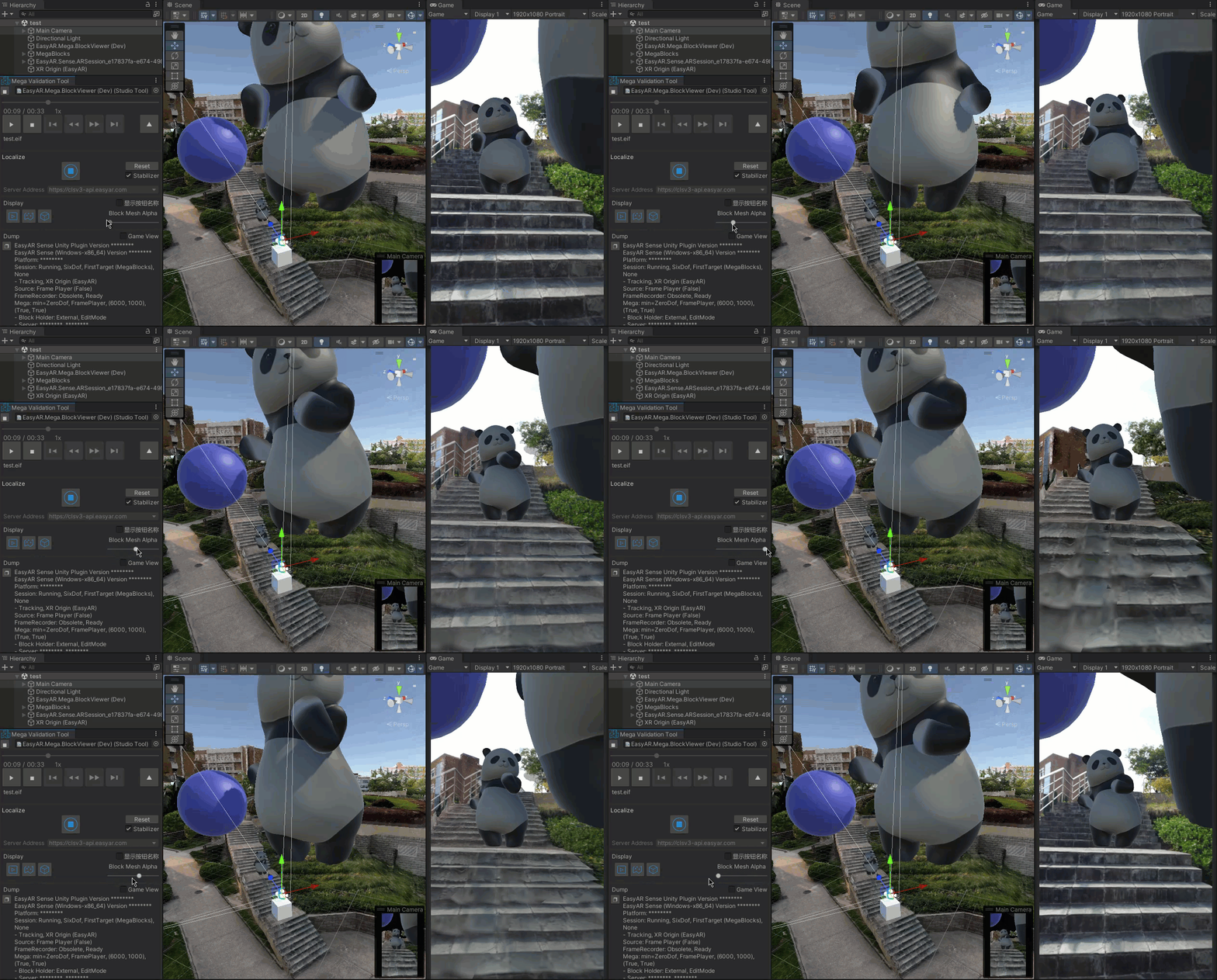
- Control Block model opacity (unavailable under URP)
The Block model opacity transition effect is as follows
Status information area
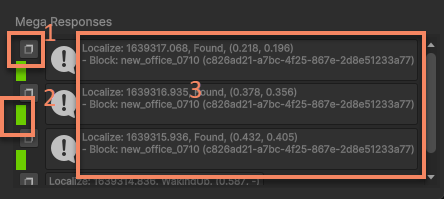
- Copy the content of the current localization response to the clipboard
- Response content indicator.
- Green: localization process is normal and localized to a block.
- White: localization process is normal and not localized to a block.
- Red: an exception occurred during localization.
- Localization response information
Workflow
Prepare EIF data
Validation requires EIF data. Use the simulation data recording tool in Mega Toolbox to record an EIF file. Depending on the selected recording format, the recording result will save an .mkveif file, or an .eif file and an .eif.json file. The latter two files are both required.
Prepare Package
Make sure com.easyar.sense has been imported. If it has not been imported, you will see the following message.
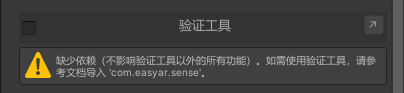
At this point, use Unity Package Manager to import the required package: com.easyar.sense-**.tgz.
Fill in the EasyAR Sense License Key
Log in to EasyAR Developer Center on the web and obtain the EasyAR Sense License Key.
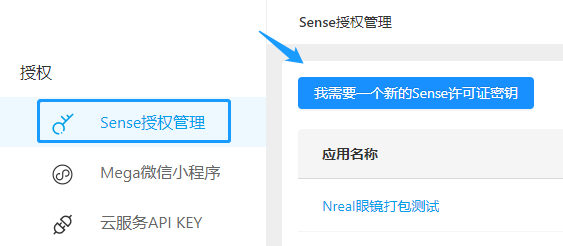
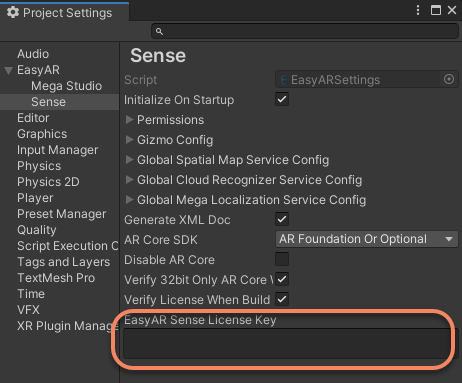
Open EasyAR > Sense > Configuration from the Unity menu.

Then fill in the license key copied from the website in the Project Settings window that opens.
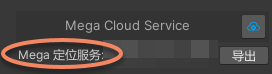
Connect to the Mega localization service. After adding the tool, select the localization service to be validated in the corresponding tool.
Prepare Block data (optional)
To view the localization result intuitively, it is generally recommended to load the Block model data for the corresponding area. Load it according to the description of the Block data component.
Prepare annotation data (optional)
If annotation data needs to be displayed during localization, you can annotate with the annotation component or import annotations through the annotation data package component.
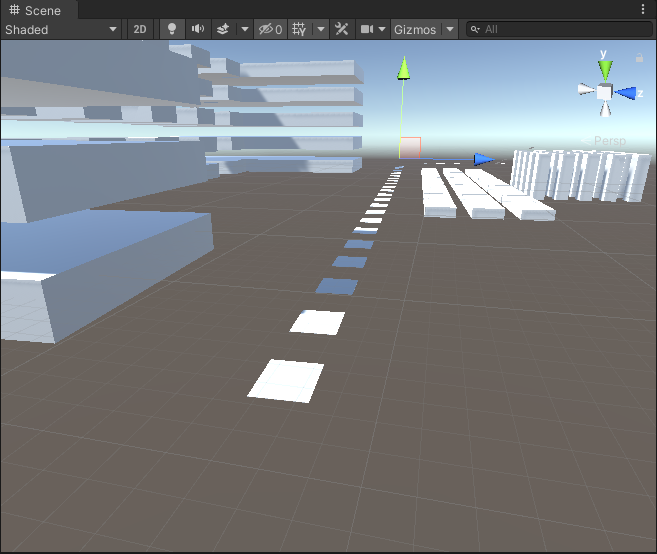
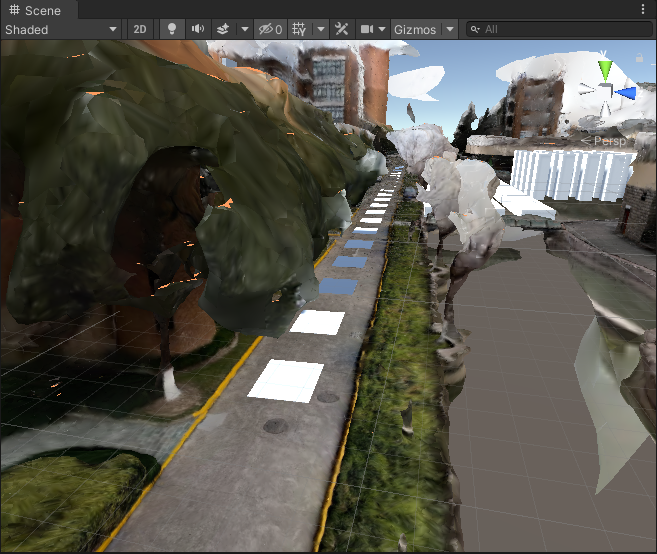
If Block and annotation data have both been imported into the scene at this point, they will be displayed in the scene.
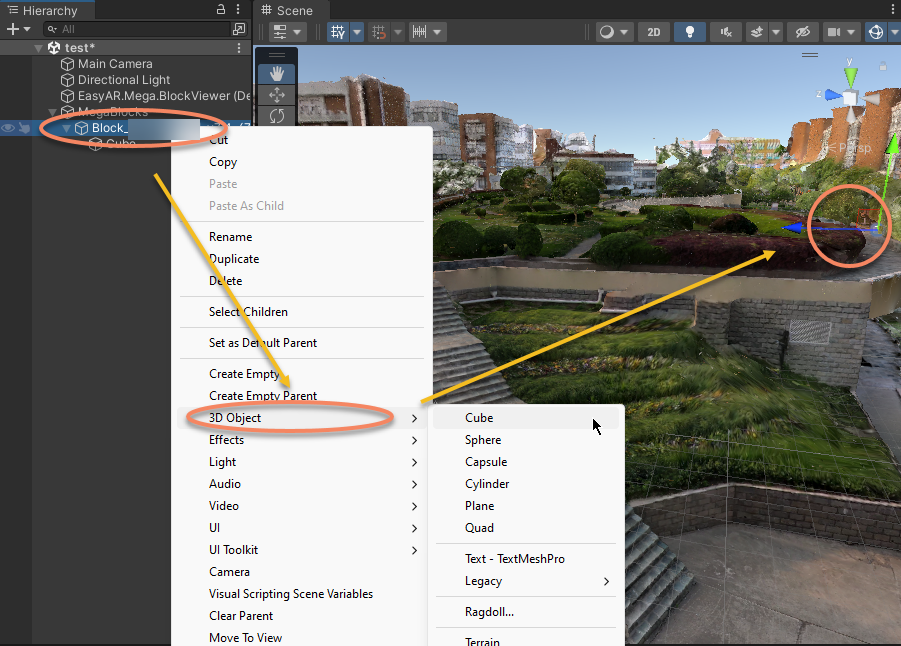
Prepare 3D content (optional)
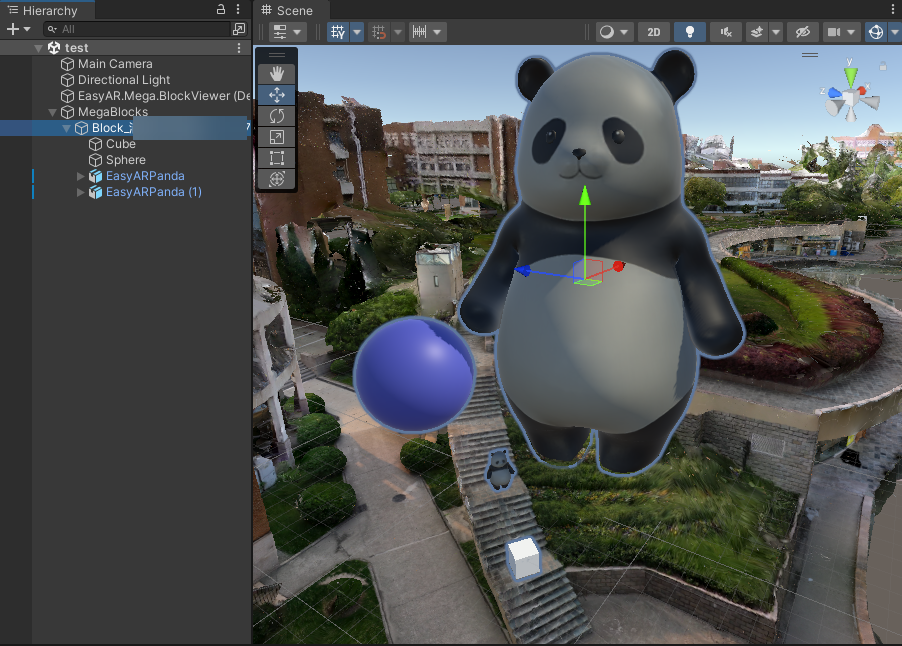
You can create 3D objects through the menu. Note that 3D objects need to be placed under the Block node.
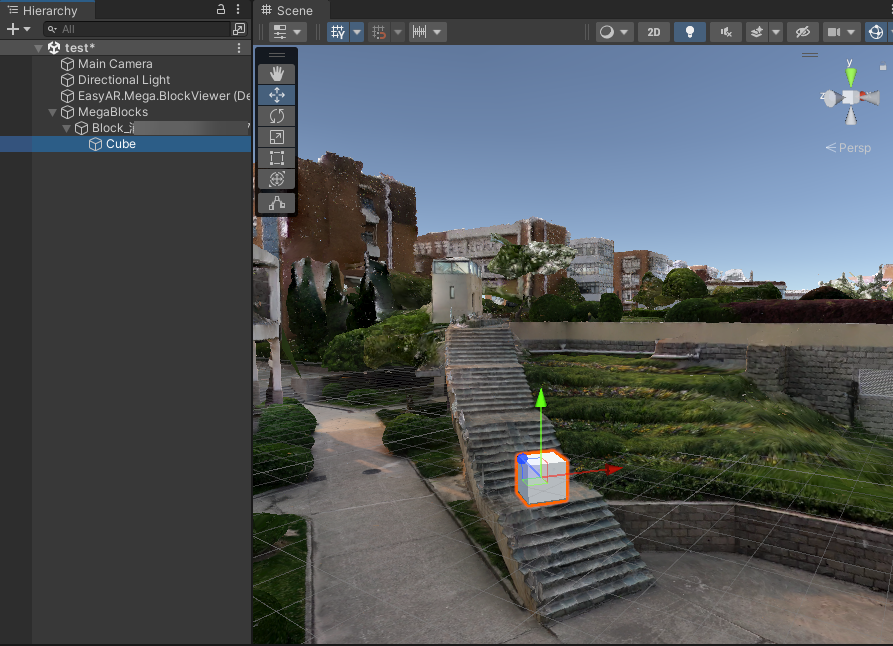
After creation, you can adjust position, size, and other properties as needed.
Of course, you can also import your own model.
Start the tool
First enable the tool, and then click the Run button to start it.
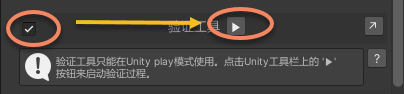
You can also start it from the button on the Unity toolbar.

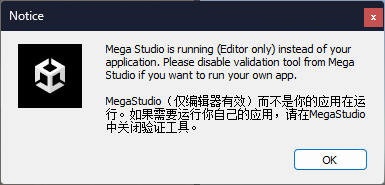
A prompt dialog appears after startup. If you are developing a Unity application, read it carefully.
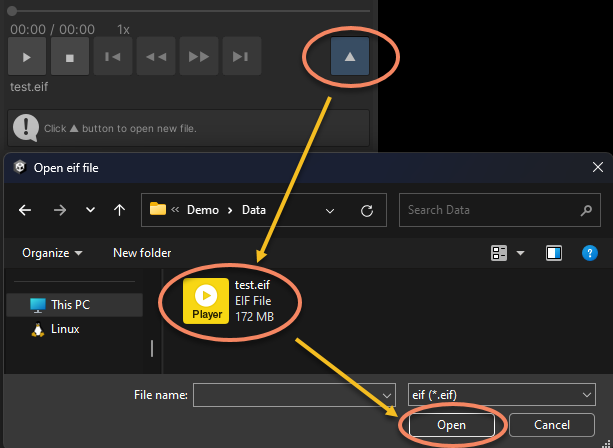
Open EIF
After EIF is opened, playback starts automatically.
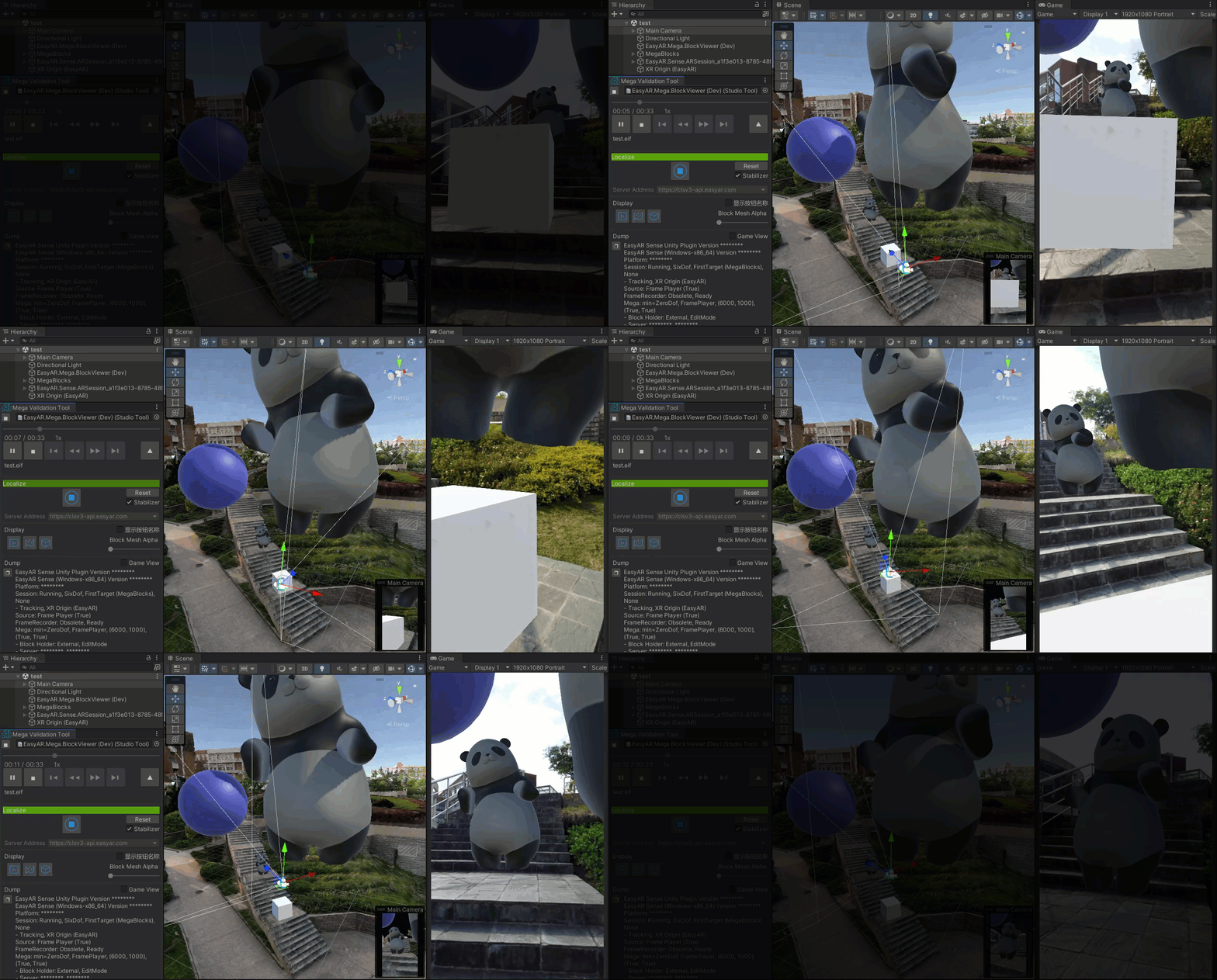
View the result
You can control playback as needed. The result usually looks like this.

You can also completely hide the Block model so that the effect is the same as what you see in the real scene.
Stop running and restore the application
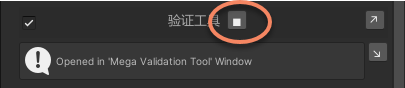
Stop running through the tool button.
Or stop it from the button on the Unity toolbar.

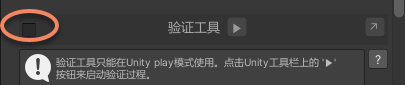
If you need to develop your own application and run your program in the editor, remember to disable the validation tool. This is effective only for the editor and does not affect the result on a phone.
Display effects and Unity usage recommendations
Adjust the Game window size
The window size is recommended to match the EIF video frame size. In general, use a fixed size roughly equivalent to 1080P, such as 1080x1920, or 1920x1080 in landscape.
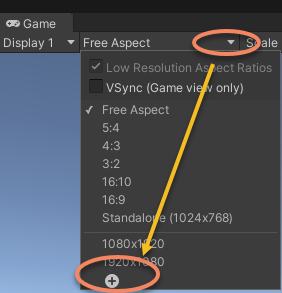
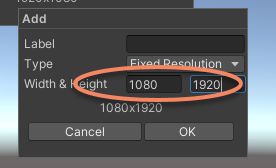
If the window size differs greatly from the EIF video frame, the complete video image cannot be viewed, and the tool will also show a warning message.
Adjust scene lighting
To better observe the rendering effect, add and adjust lighting as needed. If there are no special Unity lighting requirements, Unity can automatically generate ambient light,
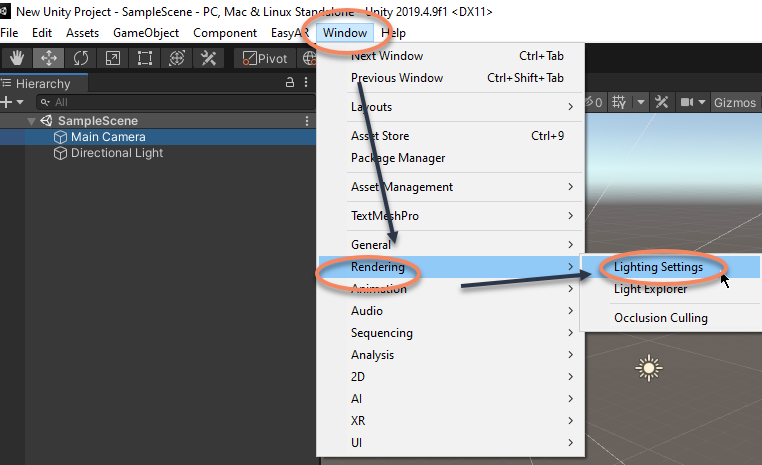
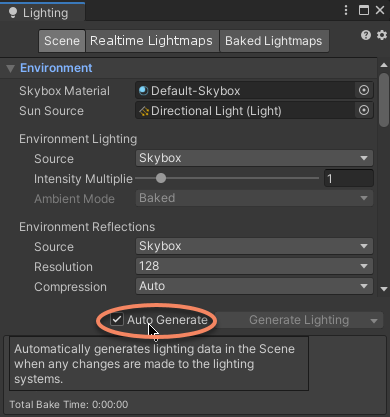
Show the Scene window and Game window at the same time
Sometimes you need to view both the Scene window and Game window content at the same time. In this case, adjust Unity's default window layout and place the Scene window and Game window as needed.
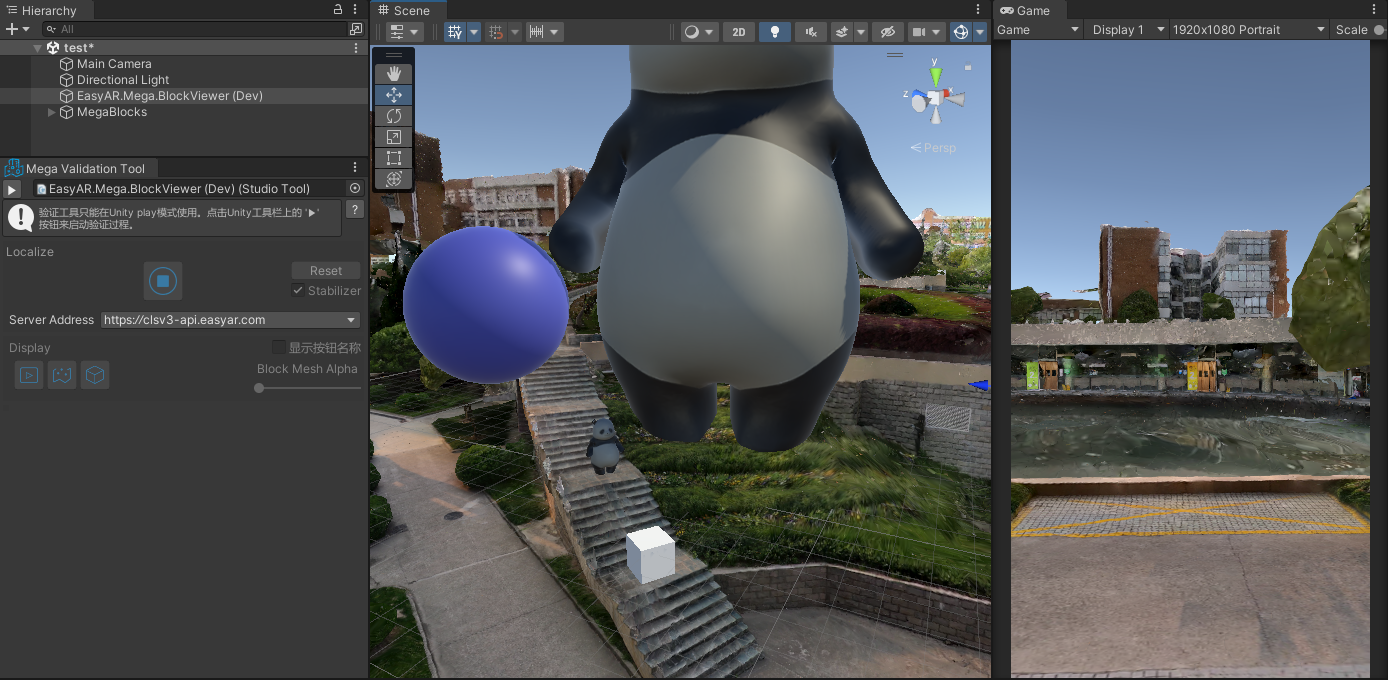
Unity development notes
ARSession
When the tool starts, it automatically creates ARSession and other necessary EasyAR components. If an ARSession already exists (active) in the scene, the tool disables the original ARSession. However, dynamically created sessions are not controlled, and an error will be reported if they run.
Main Camera
The tool modifies the Clear Flags and Background of the main camera at runtime. Clear Flags will be changed to Solid Color. Background will be changed to black. These changes will not be saved.
Center mode
When the tool runs, all supported center modes can be used. First Target center mode is usually recommended.