Using a Mobile Phone to Collect Object Data
To achieve spatial positioning of specific objects, we provide a data collection solution based on mobile phone operations. If you need to perform spatial positioning and recognition of objects, you should use this function. Before using a mobile phone to collect data, you need to carefully read the following data collection instructions.
Preparation for Collection
Before starting data collection, you need to select objects suitable for visual positioning and prepare the corresponding software and hardware environment. Making full preparations is the key to obtaining high-quality map data. Before each collection, you should make preparations according to the Collection Checklist.
Objects Suitable for Positioning
It is recommended to use objects with rich textures for positioning. The specific positioning effect may vary depending on the objects.
- Object types: Statues, cars, billboards, chairs, toy figurines, and other objects with rich textures.
- Object size: The size of the target object should be larger than 10cm x 10cm x 10cm. If the object is too small, the quality of the map and the positioning accuracy will decrease.
Selecting a Suitable Mobile Phone Model
Before starting the collection, please ensure that your device meets the following requirements:
- For iPhone users: iPhone 11 and above models.
- For Android users: Devices that support ARCore (excluding devices disabled by EasyAR). View details of supported devices.
Note
It should be noted that on ARCore-supported models, you need to install the additional "Google Play Services for AR APP" to run the ARCore function. Some models may have it pre-installed, while for others, you need to search for and install it in the app store.
Installing the Collection Tool
Download and install the data collection tool application package, Mega Toolbox:
For iPhone users: Search for Mega Toolbox in the App Store, and download and install it.
For Android users: Find the "Development Tools" section on the EasyAR Download Page, and download the Mega Toolbox Android installation package. After the download is complete, copy the installation package to your phone and install it directly, or use
adb install EasyARMegaToolbox_***.apkon your computer.
Collection Process
The collection process is divided into three stages: starting Mega Toolbox, on-site multi-angle scanning and collection, and data saving.
Starting Mega Toolbox
Open the installed
Mega Toolboxon your phone, and click theMapping Data Collection Toolbutton to enter the data collection mode.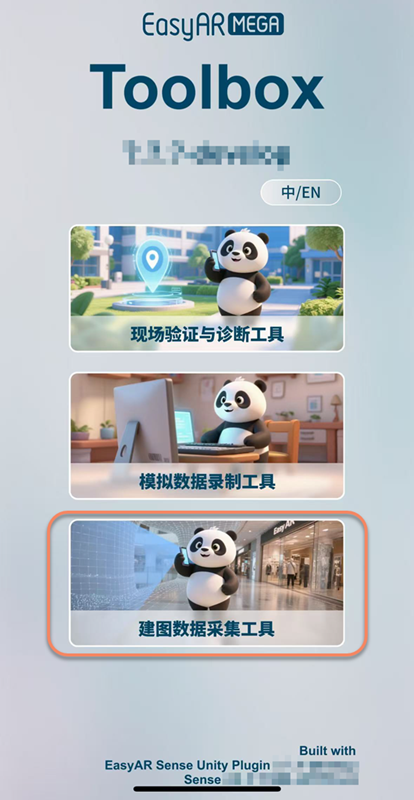
Click the blue
+at the bottom to enter the collection page.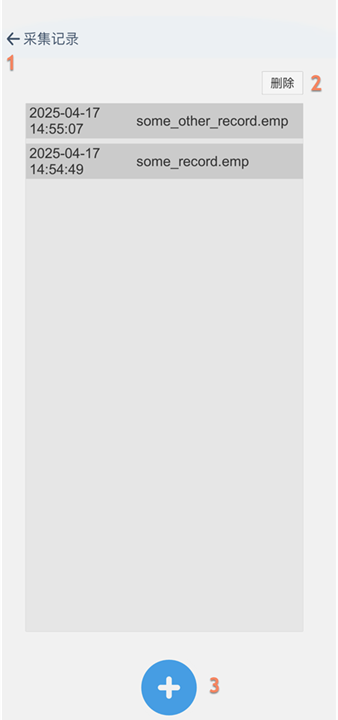
Function description
- Return to the main interface.
- Delete records.
- Enter the collection page.
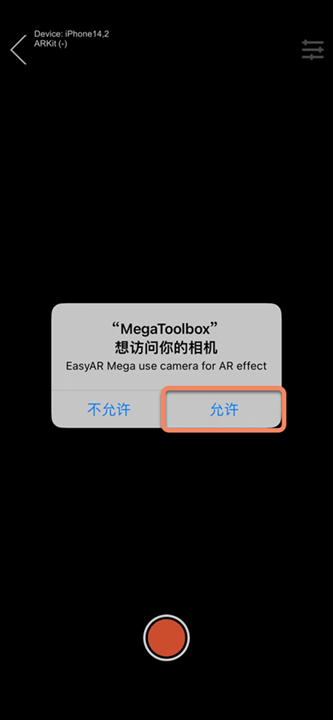
The first time you collect data, you need to allow MegaToolbox to access your camera.
Performing the Collection
After entering the shooting interface, you need to follow a specific motion trajectory to scan the object from all angles to help build a complete visual map.
Environment and initialization:
For movable objects, it is recommended to place the object in a flat, open area with uniform lighting (such as a table). For immovable objects, you should clear the temporary杂物 around the target object.
Enter the collection interface. First, point the camera at a nearby area with rich textures and slowly pan to initialize. After observing that the status in the upper left corner of the panel changes to
Tracking, lift the phone and point it at the position to be collected, and click the start collection button.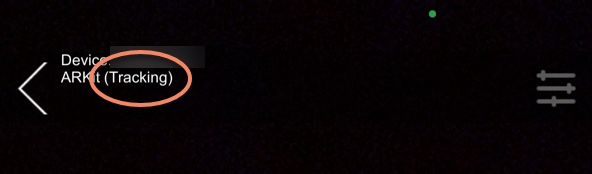
Multi-angle circular scanning:
With the object as the center, keep the phone camera pointed at the target object at all times, and perform
continuous circularcollection of the target object three to four times. Specifically:- Horizontal collection in a circle: Keep the camera at the middle height of the object and perform a horizontal circular collection.
- Top-down collection in a circle: Raise the phone and tilt the camera downward by 10 to 45 degrees, and perform a top-down circular collection.
- Bottom-up collection in a circle: Lower the phone and tilt the camera upward by 10 to 45 degrees, and perform a bottom-up circular collection. If the object is small, you can skip this step.
- Supplementary collection at the top: If the object is small, you can perform one more collection at the top of the object.
Supplementary collection from a distance and for details:
- For relatively large objects, you should also perform a collection in a circle at a slightly farther distance from the object. When collecting, try to make the object fill the entire camera frame.
- If the object has many details, or you need to focus on positioning in a certain area, you need to collect more local perspectives of that part.
Tip
- The collection should be a single continuous collection. Do not interrupt the collection process.
- During the collection process, the distance between the phone and the object should be more than 0.5 meters. The collection distance depends on the size of the object, but it should ensure that the collected data can cover the entire object.
- The trajectory line displayed in real-time during the collection can help you determine whether the collection is compliant.
Ending and Saving
After completing the collection from all perspectives, you need to stop recording and persistently save the data to the device.
After the collection is completed, click the red button in the middle at the bottom to stop the collection and enter the save page.

Enter the name of the collected data on the save page (only English and numbers are supported), and click the
Savebutton. The collected data will be saved to your phone.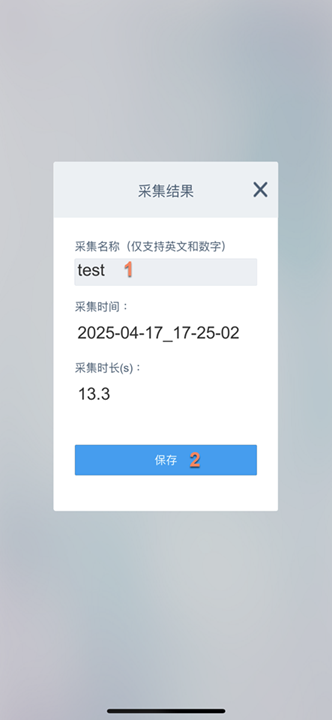
Notes
- The
Trackingstate must be maintained throughout the entire collection process. Please keep a stable collection throughout and avoid quick turns or sudden stops. - The collection duration cannot exceed
15 minutes. If it exceeds15 minutes, the collection will be forcibly ended, and you will enter the save page. - Do not switch to the background during the collection process. Switching to the background will cause the collection to fail.
- You should ensure that the environmental light is sufficient, uniform, and stable, and avoid areas with too dark or overexposed environments.
- Do not point at pure-color surfaces such as white walls and metals, as well as glass areas that are reflective or transparent for a long time.
- If the collection fails, you should start the collection again.
Next Steps
After the collection is completed, refer to the Exporting Data document to export the data, and Create a Mobile Object Collection Task in the Mega Development Center for mapping.