Recording EIF Data for Simulation Run Verification
The core of the simulation run is to record a high - quality EIF data. It is recommended that you follow the steps below for data collection.
How to Collect
Download and install the latest version of Mega Toolbox. Try to use an iPhone or an Android phone that supports ARCore to collect data in the target area.
Download Toolbox
Download and install the data collection tool application package, Mega ToolBox.
For iPhone users, search for Mega Toolbox in the App Store on your phone, and download and install the data collection tool.
For Android phones, download the Android Mega Toolbox installation package from the workflow tools on the EasyAR download page. After the download is complete, you can use
adb install EasyARMegaToolbox_***.apkon your computer, or directly install the downloaded APK installation package on your phone.
Collection Process
Open Toolbox and select the
Simulation Data Recording Tool.
After entering the EIF recording tool, fill in the file name (the file name only supports English letters and numbers), and then click the
Enterbutton.Before entering the EIF recording mode, point the camera at an area with rich textures for initialization. After observing that the tracking status in the upper - left corner of the panel changes to
Tracking, point the camera at the place where you need to record the test data.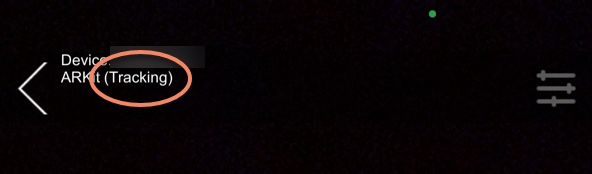
After the collection is completed, click the stop recording button to end the recording.
Collection Precautions
- Collect data within the image - capturing area.
- Record test data from the perspective of tourists.
- Avoid sudden and large - scale turns or long - time pointing at areas without textures, such as white walls or the ground.
- It is recommended that the duration of each recording does not exceed 10 minutes.
- On some phones using AR Engine, the tracking status may take 10 - 30 seconds to change to the
Trackingstate.
Data Export
After you have completed the simulation data collection on your phone, you need to export the collected EIF data.
Export Android Data
Connect your phone to your computer, and turn on the File Management mode on your phone. Enter the local file path Android/data/com.easyar.mega.toolbox/files/MegaStudio/FrameStream, and then select the data file with the corresponding name to export.
Export iOS Data
Export using a Mac computer
Connect your iPhone to your Mac computer.
Open the Finder application, click the phone icon, click Trust, and then click Trust on your phone as well.

After authorization, click the Files menu, find the
MegaStudiofolder under theMegaToolboxApp, and dragMegaStudioto your computer desktop. (When the file is large, wait patiently to ensure that the file is fully exported.)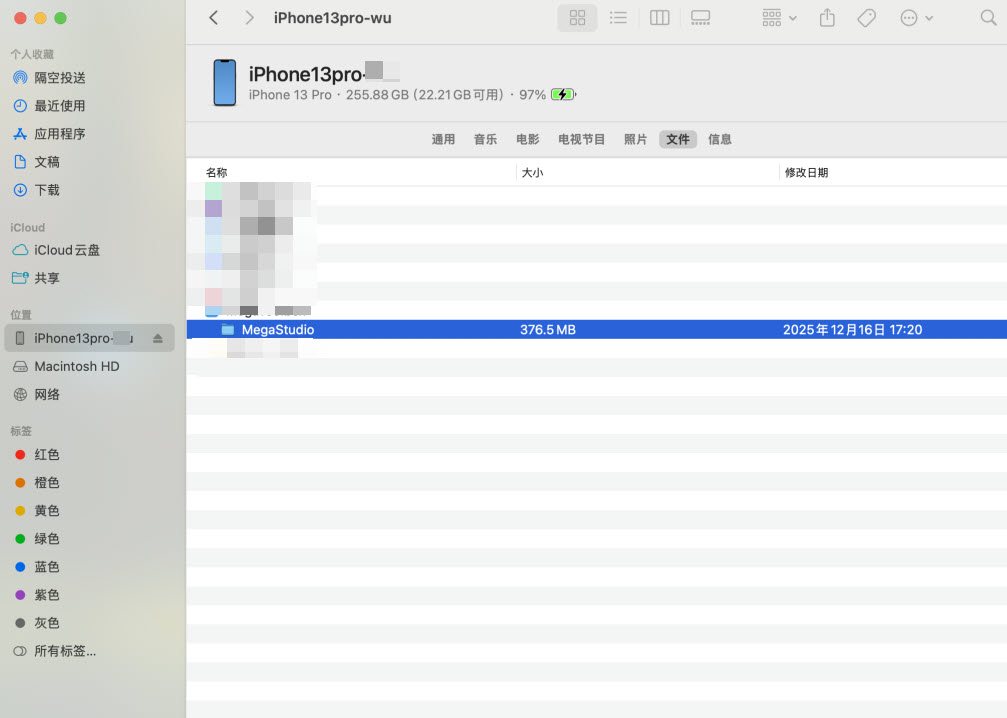
Export using a Windows computer
Download iTunes on your Windows computer and install it.
Connect your iPhone to your Windows computer and perform authorization.
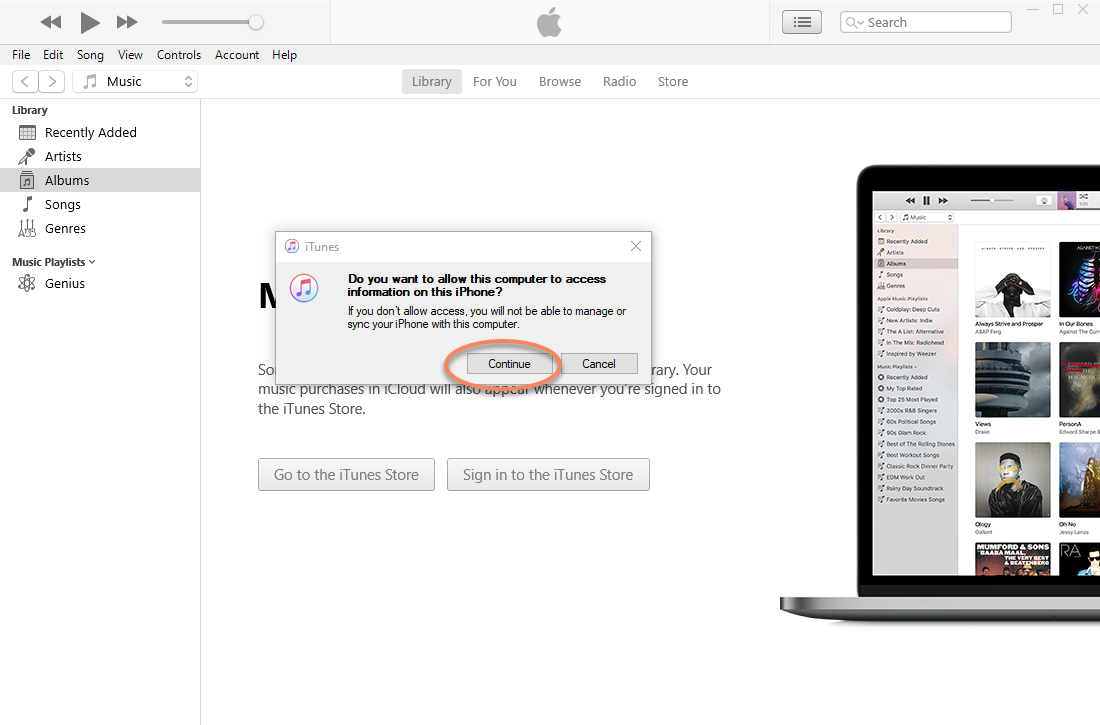
Click the phone button
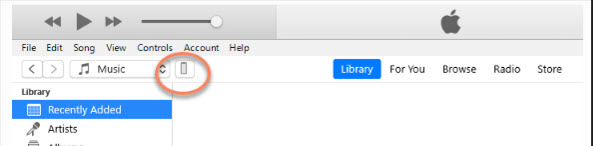
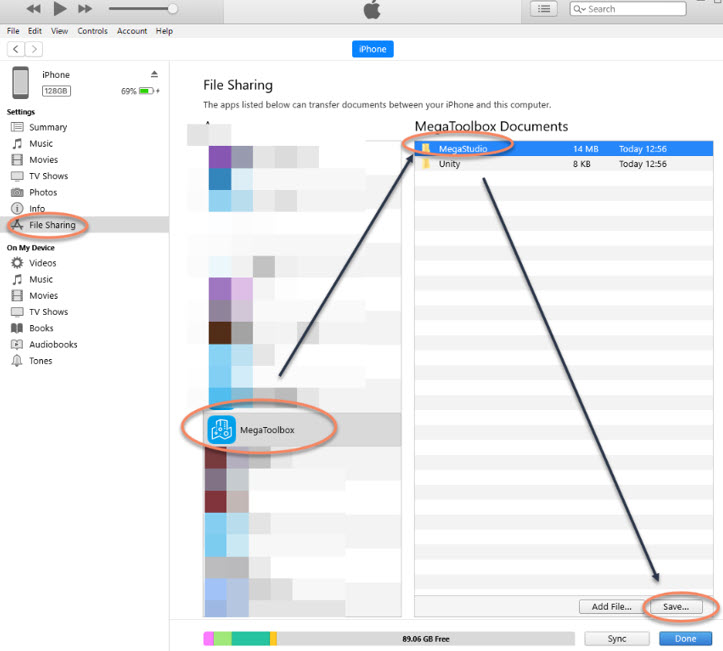
Click File Sharing, find the
MegaStudiofolder under theMegaToolboxApp, and click Save.