Choose the appropriate center mode
Choosing the appropriate center mode is crucial for content creation. Through the following content, you will learn how to obtain and modify center modes, as well as recommendations for selecting the right center mode.
Before you begin
- Understand the basic concepts, components, and workflow of a session through AR session introduction.
- Learn the basic concepts of center modes in AR sessions and their impact on object motion behavior in scenes through Center modes in AR session.
Get available center modes
During session runtime, only the center modes available for the current session are displayed in the Center dropdown menu of the Inspector panel. If the session is not started, all center modes will be displayed.
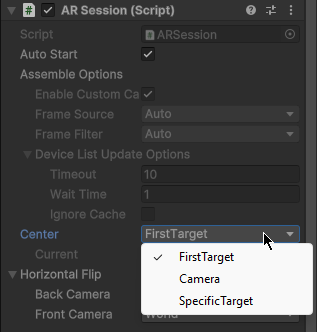
This image shows the center modes available in the session when using CameraDeviceFrameSource in the editor.
In scripts, you can obtain the list of center modes available in the current session after the session is successfully assembled through the ARSession.AvailableCenterMode property.
For example, the following code demonstrates how to check if a center mode is available in the current session:
if (Session.AvailableCenterMode.Contains(mode))
{
    // mode is available in the current session
}
Modify center mode
Open the Inspector panel and select the desired center mode from the Center dropdown menu.
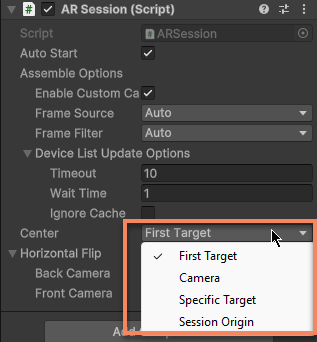
In scripts, you can modify the center mode through the ARSession.CenterMode property.
For example, the following code demonstrates how to cycle through available center modes:
while (true)
{
    Session.CenterMode = (ARSession.ARCenterMode)(((int)Session.CenterMode + 1) % Enum.GetValues(typeof(ARSession.ARCenterMode)).Length);
    if (Session.AvailableCenterMode.Contains(Session.CenterMode)) { break; }
}
During each frame update, the session checks if the current center mode is valid. If valid, the session immediately attempts to use the new center mode.
In the video above, the session initially uses FirstTarget mode, with the Christmas tree (light-blue point cloud) as the center object. We then manually change the center mode to Camera mode, making the camera (blue cone) the center object. For a detailed description of the video content, refer to Center modes in AR session.
During session updates, if the modified center mode is invalid in the current session, the CenterMode property is automatically reset to the first available center mode (usually FirstTarget or SessionOrigin), and a warning message is logged:
Center mode {Value} is unavailable in this session, reset to {NewValue}.
How to choose a center mode
Aligning with real-world objects is a core requirement of AR content creation, and the center mode determines which object the session uses as a reference point to calculate the position and orientation of other objects in the scene. Therefore, choosing the appropriate center mode is crucial for content creation.
General recommendations
Often, using FirstTarget or SpecificTarget mode with target as the center is more user-friendly for content creation. This ensures that content reference points placed under target remain stationary and are not unnecessarily affected by movements of XR Origin or camera (e.g., affecting physics system calculations). However, this is not absolute:
- When unsure, use the default value, i.e., FirstTarget center Since most AR functions have inherent errors that are continuously corrected during runtime, objects that appear stationary in the real world (e.g.,
targetin sparse spatial maps andXR Originin motion tracking) may actually exhibit relative movement in virtual space. In such cases, usingtargetas the center better meets content creation needs than usingXR Origin. - Multiple
targetsbeing tracked simultaneously For scenarios where multipletargetsare tracked simultaneously, even if the real-world objects are relatively stationary, relative movement may still occur between thesetargetsdue to computational errors. Choosing the center object should be based on actual needs, and typically FirstTarget mode is a more suitable choice. - When to use SessionOrigin mode SessionOrigin is suitable for scenarios where only motion tracking is running, as
XR Originis the only reference point. It also applies to special cases, such as when headset manufacturers fail to correctly implement the motion tracking reference point, necessitating the use of Unity's world center and thus forcing SessionOrigin mode. - Usage scenarios for Camera mode Camera mode is more suitable for scenarios where the physical camera is stationary (e.g., AR card battle games using fixed cameras), as it facilitates content creation.
Common center modes for different AR features
When using certain AR features individually, specific center modes are more commonly used. The table below lists the common center modes for these AR features:
| Feature | Common center mode |
|---|---|
| Mega | FirstTarget or SpecificTarget |
| Motion tracking | SessionOrigin |
| Plane detection | SessionOrigin |
| Sparse spatial map | FirstTarget or SpecificTarget |
| Dense spatial map | SessionOrigin |
| Surface tracking | FirstTarget or SpecificTarget |
| Image tracking | FirstTarget, SpecificTarget, or Camera |
| Image cloud recognition | FirstTarget, SpecificTarget, or Camera |
| Object tracking | FirstTarget, SpecificTarget, or Camera |
Considerations for cross-device development
When developing cross-device AR applications, it's essential to consider the support for different center modes across devices.
- For mobile phones and tablets only, there are usually no significant issues. If SessionOrigin is needed, ensure motion tracking can run.
- For headset usage, extra caution is required:
- Refer to Available center modes to determine which center modes are supported on the target devices. If using third-party extensions, check the OriginType they use.
- When using Rokid devices, avoid UXR if possible. Using XRI ensures most center modes are available.
- On headsets that do not support FirstTarget and SpecificTarget modes, note that content for features like Mega or image tracking may not remain stationary relative to Unity's world coordinate system.
Content that displays correctly in every center mode
Warning
In Unity AR, any object placed in Unity's world coordinate system without adjusting its transform based on session components may not display correctly.
If models are placed in the world coordinate system, their positions and orientations may not correspond to any real-world objects. The actual runtime effect might coincidentally appear correct, or it might seem to float in the air or move erratically.
To ensure content displays correctly in any center mode, the correct approach is:
- Always place the content to be displayed under the corresponding
targetnode, or under theXR Originnode (if the content needs to follow XR Origin movements). - Alternatively, manually align the content's position and orientation with
targetorXR Origin, but this must be done after the ARSession.PostSessionUpdate event.
Note
This does not guarantee all content elements will function correctly, as some Unity features (like the physics system) only work in the world coordinate system. Choosing an appropriate center mode remains important.