Center mode of AR Session
Center mode is a core concept of Unity AR. It determines which object the session selects as the reference point, or center object, for all AR tracking during runtime, and which objects in the session can move freely. Through the following content, you will learn the basic concepts of center mode and its impact on the movement behavior of objects in the scene.
Before you begin
- Learn the basic concepts, composition, and workflow of session through AR Session introduction.
- Learn the role of the camera in AR scenes through Camera, and how session controls camera properties to ensure the correct AR experience.
- Learn the basic concepts, composition, and lifecycle of XR Origin through XR Origin.
- Learn the basic concepts, states, and lifecycle of target through Target.
Center object and center mode
In one session, one or more different AR features may run at the same time. These AR features may track different objects, and may also use motion tracking at the same time to track the position and orientation of the device itself.
To ensure that the movement behavior of objects in the scene meets expectations, session needs to select a reference point as the center of all AR tracking. The representation of this reference point in the Unity scene is the center object (CenterObject). Center mode (CenterMode) is the rule that determines which object this center object is during session runtime.
The center of a session can be one of the following objects:
- A tracked target
- XR Origin
- Camera
Center mode determines which object session selects as the center object, and whether this object can move freely. Objects other than this object, including non-center camera, XR Origin, and target, are controlled by session and move with the center object as the reference point.
In Unity, a session supports the following four center modes:
| Name | Illustration | Description |
|---|---|---|
| FirstTarget SpecificTarget |
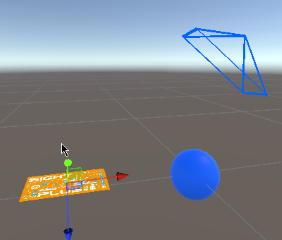 |
Uses a target as the center, and that target can move freely. Specifically,
|
| SessionOrigin | 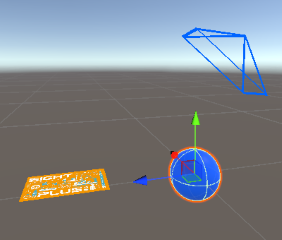 |
Uses XR Origin as the center, and XR Origin can move freely. The camera and targets in the session are controlled by the session and move with the center XR Origin as the reference point. |
| Camera | 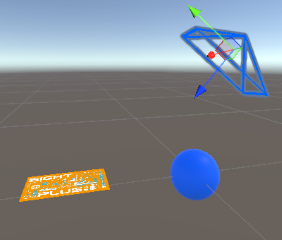 |
Uses the camera as the center, and the camera can move freely. The XR Origin and targets in the session are controlled by the session and move with the center camera as the reference point. |
There are three objects in the illustrations: the blue sphere represents XR Origin, the blue cone represents the camera, and the yellow image represents the target. In different center modes, the session chooses different objects as the center object. The figures show the local coordinate system of the corresponding object.
Tip
If you have experience using AR Foundation, you may notice that AR Foundation does not have a similar concept. In fact, the behavior of AR Foundation is consistent with the SessionOrigin center mode.
In a session, the relative motion between target and camera is controlled by the current session. The relative motion between XR Origin and camera is controlled by the current session or by a third-party framework, such as AR Foundation. Center modes ensure that the session can correctly control the motion behavior of objects in the scene under different runtime environments.
For example, if AR Foundation or a Unity XR-based headset SDK controls the relative motion between XR Origin and camera, XR Origin, by design of the Unity XR framework, can be moved by the session, but camera cannot. In this case, the session restricts the center mode to FirstTarget, SpecificTarget, or SessionOrigin. For the session, the center is XR Origin or a certain target, while for the Unity XR framework the center is still XR Origin, so the whole system can work perfectly.
Warning
In Unity AR, any object that exists in the Unity world coordinate system and whose transform is not adjusted according to the session component may fail to display correctly. Because the session adjusts the position and orientation of other objects in the scene according to the position and orientation of the center object, if some objects are not controlled by the session, their position and orientation may be inconsistent with the values calculated by the session, causing unexpected behavior.
For example, if a panda model is placed in the world coordinate system, the position and orientation of that panda model may not correspond to any object in the real world, and it may appear to float in the air or move around.
The correct practice is always to place the content to be displayed under a certain target node, or under the XR Origin node if the content needs to move with XR Origin. In this way, the position and orientation of the content are adjusted according to the session calculation result, ensuring that the content can be correctly overlaid in the real world.
It is possible to manually align the content with the position and orientation of a target or XR Origin, but it must be done at the correct time. See choose an appropriate center mode.
Available center modes
Not all center modes are valid in all situations. The session decides which center modes are valid according to the current runtime environment and the selected frame source, so that it can correctly control the motion behavior of objects in the scene. The ARSession.AvailableCenterMode property can be used to get the list of valid center modes for the current session.
Depending on the final selected frame source, the valid center modes of a session fall into the following different cases:
| frame source | camera controlled | has motion data | has origin design | valid center modes |
|---|---|---|---|---|
|
Yes | No | - |
|
|
Yes | Yes | Yes |
camera is not achild node of XR Origin |
|
No | Yes | Yes |
|
|
No | Yes | Yes |
|
|
No | Yes | No |
|
Except when using FramePlayer, valid center modes are determined when the session is assembled. When using FramePlayer, valid center modes are dynamically determined according to whether each frame of data output during session runtime contains motion information.
Characteristics of different center modes
Next, we will use a series of sample videos to show the movement behavior of objects under different center modes.
The video content is as follows:
In the real world, there are two different types of trackable objects:
- One is a Christmas tree, which is stationary. It is tracked through the sparse spatial map feature.
- The other is a sheet of A4 paper, on which an image has been printed in advance. It can move. It is tracked through the image tracking feature.
When recording the video, the observer, the phone, starts from the back-right side of the Christmas tree and moves around it. The A4 paper swings left and right in front of the observer.
To make observation easier, we added some markers to different objects in the scene.
- Christmas tree: when it is being tracked, a bright blue point cloud is overlaid in the space it occupies. These markers disappear when tracking is lost.
- A4 paper: when it is being tracked, a panda is overlaid above it. The
Gameview additionally shows an image that is exactly the same as the content and size of the A4 paper. These markers disappear when tracking is lost.- XR Origin: a blue sphere is placed at its position
- Camera: a blue cone is placed at its position, and the main axis of the cone is aligned with the camera viewing direction.
These videos are recorded in the Unity editor's Play mode using simulated runtime data. The left side of the video is the Scene view, and the right side is the Game view. The content in the Game view is the same as what the user sees on the phone in the real world.
FirstTarget and SpecificTarget center modes
FirstTarget and SpecificTarget center modes use a certain target as the center object. In these two modes, except for the center target, the camera, XR Origin, and other target objects in the session are all controlled by the session and move with the center target as the reference point.
Some targets can move in the real world, such as the A4 paper in the video.
In the video above, the center object is the A4 paper tracked by image tracking. You can see that, because there is no external operation, the A4 paper (panda) is stationary, while the camera (blue cone), XR Origin (blue sphere), and Christmas tree (bright blue point cloud) are all moving.
Some targets are stationary in the real world, such as the Christmas tree in the video.
In the video above, the center object is the Christmas tree tracked by sparse spatial map. You can see that, because there is no external operation, the Christmas tree (bright blue point cloud) is stationary, while the camera (blue cone) and A4 paper (panda) are moving. XR Origin (blue sphere) also does not move, but this is because it is stationary relative to the Christmas tree.
In these two modes, the center target used as the reference point can move freely. At this time, the camera, XR Origin, and other target objects in the session move with it, and their transform cannot be controlled externally.
In the video above, the center object is the A4 paper tracked by image tracking. You can see that, because we manually moved the A4 paper (panda), the camera (blue cone), XR Origin (blue sphere), and Christmas tree (bright blue point cloud) all moved with it. Note that the content displayed in the
Gameview does not change at this time, because the camera position and orientation relative to the A4 paper and other objects do not change.
The difference between FirstTarget and SpecificTarget modes is that the center target may change during runtime, but the center selection method is different when it changes. To explain this, we need to consider the process of successful tracking and tracking loss.
When the center object in a session changes, ARSession.CenterObject always reflects the current center object, but ARSession.CenterMode does not change.
Center changes in FirstTarget center mode
In FirstTarget center mode, the session always uses the first tracked target as the center. If tracking of this target is lost, the session reselects the center. When the session is tracking or newly tracks another target, that other target is selected as the new center object.
Center reselection occurs in the following cases:
No
targetis in tracking state in the current frame
At this time, if SessionOrigin mode is valid, the session falls back to SessionOrigin mode and selectsXR Originas the center object; otherwise the session falls back to Camera mode and selectscameraas the center object.A
targetis in tracking state in the current frame, and notargetwas in tracking state in the previous frame
At this time, the session selects one of the trackedtargetobjects as the center object.A
targetis in tracking state in the current frame, and the centertargetfrom the previous frame has lost tracking in the current frame
At this time, the session selects one of the trackedtargetobjects as the new center object.
In the video above, the initial center object is the A4 paper tracked by image tracking. You can see that when tracking of the A4 paper (panda) is lost, the session reselects the center object. At this time, the Christmas tree (bright blue point cloud) becomes the new center object. At the end of the video, the A4 paper is tracked again, but it does not become the center object because the Christmas tree is already the center object.
Center changes in SpecificTarget center mode
In SpecificTarget center mode, the session always uses the specified target as the center. If tracking of this target is lost, the session reselects the center, but it does not select another target as the new center object. When the session tracks this specified target again, it is still selected as the center object.
Center reselection occurs in the following cases:
The specified
targetis not tracked in the current frame
At this time, if SessionOrigin mode is valid, the session falls back to SessionOrigin mode and selectsXR Originas the center object; otherwise the session falls back to Camera mode and selectscameraas the center object.The specified
targetis in tracking state in the current frame, and the specifiedtargetwas not tracked in the previous frame
At this time, the session selects the specifiedtargetas the center object.
In the video above, the center object is specified as the A4 paper tracked by image tracking. You can see that when tracking of the A4 paper (panda) is lost, the session does not select another
targetas the new center object. At this time, the Christmas tree (bright blue point cloud) does not become the center object. At the end of the video, the A4 paper is tracked again and becomes the center object again.
SessionOrigin center mode
SessionOrigin center mode uses XR Origin as the center object. In this mode, the camera and target in the session are controlled by the session and move with the center XR Origin as the reference point.
In the video above, the center object is XR Origin. You can see that because there is no external operation, XR Origin (blue sphere) stays still, while the camera (blue cone) and the A4 paper (panda) are moving. The Christmas tree (bright blue point cloud) also does not move, but this is because it is stationary relative to XR Origin.
In this mode, the center XR Origin used as the reference point can move freely. At this time, the camera and target in the session move with it, and their transforms cannot be controlled externally.
In the video above, the center object is XR Origin. You can see that because we manually moved XR Origin (blue sphere), the camera (blue cone), the Christmas tree (bright blue point cloud), and the A4 paper (panda) all moved with it. Note that the content displayed in the
Gameview does not change at this time, because the position and orientation of the camera relative to XR Origin and the other objects have not changed.
In SessionOrigin mode, XR Origin must be valid, so the center object does not change in this mode.
Camera center mode
Camera center mode uses camera as the center object. In this mode, XR Origin and target in the session are controlled by the session and move with the center camera as the reference point.
In the video above, the center object is the camera. You can see that because there is no external operation, the camera (blue cone) stays still, while XR Origin (blue sphere), the Christmas tree (bright blue point cloud), and the A4 paper (panda) are moving.
In this mode, the center camera used as the reference point can move freely. At this time, XR Origin and target in the session move with it, and their transforms cannot be controlled externally.
In the video above, the center object is the camera. You can see that because we manually moved the camera (blue cone), XR Origin (blue sphere), the Christmas tree (bright blue point cloud), and the A4 paper (panda) all moved with it. Note that the content displayed in the
Gameview does not change at this time, because the position and orientation of the camera relative to XR Origin and the other objects have not changed.
In Camera mode, camera must be valid, so the center object does not change in this mode.