Make full use of UI diagnostic information and tools
This article describes how to quickly configure and use UI diagnostic information and developer mode tools, so that you can better debug and optimize your application during development and testing.
Read UI messages
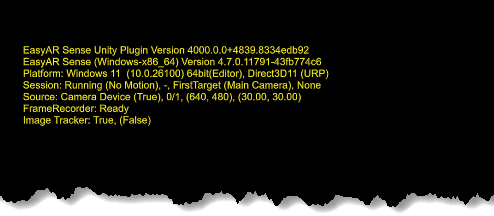
With the default configuration, when an EasyAR Sense Unity Plugin application runs, diagnostic information is displayed through UI messages near the upper part of the screen, making it easier for developers to understand the running status and issues of the session.
Tip
This text is not a watermark and can be shown or hidden as needed.
This information helps developers understand the running status and issues of the session. It is recommended to keep it visible during development and testing.
In the editor, select AR Session (EasyAR), then modify Message Output in the Inspector window to configure how UI messages are displayed. Message Output > Session Dump controls the display of session status information, while the other options control how different levels of diagnostic messages are displayed.
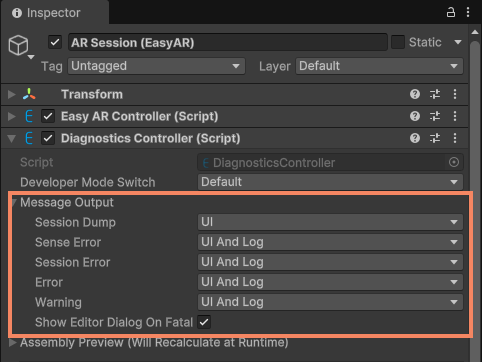
During development and testing, the following configuration is usually recommended:
- Message Output > Session Dump:
UI - Message Output > Sense Error:
UIAndLog - Message Output > Session Error:
UIAndLog - Message Output > Error:
UIAndLog - Message Output > Warning:
UIAndLog
For release, use the following configuration:
- Message Output > Session Dump:
None - Message Output > Sense Error:
Log - Message Output > Session Error:
Log - Message Output > Error:
Log - Message Output > Warning:
Log
Use developer mode tools
With the default configuration, when an EasyAR Sense Unity Plugin application runs, quickly tapping the screen 8 times opens the developer mode panel near the middle of the right side of the screen. This helps developers view and debug session status and record data for simulation.
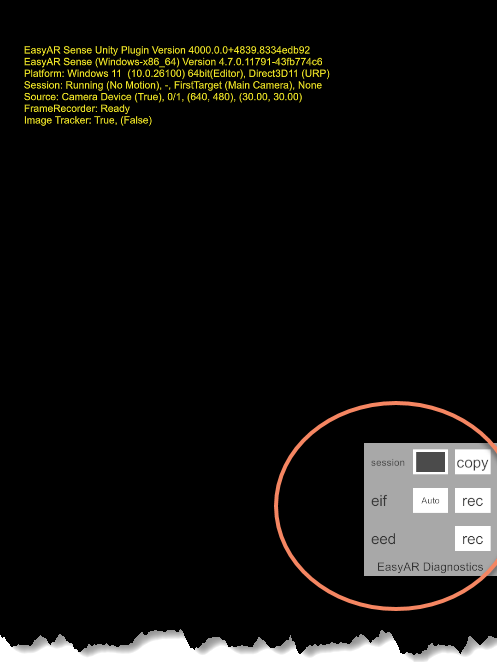
- You can use the switch to the right of
sessionto toggle whether the information at the top of the screen is displayed. - You can use the
recbutton to the right ofeifto start or stop EIF recording. The recorded EIF file is saved in the persistent data path of the application, which can be obtained throughApplication.persistentDataPath.
To disable the developer mode panel, select AR Session (EasyAR) in the editor and change Developer Mode Switch to Custom in the Inspector window.
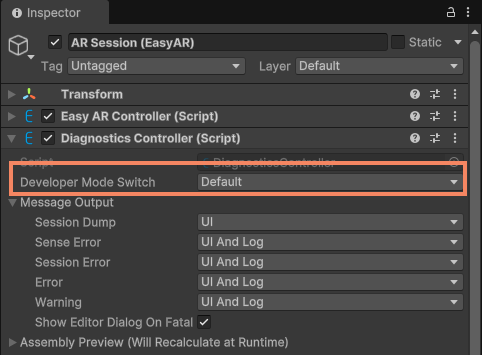
During development and testing, the following configuration is usually recommended:
- Developer Mode Switch:
Default
For release, use the following configuration:
- Developer Mode Switch:
DefaultorCustom
If you choose Custom, it is recommended to use another method to ensure that the released application can use the diagnostic panel or collect runtime data in a custom way.
Further reading
- Diagnostics overview
- UI messages describes how to use UI messages to display session status
- Developer mode describes how to use developer mode for debugging