XREAL project configuration method
This chapter describes how to configure a Unity project to use EasyAR features on XREAL headsets.
Preparation
- Obtain an EasyAR license suitable for XR headsets or glasses. License types available for headsets or glasses include:
- EasyAR Sense 4.x XR License trial version (trial, enabled by yourself on the EasyAR website)
- EasyAR Sense 4.x XR License official version (available after payment)
- EasyAR Sense 4.x XR License enterprise version (for enterprise SDK use)
- Obtain the enterprise License for XREAL through business. Note that this License is a file distributed by XREAL and is different from the EasyAR License.
- Download and import the XREAL SDK
- Download and import the EasyAR Unity plugin package
- Refer to Android project configuration
Note
Currently only XREAL SDK >= 3.1 is supported.
Enable the XREAL plugin
In
Project Settings > XR Plug-in Management > XREAL, checkEnable Native Session Manager.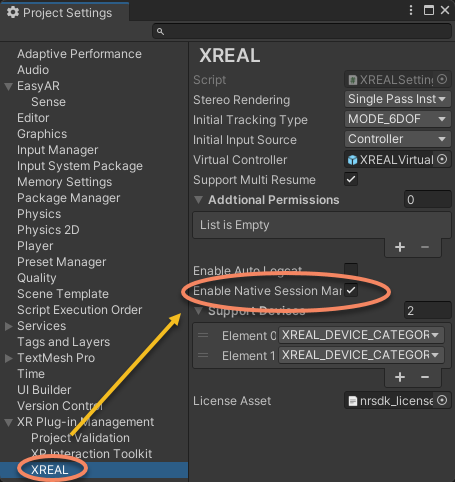
In
Project Settings > XR Plug-in Management > XREAL, configureLicense Assetas the XREAL enterprise license.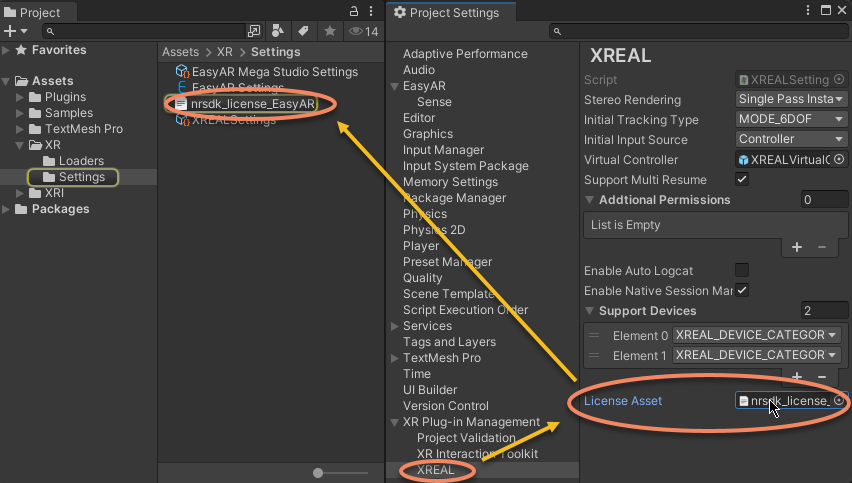
Note
On XREAL, if the Format of Frame Recorder is Auto or H264, the quality of recorded data is intentionally reduced, and Mega success rate and accuracy are reduced to varying degrees. Therefore, its running effect on a computer is only for reference.
Note
If you need to provide issue data to EasyAR, set the Format of Frame Recorder on ARSession to Obsolete for recording. Note that recording must be stopped after completion by setting enabled to false; otherwise, the data cannot be used. Data recorded this way will show as encrypted and unable to play when used in Unity. This is normal.