On-site use and simulation runtime
This article introduces the configuration differences between on-site use and off-site simulation runtime for Mega, and how to configure them according to your needs.
Differences between on-site use and simulation runtime
Mega uses GNSS, such as GPS and BeiDou, information to assist the localization process and improve localization accuracy and stability. During on-site use, the device GNSS information is accurate and can be used to assist localization. During off-site simulation runtime, the device GNSS information does not match the environment. This data cannot be used to assist localization and instead affects the localization result. Therefore, Mega provides two different configurations to meet the needs of on-site use and off-site simulation runtime.
The default configuration is the simulation runtime configuration, to avoid localization failure caused by incorrect configuration during first-time use.
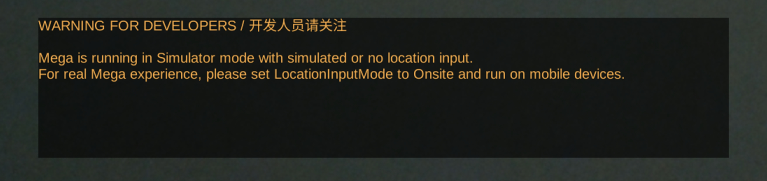
With the simulation runtime configuration, a warning message is always displayed on the screen. This message cannot be closed, ensuring that the application is not released to end users with an incorrect configuration.
Tip
To turn off the warning message, make sure the application will only be used on site and use the on-site configuration.
Configure for off-site simulation runtime
Select the Mega Tracker object under session, find the MegaTrackerFrameFilter component, and select Simulator for Location Input Mode to enable the simulation runtime configuration.
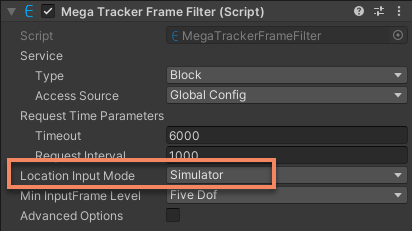
In scripts, you can set MegaTrackerFrameFilter.LocationInputMode to Simulator to achieve the same effect.
Note
When using an EIF file for simulation runtime, this option is automatically set to FramePlayer and cannot be changed, ensuring that the GNSS data recorded in the EIF file is used correctly.
Configure for on-site use
Select the Mega Tracker object under session, find the MegaTrackerFrameFilter component, and select Onsite for Location Input Mode to enable the on-site configuration.
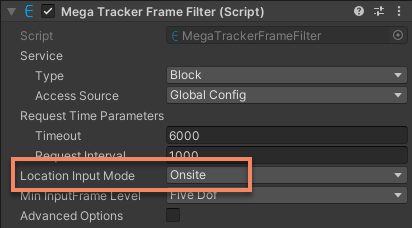
In scripts, you can set MegaTrackerFrameFilter.LocationInputMode to Onsite to achieve the same effect.
Caution
If the on-site configuration is mistakenly used during off-site simulation runtime, localization may fail and affect content display.