Simulate running using EIF files in Unity
This article introduces how to use EIF files for simulation running in Unity, enabling most development work to be done on a computer while visually observing the effects.
Before you begin
Simulation running uses EIF files as input, so before starting, you need to record an EIF file:
Refer to Recording EIF Files to record an EIF file Additionally, you need to understand:
Basic concepts of Recording EIF Files and Using Them for Simulation
Basic concepts, composition, and workflow of AR Session
Understand how to access recording components through Accessing AR Functionality Components in Session
Enable frame player in session
ARSession.AssembleOptions provides multiple ways to configure the combination of session components. One way is to set AssembleOptions.FrameSource to FramePlayer to enable the frame player component, allowing simulation running using EIF files.
For example:
Session.AssembleOptions.FrameSource = AssembleOptions.FrameSourceSelection.FramePlayer;
Alternatively, in the editor, select AR Session (EasyAR), and modify the corresponding option in Assemble Options in the Inspector window:
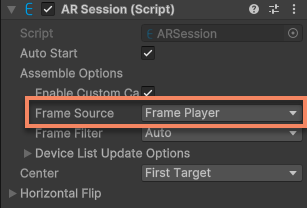
This way, when the session starts, the frame player component will be enabled, and no other frame source components will be selected.
The effect of playing EIF files using frame player is shown in the following video:
This video demonstrates the effect of using frame player for motion dense spatial mapping on a computer. The left side shows the
Hierarchyview, the middle shows theSceneview, and the right shows theGameview. The content in theGameview is the same as what the user would see in the real world on a mobile phone.
During the playback of EIF files, all AR functionality components in the session can work normally, and the content and interaction logic in the scene can also function properly, allowing most development work to be done on a computer while visually observing the effects.
Tip
The effect seen when playing EIF files using frame player on a computer is basically consistent with the effect on the mobile phone when recording the EIF file.
Important
The running effect when playing EIF files in a scene is related to the device used during recording and the frame source selected on the device at that time. Therefore, when recording EIF files, it is recommended to use a device identical to or close to the target device for recording to ensure that the playback effect matches the effect on the target device. At the same time, special attention should be paid to whether the motion tracking function is enabled in the recording scene. If motion tracking was not enabled during recording, it cannot be enabled during playback, and AR functions that rely on motion tracking (such as dense spatial map, Mega, etc.) will not work consistently as on the device.
Play when session starts
By default, when the session starts, the frame player automatically starts playing the EIF file. However, before playing, you need to specify the EIF file path. You can set it through the FramePlayer.FilePathType and FramePlayer.FilePath properties.
For example:
var player = Session.GetComponent<FramePlayer>();
player.FilePathType = WritablePathType.Absolute;
player.FilePath = path;
Alternatively, in the editor, select AR Session (EasyAR), and modify the corresponding options in the Frame Player component in the Inspector window:
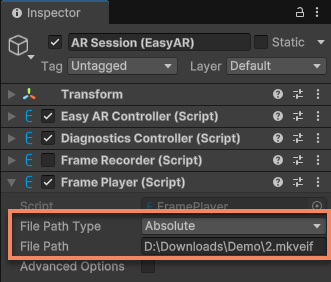
If no file is specified or the file path is invalid, the frame player will fail to start when the session starts and output an error log:
File not found:
Manual playback
If you want to manually control the playback timing, you can set FramePlayer.enabled to false before starting the session.
Session.GetComponent<FramePlayer>().enabled = false;
Alternatively, in the editor, select AR Session (EasyAR), and uncheck the Enabled option of the Frame Player component in the Inspector window:
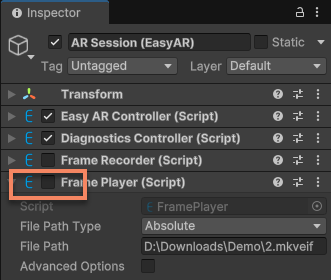
When you need to play, use Play() to start playback.
For example:
if (Session.Assembly.FrameSource is FramePlayer player)
{
    player.Play();
}
Each call to Play() will stop the previous playback (if any) and start playing from the beginning.
Caution
When playing new data, the original data in the scene will not be cleared. The state of AR components will not be reset either. They will behave as if the camera data suddenly jumps from where the previous data stopped to where the new data starts.
Although this may not have much impact on some functions, for functions that rely on motion tracking (such as dense spatial map, Mega, etc.), it may cause abnormal functional states, affecting the running effect. Therefore, it is recommended to restart the session before playing new data to reset the state of all AR components.
Pause and resume
Use FramePlayer.enabled to control pausing and resuming playback.
For example, set FramePlayer.enabled = false to pause playback:
player.enabled = false;
After playback is paused, all AR functionality components will pause working. The content and interaction logic in the scene may not necessarily stop, depending on the content itself. When playback resumes, AR functionality components will continue working from where they paused.
Stop playback
Use Stop() to stop playback.
player.Stop();
After playback stops, all AR functionality components will stop working. The content and interaction logic in the scene may not necessarily stop, depending on the content itself.
Jump to a specific time point for playback (seek)
Use Seek(double) to jump to a specific time point for playback.
For example, jump to play after 5 seconds:
player.Seek(player.Time + 5);
Note
After seeking, playback may not start from the exact time point, depending on the EIF file encoding method and keyframe interval.
Not all EIF files support seek playback. You can use the IsSeekable property to check whether the currently playing EIF file supports seek playback.
Note
Only EIF files recorded using H264 format and with normal stop recording calls support seek playback. If the EIF file does not support seek playback, calling Seek(double) will have no effect.
Playback speed control
Use the Speed property to control playback speed.
For example, set the playback speed to increase by 0.1 times the original speed:
player.Speed += 0.1;
Not all EIF files support playback speed control. You can use the IsSpeedChangeable property to check whether the currently playing EIF file supports playback speed control.
Note
Only EIF files recorded using H264 format and with normal stop recording calls support playback speed control. If the EIF file does not support playback speed control, setting Speed will have no effect.
Related topics
- Try Using the Session Validation Tool, which includes a simple EIF player for faster simulation running using EIF files