Using the Session Verification Tool
This article describes how to use the session verification tool to quickly verify the session workflow in the editor and perform simulated runs using EIF files.
Before You Start
The simulated run uses an EIF file as input. Therefore, you need to record an EIF file before you start:
Refer to Recording an EIF File to record an EIF file. In addition, you need to understand:
The basic concepts of Recording an EIF File for Simulated Runs
The basic concepts, composition, and workflow of AR Session
Session Verification Tool
The session verification tool helps developers quickly verify the session workflow in the Unity editor and perform simulated runs using EIF files.
By default, you can see the session verification tool in the Inspector window of the AR Session (EasyAR) object. It is part of the DiagnosticsController editor:
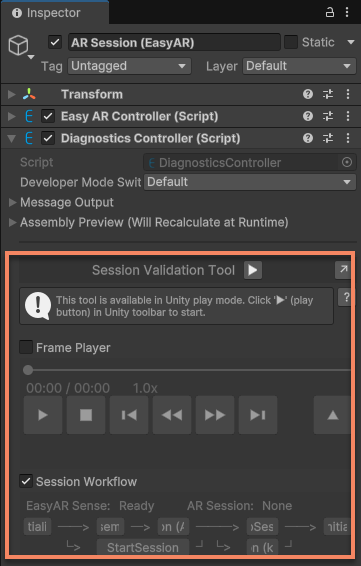
Click the ↗ button in the upper-right corner of the tool to pop it out as an independent window for easy viewing and operation. After the window is closed or the ↘ button is pressed, the tool will be displayed again in the Inspector window.
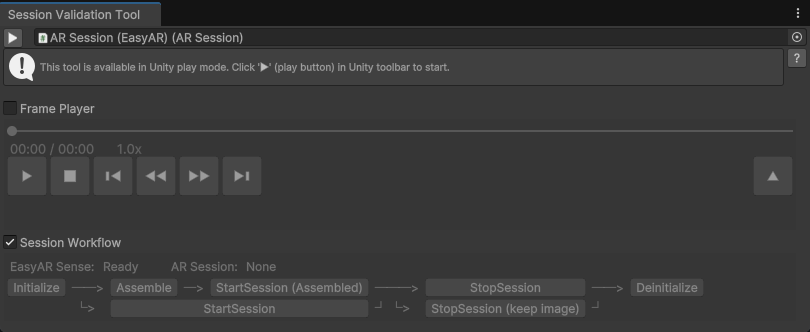
The following video shows the effect of the tool during operation:
This video demonstrates the usage of the session verification tool and was recorded in Unity's play mode. In the upper part of the video, the
Hierarchyview is on the left, theSceneview is in the middle, and theGameview is on the right. The session verification tool is in the lower part of the video. The content in theGameview is the same as what users see on their mobile phones in the real world.The upper-left part of the tool shows the progress bar of EIF playback, which changes as the playback progresses. The lower-left part of the tool shows the current state of the session. The right side of the tool shows the session components and available center modes.
In the scene, you can see three AR functions working simultaneously:
- Motion tracking: It is provided by the frame player. The blue sphere is the XR Origin, and the blue cone represents the user's position.
- Dense spatial mapping: You can see that the semi-transparent mesh model is continuously generated as the view changes.
- Sparse spatial tracking: In the video, a Christmas tree is being tracked, and the overlaid virtual object is a light blue point cloud.
Starting the Tool
Click the ▶ button at the top of the tool to start it. Pressing this button has the same effect as directly pressing the ▶ button on the Unity toolbar.
If the tool is already running, the button will change to ■. Click it to stop the tool.
When the tool is displayed as an independent window, the selection box to the right of the ▶ button allows you to select the session object used by the tool. If the session is lost due to window reset, you can reselect it here.
Controlling EIF Playback
To use the EIF playback function of the tool, you need to check the Frame Player option in the tool before running. In this case, the tool will manage the selection of the frame source during session assembly. Regardless of the value set for AssembleOptions.FrameSource, the frame player component will be enabled.
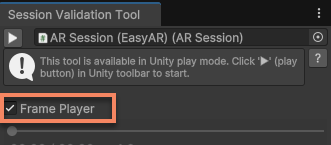
Therefore, a pop-up window will appear during runtime, indicating that the frame source used by the current session is being managed by the tool:
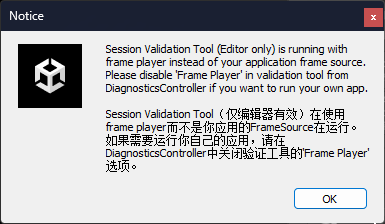
Note
The tool only manages the selection of the frame source during assembly in the Unity editor. This option has no effect when the application is packaged and run.
During normal operation, the EIF playback control function will be displayed in the part boxed in the figure above the tool:
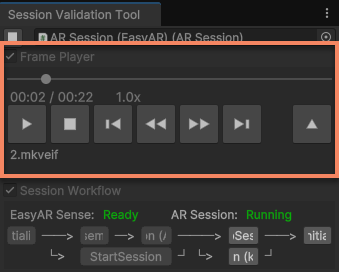
You can use these buttons to control the playback of the EIF file:
▶: Play. Resume playback from the paused or stopped state.▮▮: Pause■: Stop▮◀: Jump back 5 seconds (if the file supports it)◀◀: Decrease the playback speed (if the file supports it)▶▶: Increase the playback speed (if the file supports it)▶▮: Jump forward 5 seconds (if the file supports it)▲: Open a file- Progress bar: Click to jump to a specific playback position (if the file supports it) You can adjust and optimize the content and interaction logic in the scene while playing, allowing you to perform most development work on your computer and see the effects intuitively.
Note
When playing new data or jumping to a different playback position, the original data in the scene will not be cleared. The states of AR components will also not be reset. They will behave as if the camera data suddenly jumped from the previous frame to the new data.
Although this has little impact on some functions, it may cause abnormal states in functions that rely on motion tracking (such as dense spatial maps, Mega, etc.), thereby affecting the running effect.
Controlling the Session Workflow
To use the session workflow control function of the tool, you need to check the Session Workflow option in the tool before running. This option is checked by default.
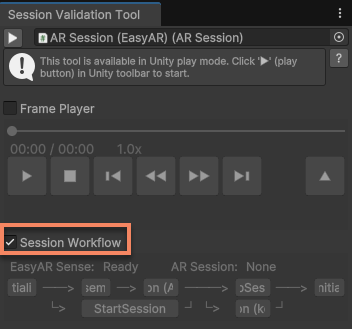
During normal operation, the session workflow control function will be displayed in the part boxed in the figure below the playback control of the tool:
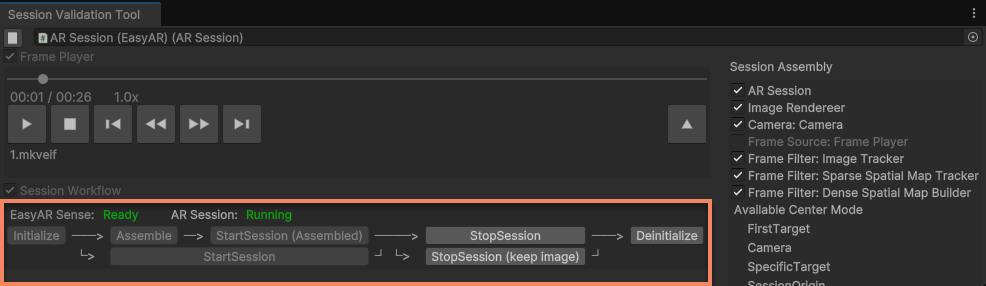
Above the entire area, two status messages are displayed: EasyARController.IsReady and ARSession.State.
Below the entire area, these buttons are provided to control the session workflow:
Initialize: Initialize the session. You can choose to use the license key configured inProject Settingsor manually enter a license key.Assemble: Assemble but do not start the session.StartSession (Assembled): Start the assembled session.StartSession: Assemble and start the session.StopSession: Stop the session.StopSession (keep image): Stop the session but keep the image background.Deinitialize: Deinitialize the session.
Note
Since these control functions directly call the relevant methods of ARSession and EasyARController, you can use these buttons to verify the impact of session state changes on the content. However, you need to note that if similar methods are also called in the application script, the running process of the application may deviate from the application's expectations.
Controlling Session Components
To use the session component control function of the tool, you need to check the Session Workflow option in the tool before running. This option is checked by default.
During normal operation, the session component control will be displayed in the part boxed in the figure below or to the right of the tool, depending on the window width:
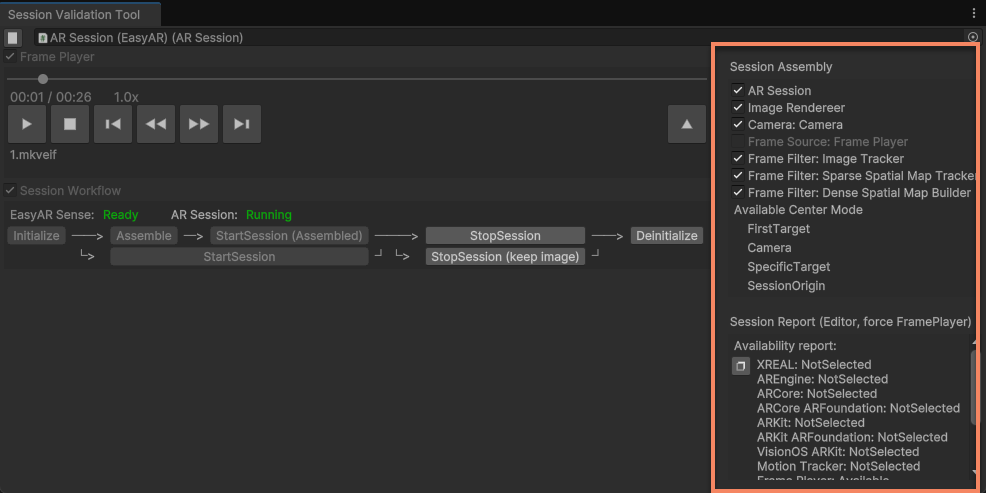
The content displayed in this area is related to the specific session. For example, the session used in the above figure includes three functional components: image tracking, dense spatial mapping, and sparse spatial tracking. Therefore, the control checkboxes for these three functions are displayed in the tool.
Generally, this area will display all available AR functional components in the session and provide controls to enable/disable (enabled) these components, including:
- AR Session: Controls the enable/disable state of the session itself.
- Image Renderer: Controls the enable/disable state of the physical camera image rendering.
- Camera: Controls the enable/disable state of the virtual camera.
- Frame Source: Controls the enable/disable state of the frame source. It can only be controlled when the frame player is not enabled. When the frame player is enabled, the function control is replaced by the EIF playback control section.
- Frame Filter: Controls the enable/disable state of specific AR functions.
- Frame Recorder: Controls the enable/disable state of the EIF recording component. It is only visible when the frame player is not enabled. When the frame player is enabled, this component will not be assembled into the session. In addition, the available center modes of the session and the session report will also be displayed in this area.
Note
The available center modes and session report displayed in the tool are the results of running in the editor and may be different when running on actual devices.
When using the Mega function, the Mega function component control will be displayed in the tool.
Related Topics
- Try Simulating Runs Using an EIF File to control the playback of the EIF file through scripts.
- Try Controlling Session Execution in scripts.
- Try Accessing AR Functional Components in scripts.
- Try Obtaining the Session's Running Results in scripts.
- Try Initialization in scripts.
- Try Obtaining the Session Report and Determining Device Support in scripts.
- Session Verification Tool Mega Control Reference
- Session Verification Tool Mega Go Control Reference