Initialize EasyAR Sense with License Key
To use EasyAR in Unity, you need to initialize EasyAR Sense with a license key to make sure the features are activated. There are two initialization methods: automatic initialization and manual initialization.
After initialization succeeds, you can see the EasyAR Sense version number and runtime platform information in the Unity console or operating system logs, for example:
EasyAR Sense (Android-arm64) Version 4.7.0.11800-cf8e24e30
Before you begin
- EasyAR Sense license describes how to obtain an EasyAR Sense license (license key). Before initializing EasyAR Sense, prepare a suitable license according to the actual device and development stage.
Automatic initialization
Automatic initialization applies to most usage scenarios.
Open EasyAR Global Settings, check the Initialize On Startup option, and fill in EasyAR Sense License > LicenseKey.
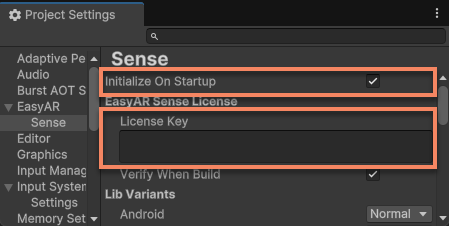
Automatic initialization is automatically called at Unity's BeforeSceneLoad timing.
Note
The license used in the editor does not verify the application package name, so a license that works normally in the editor may still fail when packaged and run as a platform application or app. In this case, pay attention to two situations:
- The package name of the license you fill in should match the bundle id/package name filled in Unity Player Settings.
- If the package name is modified in the gradle or XCode project after Unity packaging, use the package name in gradle or XCode in Unity.
[Optional] Manual initialization
Manual initialization is mainly used for custom initialization workflows, such as showing a user privacy notice before calling EasyAR interfaces (see the compliance guide).
Open EasyAR Global Settings and uncheck the Initialize On Startup option.
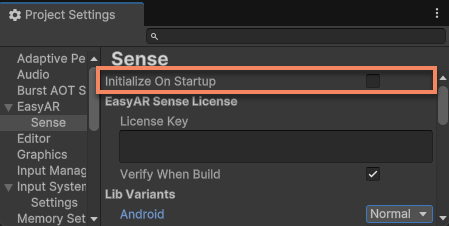
Then manually call initialization through the EasyARController.Initialize() interface.
You can pass in the license through a parameter:
EasyARController.Initialize("my-license");
You can also use the license filled in EasyAR Global Settings:
EasyARController.Initialize();
Important
EasyARController.Initialize() must be called before ARSession starts.
In some special cases, if EasyARController.Initialize() needs to be called multiple times, make sure to deinitialize through EasyARController.Deinitialize() after each execution of EasyARController.Initialize().
Solutions for initialization failure
After a scene containing ARSession runs, if the logs do not contain similar information, initialization has failed.
EasyAR Sense (Android-arm64) Version 4.7.0.11800-cf8e24e30
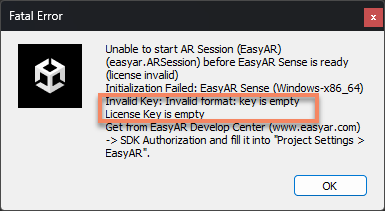
In the Unity Editor, you may also see a pop-up similar to this:
Note
Pay attention to the text displayed in the pop-up. Not all pop-ups mean initialization failure.
Common error messages and causes are as follows:
- EasyARSettings is not found
- The
EasyAR Global Settingsasset file has not been created (common when license is not filled in)
- The
- License Key is empty
- The license is not filled in
EasyAR Global Settings, or multipleEasyAR Global Settingsasset files exist in the project
- The license is not filled in
- EasyARController.Initialize is not called (InitializeOnStartup = false)
- Manual initialization was not called at the correct time
- EasyAR stops after script change in play mode
- A script changed while running in the editor. Just run it again
Related topics
- ARSession
- EasyAR Global Settings
- Compliance guide
- Log viewing methods: Android, iOS, Unity Editor