Accessing ar feature components in session
In a running session, you can access various feature components through the Assembly property. This article describes how to access these components and important considerations when doing so.
Before you begin
- Go through Introduction to ARSession to understand the basic concepts, components, and workflow of a session
- Learn how to create a session
Configuring ar components during editing or before startup
Sometimes, certain component options (like DesiredFocusMode) must be configured before the component starts. If you don't want to manually configure and start components after the session starts, a simple approach is to configure all possible frame source components before the session assembles. The assembly process will retain one or more of these components and apply their configurations.
You can use Unity basic methods like FindAnyObjectByType<T>() or GetComponent<T>() to locate components, then configure them.
Note
Whether AR components obtained this way will be included in the session at runtime is uncertain. Therefore, you must configure all possible cases.
For example, the following code demonstrates modifying the focus mode for all frame source components before session assembly:
void Awake()
{
    var allFrameSources = Session.GetComponentsInChildren<FrameSource>();
    foreach (var source in allFrameSources)
    {
        if (source is CameraDeviceFrameSource)
        {
            ((CameraDeviceFrameSource)source).DesiredFocusMode = autoFocus ? CameraDeviceFocusMode.Continousauto : CameraDeviceFocusMode.Medium;
        }
        else if (source is MotionTrackerFrameSource)
        {
            ((MotionTrackerFrameSource)source).DesiredFocusMode = autoFocus ? MotionTrackerCameraDeviceFocusMode.Continousauto : MotionTrackerCameraDeviceFocusMode.Medium;
        }
        else if (source is ARCoreFrameSource)
        {
            ((ARCoreFrameSource)source).DesiredFocusMode = autoFocus ? ARCoreCameraDeviceFocusMode.Auto : ARCoreCameraDeviceFocusMode.Fixed;
        }
        else if (source is ARKitFrameSource)
        {
            ((ARKitFrameSource)source).DesiredFocusMode = autoFocus ? ARKitCameraDeviceFocusMode.Auto : ARKitCameraDeviceFocusMode.Fixed;
        }
        else if (source is AREngineFrameSource)
        {
            ((AREngineFrameSource)source).DesiredFocusMode = autoFocus ? AREngineCameraDeviceFocusMode.Auto : AREngineCameraDeviceFocusMode.Fixed;
        }
        else if (source is ThreeDofCameraDeviceFrameSource)
        {
            ((ThreeDofCameraDeviceFrameSource)source).DesiredFocusMode = autoFocus ? ThreeDofCameraDeviceFocusMode.Auto : ThreeDofCameraDeviceFocusMode.Fixed;
        }
        else if (source is InertialCameraDeviceFrameSource)
        {
            ((InertialCameraDeviceFrameSource)source).DesiredFocusMode = autoFocus ? InertialCameraDeviceFocusMode.Auto : InertialCameraDeviceFocusMode.Fixed;
        }
        else if (source is ARFoundationFrameSource)
        {
            cameraManager.autoFocusRequested = autoFocus;
        }
    }
}
This process can also be completed in the editor, requiring configuration for all components:
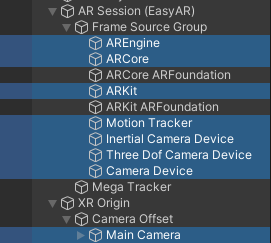
The configurations for ARCoreARFoundationFrameSource and ARKitARFoundationFrameSource frame sources correspond to components on the Main Camera.
Warning
AR components obtained this way can only be used for pre-runtime configuration. Since the assembly process filters AR components, those obtained through the scene hierarchy may not be included in the session and won't function properly.
Using assembled AR components during runtime
The AR components running in the session are determined after assembly. No AR component can be used until assembly is completed. The assembled AR components can be accessed through the Assembly property.
Assembly is available when the session's state is >= Assembled. Specifically, the Assembly property is assigned only after the Assemble() method completes execution, allowing access to the session components. After the session stops or becomes invalid, the Assembly property is cleared and components can no longer be accessed.
You can check the session's State in your script to determine if AR components are accessible at that time:
if (Session.State >= ARSession.SessionState.Ready)
{
    // Assembly is available
}
else
{
    // Assembly is not available
}
You can also subscribe to the StateChanged event to receive session state changes, thereby accessing AR components at the appropriate time. Generally, to capture the Ready state, you should subscribe to the StateChanged event before the session starts. Subscribing in Awake() is usually safe:
void Awake()
{
    Session.StateChanged += (state) =>
    {
        if (Session.State == ARSession.SessionState.Ready)
        {
            // Assembly is available. After this point, Assembly remains accessible until the session stops or becomes invalid.
        }
        else if (Session.State < ARSession.SessionState.Ready)
        {
            // Assembly is not available. After this point, Assembly remains inaccessible until the session restarts.
        }
        else
        {
            // Assembly is available. Usually no handling is needed.
        }
    };
}
Caution
If you obtain AR components via methods like FindAnyObjectByType<T>() or GetComponent<T>(), they will definitely be included in the session and can be used at runtime. Storing references to these components is safe, but when using them, you must ensure the session is running and these components are correctly included in the session. Otherwise, exceptions or unexpected behavior may occur. These components are non-functional before the session starts and after it stops. It is recommended that even with such usage, you pay attention to the session's State and StateChanged event.
Access frame source components
You can access the frame source component using the ARAssembly.FrameSource property. In a normally operating session, there is exactly one ARAssembly.FrameSource.
When using the session, you usually need to access ARAssembly.FrameSource to determine the actual type of frame source component used at runtime, enabling access to its unique properties and methods.
For example, the following code demonstrates how to use different plane detection methods based on the frame source type:
void PlaceObject(Vector2 touchPosition)
{
    if (Session.Assembly.FrameSource is MotionTrackerFrameSource)
    {
        Ray ray = Session.Assembly.Camera.ScreenPointToRay(touchPosition);
        if (Physics.Raycast(ray, out var hitInfo))
        {
            TouchRoot.transform.position = hitInfo.point;
        }
    }
    else if (Session.Assembly.FrameSource is ARFoundationFrameSource)
    {
        var raycastManager = Session.Assembly.Origin.Value.GetComponent<UnityEngine.XR.ARFoundation.ARRaycastManager>();
        var hits = new List<UnityEngine.XR.ARFoundation.ARRaycastHit>();
        if (raycastManager.Raycast(touchPosition, hits, UnityEngine.XR.ARSubsystems.TrackableType.PlaneWithinPolygon))
        {
            var hitPose = hits[0].pose;
            TouchRoot.transform.position = hitPose.position;
        }
    }
}
Accessing frame filter components
You can access frame filter components using the ARAssembly.FrameFilters property. In a normally functioning session, there may be multiple components of any type in the ARAssembly.FrameFilters list.
For example, the following code demonstrates how to obtain a MegaTrackerFrameFilter from the session and register for its corresponding event:
var megaTracker = session.Assembly.FrameFilters.Where(f => f is MegaTrackerFrameFilter).FirstOrDefault() as MegaTrackerFrameFilter;
if (megaTracker)
{
    megaTracker.LocalizationRespond += (response) =>
    {
    };
}
Access the camera component
You can access the camera component using the ARAssembly.Camera property. This is a quick way to find the camera used for AR when there are multiple cameras in the scene.
For example, the following code shows how to obtain the camera in the session and perform ray detection on objects in the scene:
var ray = Session.Assembly.Camera.ScreenPointToRay(screenPoint);
if (Physics.Raycast(ray, out var hitInfo))
{
    TouchRoot.transform.position = hitInfo.point;
};
Access origin component
You can access the origin component using the ARAssembly.Origin property.
For example, the following code demonstrates how to obtain the origin in the session and display a cone representing the current camera position and orientation in the scene:
if (session.Assembly.Origin.OnSome)
{
    GameObject frustum = Instantiate(CameraFrustumPrefab, session.Assembly.Camera.transform.position, session.Assembly.Camera.transform.rotation);
    frustum.transform.SetParent(session.Assembly.Origin.Value.transform);
}
Note that it is necessary to first check whether ARAssembly.Origin exists.
Note
ARAssembly.Origin only exists in sessions where motion tracking is enabled.
Accessing the CameraImageRenderer component
You can access the CameraImageRenderer component using the ARAssembly.CameraImageRenderer property.
For example, the following code obtains the RenderTexture of the physical camera image:
RenderTexture renderTexture;

void Awake()
{
    Session.StateChanged += (state) =>
    {
        if (state == ARSession.SessionState.Ready && Session.Assembly.CameraImageRenderer.OnSome)
        {
            Session.Assembly.CameraImageRenderer.Value.RequestTargetTexture((_, texture) => renderTexture = texture);
        }
    };
}
Note that you need to first check whether ARAssembly.CameraImageRenderer exists.
Note
ARAssembly.CameraImageRenderer is only valid in sessions where rendering is performed by EasyAR. Generally, it is invalid when using AR Foundation or HMDs, as the rendering of physical camera images is handled by AR Foundation or HMD SDKs.
Accessing the framerecorder component
You can access the FrameRecorder component using the ARAssembly.FrameRecorder property.
For example, the following code starts recording. The file storage location depends on the configuration, and by default, it is stored in the application's internal storage directory:
if (session.Assembly.FrameRecorder.OnSome)
{
    var frameRecorder = session.Assembly.FrameRecorder.Value;
    frameRecorder.enabled = true;
}
Note that you need to check whether ARAssembly.FrameRecorder exists first.
Note
ARAssembly.FrameRecorder is not available in rare cases, such as when using FramePlayer.
Next steps
- Learn how to Get session output, which contains the AR component execution outputs
- Additionally, you can explore component access through these samples:
- Workflow_ARSession sample demonstrates various methods to access and use components
Related topics
- Frame data source describes frame sources and their selection methods at runtime
- XR Origin describes the purpose of the origin component in AR scenes
- Camera describes the purpose of the camera component in AR scenes
- Recording EIF files details the usage of FrameRecorder