Workflow_ARSession sample details
Workflow_ARSession is a lightweight AR session management sample designed to show how to build a complete AR application flow with minimal dependencies. This sample supports both AR Foundation compatible mode and simple mode, so you can choose flexibly according to project requirements.
Usage
Scene selection (choose one)
In the Unity editor, the Workflow_ARSession scene contains two mutually exclusive configuration root objects. Please enable only one of them and make sure the other one is inactive:
| Configuration name | Applicable scenario | Dependencies |
|---|---|---|
ARFoundationCompatibleSceneSetup |
Projects that already use or plan to integrate AR Foundation | Requires completing AR Foundation configuration |
SimpleSceneSetup |
Directly use EasyAR native capabilities without depending on AR Foundation | No extra dependencies, suitable for lightweight AR applications |
Build and run
- Add
Workflow_ARSessiontoFile>Build SettingsorBuild Profiles>Scene Listin the menu bar. - According to the selected target platform, such as Android or iOS, confirm the build options in
Project Settings>Player. - Build to a real device and run.
After the application starts, it automatically initializes the camera and waits to recognize the target.
Recognition target and how to obtain it
This sample demonstrates Image Tracking by default, but its architecture can be easily extended to other modes such as object tracking and cloud recognition.
Default target: namecard.jpg
- Target type: 2D image. Recommended print size is >= 90 mm x 54 mm.
- Download URL: namecard

How to replace the target?
- Put your image (JPG/PNG) into
Assets/Samples/EasyAR Sense Unity Plugin/[version]/__All Samples__/Workflow/Workflow_ARSession/Targets. - Select the
ImageTarget-namecardcomponent in the scene, and changeTextureto your image in Inspector >Image Target Controller (Script). - Modify
NameandScale.Scaleis the physical size of your target in meters, based on the long side of the image.
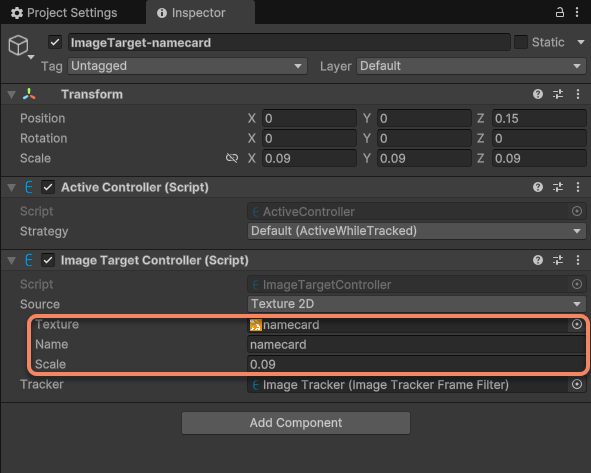
- Save and rebuild.
Expected effect
When the camera points at the target image, the system will:
- Detect and track the image in real time;
- Overlay a 3D panda on the image plane;
The panda's position, orientation, and scale are strictly bound to the pose of the image target. Stable tracking is maintained even when the image moves, is partially occluded, or lighting changes.
Extension suggestions
- Add object tracking: replace
ImageTrackerwithObjectTrackerand load an.objmodel file; - Connect cloud recognition: use
CloudRecognizerinstead of the local target list; - Support multiple targets: extend from a single image target to multiple images, and the system will automatically handle concurrent tracking.
Tip
For more functional components, visit AR functional components.
With Workflow_ARSession, you can quickly understand EasyAR's core workflow and build production-grade AR applications on this basis.