Enable AR Foundation in EasyAR projects
To enable EasyAR's AR Foundation support or use other features of AR Foundation, you must correctly install and configure AR Foundation. The following content explains how to complete these operations.
Before you begin
- Read EasyAR support for Unity XR frameworks to understand EasyAR's support for Unity XR frameworks and when to consider using AR Foundation.
AR Foundation version compatibility
EasyAR supports AR Foundation 5 or later versions.
Important
AR Foundation support is implemented through a custom camera.
When using trial products on a custom camera or headset, such as a Personal license, trial XR license, or trial Mega service, EasyAR Sense stops responding 100 seconds after each startup. For Mega users, this duration can be adjusted after approval through EasyAR business. This limitation does not apply to paid versions of EasyAR Sense or paid EasyAR Mega services.
Install AR Foundation
It is recommended to refer to the AR Foundation official documentation for installing AR Foundation. Before reading, ensure you select the corresponding documentation version.
Unity 2022 and later versions
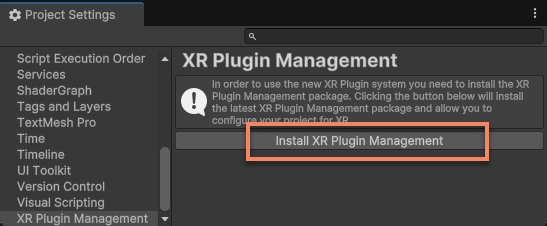
If XR-related plugins are not installed in the project, you need to click the Install XR Plugin Management button in Project Settings > XR Plug-in Management and wait for the installation to complete.
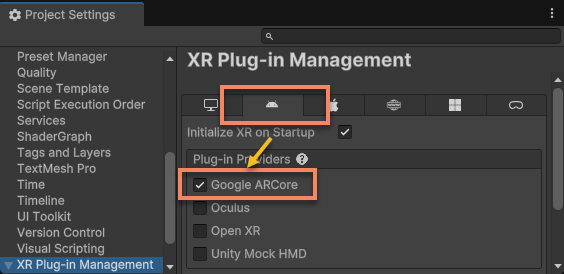
If you need to use AR Foundation on the Android platform, check Google ARCore under the Android tab and wait for the installation to complete.
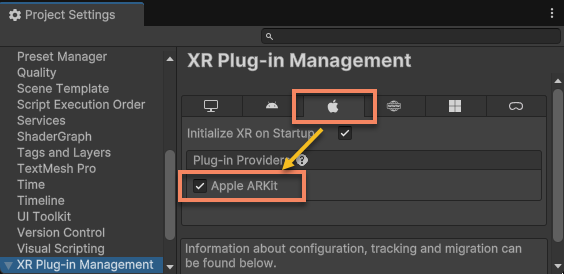
If you need to use AR Foundation on the iOS platform, check Apple ARKit under the iOS tab and wait for the installation to complete.
If you need to use AR Foundation on the visionOS platform, read Vision Pro project configuration.
Tip
It is recommended to keep Initialize XR On Startup checked to ensure AR Foundation initializes at the default time point.
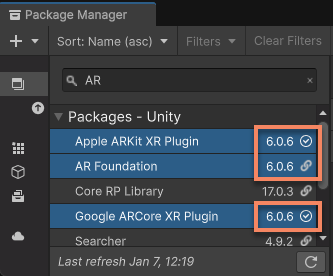
After installation, open the Package Manager window. You should see AR Foundation and the corresponding platform plugins in the installed packages list. Note that their version numbers should be exactly the same.
Important
When installing or updating AR Foundation, ensure that the versions of Google ARCore XR Plugin and Apple ARKit XR Plugin exactly match the AR Foundation version. Version mismatches may cause runtime errors or functional abnormalities.
Unity 2021
In Unity 2021, you need to manually edit the Packages/manifest.json file to specify versions. Refer to the official documentation.
For example, to install AR Foundation version 5.2.0 and use it on Android and iOS platforms, ensure the Packages/manifest.json file contains the following content:
{
  "dependencies": {
    ...
    "com.unity.xr.arcore": "5.2.0",
    "com.unity.xr.arfoundation": "5.2.0",
    "com.unity.xr.arkit": "5.2.0",
    ...
  }
}
Configure XR Plug-in
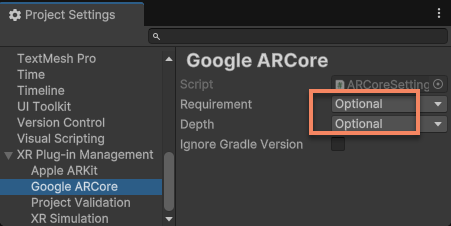
When using EasyAR, ARCore is usually not essential. Therefore, ARCore should be configured as optional to prevent applications from failing to run properly on devices that do not support ARCore.
In Project Settings > XR Plug-in Management > ARCore, set both Requirement and Depth to Optional.
Caution
If Requirement is set to Required and the packaged application is installed on a device that does not support ARCore, the device will incorrectly report that ARCore is available and run with ARCore. This creates a false impression that these devices are running ARCore and malfunctioning (black screen or other abnormalities), which is incorrect.
This phenomenon occurs because the Google Play Store prevents installing apps marked as requiring ARCore on unsupported devices, so these apps always assume they are running on supported devices.
Under normal configuration, these devices will determine that ARCore is not supported during session assembly and use EasyAR's functionality.
If needed, you can also refer to the following official documents for further configuration of ARCore and ARKit. Before reading, ensure you select the corresponding documentation version.
Configure Universal Render Pipeline
If the current project uses URP, you need to configure URP assets. If not configured correctly, AR Foundation's camera background may not render properly.
First, ensure that EasyAR's URP Renderer Feature is correctly configured. Refer to EasyAR's Universal Render Pipeline configuration.
Then add ARBackgroundRendererFeature to the Renderer Features list.
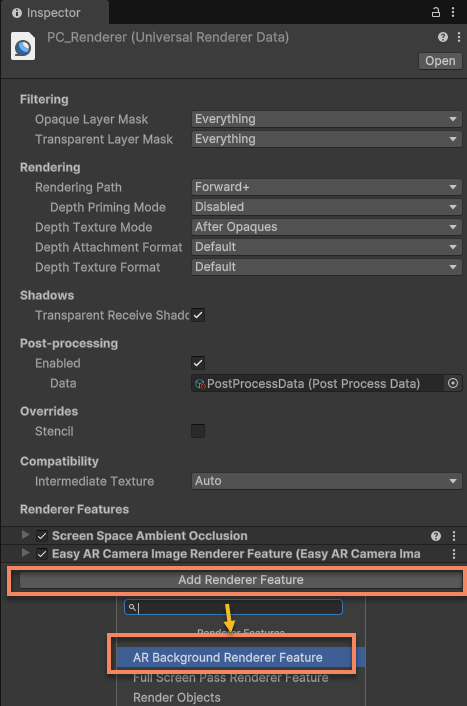
Similar to EasyAR's URP Renderer Feature configuration, pay attention to the configurations for different platforms in Project Settings > Quality. Ensure that URP assets configured with ARBackgroundRendererFeature are used on all platforms where AR Foundation is required.
Alternatively, you can refer to AR Foundation's official URP configuration documentation for configuration. Before reading, ensure you select the corresponding documentation version.
Note
EasyAR's Universal Render Pipeline configuration is still necessary to ensure that rendering functions related to EasyAR interfaces work properly on devices that do not support AR Foundation.
Enable EasyAR AR Foundation support
In Project Settings > EasyAR > Sense, ensure the Unity XR > AR Foundation Support option is enabled. This option is enabled by default.
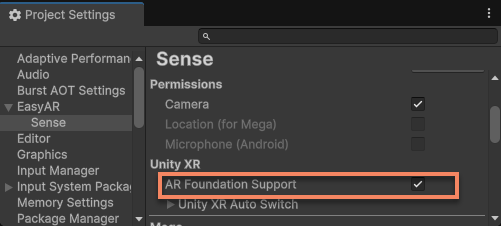
Modifying this option will trigger script recompilation. Wait for script compilation to complete before the change takes effect. If Unity does not trigger compilation normally for some reason, you can close Unity and delete the Library/ScriptAssemblies folder to force Unity to recompile scripts.
Tip
If EasyAR is incompatible with AR Foundation in the project and there is no requirement to use both EasyAR and AR Foundation simultaneously, you can disable this option.
Next steps
- Learn about AR Foundation scene configuration and usage in EasyAR projects
- Learn how to automatically switch AR Foundation based on device support