Automatically switch Unity XR objects in Unity scenes
Unity's XR components (including AR Foundation) have limited device support. To use AR Foundation on supported devices while providing AR functionality on many other devices, EasyAR offers an automatic switching feature for Unity XR objects. This document describes the changes to scene objects and how to use this feature.
Before you begin
- Read EasyAR support for Unity XR framework to understand EasyAR's support for the Unity XR framework and when to consider using AR Foundation.
- Ensure your scene has added AR Foundation's ARSession and XROrigin as described in AR Foundation scene setup and usage in EasyAR projects.
Feature description
Since Unity's AR Foundation relies on ARCore and ARKit for mobile implementations, it only works on limited devices—especially unavailable on many domestic Android phones. Therefore, it's generally recommended to enable AR Foundation and related scripts only on supported devices. The automatic switching feature for Unity XR objects implements this operation, primarily designed for mobile AR, and remains disabled on headsets by default.
When fully enabled:
In the editor, easyar.ARSession disables UnityEngine.XR.ARFoundation.ARSession
At runtime, easyar.ARSession disables all Unity XR Core components and AR Foundation components during Awake()
At runtime, if the selected FrameSource inherits from ARFoundationFrameSource or implements XROrigin, the disabled Unity XR Core and AR Foundation components will be enabled during easyar.ARSession.StartSession() (components not disabled by EasyAR won't be enabled). If another FrameSource is selected, all Unity XR Core and AR Foundation components will be disabled during easyar.ARSession.StartSession()
At runtime, all Unity XR Core and AR Foundation components will be disabled during easyar.ARSession.StopSession(bool) Under default settings, the feature enables when:
On Windows/Mac
The mobile AR (ARKit/ARCore) loader is active at switcher startup
Other loaders beyond mobile AR (ARKit/ARCore) exist but none are active at switcher startup
Note
XR Interaction Toolkit components aren't controlled by this feature, though their compatibility with EasyAR is unverified. Theoretically, features only using Unity.XR.CoreUtils.XROrigin GameObject and its Camera should work. If encountering issues, try setting ARSession.ARCenterMode to ARSession.ARCenterMode.SessionOrigin. If problems persist, implement custom control for XR Interaction Toolkit components—disabling them when FrameSource doesn't inherit from ARFoundationFrameSource.
Configuration method
This feature can be enabled/disabled via options in Project Settings > EasyAR > Sense > Unity XR > Unity XR Auto Switch
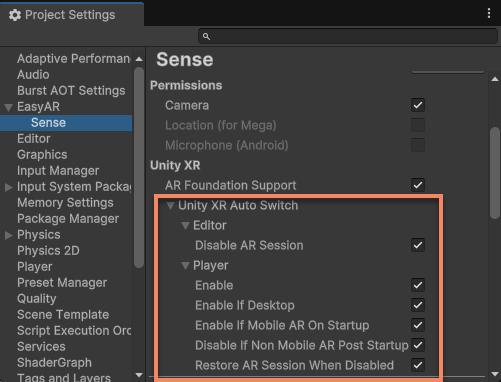
Option behaviors:
- Editor: Edit mode options
- Disable AR Session: Disables UnityEngine.XR.ARFoundation.ARSession during editing when easyar.ARSession exists
- Player: Runtime options
- Enable: Enables runtime control. Note: Disabled components in edit mode won't be restored when this is off
- Enable If Desktop: Enables on Windows/Mac
- Enable If Mobile AR On Startup: Enables if mobile AR (ARKit/ARCore) loader is active at switcher startup (requires
Initialize XR on Startupenabled inProject Settings>XR Plug-in Management) - Disable If Non Mobile AR Post Startup: Disables if other loaders exist beyond mobile AR but none are active at switcher startup (typically used when
Initialize XR on Startupis unchecked) - Restore AR Session When Disabled: When feature is disabled, restores (enables) all disabled UnityEngine.XR.ARFoundation.ARSession (regardless of whether EasyAR disabled them). Usually restores edit-mode disabled components
Using custom control methods
For custom component switching or when EasyAR interferes with certain components:
- Disable UnityEngine.XR.ARFoundation.ARSession in the editor (executes before other scripts)
- Disable all Unity XR Core components, AR Foundation components, and related controllable components/functions before AR Foundation starts
- If ARCoreARFoundationFrameSource or ARKitARFoundationFrameSource is selected during easyar.ARSession.Assemble(), enable previously disabled components/functions before StartSession() completes (recommended in easyar.ARSession.AssembleUpdate event handler)
- If other FrameSource is selected during easyar.ARSession.Assemble(), maintain disabled state