AR Foundation scene configuration and usage in EasyAR projects
When using AR Foundation in Unity, it often requires relying on EasyAR to address the device limitations of AR Foundation. The following content explains how to correctly configure and use AR Foundation in EasyAR scenes, and how to dynamically enable AR Foundation based on device support.
Before you begin
- Read EasyAR's support for Unity XR framework to understand EasyAR's support for the Unity XR framework and when to consider using AR Foundation.
- Read Enabling AR Foundation in EasyAR projects to learn how to install and configure AR Foundation in EasyAR projects.
Adding AR Foundation components
Add AR Foundation's AR Session and XR Origin to the EasyAR scene.
Adding AR Session
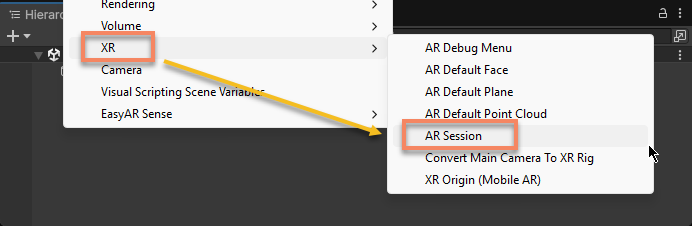
Right-click in the blank area of the Hierarchy view, and add Unity's ARSession to the scene via the XR > AR Session menu.
Note
This AR Session is different from EasyAR's AR Session, and they need to coexist in the scene.
Adding XR Origin
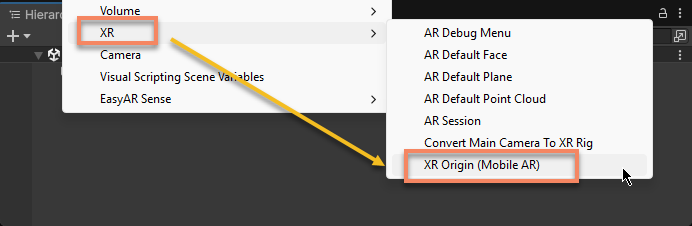
Right-click in the blank area of the Hierarchy view, and add Unity's XROrigin to the scene via the XR > XR Origin (Mobile AR) menu.
Note
This XR Origin overlaps with EasyAR's XR Origin functionality, requiring the use of Unity XR Origin instead of EasyAR's XR Origin.
If the scene previously contained EasyAR's XR Origin, typically named XR Origin (EasyAR), you need to move its child objects under the newly created XR Origin, then delete XR Origin (EasyAR).
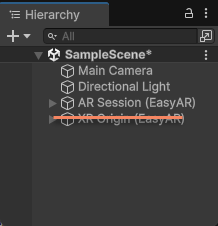
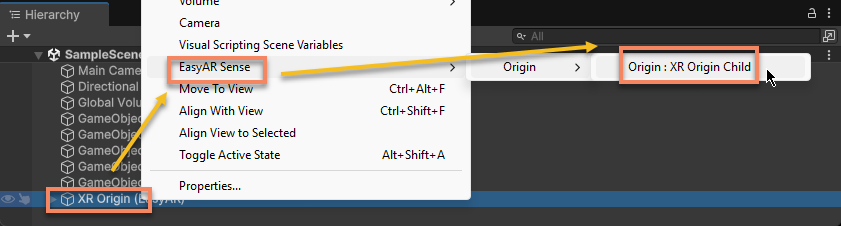
At this point, if the newly created XR Origin doesn't have an XR Origin Child, you need to add it manually.
In the Hierarchy view, right-click XR Origin, and add XR Origin Child under XR Origin via the EasyAR Sense > Origin > Origin: XR Origin Child menu.
Configuring Camera
If there was a Camera for AR in the scene, you'll notice extra main cameras appearing. You need to delete the original camera.
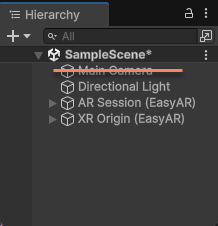
Then select the Main Camera under XR Origin and configure it according to the Camera configurations instructions.
Finally, a complete EasyAR scene structure with added AR Foundation should resemble the following:

Caution
If you need to modify AR Foundation's configuration through ARCameraManager.currentConfiguration, note that some phones themselves (like Xiaomi 10) have issues where images cannot be obtained after modifying the configuration, making EasyAR unusable (the app has an image background but EasyAR functionality doesn't respond). Therefore, it's generally not recommended. If modification is necessary, prepare a fallback solution for when EasyAR becomes unusable.
Device compatibility and dynamic enabling of AR Foundation
EasyAR is compatible with far more devices than AR Foundation, so configuration is needed to ensure the app only enables AR Foundation when necessary, while completely disabling it in other cases.
Checking frame source components
Generally, sessions created via EasyAR menus automatically add ARCoreARFoundationFrameSource and ARKitARFoundationFrameSource (except for some image tracking that doesn't require SLAM functionality).

Important
ARCoreARFoundationFrameSource and ARKitARFoundationFrameSource are frame sources provided by EasyAR to enable AR Foundation functionality on supported devices. If the scene's session doesn't contain these frame sources, AR Foundation functionality cannot be enabled.
If the scene's session lacks these frame sources, you can add them manually via the menu.
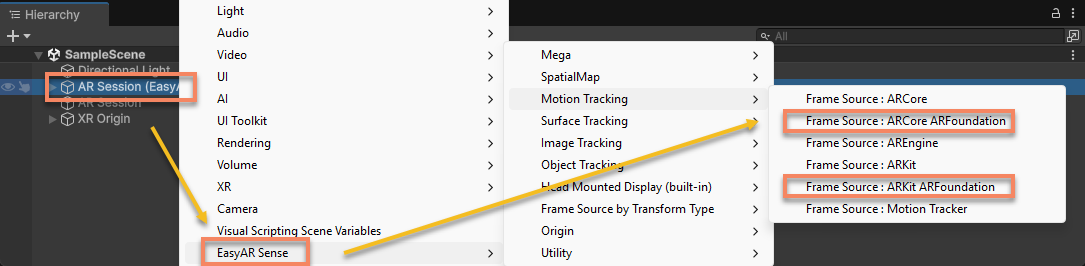
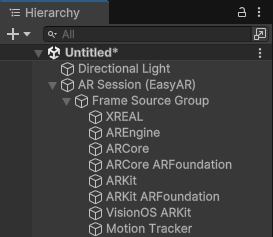
To run on phones that don't support AR Foundation, you also need to ensure the session contains frame sources other than AR Foundation. A typical ARSession should resemble the following:
Tip
You can sort frame sources as needed. At runtime, the session will select the first available frame source in transform order based on device support.
Enabling AR Foundation only when needed
Since AR Foundation's underlying implementation on phones is ARCore and ARKit, it can only be used on limited devices, especially on many domestic Android phones where it's unusable. Therefore, it's generally recommended to enable AR Foundation and related functionality scripts only on supported devices.
EasyAR can automatically handle these operations. This feature can be enabled or disabled via the Unity XR > Unity XR Auto Switch option in Project Settings > EasyAR > Sense. Detailed instructions can be found in Auto-switching Unity XR objects.
Maintaining AR Foundation-compatible scenes
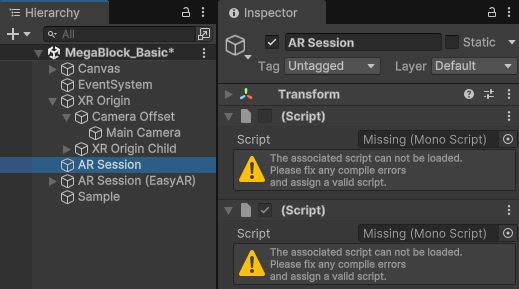
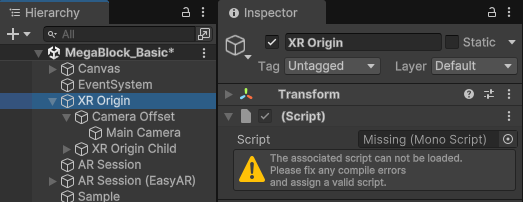
Scenes correctly configured with AR Foundation components can work both with and without the AR Foundation package installed.
When AR Foundation is not installed, its functionality and corresponding frame sources will be unavailable, and some scripts will be missing in the scene, which is normal.
Tip
Many samples can work both with and without the AR Foundation package installed. To enable AR Foundation support in these samples, simply follow Enabling AR Foundation in EasyAR projects.
Next steps
- Learn how to Automatically switch AR Foundation based on device support
Related topics
- Related AR components mentioned in the text:
- AR Foundation provides motion tracking capabilities on some devices. For the relationship between motion tracking and various EasyAR features, refer to:
- For more information on AR Foundation scene configuration, read the official AR Foundation documentation, noting to select the corresponding version: