Cameras and input frame data sources in Unity — frame source (Frame Source)
The frame source is the provider of camera and input frame data in Unity. This article introduces the basic concepts, types, and selection methods of frame sources at runtime.
Before you start
- Understand the basic concepts, composition, and workflow of AR Session.
- Understand basic concepts such as cameras, input frame.
What is a frame source
The frame source (FrameSource) is the provider of input frames (InputFrame), abstracting cameras and other devices or functions that provide input frame data.
The diagram below shows the position of the frame source in the session:
flowchart LR
  F[Frame Source]
  A((Input Frame))
  B[Session]
  C([Camera])
  O([Origin])
  T([Target])
  F --> A
  A --> B
  B -. transform .-> C
  B -. transform .-> O
  B -. transform .-> T

  style F fill:#6e6ce6,stroke:#333,color:#fff
A frame source may only provide data for downstream AR features, or it may implement some AR features itself, such as motion tracking. Some frame sources provide control interfaces for camera devices, allowing users to select camera parameters, such as resolution, focus mode, etc.
Types of frame sources
Based on the Unity package that provides the frame source, frame sources can be divided into two categories:
- Built-in frame sources: Frame sources provided by the EasyAR Sense Unity plugin package, which typically support most common usage scenarios and some headsets.
- External frame sources: Frame sources provided by the EasyAR Sense Unity plugin extension package, typically used to support specific headset devices. Often, external frame sources are provided by headset manufacturers or third-party developers. Different from external frame sources, custom cameras are not necessarily provided externally; some built-in frame sources are also custom cameras.
A frame source can provide motion data of different degrees of freedom: 0DoF, 3DoF, 5DoF, and 6DoF. The same frame source may provide motion data of different degrees of freedom in different working states.
The table below lists the frame sources provided by EasyAR:
| Name | Built-in | Custom camera | Motion data | Description |
|---|---|---|---|---|
| CameraDeviceFrameSource | Yes | No | None (0DoF) | Ordinary camera, supports front and rear cameras and PC |
| EditorCameraDeviceFrameSource | Yes | No | None (0DoF) | Ordinary camera, only supports debugging in the editor |
| FramePlayer | Yes | No | Determined by playback file | Plays back EIF files to simulate runtime |
| ThreeDofCameraDeviceFrameSource | Yes | No | 3DoF | Provides 3DoF tracking capability |
| InertialCameraDeviceFrameSource | Yes | No | 5DoF | Provides inertial navigation capability |
| MotionTrackerFrameSource | Yes | No | 6DoF | Provides motion tracking implemented by EasyAR |
| ARCoreFrameSource | Yes | No | 6DoF | Provides motion tracking from ARCore |
| ARKitFrameSource | Yes | No | 6DoF | Provides motion tracking from ARKit |
| AREngineFrameSource | Yes | Yes | 6DoF | Provides motion tracking from AR Engine |
| VisionOSARKitFrameSource | Yes | Yes | 6DoF | Provides motion tracking from VisionOS ARKit 1 |
| XREALFrameSource | Yes | Yes | 6DoF | Provides motion tracking for XREAL devices 1 |
| ARCoreARFoundationFrameSource | Yes | Yes | 6DoF | Provides motion tracking from ARFoundation corresponding to ARCore |
| ARKitARFoundationFrameSource | Yes | Yes | 6DoF | Provides motion tracking from ARFoundation corresponding to ARKit |
| PicoFrameSource | No | Yes | 6DoF | Provides motion tracking for Pico devices 1 |
| RokidFrameSource | No | Yes | 6DoF | Provides motion tracking for Rokid devices 1 |
| MetaXRFrameSource | No | Yes | 6DoF | Provides motion tracking for Meta XR devices 1 |
Runtime frame source selection
The scene hierarchy of the session contains one or more frame source components. During session runtime, not all frame source components are used.
The screenshot below shows a scene hierarchy with a single frame source component:
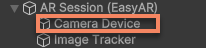
The screenshot below shows a scene hierarchy containing multiple frame source components:
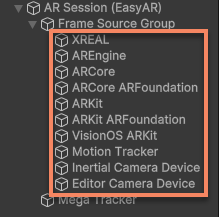
Each frame source has different functions, which also determines its applicable use cases and devices. During session assembly, one and only one of these components is selected as the frame source for the session.
The AssembleOptions.FrameSourceSelection property defines how the frame source is selected when the session runs:
| Name | Method |
|---|---|
| Auto (default) | Automatically select the first available and active child node in transform order. |
| Manual | Specify manually. Only a child node of the session can be specified. |
| FramePlayer | Use FramePlayer. |
Tip
The transform order of Unity objects can be checked with Transform.GetSiblingIndex(), or by checking the object order in the Hierarchy view, but the following option must be turned off (it is off by default): Edit > Preferences > General > Enable Alphanumeric Sorting.
During session assembly, the frame source is selected after the following steps:
- The session traverses its child nodes and collects all active frame source components in transform order.
- The candidate list is filtered according to the source selection strategy in AssembleOptions (AssembleOptions.FrameSource):
- Auto (default): keep all candidates.
- Manual: keep only the manually specified frame source.
- FramePlayer: replace the candidate list with FramePlayer.
- The candidate list is filtered again, removing the following components:
- Components disabled by the components themselves.
- All custom camera components when the custom camera is disabled (AssembleOptions.EnableCustomCamera is false).
- (Android platform) If the timeout setting of AssembleOptions.DeviceList is greater than 0, and the candidate list contains MotionTrackerFrameSource, ARCoreFrameSource, or AREngineFrameSource, it will try to download the corresponding latest device support list. After the download update, the availability of these frame sources may change. After the download completes or times out, the subsequent steps continue.
- Check the availability of the remaining candidate components in list order by calling FrameSource.CheckAvailability() and accessing FrameSource.IsAvailable.
- Select the first frame source whose check result is available.
The disabling conditions of a component itself are defined inside the component. Common cases include:
- Running on an unsupported system, for example AREngineFrameSource is disabled on non-Android systems.
- A required third-party SDK is not installed, for example XREALFrameSource is disabled when XREAL SDK is not installed.
- Configured conditions are not met, for example MotionTrackerFrameSource is disabled when the device's MotionTrackerCameraDeviceQualityLevel is lower than MotionTrackerFrameSource.DeviceQualityLevel.
If no frame source is finally selected, the session enters the Broken state, and the value of BrokenReason in the session report is NoAvailabileFrameSource.
Note
After the device list is updated, if the device list changes, frame source availability may also change. You can refer to device support and session report to learn about session behavior in this case.
Next steps
- Try adding a group of frame sources in the scene