Add a group of frame data sources
An AR Session can contain multiple frame data source components, known as a frame source group. During runtime, the session selects the most suitable frame data source from the group based on the current device and enabled AR features. This article explains how to use and manage frame source groups.
Before you begin
- Understand the basic concepts, types, and runtime selection methods of frame sources.
Using frame source groups in preset AR sessions
Sessions created with default configurations come with a built-in group of frame data sources, which is generally sufficient when using a single AR feature.
Different preset sessions contain different frame data sources.
Using the ARSessionFactory.ARSessionPreset.ImageTracking preset or
AR Session (Image Tracking Preset)menu creates a session with only a single frame data source:
Using the ARSessionFactory.ARSessionPreset.MegaBlock_MotionTracking_Inertial preset or
AR Session (Mega Block Default Preset)menu creates a session containing multiple frame data source components in the scene hierarchy:

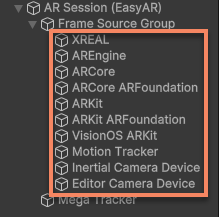
If a preset-created session exists in the scene initially, when adding other features during iteration, you need to add appropriate frame data source components as needed, in addition to adding corresponding frame filter components.
Important
After upgrading from version 4.7 or earlier, you must completely delete the session and recreate it via the menu or ARSessionFactory to use the preset frame source group.
The following lists the frame data source components configured by default for all preset AR features. Note that the order in the list is the same as the component order of frame data sources in the scene:
| Preset | Frame data source group |
|---|---|
Note
The component order in preset-created sessions ensures the optimal frame data source is used on all devices supported by built-in frame sources.
Using default frame source configurations
When using default parameters, frame source configurations automatically adjust based on the device and runtime-enabled AR features.
If you manually modify frame source parameters, when AR features in the session change (e.g., adding motion tracking to a session that originally only contained image tracking), you may need to manually adjust frame source parameters to meet new feature requirements, ensuring all AR features run optimally.
Important
After upgrading from version 4.7 or earlier, you must completely delete the session and recreate it via the menu or ARSessionFactory to use the correct default parameters.
Adding frame source groups
In the Hierarchy view, select AR Session (EasyAR), right-click, and use the menu EasyAR Sense > [ AR Feature ] > Frame Source: * to add a frame source component suitable for that feature. You can also use the menu EasyAR Sense > Frame Source by Transform Type > * Dof > Frame Source: * to add the required frame source component.
In scripts, use ARSessionFactory.AddFrameSource<Source>(GameObject, bool) to add frame source components.
For example, using the menu EasyAR Sense > Frame Source by Transform Type > 3 Dof Rot-Only > Frame Source: Three Dof Camera Device adds a ThreeDofCameraDeviceFrameSource to the selected session.

The corresponding script code is:
ARSessionFactory.AddFrameSource<ThreeDofCameraDeviceFrameSource>(session);
Frame source ordering
During session assembly, only one frame data source in the group will be selected and assembled into the session, based on the value of the AssembleOptions.FrameSourceSelection property. With default configurations, you can influence the selected frame source by adjusting the order of components in the frame source group.
Generally, you can sort objects in the Hierarchy view using scene object sorting methods to directly move frame source objects for ordering.
In scripts, use Transform.SetSiblingIndex(int) to adjust object order.
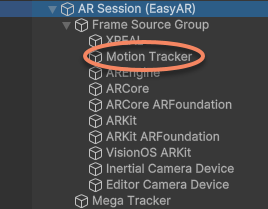
For example, to prioritize MotionTrackerFrameSource over other frame sources, select the Motion Tracker object in the Hierarchy view and drag it to the top position.
The same effect can be achieved with this script code:
motionTrackerFrameSource.transform.SetSiblingIndex(0);
Predefined sorting methods are also available. In the Hierarchy view, select AR Session (EasyAR), right-click, and use the menu EasyAR Sense > Utility > Sort Frame Source: * > * to sort specific frame source components.
In scripts, use ARSessionFactory.SortFrameSource(GameObject, ARSessionFactory.FrameSourceSortMethod) to achieve the same effect.
For example, using the menu EasyAR Sense > Utility > Sort Frame Source: Motion Tracker > System SLAM prioritizes MotionTrackerFrameSource over ARCoreFrameSource, ARCoreARFoundationFrameSource, ARKitFrameSource, ARKitARFoundationFrameSource, and AREngineFrameSource.
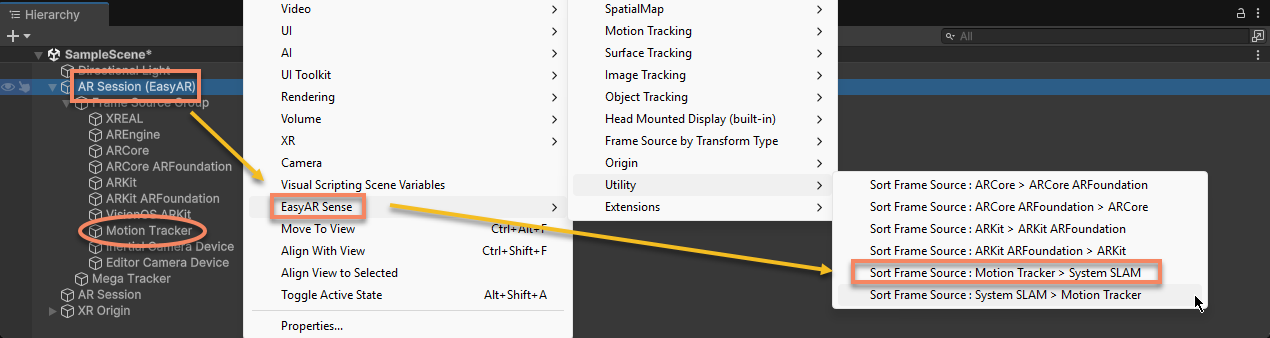
The corresponding script code is:
ARSessionFactory.SortFrameSource(session, new ARSessionFactory.FrameSourceSortMethod { MotionTracker = ARSessionFactory.FrameSourceSortMethod.MotionTrackerSortMethod.PreferEasyAR });
After sorting, the scene hierarchy becomes: