Creating and configuring AR session
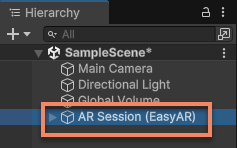
To use AR in Unity, you need to first create and configure an AR session in the scene. This article introduces several main methods for creating and configuring AR sessions. Generally, after successfully creating a session, you can see the following structure in the Hierarchy view:
Before you start
- Understand the basic concepts, composition, and workflow of a session through Introduction to ARSession.
Creating a session with default configuration
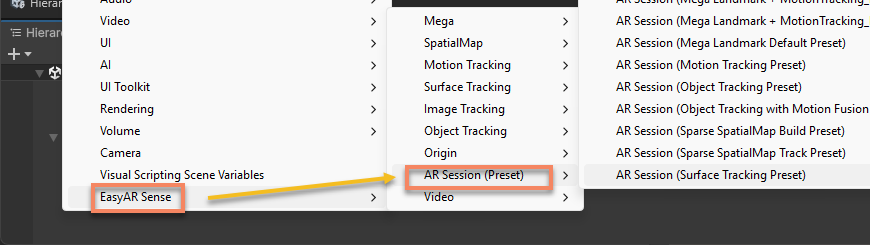
Right-click on a blank area in the Hierarchy view, and use the menu EasyAR Sense > [ AR function ] > AR Session ([ function ] Preset) to create a preset session. The session is pre-configured with frame source and frame filter components suitable for that function.
In scripts, you can use ARSessionFactory.CreateSession(ARSessionFactory.ARSessionPreset, ARSessionFactory.Resources) to create a session.
For example, using the menu EasyAR Sense > Image Tracking > AR Session (Image Tracking Preset) creates a session for image tracking.
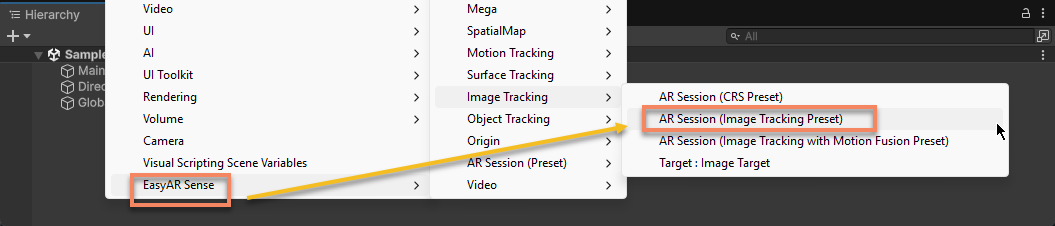
The corresponding script code is:
ARSessionFactory.CreateSession(ARSessionFactory.ARSessionPreset.ImageTracking);
Note that when using ARSessionFactory.ARSessionPreset.SparseSpatialMapBuilder and ARSessionFactory.ARSessionPreset.DenseSpatialMapBuilder presets, resource parameters need to be passed simultaneously. For example, the following code creates a session for sparse spatial mapping and specifies the point cloud material:
ARSessionFactory.CreateSession(ARSessionFactory.ARSessionPreset.SparseSpatialMapBuilder, new ARSessionFactory.Resources { SparseSpatialMapPointCloudMaterial = PointCloudMaterial });
If the script only runs in the editor, you can also use default editor resources:
ARSessionFactory.CreateSession(ARSessionFactory.ARSessionPreset.SparseSpatialMapBuilder, ARSessionFactory.Resources.EditorDefault());
The menu EasyAR Sense > AR Session (Preset) > ** lists all available preset sessions for reference.
Note
Multiple sessions running simultaneously in the same scene will conflict with each other, so at most one enabled (GameObject.activeInHierarchy == true) session can remain in the scene.
Adding components
The frame source and frame filter components of the session can be added and removed as needed after the session is created.
In the Hierarchy view, select AR Session (EasyAR) and right-click, then use the menu EasyAR Sense > [ AR function ] > ** to add frame source and frame filter components suitable for that function.
In scripts, you can use ARSessionFactory.AddFrameSource<Source>(GameObject, bool) to add a frame source component, or use ARSessionFactory.AddFrameFilter<Filter>(GameObject, ARSessionFactory.Resources) to add a frame filter component.
For example, using the menu EasyAR Sense > Image Tracking > Frame Filter : Image Tracker adds a new image tracker to the currently selected session.
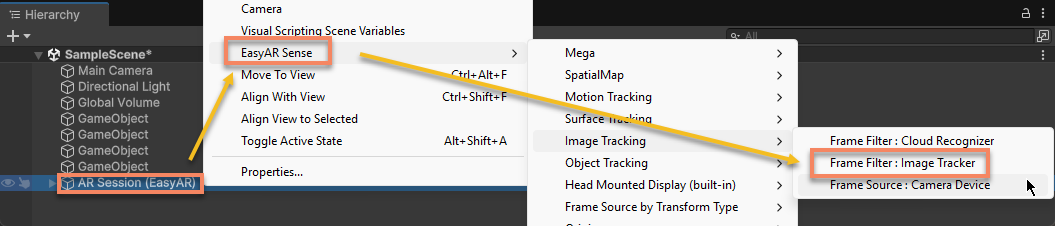
The corresponding script code is:
ARSessionFactory.AddFrameFilter<ImageTrackerFrameFilter>(session);
Caution
Adding components must be completed before assemble. After the session starts executing assemble or after assemble is completed, any addition or removal of components will cause the session to enter the Broken state and stop working.
Note that when adding SparseSpatialMapBuilderFrameFilter and DenseSpatialMapBuilderFrameFilter, resource parameters need to be passed simultaneously. For example, the following code creates a SparseSpatialMapBuilderFrameFilter for sparse spatial mapping and specifies the point cloud material:
ARSessionFactory.AddFrameFilter<SparseSpatialMapBuilderFrameFilter>(session, new ARSessionFactory.Resources { SparseSpatialMapPointCloudMaterial = PointCloudMaterial })
If the script only runs in the editor, you can also use default editor resources:
ARSessionFactory.AddFrameFilter<SparseSpatialMapBuilderFrameFilter>(session, ARSessionFactory.Resources.EditorDefault());
After creating the frame filter, you can use ARSessionFactory.SetupFrameFilters(List<GameObject>, ARSessionFactory.ARSessionPreset) to adjust the frame filter parameters according to the preset configuration.
For example, the following code adds a new image tracker to the session and configures it with the preset parameters of ARSessionFactory.ARSessionPreset.ImageTrackingMotionFusion.
var filter = ARSessionFactory.AddFrameFilter<ImageTrackerFrameFilter>(session);
ARSessionFactory.SetupFrameFilters(new() { filter }, ARSessionFactory.ARSessionPreset.ImageTrackingMotionFusion);
When creating with the menu, parameters cannot be adjusted according to presets; you need to configure them according to the specific component instructions after creation.
Removing components
To remove components from the session, you can select the corresponding component in the Hierarchy view and press the Delete key, or destroy (Destroy) the corresponding object in the script.
Note
Disabling (SetActive(false)) the GameObject of the component has the same effect as removing the component.
For example, to remove an image tracker from the session, select Image Tracker and press the Delete key.
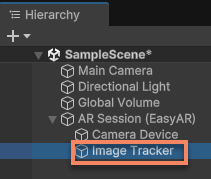
Caution
Removing components must be completed before assemble. After the session starts executing assemble or after assemble is completed, any addition or removal of components will cause the session to enter the Broken state and stop working.
Impact of component ordering
The order of the frame filter child nodes of the session has no effect on the session execution.
The order of the frame source child nodes of the session will affect the selection order of frame sources during the assemble process. Only the first available frame source in transform order will be selected as the actual frame source of the session.
Note
The order of frame source nodes is only effective if modified before assemble. After assemble, adjusting the order will not affect the running result.
[Optional] creating a session freely
If the default configured session does not meet the requirements, you can also create and configure the session freely as needed.
You can use the menu EasyAR Sense > AR Session (Preset) > AR Session (Empty) to create an empty session without any frame source and frame filter components.
In scripts, you can use ARSessionFactory.CreateSession() to achieve this.
ARSessionFactory.CreateSession();
Then add appropriate frame source and frame filter components according to actual needs.
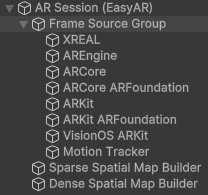
For example, if you need to create a session with sparse spatial mapping and dense spatial mapping functions, you can use the following code:
var session = ARSessionFactory.CreateSession();

var group = new GameObject("Frame Source Group");
group.transform.SetParent(session.transform, false);

ARSessionFactory.AddFrameSource<XREALFrameSource>(session);
ARSessionFactory.AddFrameSource<AREngineFrameSource>(session);
ARSessionFactory.AddFrameSource<ARCoreFrameSource>(session);
ARSessionFactory.AddFrameSource<ARCoreARFoundationFrameSource>(session);
ARSessionFactory.AddFrameSource<ARKitFrameSource>(session);
ARSessionFactory.AddFrameSource<ARKitARFoundationFrameSource>(session);
ARSessionFactory.AddFrameSource<VisionOSARKitFrameSource>(session);
ARSessionFactory.AddFrameSource<MotionTrackerFrameSource>(session);

List<GameObject> filters = new();
filters.Add(ARSessionFactory.AddFrameFilter<SparseSpatialMapBuilderFrameFilter>(session, resources));
filters.Add(ARSessionFactory.AddFrameFilter<DenseSpatialMapBuilderFrameFilter>(session, resources));

ARSessionFactory.SetupFrameFilters(filters, ARSessionFactory.ARSessionPreset.SparseSpatialMapBuilder);
ARSessionFactory.SetupFrameFilters(filters, ARSessionFactory.ARSessionPreset.DenseSpatialMapBuilder);
It will create a session structure like this:
Next steps
Controlling operation
- understand the methods and functions of initialization
- learn how to determine availability and device support
- understand methods for controlling session execution
Accessing components and results
- try accessing AR function components
- learn how to get session running results
Component reference
- ARSession component reference