Enable headset support in an EasyAR project
This document describes how to enable headset support in an existing EasyAR Unity scene.
Before you begin
- Read EasyAR headset support to learn about the headset types already supported by EasyAR and the EasyAR features that can run on headsets.
- Read EasyAR headset support in Unity to learn about the overall architecture of EasyAR headset support in Unity.
This article assumes that you already have a scene that can use EasyAR. If you need to create such a scene or add EasyAR components to a headset scene, refer to the following documents:
Add headset components to the scene
Before adding headset components to the scene, you usually need to remove the existing Camera and XR Origin.
Remove Camera and XR Origin
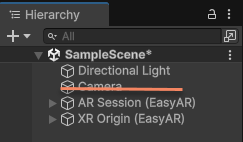
Delete the existing Camera in the scene.
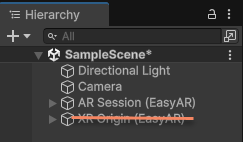
If XR Origin already exists in the scene, whether it comes from EasyAR or the Unity XR framework, in most cases you need to delete it.
Tip
In some advanced usages, you can decide whether to delete it according to your own needs.
Add headset components
Follow the official headset instructions to add headset components. Pico headset is used here as an example. If there is any conflict with the official instructions, the official instructions take precedence.
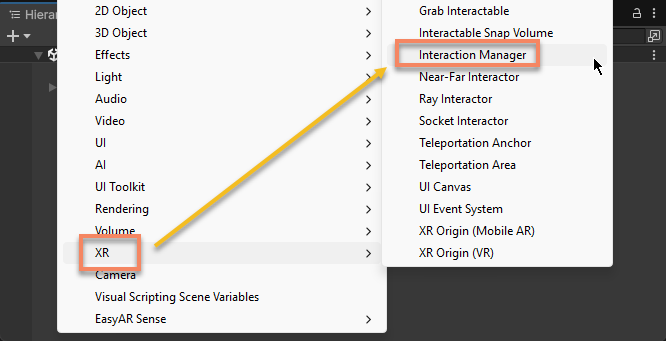
Use the menu to add an XR Interaction Manager:
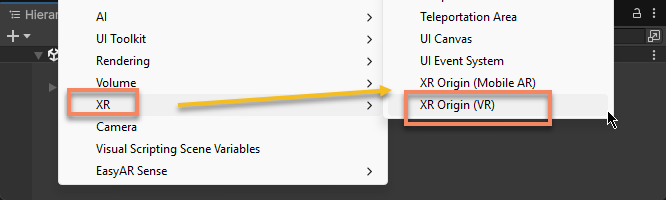
Use the menu to add an XR Origin:
Before running, make sure to read the official headset instructions to understand how a scene with a headset SDK should be configured and run.
Configure frame source
Built-in supported devices
Select AR Session (EasyAR) and right-click it. Use the menu EasyAR Sense > Head Mounted Display (Built-in) > Frame Source : [Name] (keep it only) to create the frame source for [Name] and keep only it.
For example, configure frame source for Apple Vision Pro:
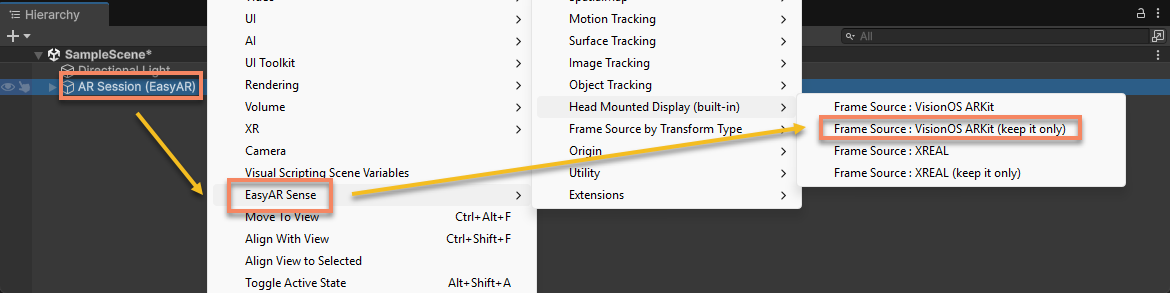
After the operation, the frame source in the session becomes:
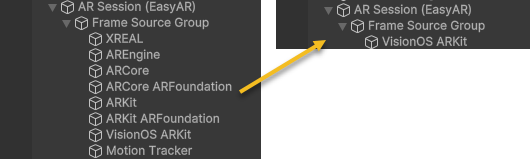
Tip
If the session contains the frame source corresponding to the device and it is the first available frame source on the device (for example, in the figure above, VisionOS ARKit is the first available frame source in visionOS), you do not need to modify it. Some default sessions created by menus belong to this case.
Extension supported devices
Select AR Session (EasyAR) and right-click it. Use the menu EasyAR Sense > Extensions > Frame Source : [Name] (keep it only) to create the frame source for [Name] and keep only it.
For example, configure frame source for Pico headset:
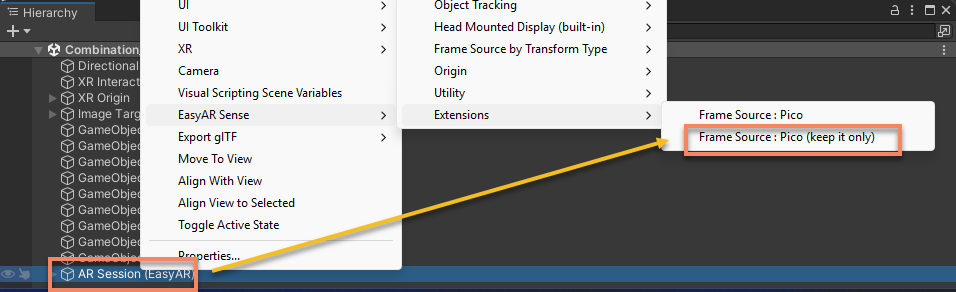
After the operation, the frame source in the session becomes:
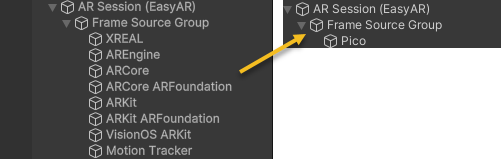
Cross-device support
If the scene needs to run on different devices, keep other frame sources and make sure the current frame source can be selected on the device.
Using menu items without (keep it only) can add only the frame source without deleting other frame sources. For example, EasyAR Sense > Extensions > Frame Source : Pico creates a frame source suitable for Pico at the end of all frame sources in the session. In general, after adding a frame source this way, you also need to move it to an appropriate position.
Tip
In some advanced usages, you can adjust the position of the frame source according to your own needs, or modify it in code.
Next steps
- Vision Pro project configuration
- Meta XR/Quest project configuration
- XREAL project configuration
- Other Android device project configuration