Onsite verification and diagnostics tool
Mega Toolbox (mini program) is used to verify Mega localization effects based on WeChat Mini Program (using xr-frame), and supports quick verification and onsite testing.
Annotation prerequisites
Using Mega annotation data can visually reflect the current localization effect, such as whether virtual objects jitter or drift.
Before using the tool for verification, it is recommended to read Annotation toolkit component, Annotation dataset component, and complete annotation as described.
How to get it
Scan the WeChat Mini Program QR code

Log in to account
Log in with an EasyAR Developer Center account. After the first successful login, the account and password will be filled automatically.
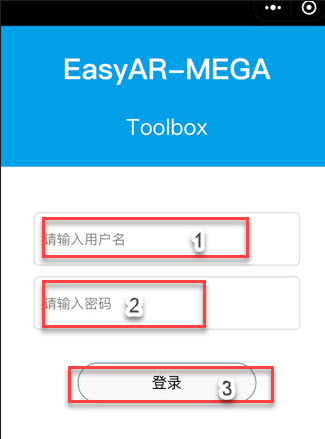
Enter the username.
Enter the password.
Login button.
Select localization map library and annotation data
Select the localization map library to use and the corresponding annotation data.
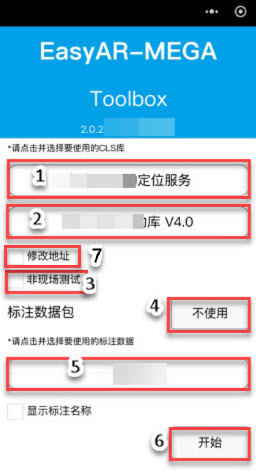
Select the localization service group where your map is located.
Select the localization map library where your map is located.
Whether it is an onsite test. If you are onsite, do not select it.
If you do not use an annotation package, click the do-not-use option to enter the localization interface.
Use an annotation package. Annotation data corresponding to the map is listed here. Select the required annotation package for localization verification.
After selecting an annotation package, click the Start button to enter the localization interface.
Do not select Modify address by default. If there are special circumstances, modify it under the guidance of the EasyAR technical team.
Enter the localization interface
Enter Mega Toolbox (mini program). First initialize against a texture-rich scene, and then localization can be performed.
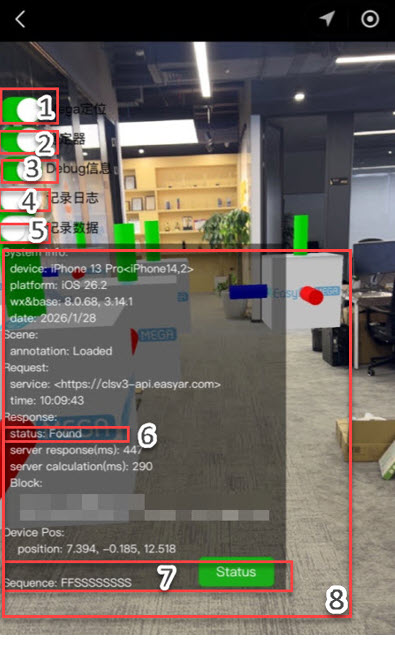
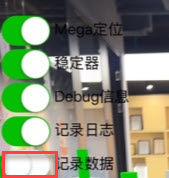
The
Mega localizationfunction is enabled by default. When enabled, localization operations can be performed normally.The
Stabilizerfunction is enabled by default. If this function is disabled, virtual objects will jitter.The
DeBug informationfunction is enabled by default. After it is enabled, detailed log information will be displayed.Record logsis required when reporting issues.Record datais the data that must be provided when reporting issues.Displays the current localization status, including
Found,Not Found, error prompts, etc.Displays historical localization status, success or failure.
Sindicates localization success, andFindicates localization failure.Detailed log information.
Submit abnormal localization data
When the localization effect jitters, drifts, or has a fixed offset, send the data and logs to the EasyAR technical support team.
- Click the
Record databutton. The screen prompts that data recording has started.
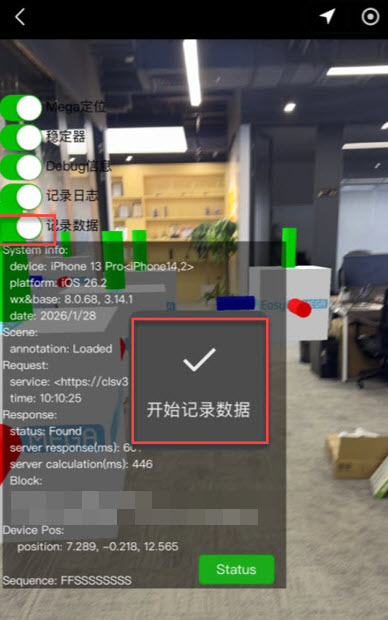
- After recording ends, click the
Record databutton again to stop recording data.
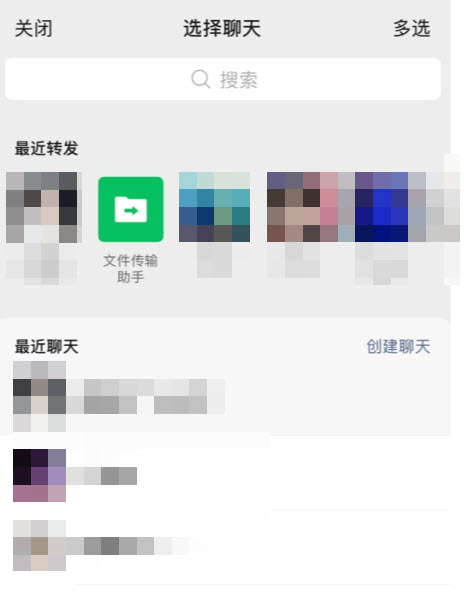
- In the pop-up share interface, send the file to "File Transfer Assistant", and finally forward it to the EasyAR technical support team.
- The steps for
Record logsare similar toRecord data. Finally, send the log file to the EasyAR technical support team.