Import the Latest Version of the EasyAR Plugin to Enable Mega Features
This article describes how to import the latest version of the EasyAR Sense Unity Plugin (for Mega) to enable Mega features.
Import the Latest Version of the EasyAR Plugin for Mega
You need to use Unity 2021.3.30 or a later version.
On the Download page, you will see two versions of the Unity plugin: EasyAR Sense Unity Plugin and EasyAR Sense Unity Plugin (for Mega).
The main differences between these two versions are as follows:
- EasyAR Sense Unity Plugin: It does not contain Mega support files and cannot be used for Mega development. EasyAR provides historical versions starting from 4.6 for download.
- EasyAR Sense Unity Plugin (for Mega): It contains Mega support files and can be used for Mega development. EasyAR does not provide historical versions for download.
When using versions after 4000, as long as the version numbers are the same, the EasyAR Sense Unity Plugin (i.e., com.easyar.sense) files in the two compressed packages are exactly the same and can be replaced with each other. Therefore, if you have already downloaded and imported the latest version of the EasyAR Sense Unity Plugin, you can directly extract the com.easyar.mega file from the EasyAR Sense Unity Plugin (for Mega) compressed package and import it into your Unity project without re - importing the entire plugin package.
Note
After version 4000, when importing incompatible com.easyar.sense and com.easyar.mega, the script compiler will report an error, indicating a version mismatch. Please ensure that com.easyar.sense and com.easyar.mega come from the same version of the plugin package or are compatible with each other.
For version 4.7, the version numbers of com.easyar.sense and com.easyar.mega, including all the following numbers and letters, must be exactly the same to ensure compatibility.
Before launching your application, it is recommended to check the EasyAR website again. If there is a newer version of the EasyAR Sense Unity Plugin (for Mega), please download and import the latest version to ensure that your application can use the latest Mega services normally and achieve the longest compatibility and best performance.
Important
Applications developed using an outdated EasyAR Sense Unity Plugin (for Mega) may not be able to use the latest Mega services. When the online service does not change (i.e., the version of the Mega positioning library is not updated), applications packaged using an older version of the EasyAR Sense Unity Plugin (for Mega) can still be used normally.
Import the EasyAR Plugin and the Mega Support Package
After unzipping the downloaded zip package, you can see a readme and several tgz files. The tgz files can be directly imported into Unity without further unzipping.
Import method:
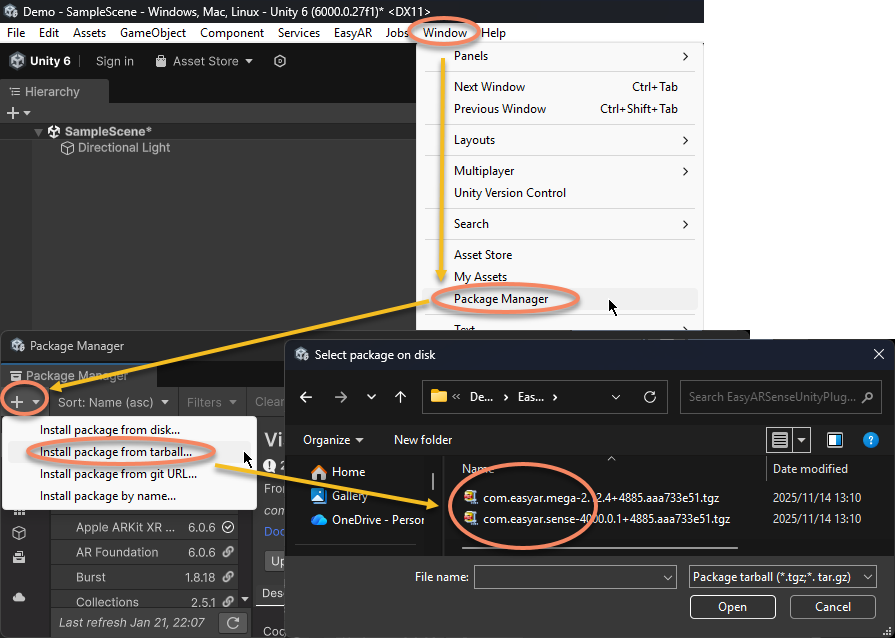
- Click
Windowfrom the menu bar and selectPackage Managerin sequence. - Click the
+sign in the upper - left corner of the pop - up window and selectInstall Package from tarball .... - Select the
.tgzfile obtained by downloading and unzipping in the pop - up dialog box.
- Importing only
com.easyar.senseallows you to develop Mega applications, but it does not support editor functions such as block mesh loading and content reference placement. - Importing
com.easyar.senseandcom.easyar.megaallows you to develop Mega applications and supports editor functions such as block mesh loading and content reference placement. - Usually, there is no need to import
com.easyar.mega.studio. This tool cannot be used for Unity development. It is only used to create and import annotation data and view the effects in conjunction with the Mega Toolbox.
The import order of the two .tgz files, com.easyar.sense and com.easyar.mega, is not limited. You can import com.easyar.sense first or com.easyar.mega first.
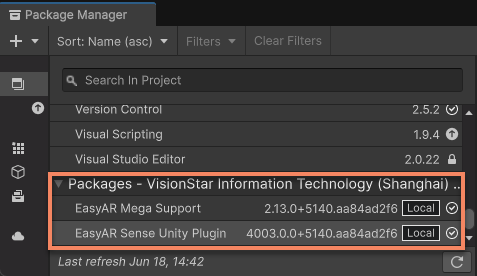
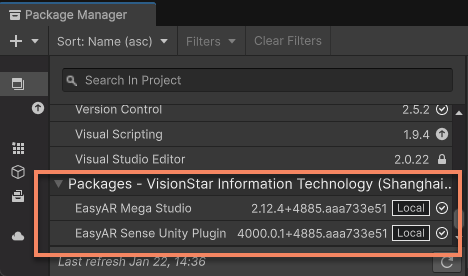
After successfully importing com.easyar.sense and com.easyar.mega, you should not see any error messages in the Console window of Unity. At the same time, open the Package Manager window, and you can see that both EasyAR Sense Unity Plugin and EasyAR Mega Support have been imported and display the version number just imported.
Tip
com.easyar.mega depends on some third - party packages, such as com.unity.cloud.ktx and com.unity.cloud.gltfast. Please ensure that your network connection is normal during the import process so that Unity can automatically download and import these dependency packages.
In some network environments, the process of Unity importing these dependency packages may be slow. It is recommended to change the network environment or try importing multiple times until all dependency packages are successfully imported.
Note
After importing the plugin package, the tgz file cannot be deleted or moved to another location. Therefore, it is usually necessary to place this file in a suitable place before importing. It is generally recommended to place it in the Packages folder of the Unity project for easy version management.
Enable Mega Feature Support
Check and open the Mega > Mega Block/Landmark support option in the Project Settings panel:
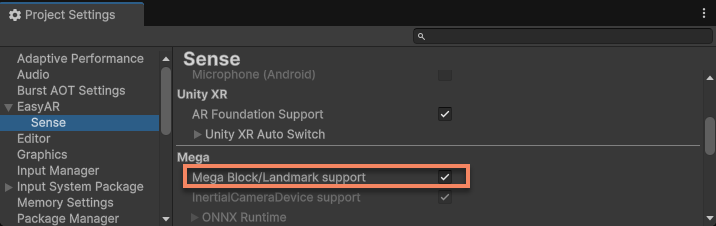
This option is enabled by default after importing com.easyar.mega and is disabled by default if not imported.
Note
Enabling Mega feature support will force the addition of (fine) positioning permissions. This is necessary for using Mega features to achieve the best results.
Next Steps
- Quick Start with Unity Mega development
- Develop applications using Mega