Use a PC Camera to Quickly Run Mega (A Quick but Not Recommended Remote Debugging Method)
This document aims to guide developers on how to use a PC camera in conjunction with on-site pictures to verify whether the Mega cloud positioning service can run or to debug application processes unrelated to tracking effects without an EIF recording file.
Before You Start
- Complete the Quick Start to understand how to run a Unity application with Mega functionality.
- Connect a camera device to your PC and ensure it functions properly.
Important
Function expectations:
- This method is not the recommended remote debugging method. When conditions allow for recording, debugging with an EIF file is a better choice.
- This method is only used for debugging processes unrelated to tracking effects in the absence of an EIF file, such as verifying the smooth operation of the Mega service.
- The effect seen using the camera on a PC has nothing to do with the actual tracking effect on a real device.
Obtain an On-Site Photo
Obtain a relatively clear on-site photo. You can take it on-site or use the panorama preview function in the editor to capture a picture.
How to Use the Panorama Preview Function to Capture a Picture
Note
Some data does not support panoramic images.
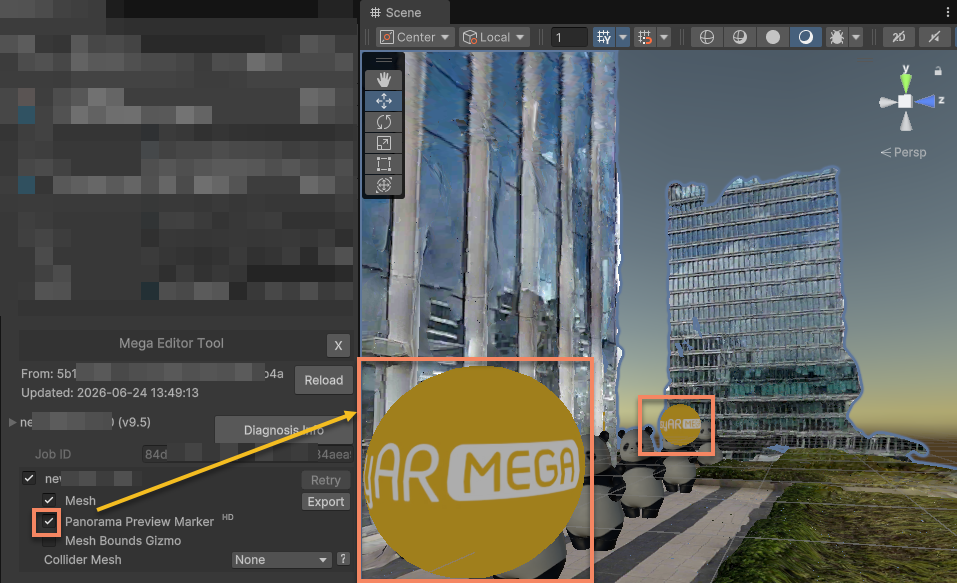
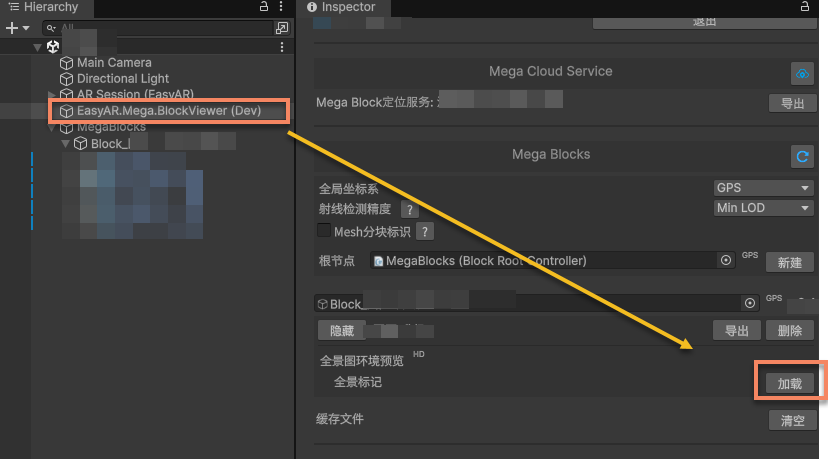
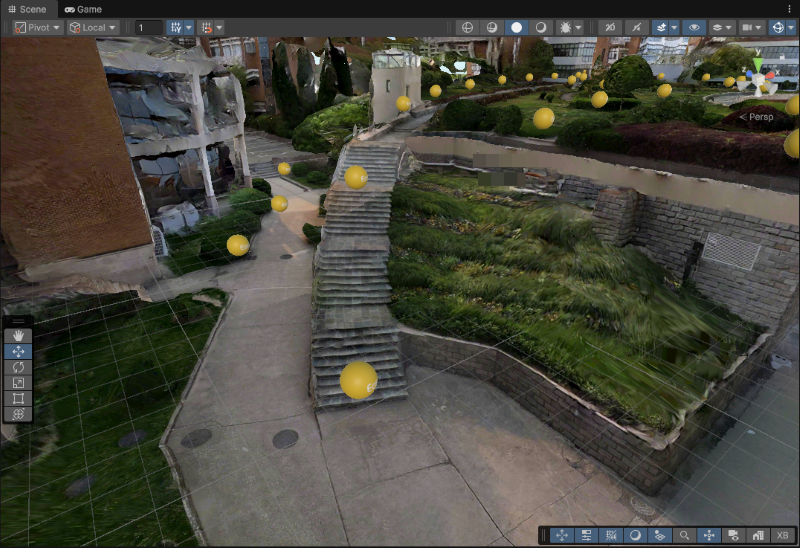
Click the
Panorama Preview Markercheckbox to display the panorama markers.
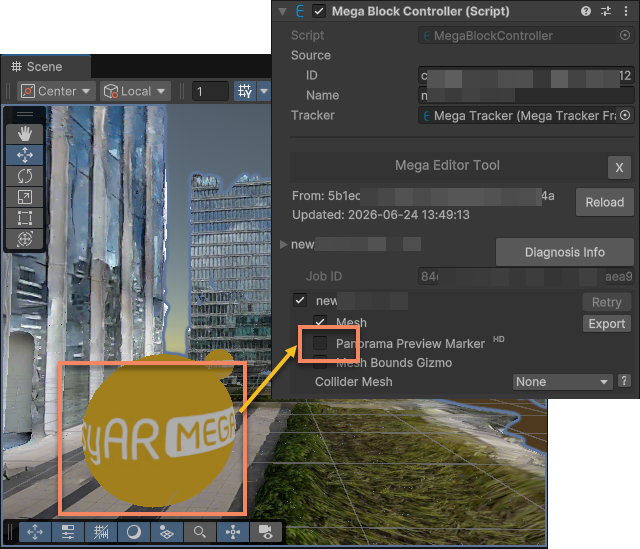
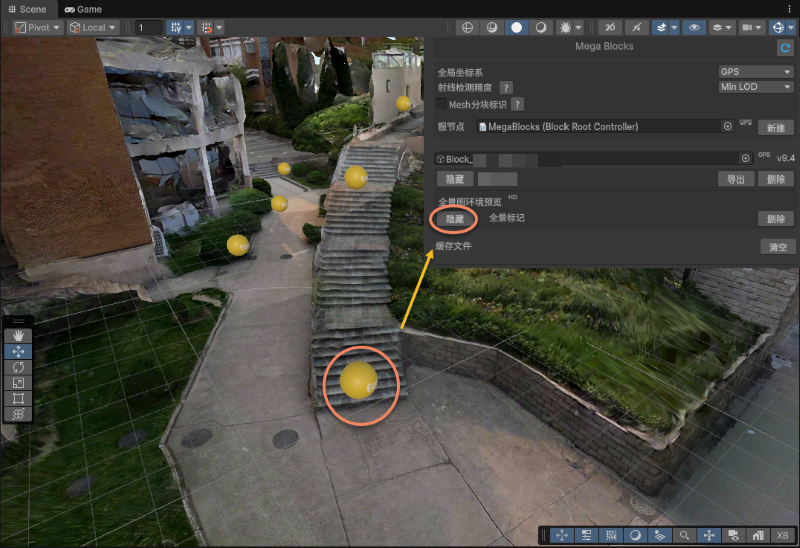
Click the panorama marker at the location you want to preview, then deselect the
Panorama Preview Markercheckbox to hide the panorama markers.
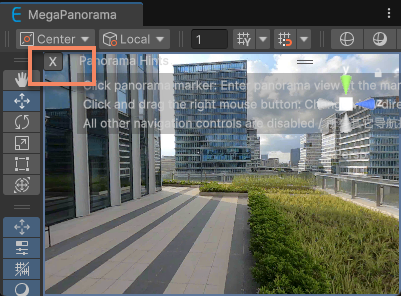
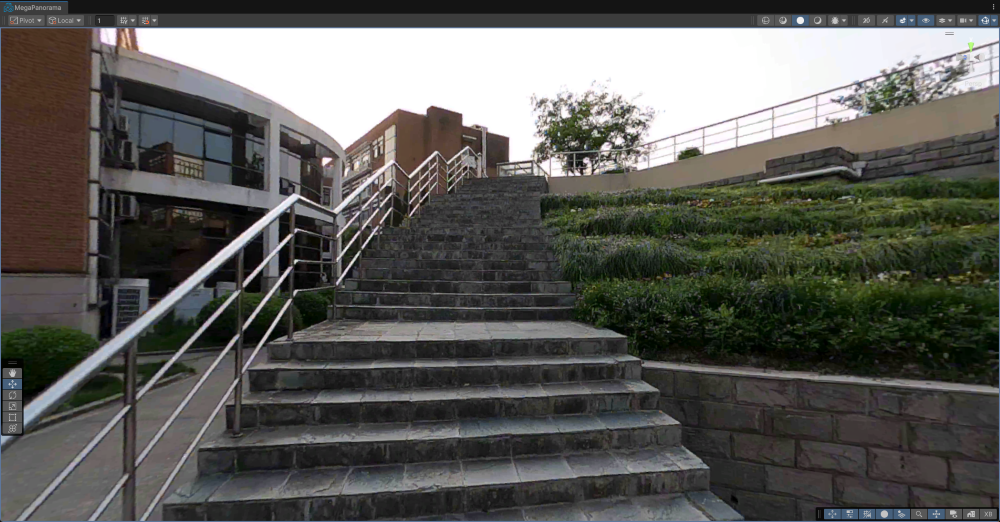
Click the
Xbutton in the MegaPanorama window to close the operation prompt.
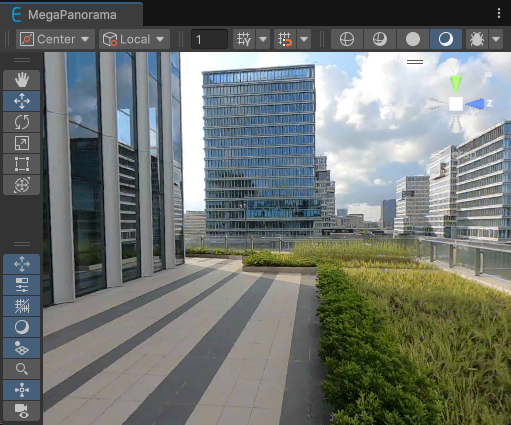
You can then obtain an on-site picture in the MegaPanorama window. Take a screenshot and save it:
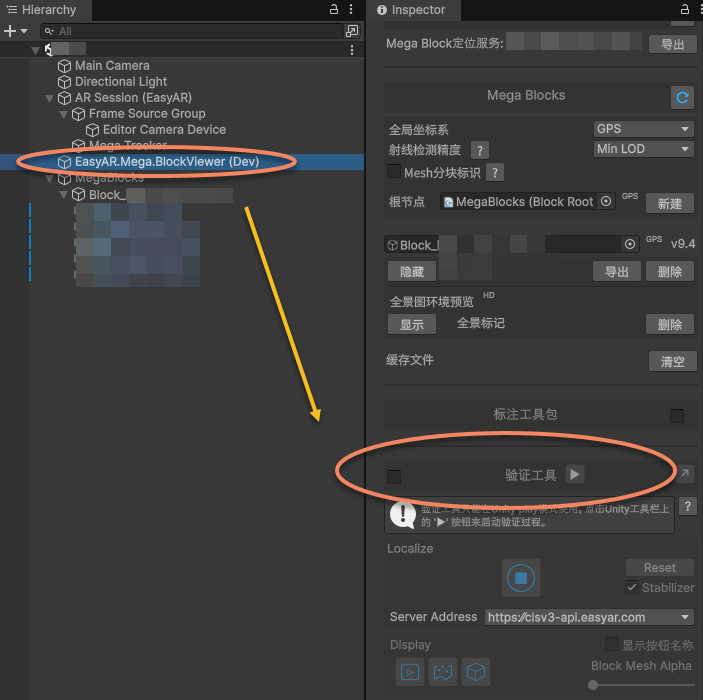
Close the Session Verification Tool
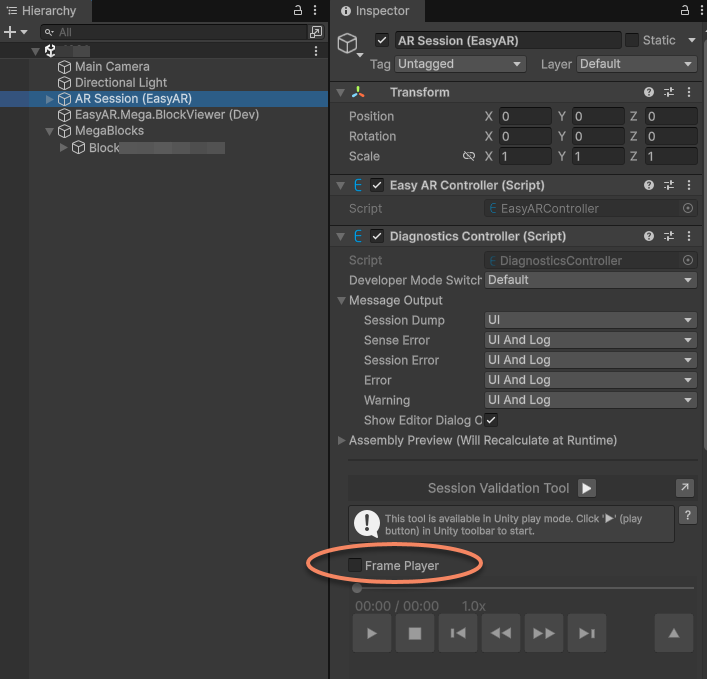
Click AR Session (EasyAR) in the scene > confirm that Frame Player on its Inspector panel is turned off.
Run
Important
The Mega positioning service is relatively "tolerant" of the input used for positioning, but the results of this debugging method are only used to distinguish between "working" and "not working" (i.e., the difference between 0 and 1). It can prove that the Mega positioning service is running, but it does not represent the actual tracking experience on a real device at all. If you want to observe the positioning speed and tracking stability, be sure to debug with an EIF file or conduct actual tests on a real device.
You can run the application by pointing the camera at a picture or video. If the positioning is successful, you will see 3D objects displayed on the screen and updated intermittently. Since the block model is loaded in the scene, the block model will also be displayed.
If you turn off the display of the block model, you will see the effect of virtual objects overlaid on the real-world scene.
Tip
The warning messages on the screen cannot be turned off because this usage method does not reflect the real effect. This method can only be used during the development process, and developers should be aware of the impact of such usage.
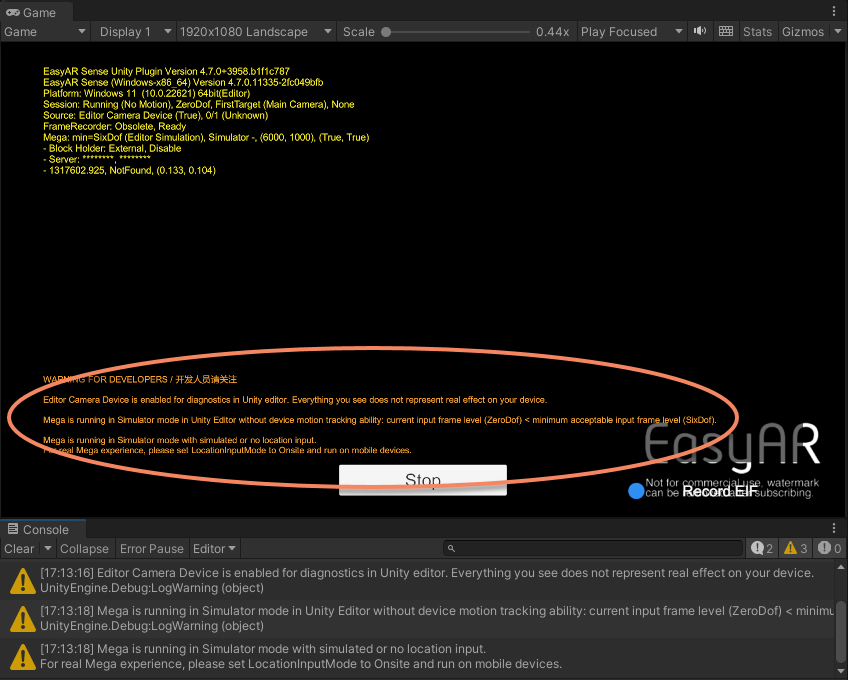
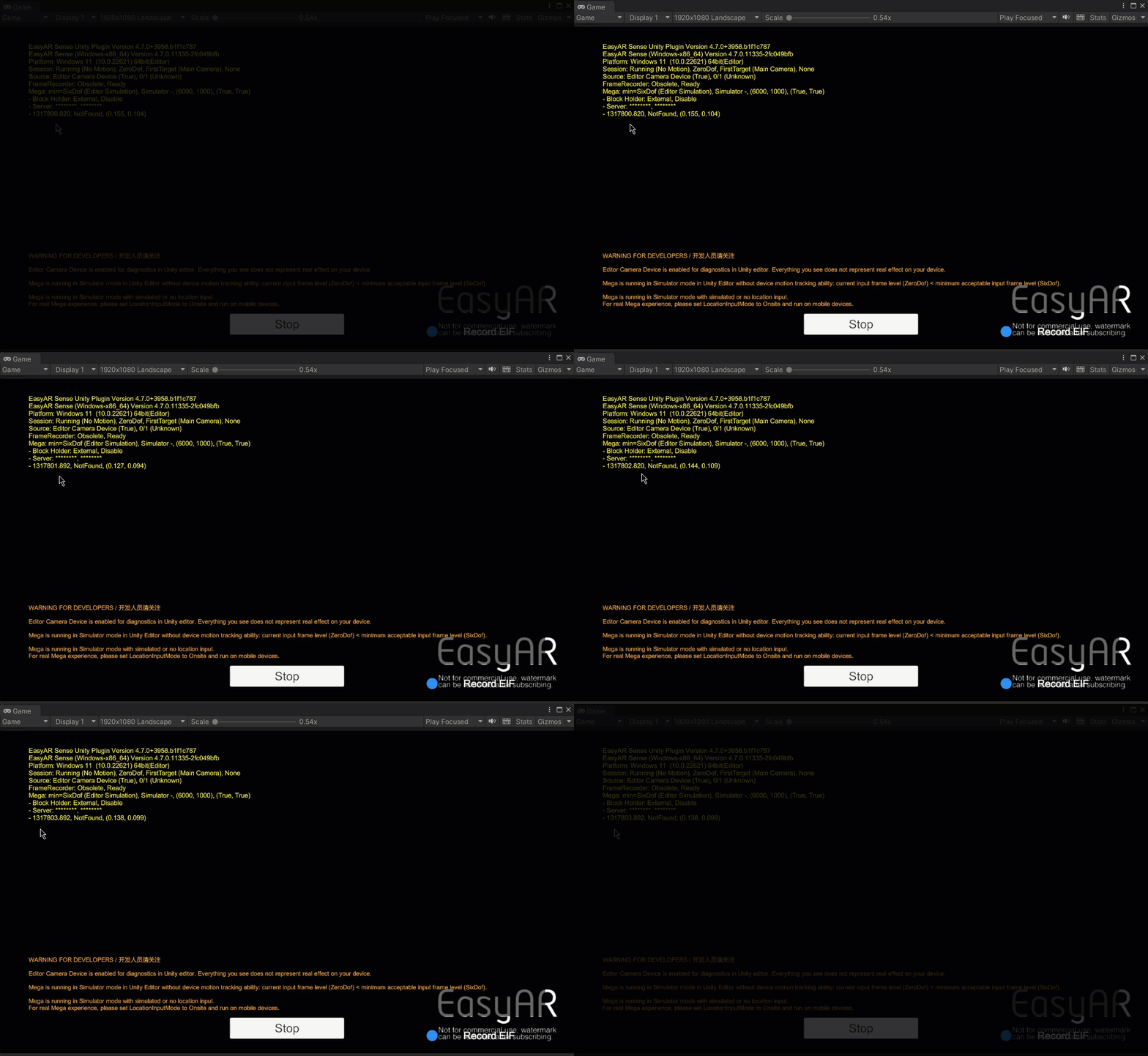
You can judge whether the system is running normally by the update of the timestamp in the diagnostic information: If you see that the timestamp in the diagnostic information displayed on the screen is constantly updating, it means that the system is running normally.
Important
When using the application, you will definitely notice the diagnostic information text displayed on the screen or in front of your eyes during runtime. Read UI Message Output carefully and consider what configuration should be adopted and what control switches should be retained during the development stage, testing stage, and after the application is launched. Communication with EasyAR usually requires providing this information. It is recommended to make good use of it rather than turn it off immediately.
Next Steps
- Try to simulate the operation using the session verification tool as much as possible.