Using Mega Toolbox to Record EIF Simulation Running Data for Problem Reproduction on Mobile Phones
When reproducing problems, please select the On-site Verification and Diagnostic Tool mode. This function supports simultaneous positioning and recording.
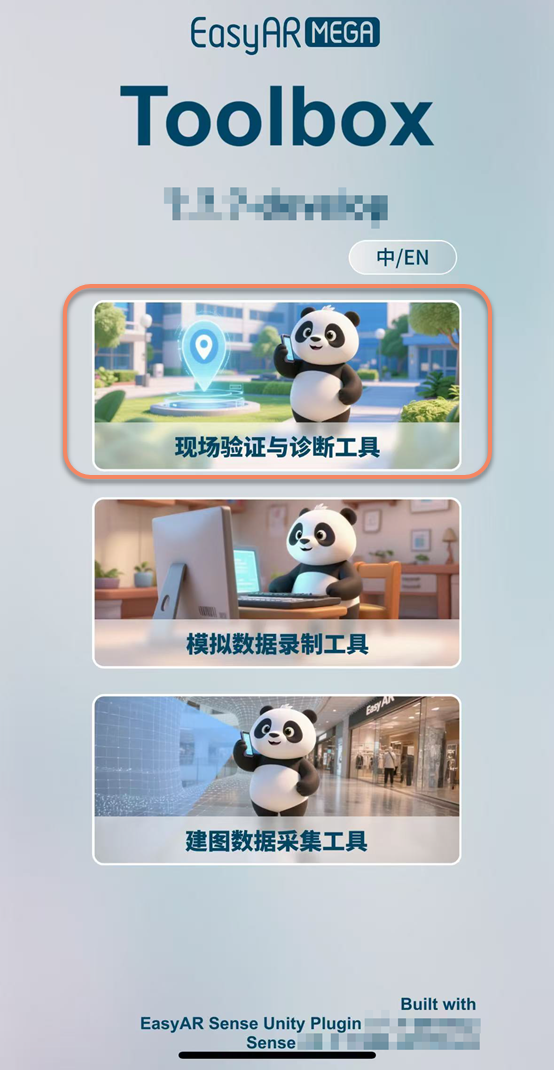
Enter the Positioning Test Interface
Select the first On-site Verification and Diagnostic Tool to enter.
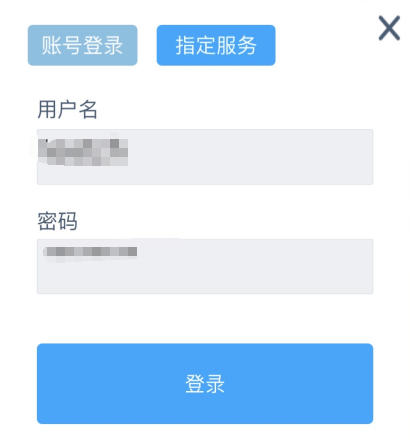
Log in to Your Account
Fill in the developer center account on the EasyAR official website where the positioning service is located.
Positioning Configuration
Select the corresponding positioning service and mark the data.

Operating Environment Configuration
After selecting the marked data, there will be a prompt asking Are you conducting an on-site test?. Select Yes (you must conduct an on-site test to collect EIF data).

Reproduce the Problem and Record EIF Data
Start positioning. Click the
red circlebutton below to start recording EIF data.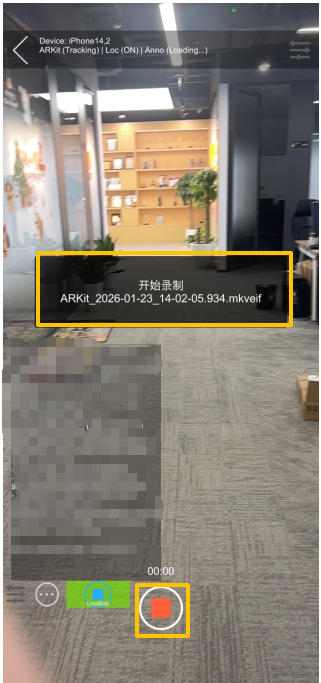
After the abnormal phenomenon is reproduced, click the
red squarebutton below to stop recording EIF data.

Note
It is recommended to control the single recording duration to about 1 minute, and the recorded video must include the abnormal phenomenon; otherwise, it is invalid data. For detailed operation instructions, please refer to the relevant chapter of On-site Verification and Diagnostic Tool in the "Mega ToolBox Operation Manual".