Block Browsing Tool
Important
This tool has been removed in version 2.13.
This article only applies to versions 2.12 and below.
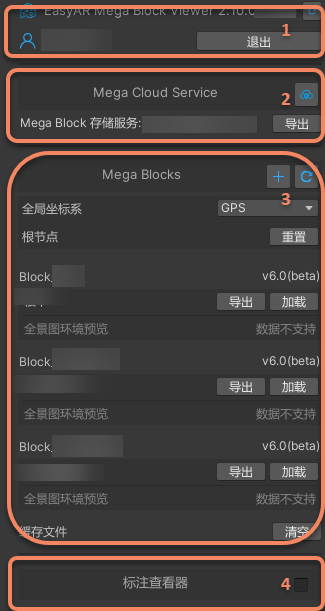
The Block browsing tool is an independent and lightweight functional module in Mega Studio, specifically designed to view and preview the built Mega Blocks. It allows you to directly load, browse, and check the Block data generated in the cloud in the Unity editor without writing any code or running a full application. Through this tool, project managers, operators, testers, and developers can quickly verify the quality of the mapping Block data.
Create the Browsing Tool
Right - click on the blank area of the
Hierarchypanel and selectEasyAR Mega->Tool->Block Viewer (Edit Mode)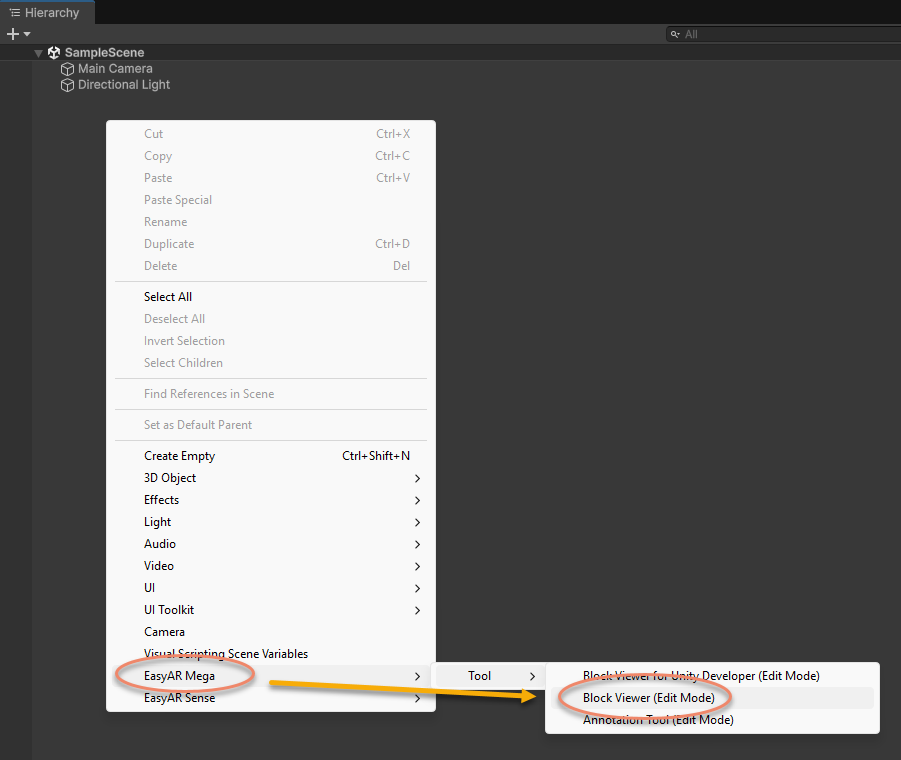
After adding, a new node
EasyAR.Mega.BlockViewerwill appear in theHierarchypanel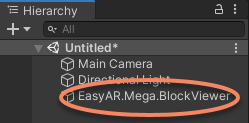
Function Description
After creating the tool, you can configure it through the Inspector panel to load Block data and control the export or display of the model.
Explanation of the BlockViewer Node
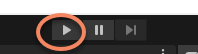
EasyAR.Mega.BlockViewer is a edit - mode tool, which is only used as an editing tool in the editor when the application is not running. Make sure that the play button at the top of the Unity editor is not pressed. As shown in the figure below, when the button is in the state of a right - facing triangle, it is in the stopped state and can be used.
Warning
If you need to package the developed Unity application to a mobile device, be sure to delete the EasyAR.Mega.BlockViewer node in the scene before building, otherwise it may cause packaging failure or runtime errors.