Get and use API Key
There is no limit on the number of API Keys you can create in EasyAR Developer Center. It is recommended to assign independent API Keys to different applications for more fine-grained permission control.
Create API Key
Log in to the EasyAR Developer Center. If this is your first time using API Key, create an API Key first as follows:
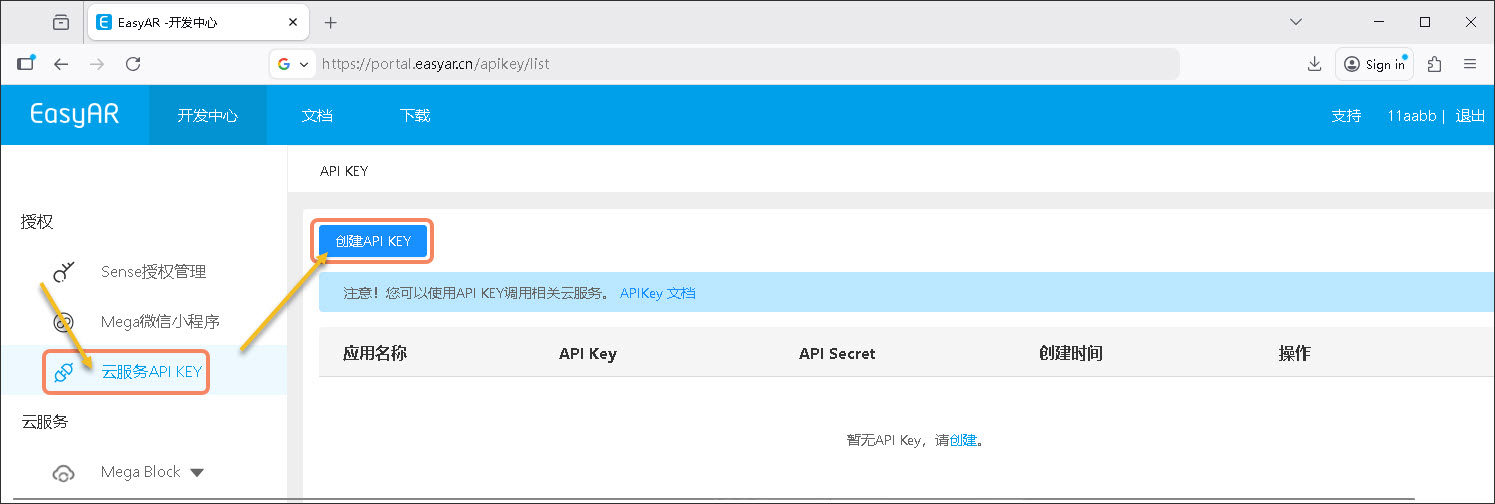
- Under "Authorization", click "Cloud Service API KEY"
- On the "API KEY" page, click the "Create API KEY" button
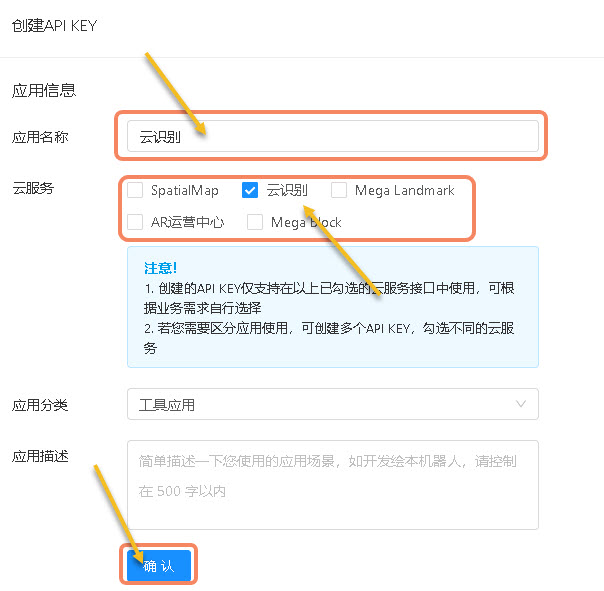
- Fill in "Application name"
- Select the required cloud services according to your application needs. It is not recommended to authorize all services.
- Click "OK"
Tip
To use SpatialMap, select SpatialMap.
To use cloud recognition, select cloud recognition.
To use Mega Landmark, select Mega Landmark. You need to apply to business support before using this feature.
To use AR Operation Center, select AR Operation Center. You need to apply to business support before using this feature.
To use Mega Block cloud localization, select Mega Block.
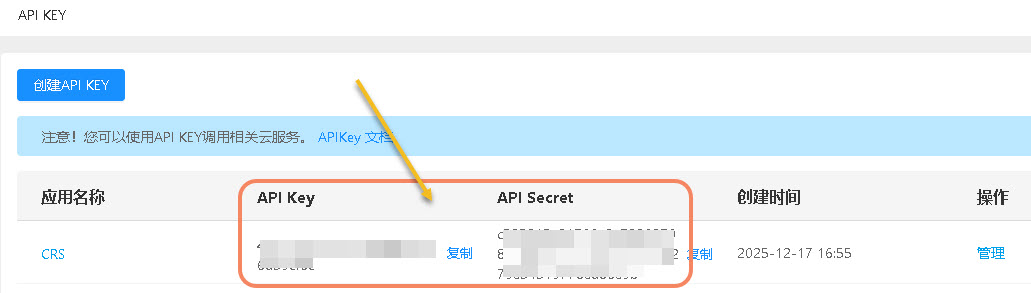
- API Key and API Secret will be generated on the page as shown below. Be careful not to leak them.
Warning
Do not directly use API Key and API Secret in client applications, such as Web or WeChat Mini Programs.
Get Token
There are two ways to obtain a Token: 1. obtain it directly from Developer Center; 2. obtain it by writing code. If you need access control for resources, the second method is recommended. These two methods are introduced below. Choose according to your needs.
Get Token from Developer Center
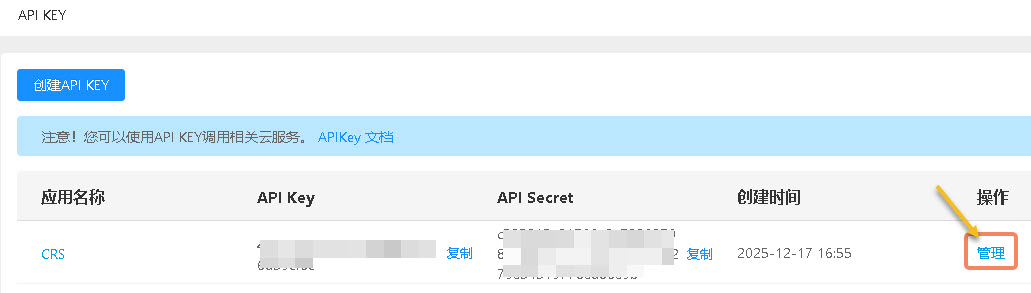
- Select the API Key you want to use and click "Manage" on the right
- Select a Token validity period
- Click "Generate Token"
- Click "Copy"
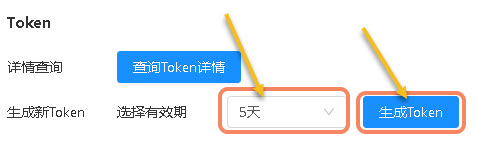
Note
Security is the primary reason for setting Token validity. If a Token is valid for too long, once it is leaked or stolen, attackers can use it for a long time, causing data leakage or unauthorized operations. The validity period limits the Token's valid window, so even if it leaks, the damage is limited to a short time.
Generate Token using API Key and API Secret
The Token generation process requires signing core parameters to ensure transmission security. The signed data is then sent to the STS (Security Token Service) service for authentication. After verification succeeds, the STS service issues a temporary access Token. This Token is valid only within the specified time window, and authentication must be initiated again after it expires.
Warning
Do not generate Token in client code. Generate Token on the server and pass it to the client for use.
Request parameters
| Field name | Type | Required | Description |
|---|---|---|---|
| apiKey | string | Yes | API Key |
| expires | int | Yes | Validity period of the generated token, in seconds |
| acl | string | Yes | Access Control List, controlling the resources that the token can access |
| timestamp | long | Yes | Timestamp, in milliseconds |
| signature | string | Yes | Signature |
acl: consists of one or more ACs (access controls). Each AC contains four parts: service, effect, resource, and permission.
- service: service type. Currently supported values are ecs:crs (cloud recognition), ecs:spatialmap (sparse spatial map), ecs:cls (Mega Block cloud localization), and ecs:vps1 (landmark).
- resource: the app id of the specific service, such as the CRS AppId of a cloud recognition library.
- effect: specifies whether access matching this resource configuration item can be performed. Values are Allow and Deny.
- permission: permission values are READ and WRITE.
Example structure:
[
  {
    "service": "ecs:crs",
    "resource": ["f7ff497727ab2d55ea01d9984ef8068c"],
    "effect": "Allow",
    "permission": ["READ"]
  }
]
Signature method
- Sort all request parameters by key name
- For each parameter, concatenate its key name and value into a string
- Concatenate all strings obtained this way, and append API Secret at the end
- Calculate the hexadecimal sha256 hash of the string as the signature
Signature example
<?php
// Your API Key and API Secret
$apiKey = '6a47f7f8ff6......68744b4bcf';
$apiSecret = '87745d866345256b......fbae27c502a';
// Your service App ID
$appId = 'f7ff497727ab2d55ea01d9984ef8068c';
// Validity period, in seconds
$expires = 3600;

// Build parameters to be signed
$data = [
    'apiKey' => $apiKey,
    'expires' => $expires,
    'acl' => '[{"service":"ecs:crs","resource":["'. $appId .'"],"effect":"Allow","permission":["READ"]}]',
    'timestamp' => time() * 1000,
];

// Sort
ksort($data);

// Concatenate the string
$builder = [];
foreach ($data as $key => $value) {
    array_push($builder, $key . $value);
}

// Append API Secret
array_push($builder, $apiSecret);

// Generate signature
$signature = hash('sha256', implode('', $builder));
echo $signature;
Tip
When adding signature, ACL needs to be converted to a JSON string.
Get Token
Add the generated signature above to the parameter list, send a request to the /token/v2 API, and obtain Token.
- Request URL:
https://uac.easyar.com/token/v2orhttps://uac-na1.easyar.com/token/v2(North America 1 region) - Request method: POST
- Request header: Content-Type: application/json
- Request parameters:
{"apiKey":"6a47f7f8ff6......68744b4bcf","expires":3600,"acl":"[{\"service\":\"ecs:crs\",\"resource\":[\"f7ff497727ab2d55ea01d9984ef8068c\"],\"effect\":\"Allow\",\"permission\":[\"READ\"]}]","timestamp":1765954279002,"signature":"32f18a37fc3c18......55c4943af9"}
Example:
curl -X POST https://uac.easyar.com/token/v2 \
-H 'Content-Type: application/json' \
-d '{"apiKey":"6a47f7f8ff6......68744b4bcf","expires":3600,"acl":"[{\"service\":\"ecs:crs\",\"resource\":[\"f7ff497727ab2d55ea01d9984ef8068c\"],\"effect\":\"Allow\",\"permission\":[\"READ\"]}]","timestamp":1765954279002,"signature":"32f18a37fc3c18......55c4943af9"}'
If statusCode in the returned result is 0, the request succeeded.
Normal response format:
{
  "statusCode": 0,
  "timestamp": 1765954874399,
  "msg": "Success",
  "result": {
    "apiKey": "6a47f7f8ff6......68744b4bcf",
    "expires": 3600,
    "token": "nuPDCj......xstQX",
    "expiration": "2025-12-17T08:01:14.399+0000"
  }
}
- token: the token used to authenticate business requests.
- expiration: the expiration time of the token. After it expires, you need to request a new token.
Error response format:
{
  "statusCode": 4001017,
  "timestamp": 1765954666624,
  "msg": "AppId is not authorized by this API Key",
  "result": null
}
Use Token
In business https requests, add Token to the request header in the format: {"Authorization": "nuPDCj......xstQX"}.
When sending business API requests, add the parameter appId. Check the relevant service in Developer Center for where to obtain it.
Error code description
Various errors or exceptions may occur during Token generation and Token usage. To help developers quickly locate problems and take effective measures, the following describes common error codes and their meanings:
| Error code | Error message | Error description | Solution |
|---|---|---|---|
| 4001011 | API Key invalid | API Key is invalid | Check whether this API Key exists under "Cloud Service API KEY" |
| 4001012 | Timestamp invalid | Timestamp is invalid | Timestamp unit is milliseconds, and the difference from standard time should not exceed 5 minutes |
| 4001015 | Signature invalid | Signature is invalid | Check whether the signature algorithm is correct and whether API Secret matches API KEY |
| 4001017 | AppId is not authorized by this API Key | API Key is not authorized for this AppId | Check whether the service where AppId belongs is associated with this API Key |
| 4001018 | Base64 decode error | Authorization set in the request header is not valid base64 format | Do not process the obtained Token. Use it directly |
| 4001019 | Decryption error | Authorization set in the request header was not generated by EasyAR | Do not process the obtained Token. Use it directly |
| 4001022 | API Key's resource is empty | API Key has no associated cloud services | Check whether API Key is associated with cloud services and whether the associated cloud services have expired |
| 4001024 | Token is expired | Token has expired | Regenerate |
| 4001025 | Token generate fail | Token generation failed | Contact technical support: support@easyar.com |