Active control strategies for target and origin
Through the following content, you will learn the default show and hide strategies for objects under target and origin, and how to adjust them as needed.
Before you begin
- Read Target to learn the basic concepts, states, and lifecycle of target.
- Read XR Origin to learn the basic concepts, composition, and lifecycle of XR Origin.
Active control and control strategy types
During session running, target and origin go through state changes such as tracking and lost. Through active control strategies, the show and hide behavior of objects under target and origin can be automatically managed.
In Unity, the ActiveController component is responsible for automatically managing the GameObject.activeSelf state of target and orign objects, so that content is shown after target is tracked or motion tracking starts tracking, and hidden when target is lost or before motion tracking is successfully initialized.
ActiveController provides two different active control strategies:
- ActiveWhileTracked: when tracked, GameObject is activated (GameObject.activeSelf is set to
true); when tracking is lost, GameObject is deactivated (GameObject.activeSelf is set tofalse). - ActiveAfterFirstTracked: before the first tracking, GameObject is deactivated (GameObject.activeSelf is set to
false); once it is successfully tracked, GameObject remains activated (GameObject.activeSelf is set totrue).
By default, TargetController uses the ActiveWhileTracked strategy, which means that when target is tracked, target and its content are activated, and when tracking is lost, target and its content are deactivated.
By default, XROriginChildController uses the ActiveAfterFirstTracked strategy, which means that before motion tracking is successfully initialized, origin and its content are deactivated, and once motion tracking is successfully initialized, origin and its content remain activated.
Select a different active control strategy
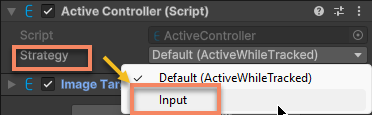
Open the Inspector panel and select Input from the Strategy drop-down menu.
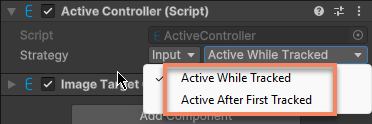
Then select the required active control strategy on the right to override the default strategy.
In scripts, you can override the default active control strategy through the OverrideStrategy property.
For example, the following code shows how to set the active control strategy of target to ActiveAfterFirstTracked:
target.ActiveController.OverrideStrategy = ActiveController.Strategy.ActiveAfterFirstTracked;
Changes to the active strategy take effect immediately, and GameObject.activeSelf is updated according to the current tracking state.
Disable active control
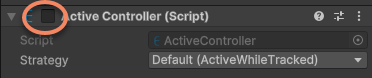
If you need to completely disable active control, for example to control it as needed, you can disable active control by disabling the ActiveController component.
In scripts, you can disable active control by setting the ActiveController.enabled property.
target.ActiveController.enabled = false;
Changes to the ActiveController.enabled property take effect immediately, and GameObject.activeSelf is no longer updated according to the tracking state. If the ActiveController component is enabled again, GameObject.activeSelf will be updated according to the current tracking state.