Import the EasyAR plugin to enable AR features
This tutorial describes how to enable the EasyAR plugin in Unity.
Use a compatible Unity version
Make sure a compatible Unity version is installed (Unity 2021.3 or later). The latest version of Unity 2022.3 or Unity 6.3 is recommended.
Import EasyAR Sense Unity Plugin
On the download page, you will see two Unity plugin versions: EasyAR Sense Unity Plugin and EasyAR Sense Unity Plugin (for Mega).
The main differences between these two versions are:
- EasyAR Sense Unity Plugin: Does not include Mega support files and cannot be used for Mega development. EasyAR provides historical version downloads starting from 4.6.
- EasyAR Sense Unity Plugin (for Mega): Includes Mega support files and can be used for Mega development. EasyAR does not provide historical version downloads.
When you do not need to develop Mega features, EasyAR Sense Unity Plugin is recommended.
- Download the plugin package
- Download the latest EasyAR Sense Unity Plugin.
- After extracting the downloaded
zippackage, you will seereadmeand.tgzfiles. The.tgzfile can be imported directly into Unity and must not be extracted. - Place the
.tgzfile in thePackagesfolder of the Unity project.
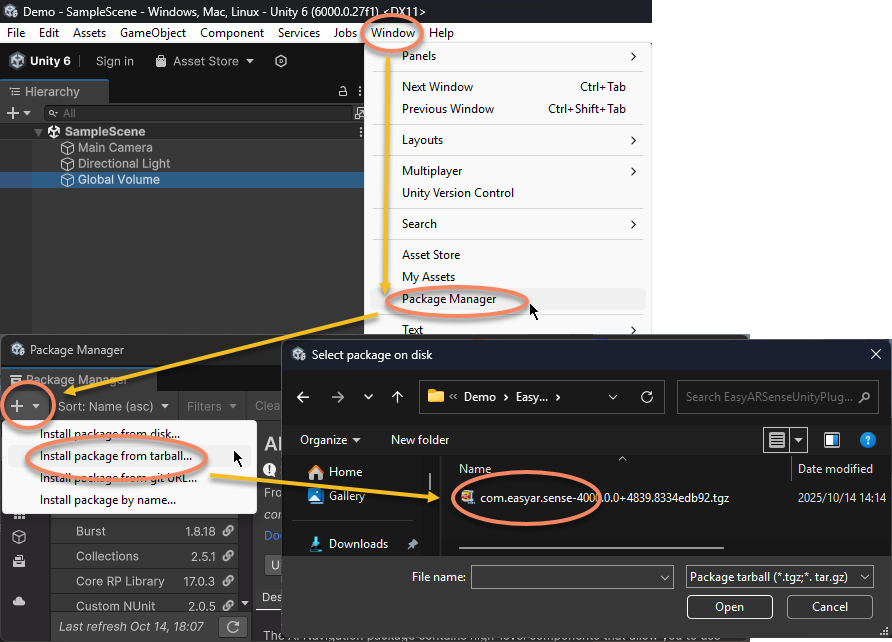
- Import the plugin package
- From the menu bar, click
Windowand selectPackage Manager. - In the popup window, click the
+icon in the upper-left corner and selectInstall Package from tarball .... - In the popup dialog, select the
.tgzfile mentioned above.
- From the menu bar, click
Note
The .tgz file cannot be deleted or moved to another location after it is imported into Unity. Put this file in a suitable place before importing. It is usually recommended to place it in the Packages folder of the Unity project for easier version management.
Fill in the License Key
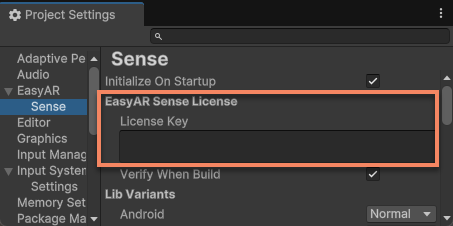
From the Unity menu, select EasyAR > Sense > Configuration to open the EasyAR Sense settings panel.

Enter the EasyAR Sense License in the input field under EasyAR Sense License.
Tip
EasyAR Sense License can be created in EasyAR Developer Center (Chinese, English). For first-time use, you can create one with the following steps:
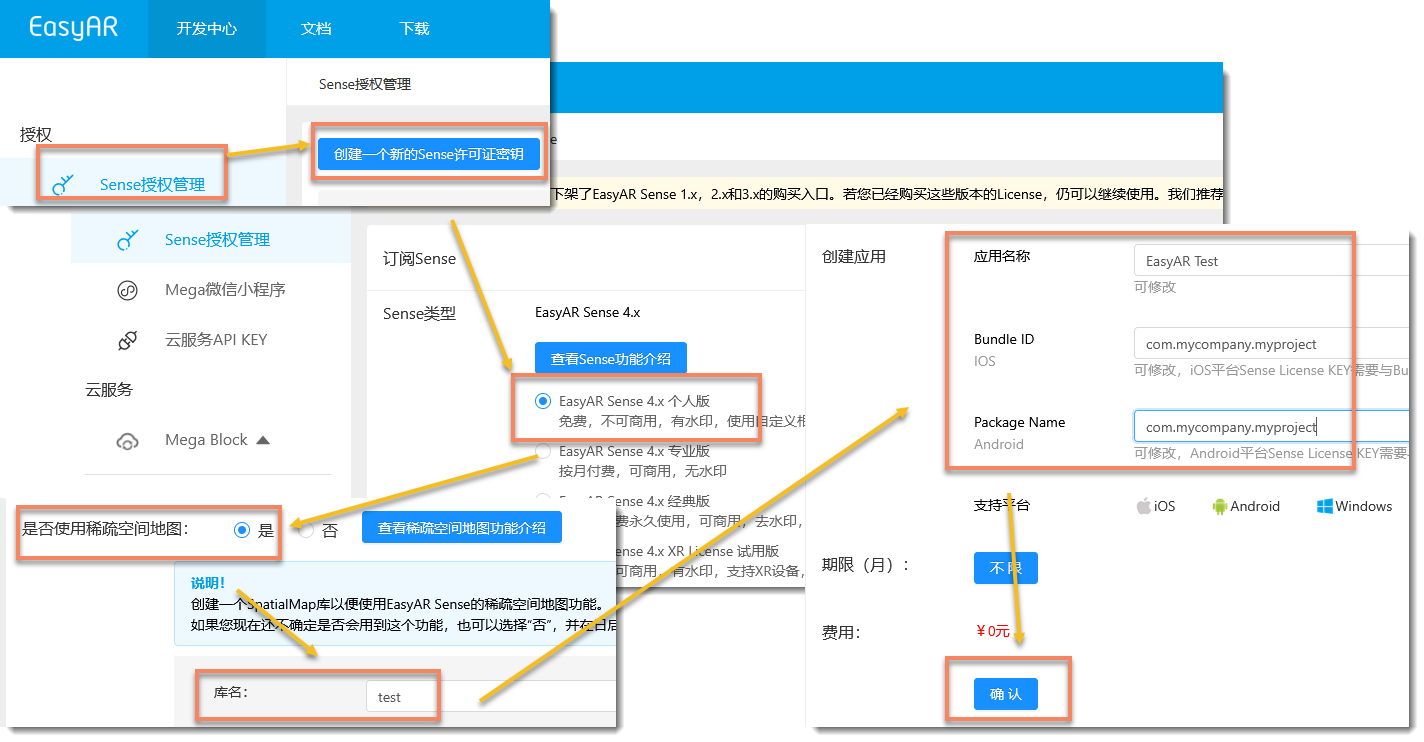
- Create
EasyAR Sense 4.x Personal - Select
Yesfor Sparse Spatial Map, and enter any name - Enter any application name, and enter
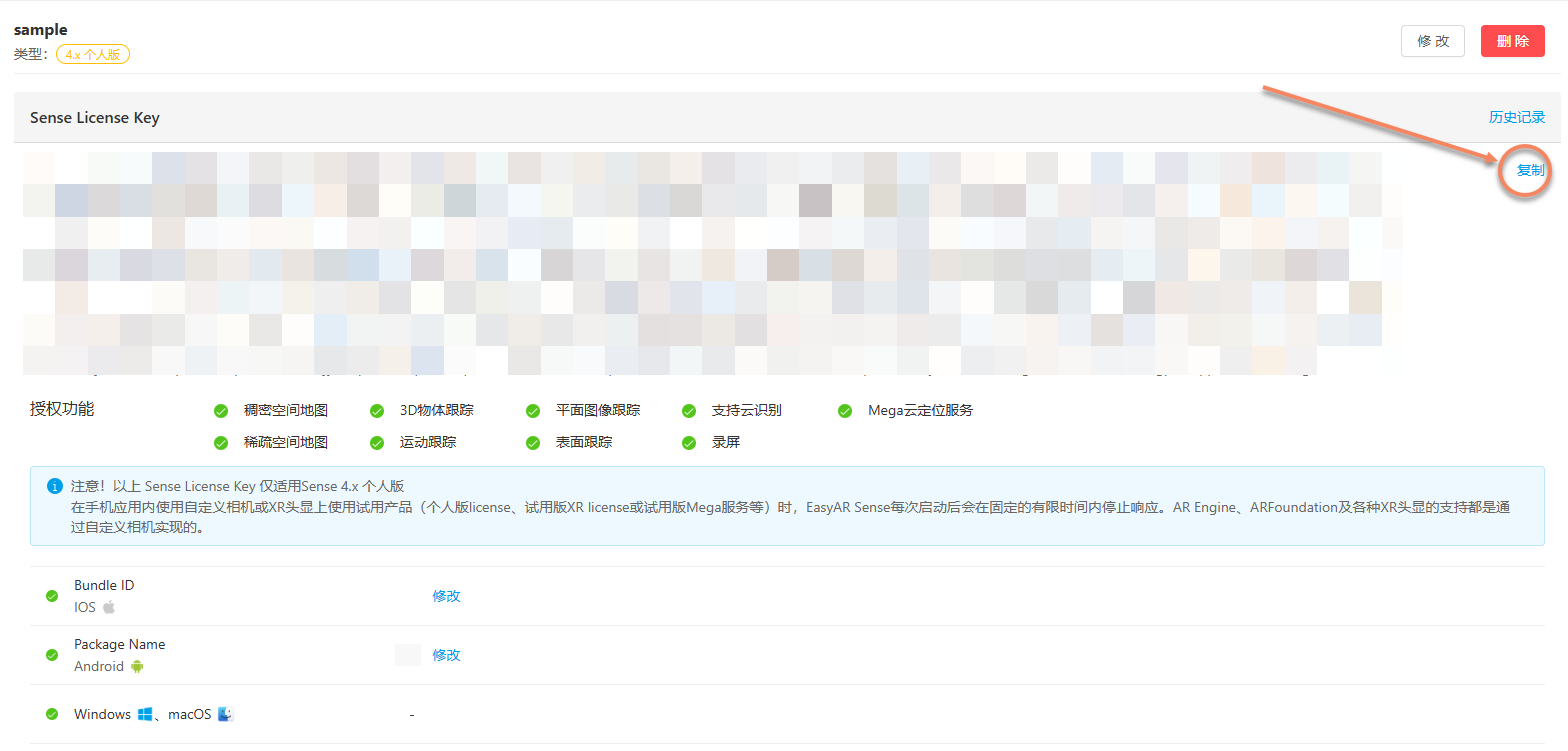
com.mycompany.myprojectfor Bundle ID and Package Name - Select the newly created License, then click the copy button on the right after entering it
Note
Bundle ID and Package Name can be changed later, but the number of changes is limited. If you already have a definite application package name, you can enter your own package name.
There is no limit on the number of Personal licenses you can create. Other types can be created as needed for formal use.
Next steps
- You can read Configure an AR scene to learn how to create a simple AR scene.
Related topics
- If you need to develop Mega features, you can import the latest EasyAR plugin to enable Mega features.