Import the Latest Version of the EasyAR Plugin to Enable Mega Features
This article describes how to import the latest version of the EasyAR Sense Unity Plugin (for Mega) to enable Mega features.
Import the Latest Version of the EasyAR Plugin for Mega Usage
You need to use Unity 2021.3.30 or a later version.
On the Download page, you'll see two versions of the Unity plugin: EasyAR Sense Unity Plugin and EasyAR Sense Unity Plugin (for Mega). The main differences between these two versions are as follows:
- EasyAR Sense Unity Plugin: It doesn't contain Mega support files and can't be used for Mega development. EasyAR provides downloads of historical versions starting from 4.6.
- EasyAR Sense Unity Plugin (for Mega): It includes Mega support files and can be used for Mega development. EasyAR doesn't provide downloads of historical versions.
When using versions after 4000, as long as the version numbers are the same, the EasyAR Sense Unity Plugin files (i.e.,
com.easyar.sense) in the two zip files are exactly the same and can be replaced with each other. Therefore, if you have already downloaded and imported the latest version of the EasyAR Sense Unity Plugin, you can directly extract thecom.easyar.megafile from the EasyAR Sense Unity Plugin (for Mega) zip file and import it into your Unity project without re - importing the entire plugin package.
Note
After version 4000, when importing incompatible com.easyar.sense and com.easyar.mega, the script compiler will report an error indicating a version mismatch. Please ensure that com.easyar.sense and com.easyar.mega come from the same version of the plugin package or are compatible with each other.
For version 4.7, the version numbers of com.easyar.sense and com.easyar.mega, including all the subsequent numbers and letters, must be exactly the same to ensure compatibility.
Before launching your application, it's recommended to check the EasyAR website again. If there's a newer version of the EasyAR Sense Unity Plugin (for Mega), please download and import the latest version to ensure that your application can use the latest Mega services properly and to ensure maximum compatibility and optimal performance.
Important
Applications developed using an outdated EasyAR Sense Unity Plugin (for Mega) may not be able to use the latest Mega services. When the online services remain unchanged (i.e., the version of the Mega positioning library isn't updated), applications packaged using an older version of the EasyAR Sense Unity Plugin (for Mega) can still work properly.
Import the EasyAR Plugin and Mega Support Package
After unzipping the downloaded zip package, you'll see a readme and several tgz files. You can directly import the tgz files into Unity without unzipping them again.
The import method is as follows:
- Click
Windowfrom the menu bar and selectPackage Managerin sequence. - Click the
+sign in the upper - left corner of the pop - up window and selectInstall Package from tarball.... - Select the
.tgzfile obtained by downloading and unzipping in the pop - up dialog box.
- Importing only
com.easyar.senseallows you to develop Mega applications, but it doesn't support editor features such as block mesh loading and content reference placement. - Importing both
com.easyar.senseandcom.easyar.megaallows you to develop Mega applications and supports editor features such as block mesh loading and content reference placement. - Usually, there's no need to import
com.easyar.mega.studio. This tool can't be used for Unity development. It's only used to create and import annotation data and view the effects in conjunction with the Mega Toolbox. The import order of the two.tgzfiles,com.easyar.senseandcom.easyar.mega, doesn't matter. You can importcom.easyar.sensefirst orcom.easyar.megafirst.
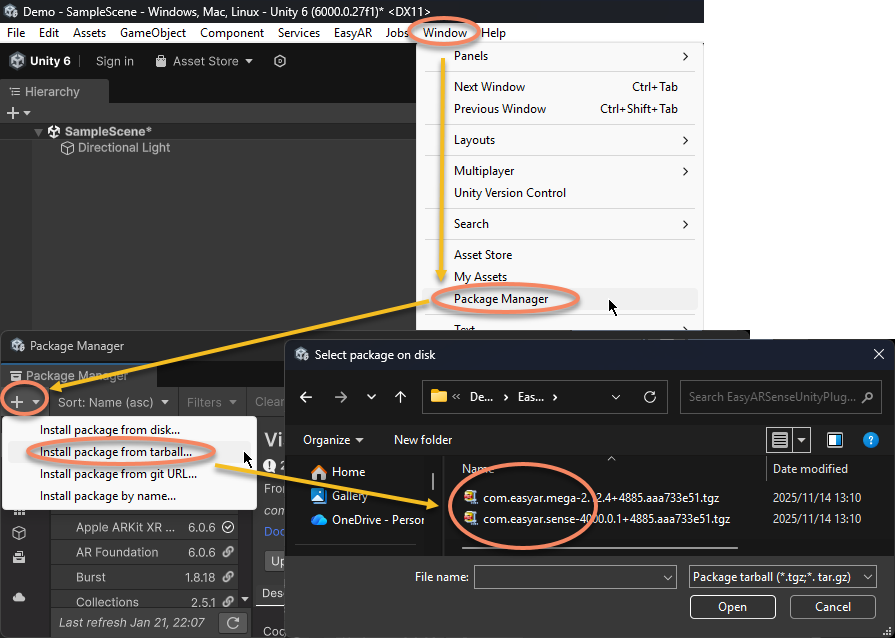
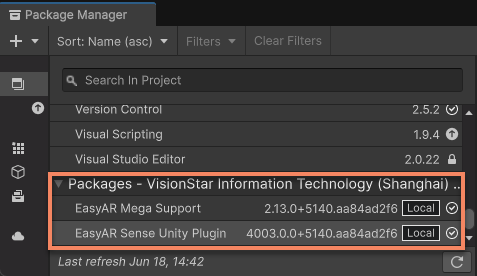
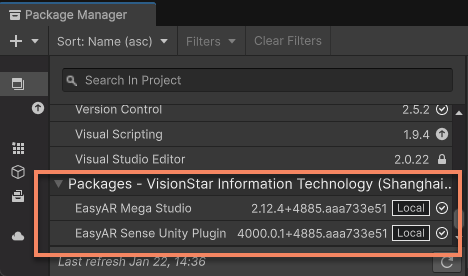
After successfully importing com.easyar.sense and com.easyar.mega, you shouldn't see any error messages in the Console window of Unity. At the same time, when you open the Package Manager window, you can see that both EasyAR Sense Unity Plugin and EasyAR Mega Support have been imported and display the version number you just imported.
Tip
com.easyar.mega depends on some third - party packages, such as com.unity.cloud.ktx and com.unity.cloud.gltfast. Please ensure a normal network connection during import so that Unity can automatically download and import these dependency packages.
In some network environments, the process of Unity importing these dependency packages may be slow. It's recommended to change the network environment or try importing multiple times until all dependency packages are successfully imported.
Note
After importing the plugin package, the tgz file can't be deleted or moved to another location. Therefore, it's usually necessary to place this file in a suitable place before import. It's generally recommended to place it in the Packages folder of the Unity project for easy version management.
Enable Support for Mega Cloud Positioning Features
Check and open the Mega > Mega Block/Landmark support option in the Project Settings panel:
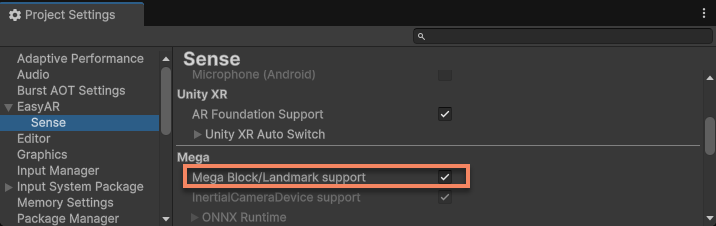
This option is enabled by default after importing com.easyar.mega and disabled by default if not imported.
Note
Enabling support for Mega cloud positioning features will force the addition of (fine) positioning permissions. This is necessary for using Mega features to achieve the best results.
Enable Support for Mega Go On - Device Positioning Features
Tip
You need version >= 4003.1
In the Android Player configuration, you need to configure the Minimum API level to 24 or a later version.
Setting the Android, iOS, or visionOS option in Lib Variants of the Project Settings panel to Full can enable the Mega Go on - device positioning feature in the corresponding system:
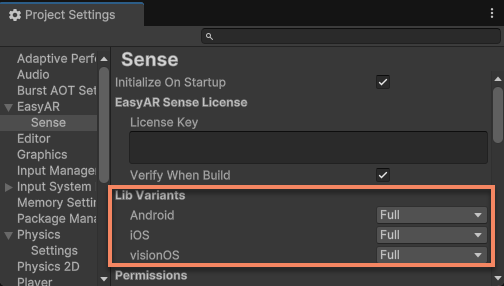
This feature is enabled by default after importing com.easyar.mega and disabled by default if not imported.
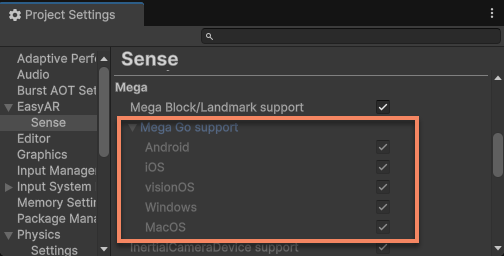
You can check the current status through Mega > Mega Go support:
Enable the 5DoF Camera Device Based on Motion Inertia
Tip
This feature is only available on Android.
In the Android Player configuration, you need to configure the Minimum API level to 24 or a later version.
When the device doesn't support a 6DoF camera, enabling the 5DoF camera device based on motion inertia can significantly increase the number of devices compatible with Mega while providing a better experience.
Setting Lib Variants > Android in the Project Settings panel to Full can enable this feature:
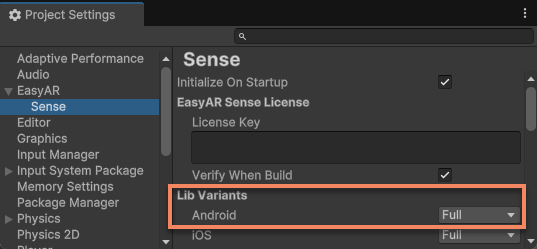
This feature is enabled by default after importing com.easyar.mega and disabled by default if not imported.
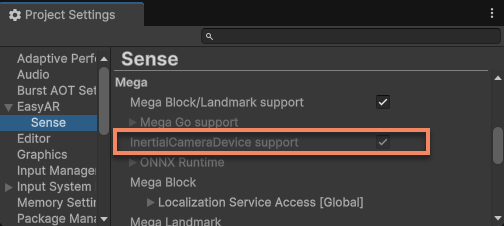
You can check the current status through Mega > InertialCameraDevice support:
Next Steps
- Quick Start with Unity Mega development
- Develop applications using Mega