Create 3D Content Accurately Aligned with the Real Scene
This document will introduce how to accurately place virtual objects at a specific position in the real space and achieve precise alignment with the real space in an AR experience.
Before You Start
- Successfully enable the Mega editor tool or enable the Mega Go editor tool in the scene.
- Prepare the 3D assets to be used in the Unity project.
Note
The following content and tools are only applicable to the process of developing Unity applications using EasyAR Mega.
If you are developing a mini-program, please refer to Create and Upload Annotations Using the Unity Editor (Mini-program Development).
If you are not developing a Unity application but want to view the Mega mapping results, please refer to Preview the 3D Real-scene Mesh in the Mega User Guide.
If you are not developing a Unity application but need to simulate the operation to view the positioning effect, please refer to Preview of Simulation Operation Effect in the Mega User Guide.
The content of this article requires the following Unity packages to have been imported into the project:
com.easyar.sensecom.easyar.mega
Block Real-scene Data
In Mega development, various types of real-scene data can be used to assist in placing 3D content:
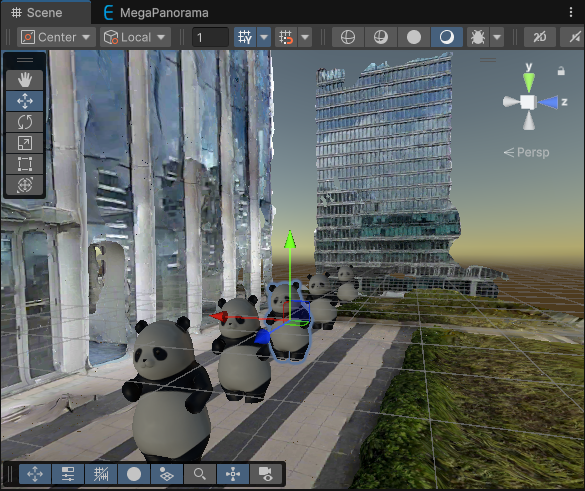
- Block mesh model
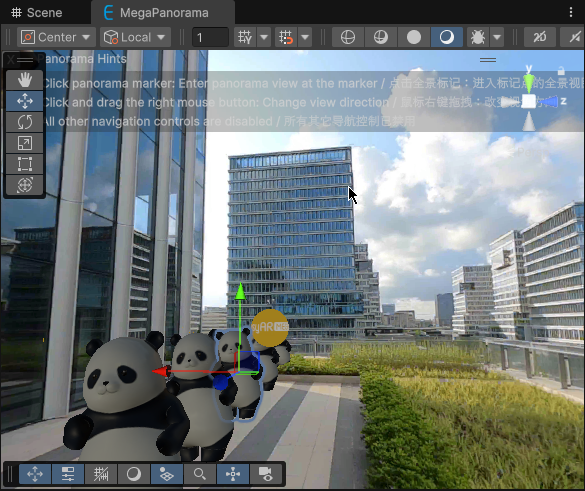
- Panorama (including spatial model occlusion)
Note
Panoramas are not supported for some data.
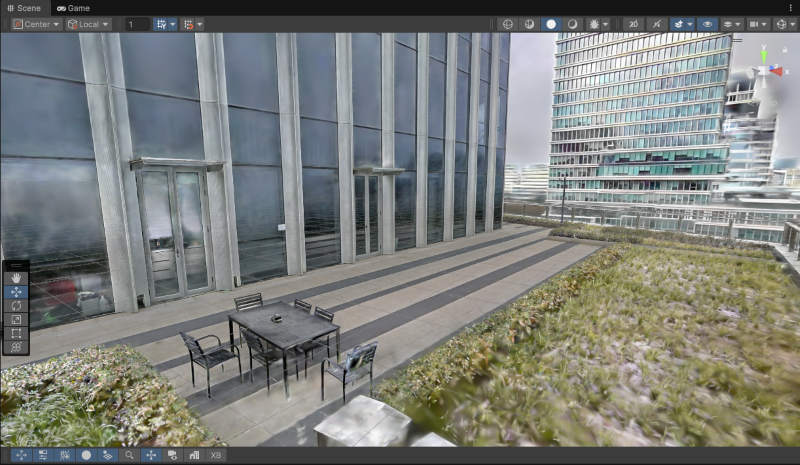
- LCC 3D Gaussian splatting
Note
The LCC 3D Gaussian splatting data is only available in the usage scenario after using its domain device for data collection and completing mapping.
Load the Block Model
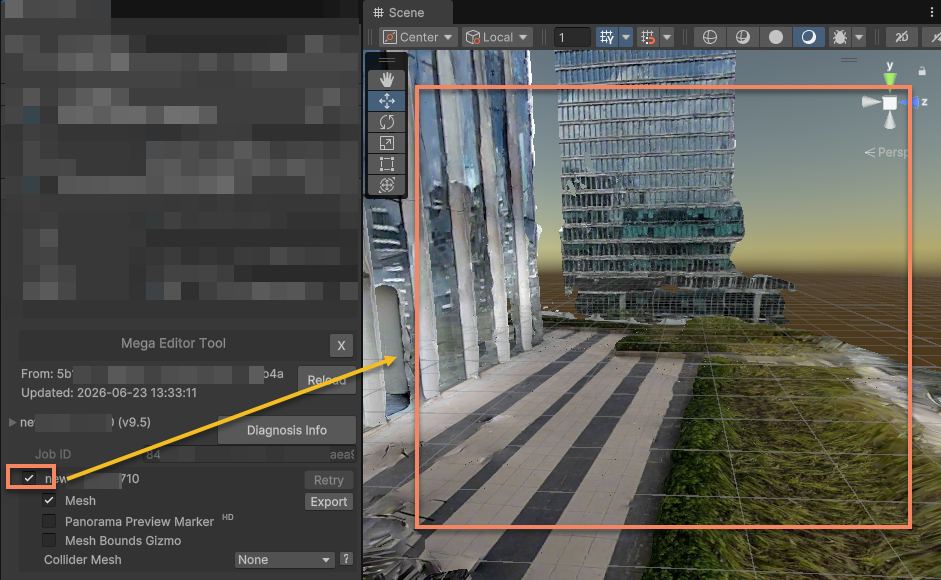
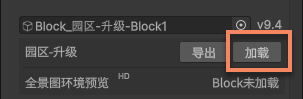
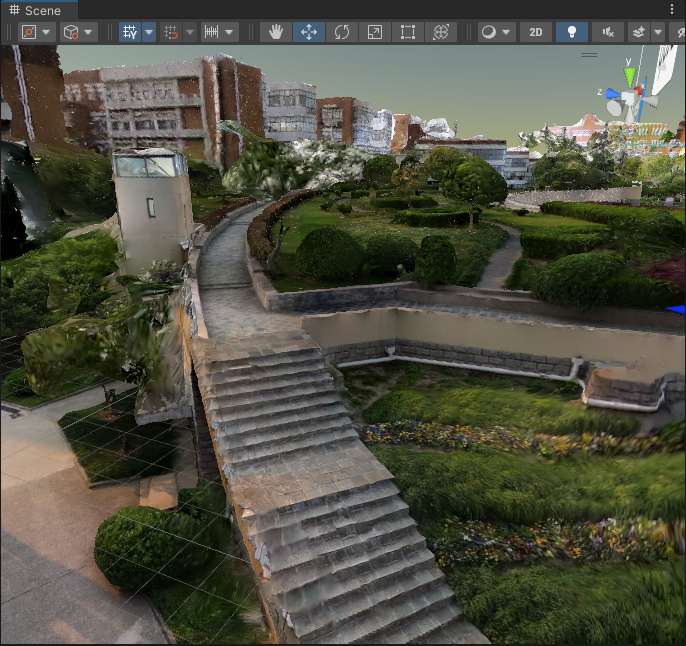
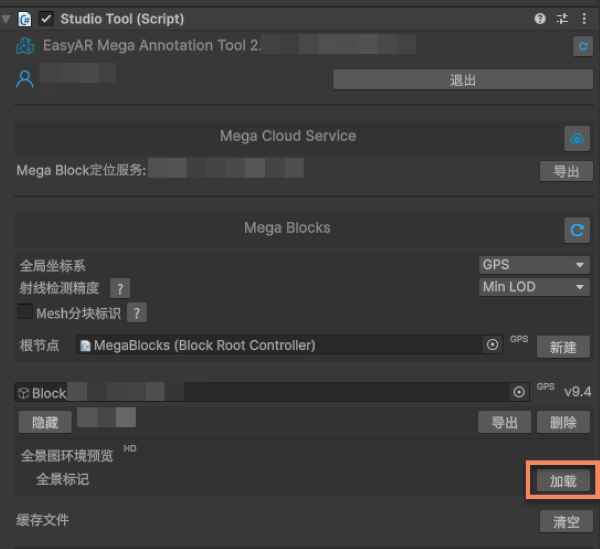
Click the first selection box under the block data. This will start the loading process of the block editor data. After loading, you can see the mesh of the current block in the Scene window.
Tip
- The block mesh is spatially aligned with the block tracking target, so you can directly place 3D content on the model.
- The block mesh will switch LOD according to the camera position. You need to stay connected to the network during use to avoid LOD switching failures.
- The block mesh is stored under the tool node and only exists in the editor mode. It will not be packaged into the final application.
Mount the 3D Content under the Block Node
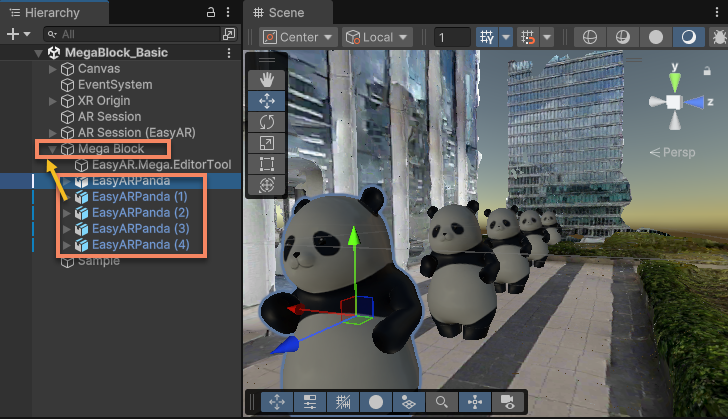
After loading the block model, mount the 3D content under the Block node in the scene as its child node.
Caution
- 3D objects cannot be placed under the
EasyAR.Mega.EditorToolnode. This node is only used for the editor tool and will be automatically deleted or recreated in some cases.
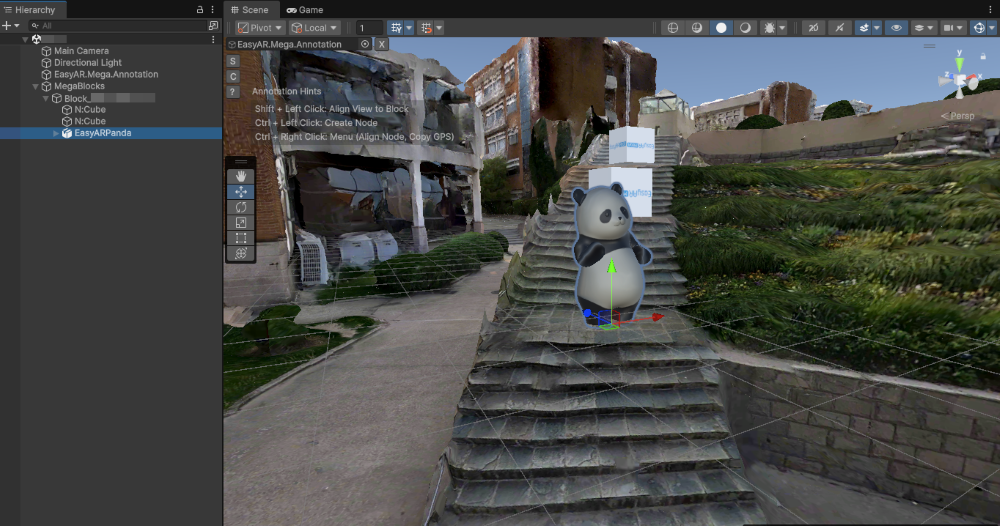
Important
- 3D objects must be placed under the block node to ensure that the rendering position of the virtual content is correct at runtime.
Accurately Place the 3D Content
You can accurately place the virtual content in the real space by completing the following steps.
Place According to the Block Mesh Model
In the scene, adjust the position and rotation of the 3D content relative to the block mesh to adjust it to the desired position and orientation.
Tip
- After the editor enters the play mode, the block mesh is still available, but it will not switch LOD according to the camera position.
- The block mesh is stored under the tool node and only exists in the editor mode. It will not be packaged into the final application.
[Optional] Place According to the Panorama
Click the Panorama Preview Marker selection box to display the panorama markers.
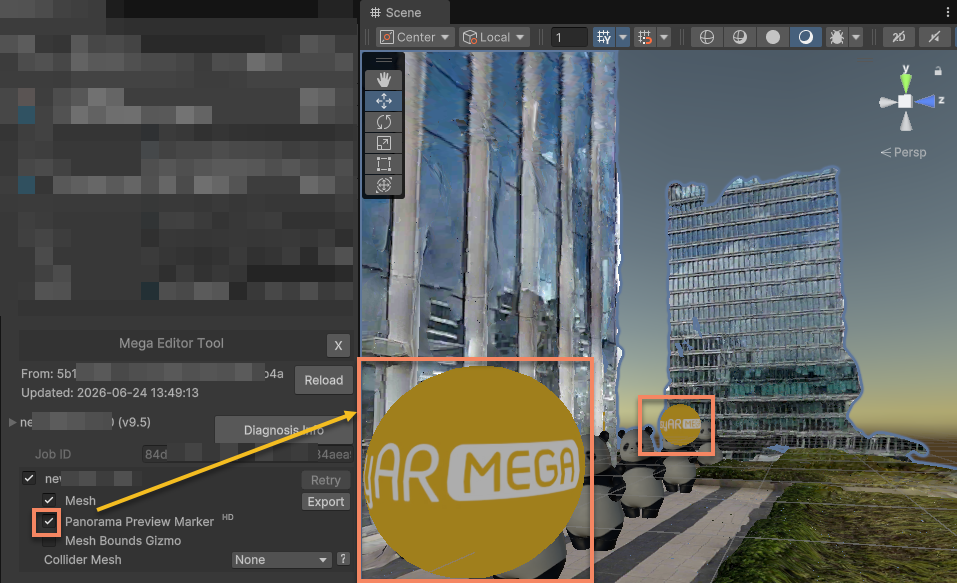
Note
- Panoramas are not supported for some data.
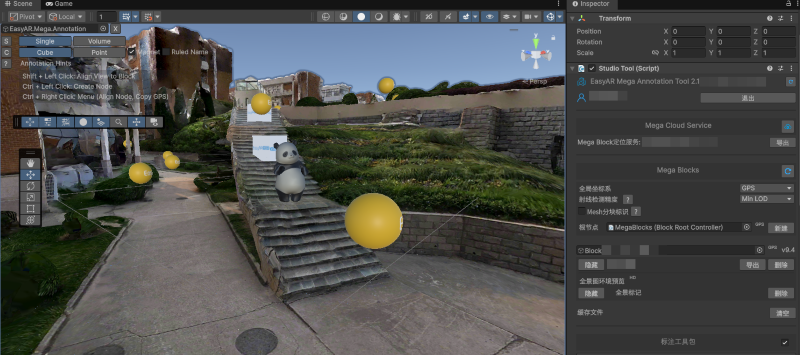
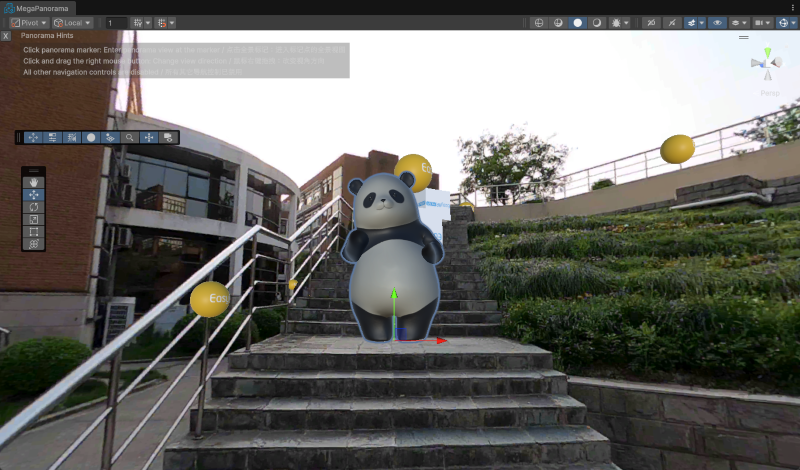
Click any one of the Panorama Markers to perform placement under the panorama at its position. You can switch panoramas by clicking different Panorama Markers to confirm that the position of the 3D content is accurate from different perspectives.
Tip
- When using the panorama markers to place content, the mesh-based spatial model occlusion is still effective.
- After the editor enters the play mode, this function is still available, but the accuracy of the mesh-based spatial model occlusion is affected by the disabled LOD switching.
- The panorama markers and panorama data are stored under the tool node and only exist in the editor mode. They will not be packaged into the final application.
[Optional] Place According to the LCC 3D Gaussian Splatting
Note
The content in this section is applicable to the usage scenario after using its domain device for data collection and completing mapping. The mapping results of other devices do not contain LCC 3DGS data.
If you have used the LCC 3D Gaussian splatting (its domain LCC) function, you can adjust the model position by referring to the 3DGS. For the use of LCC data, please refer to Load LCC Data and Align with the Mesh.
Impact of Real-scene Data Defects on Content Placement
What if the Loaded Block Model Is Not Horizontal
Select the block node that needs to be adjusted in the Hierarchy panel, and modify the Rotation in the Inspector panel until the orientation of the model looks correct in the Unity editor.
The Transform of the block node in the world coordinate system will not affect the local coordinate system of the block, and therefore will not affect the rendering result of the 3D content that is a child node of the block. Its Transform has nothing to do with the final display effect.
Caution
Do not modify the Transform of EasyAR.Mega.EditorTool under the block node, otherwise the editor tool may not work properly or the content display position may be incorrect during tracking.
What if the Loaded Block Model Has Broken or Missing Parts
During the 3D reconstruction process, due to incomplete coverage of the collection perspective, there may be broken or missing parts in the generated dense model.
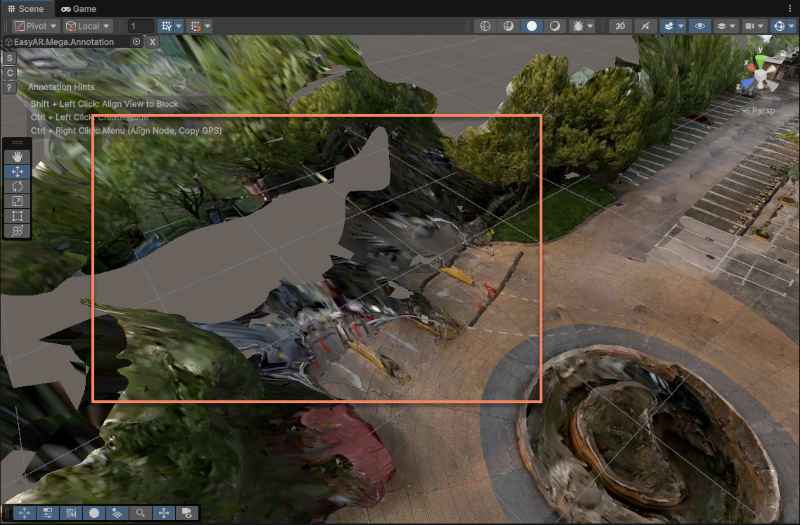
Facing an incomplete model, if the alignment accuracy requirement of the 3D content in the broken/missing part is not high, you can place the 3D content by clicking the Panorama Markers and referring to the Panorama. Then you can verify the effect by clicking different nearby Panorama Marker positions.
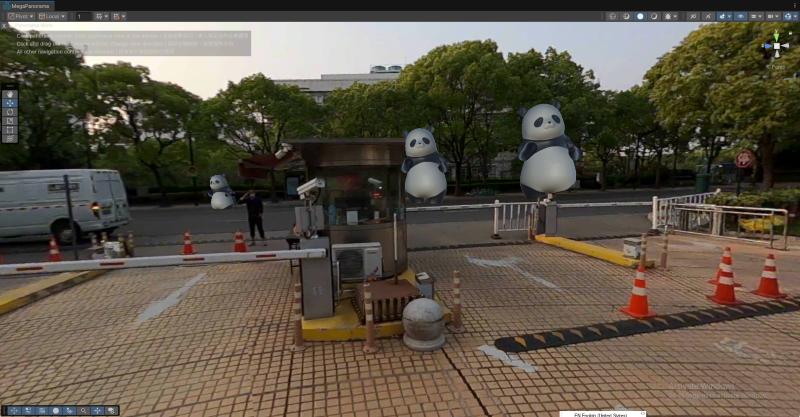
If the alignment accuracy requirement of the 3D content in the broken/missing part is very high, you need to supplement or update the map through supplementary update or lossless full update. Generally speaking, such an area means that it was not covered during the image collection process. The Mega positioning effect will be affected in such an area, and it is not enough to only align the 3D content in the editor.
Next Steps
- Further verify the accuracy of the placement through simulating the operation using the session verification tool.
- Add accurate environmental occlusion to the scene to enhance the realism of AR.