Use EasyAR Mega in Unity to implement occlusion
Occlusion is a key technology for improving the immersive integration of virtual and real content in AR. This article describes how to implement occlusion effects in Unity through EasyAR Mega.
Before you start
- Complete Get started quickly with the EasyAR Mega Unity sample.
- Be able to create content aligned with the real world.
How occlusion is implemented
Offline modeling: in the Block coordinate system, create 1:1 matching geometry for real-world entities, such as walls, columns, and large equipment; or obtain an optimized model by cropping and reducing the faces of the Block dense model.
Runtime alignment: at runtime, align the Block coordinate system with the real space through cloud localization and load the corresponding geometry.
Material replacement: assign special occlusion materials to these geometries.
Visual effect: when the GPU renders other virtual objects, pixels in occluded parts are automatically culled because they fail the depth test, making virtual objects follow the occlusion logic of the real physical space.
Use mask files from mapping results
Follow the steps below to download the mask file from the mapping result through the Mask file download entry of the cloud localization database, use it as an occlusion white model, and import it into the scene. The mask file can be used directly or cropped as needed.
Note
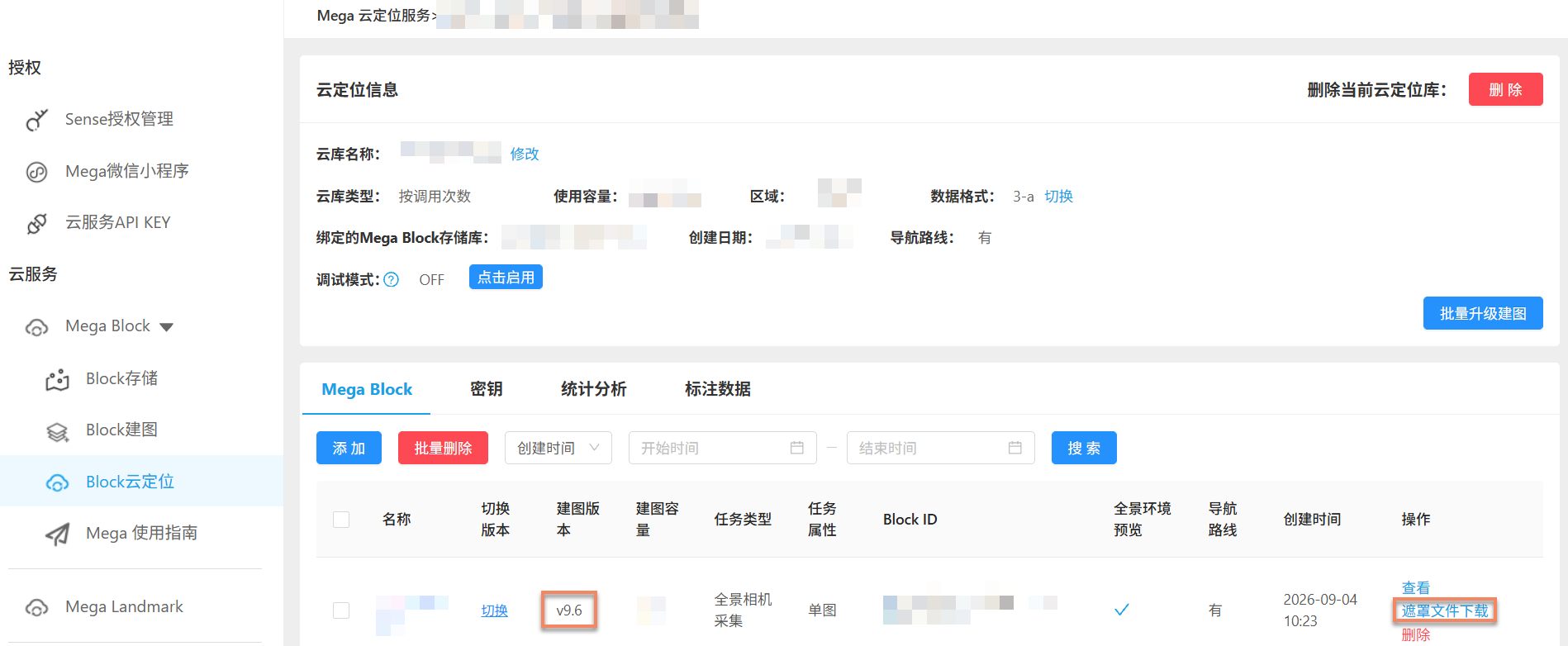
This download method applies only to mapping results from mapping version 9.6 or later.
Download the mask file
After adding the Block to the cloud localization database, click Mask file download in the Action column of the row where the Block is located.
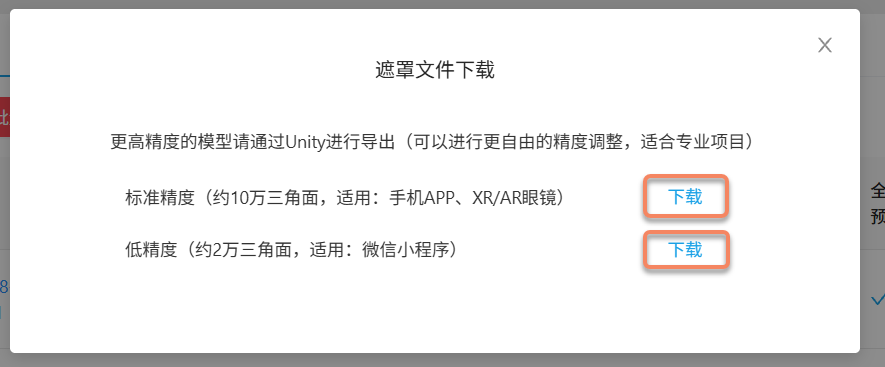
In the popup, select standard or low precision as needed, then click the corresponding Download button to download the mask file archive (zip). Extract the archive to obtain the model files.
Note
The archive may contain one or more glb model files. You can import multiple models into Unity separately, or merge them in digital content creation software such as Blender before importing them.
[Optional] Crop the model
The downloaded models together cover the entire Block. To occlude the entire Block, skip this step and import them directly into Unity. To occlude only part of it, crop the models as follows.
Import the extracted model files into digital content creation software such as Blender.
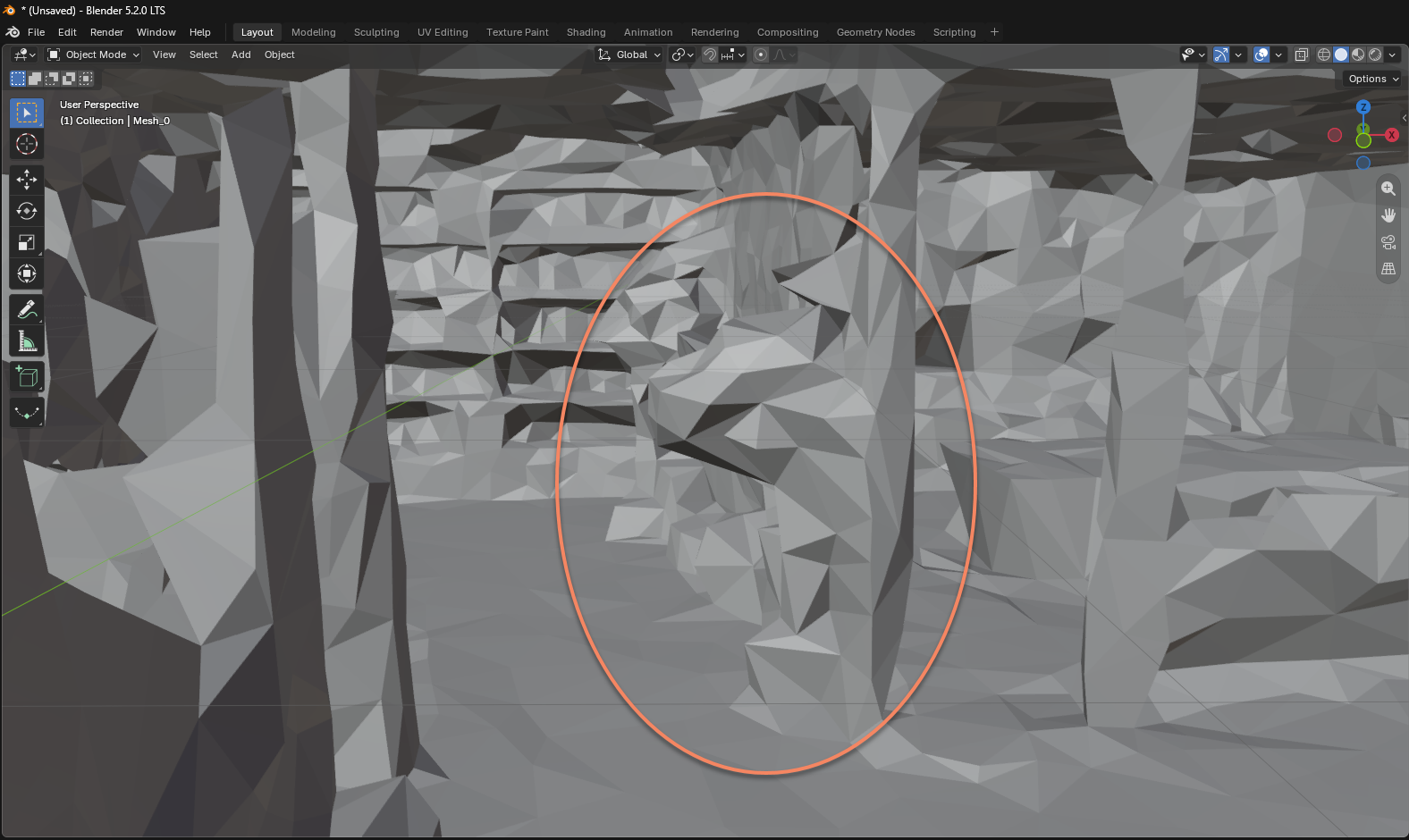
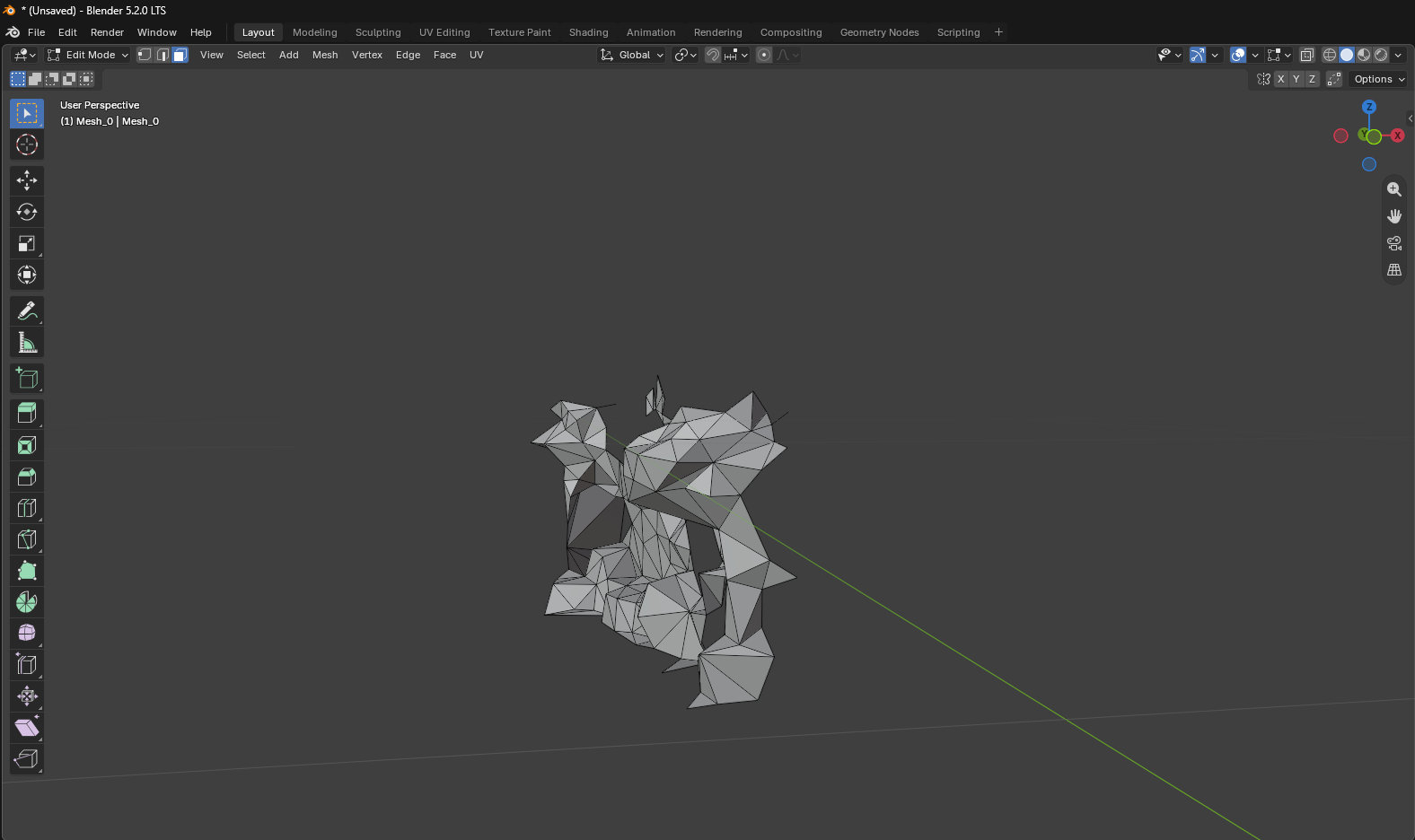
Crop the models to keep only the parts needed for occlusion and export them in glb format. If you imported multiple models, you may merge them before exporting. Keep their position, orientation, and size in the Block coordinate system unchanged so they align with the Block after import into Unity.
Import the model into Unity
Import the models into Unity and attach them as children of the corresponding Block node in the scene. If you use multiple models, import each one and attach them all to the same Block node.
Note
Importing a glb model into Unity requires the com.unity.cloud.gltfast package, version 6.8 or later. If this package is not installed in the project or its version is too low, install or upgrade it through Package Manager.
In the Inspector panel, edit each occlusion model's Transform to set its position, rotation, and scale relative to the Block node:
- Set
Positionto(0, 0, 0). - Set
Rotationto(0, 180, 0). - Set
Scaleto(1, 1, 1).
After this, the occlusion model should fit the corresponding part of the Block dense model.
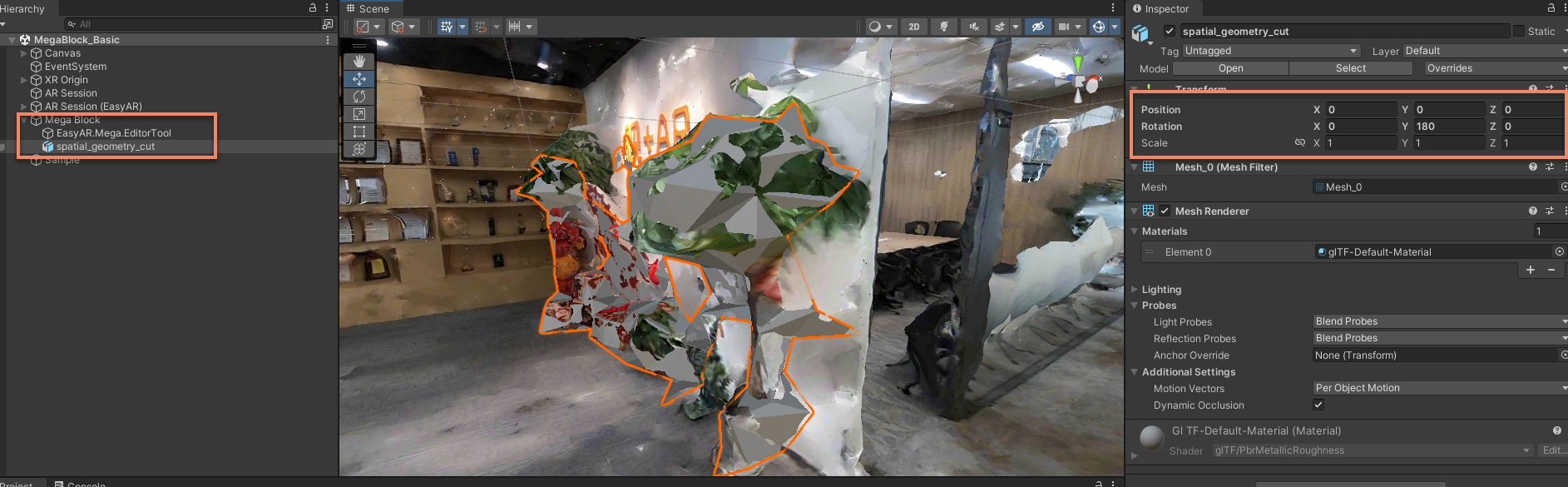
Note
The mask file downloaded from the cloud localization database uses a different coordinate system definition from Unity, so the Y component of Rotation needs to be set to 180 for alignment. This setting applies to the mask file downloaded from mapping results in this section. Dense models exported through the Mega editor tool later use a different rotation setting.
Assign an occlusion material to the model
Assign an occlusion material to each model. You can use Unity's built-in SpatialMappingOcclusion.
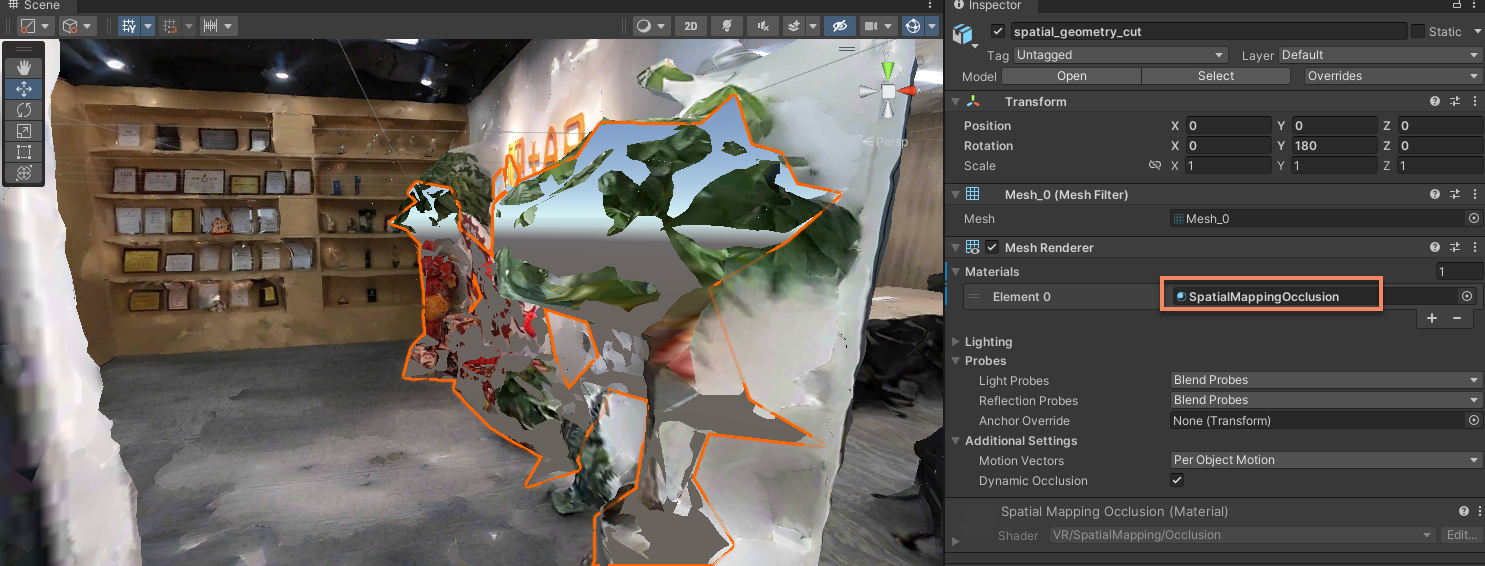
Simulate running with EIF data or run on a real device
Use EIF data simulation or run on a real device to check whether virtual objects are occluded by the corresponding real-world areas.
Use geometry as occlusion
Follow the steps below to add geometry used as occlusion in the scene and verify the effect.
Place occlusion geometry
According to the dense model of the Mega Block, use built-in geometry or custom geometry as occlusion and place it at the correct position in the Block coordinate system.
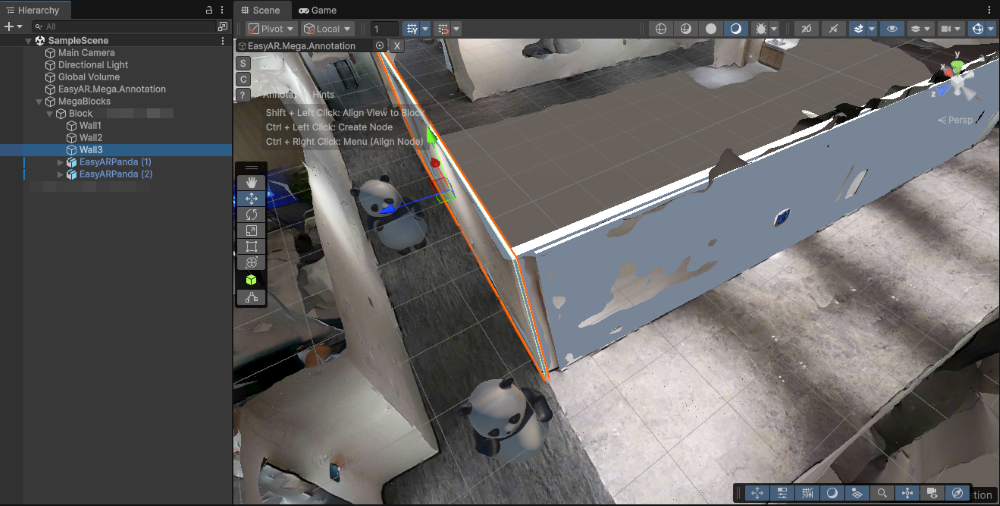
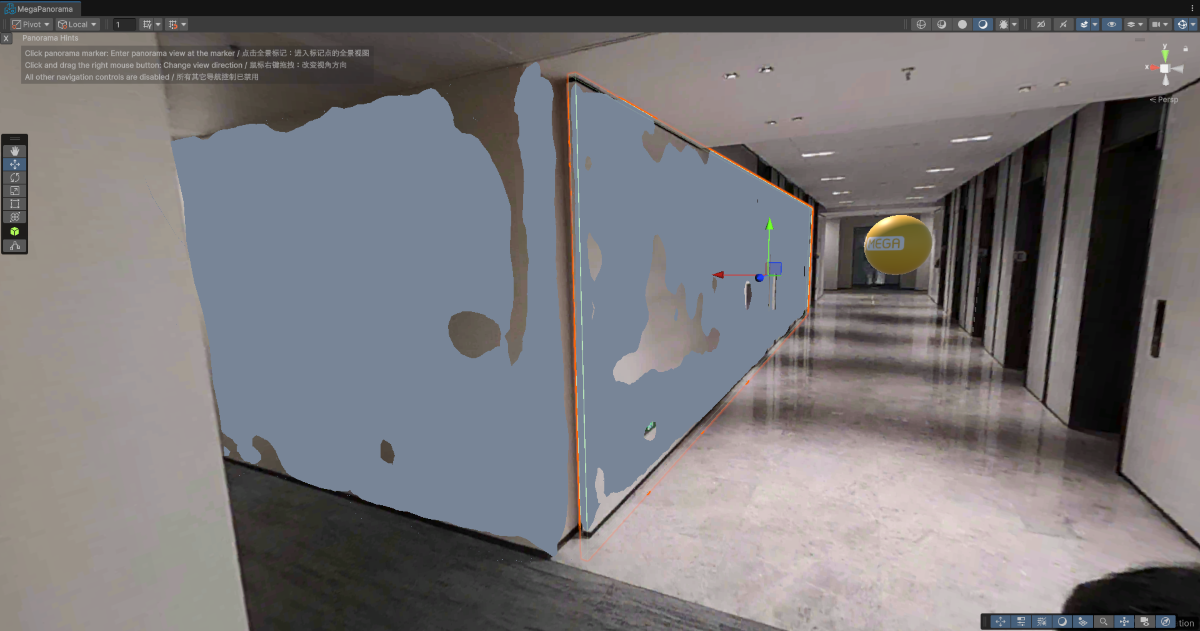
[Optional] Fine-tune the geometry position according to the panorama
Assign an occlusion material to the geometry
Change the geometry material to an occlusion material. You can use Unity's built-in SpatialMappingOcclusion.
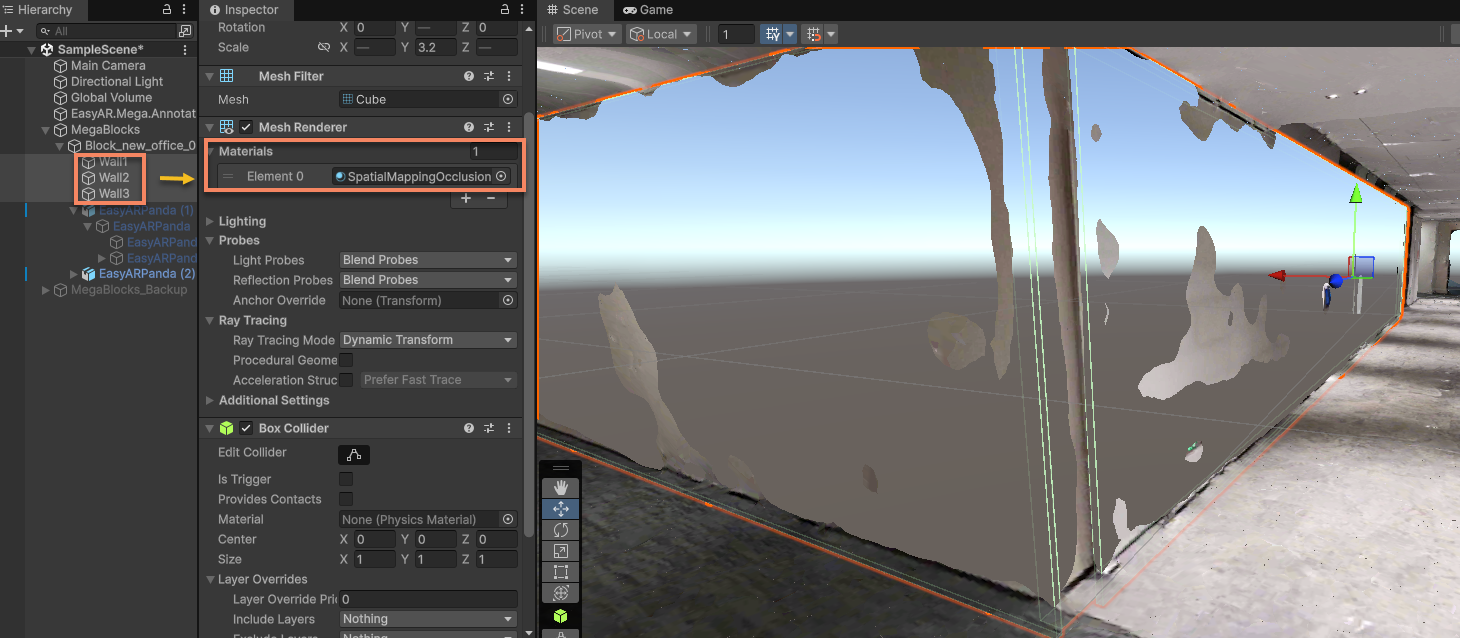
Simulate running with EIF data or run on a real device
Fine-tune the placement of the occlusion model according to the running effect.
Use a cropped and reduced dense model as occlusion
Follow the steps below to crop and reduce the exported Mega Block dense model to obtain a white model for occlusion, then import it into the scene as occlusion.
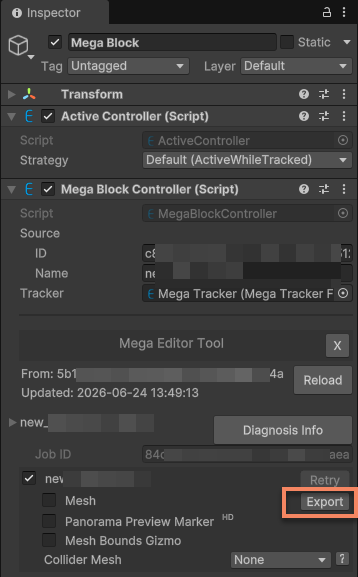
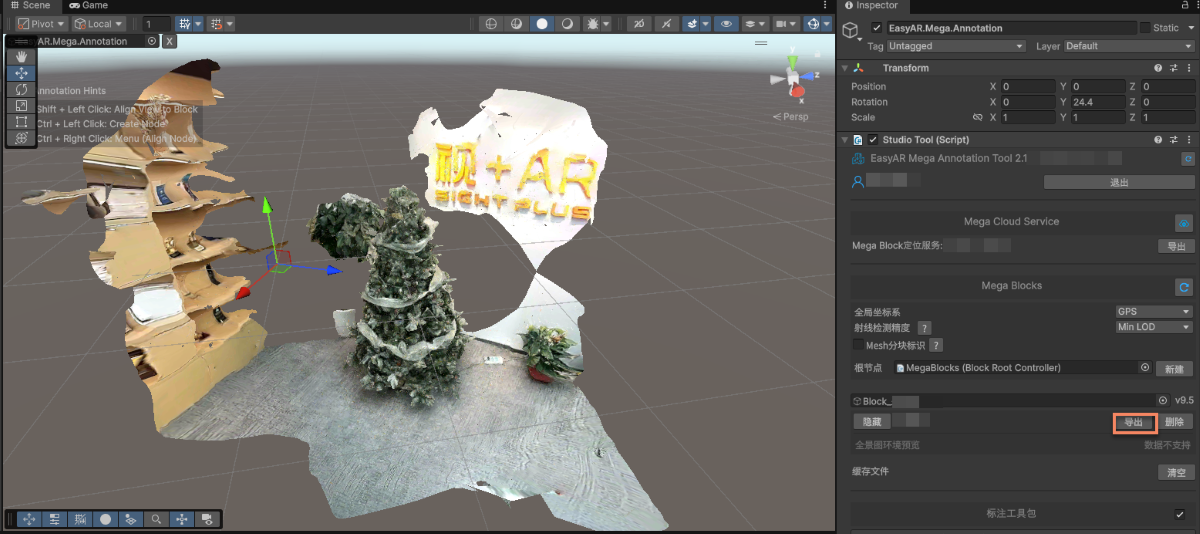
Export in Mega Blocks
Click the Export button to the right of Mesh to export the dense model.
Modify export options
Pay attention to modifying the export options when exporting.
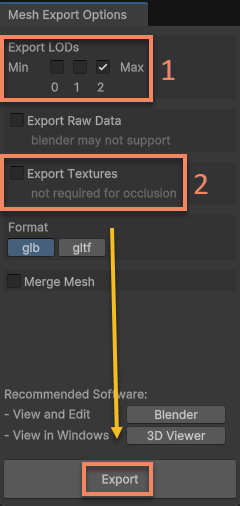
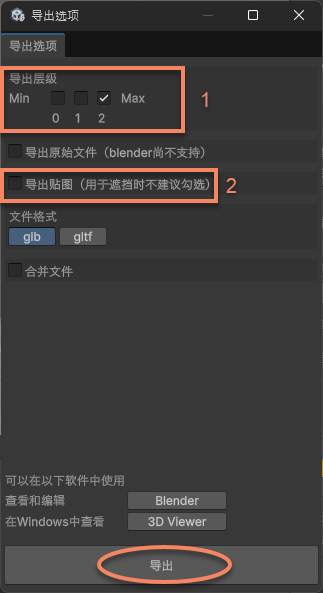
In the figure, 1 is the LOD level. The lower the level, the simpler the model and the fewer faces. If you need the highest precision, select the highest level.
In the figure, 2 is the texture export option. Here only the white model is needed as occlusion, and textures are not needed.
Crop and reduce the model
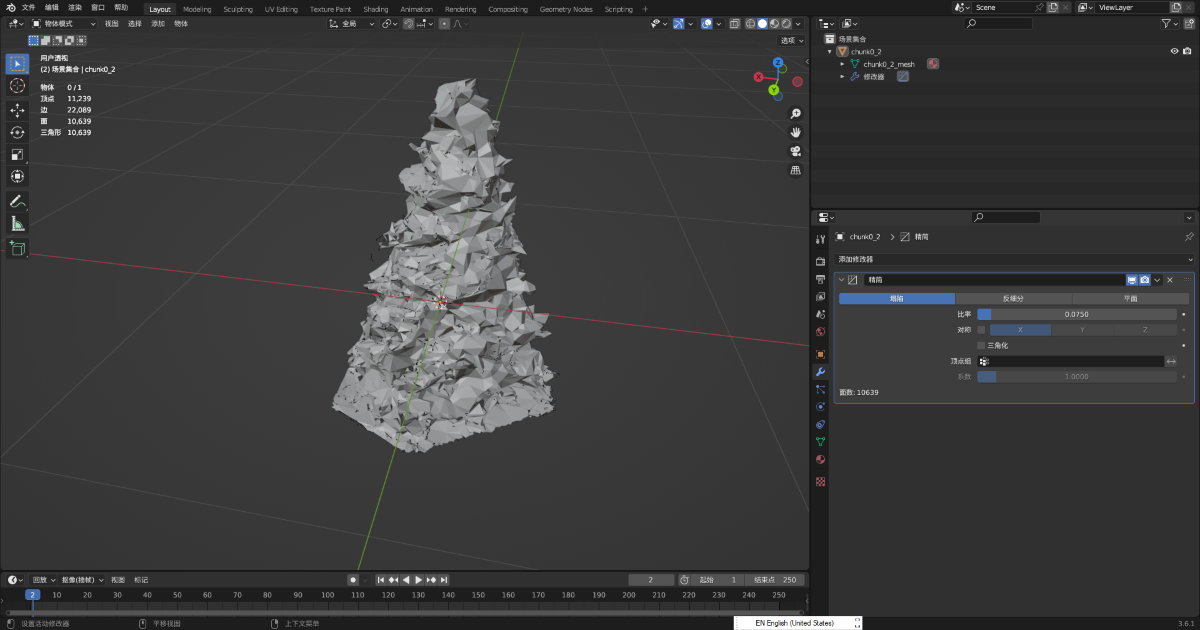
Crop and reduce the exported model in digital content creation software, such as Blender, and save it in glb format.
Tip
The example uses Blender's Decimate Modifier.
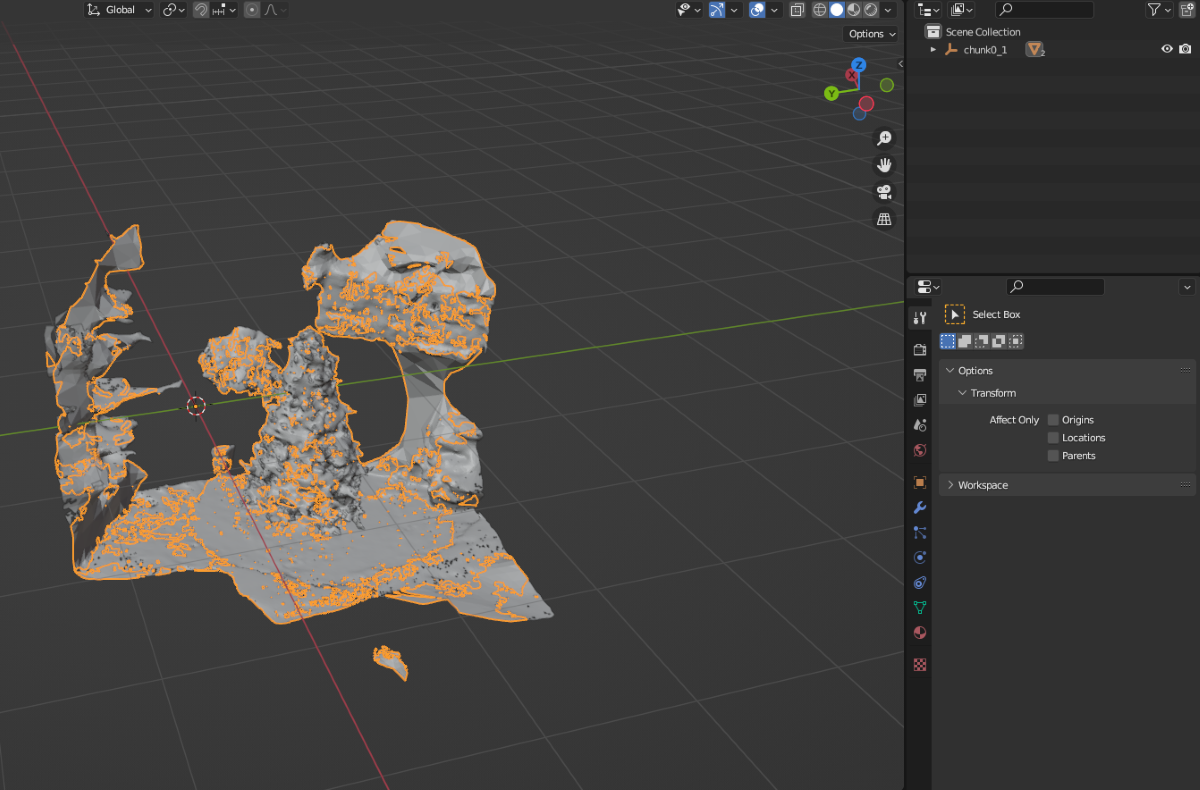
After cropping and reduction:
Import the occlusion model into Unity and mount it under the Block node in the scene
Note
Importing a glb model into Unity requires the com.unity.cloud.gltfast package, version 6.8 or later. If this package is not installed in the project or its version is too low, install or upgrade it through Package Manager.
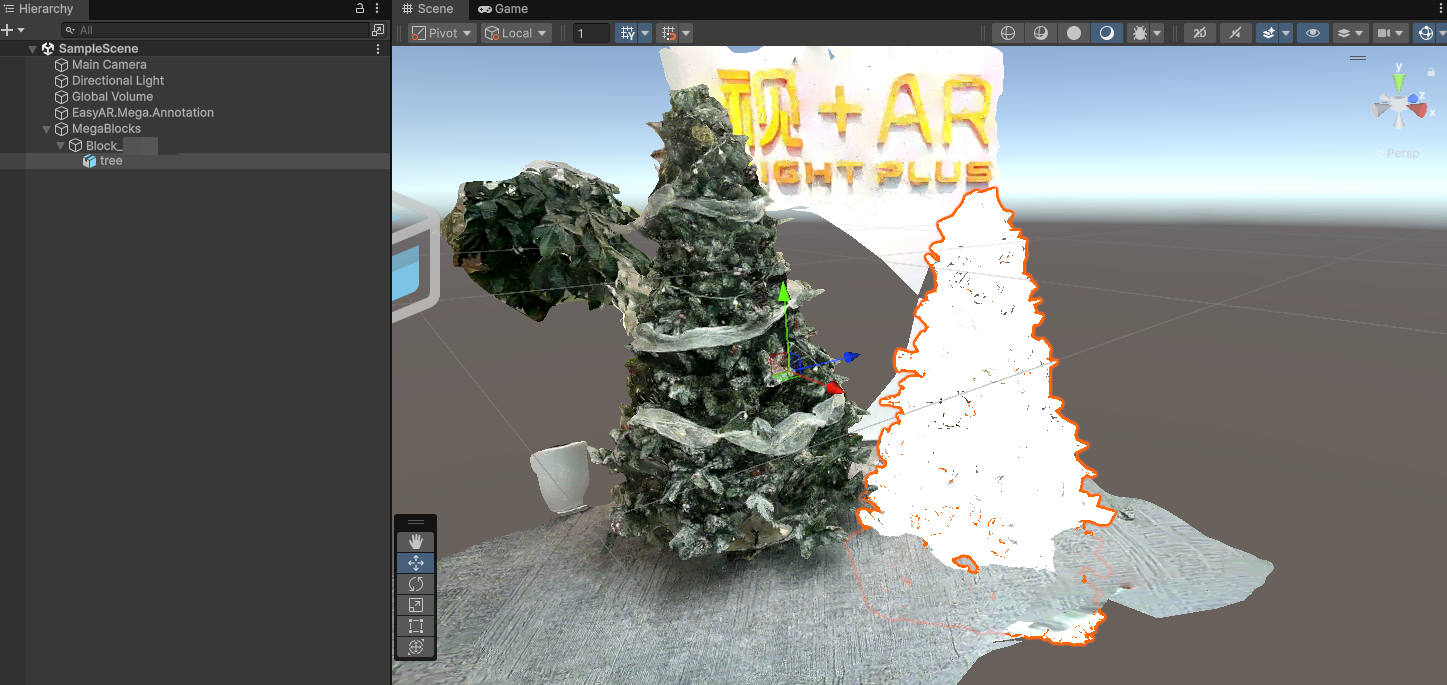
Modify the model Transform
Modify the model's Transform so that both Position and Rotation are all 0.
At this point, the white model used for occlusion should fit the dense model, because cropping and reduction in the digital content creation software did not change the definition of the Block coordinate system.
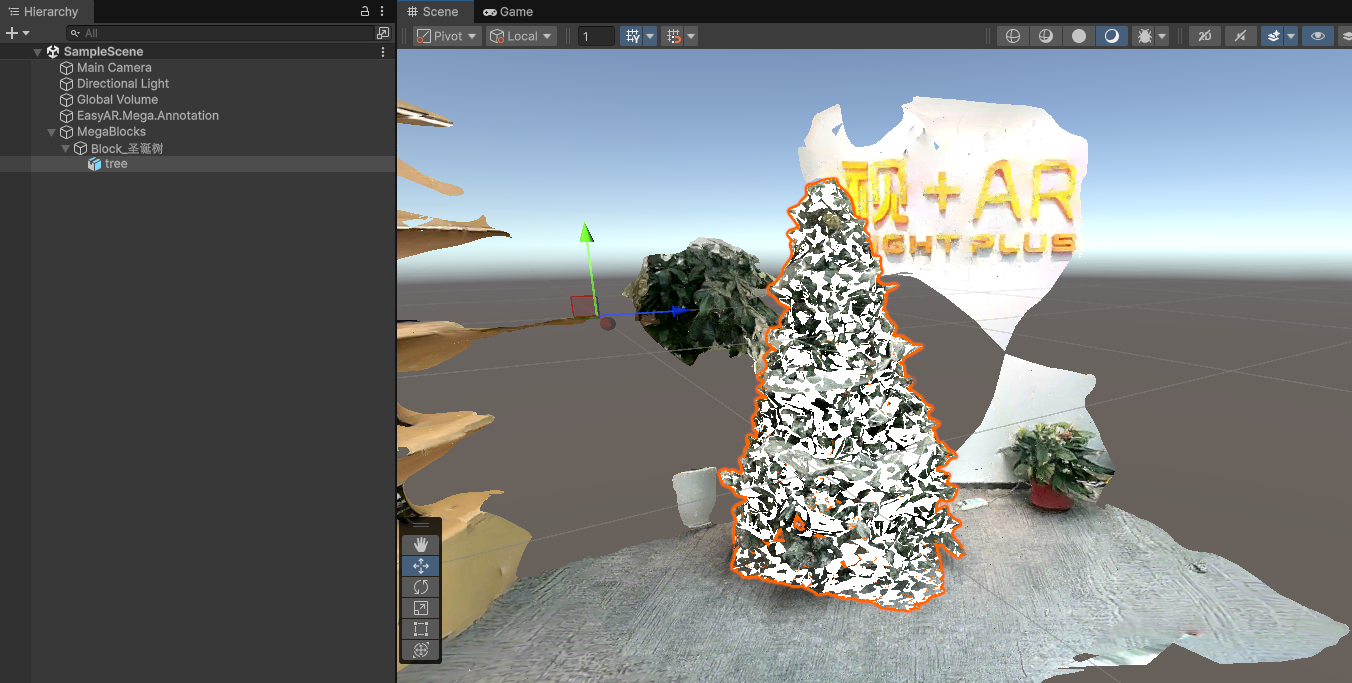
Assign an occlusion material to the model
Change the model material to an occlusion material. You can use Unity's built-in SpatialMappingOcclusion.
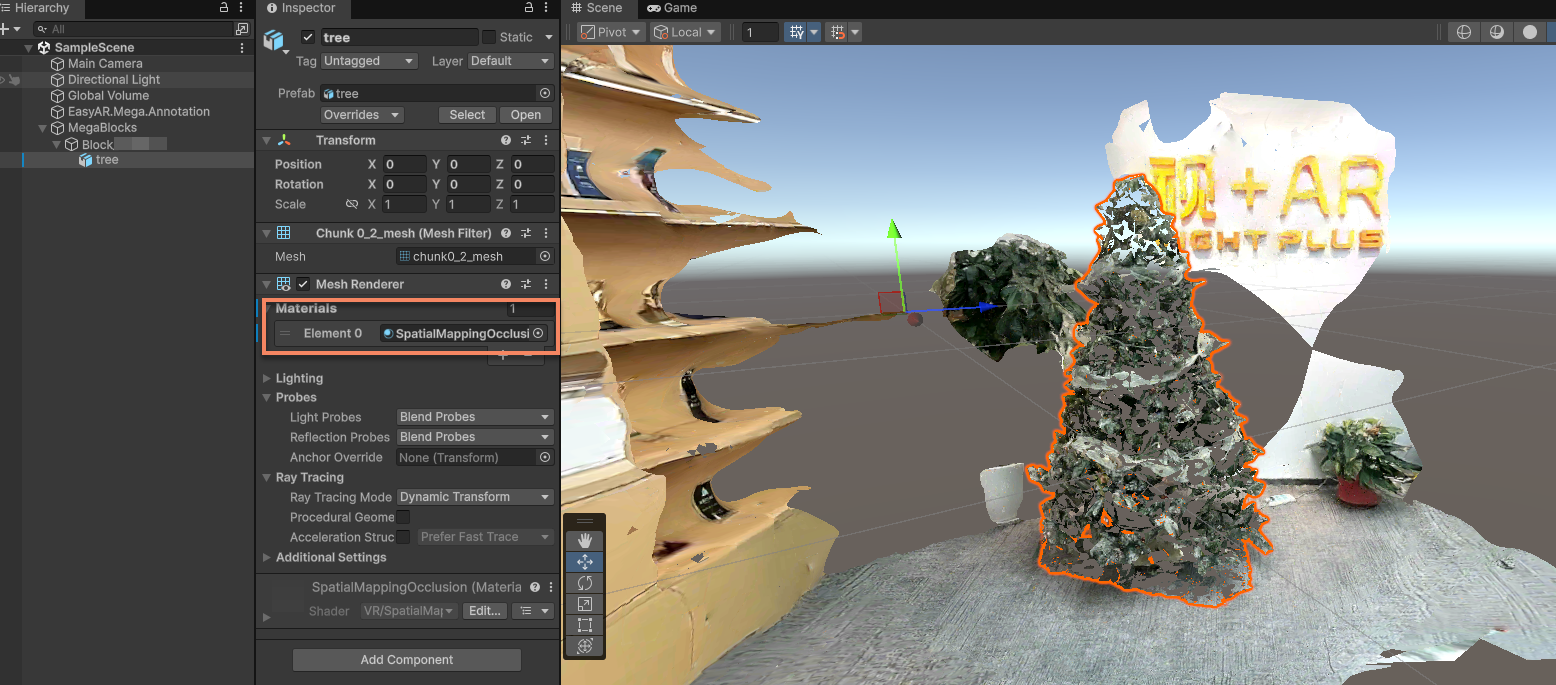
Simulate running with EIF data or run on a real device
Simulate running with EIF data or run on a real device to view the effect.
Expected occlusion effect
The occlusion effect is mainly affected by the following:
- The accuracy of localization tracking itself
- The accuracy of model placement
- The accuracy of the model itself, if it is not simple geometry
It is normal for several centimeters of misalignment to occur during localization drift.
Too many faces in the occlusion model can easily affect performance. It is recommended to use it only in necessary areas and use simple geometry as occlusion as much as possible.