Control the Mega Tracking Process
This article describes how to control various functions and parameters in the Mega tracking process to meet the requirements of different application scenarios.
Before You Start
- Check Is My Location Feature Available? to confirm that the localization library has been correctly created and the map added.
Workflow of the tracker
The workflow of the tracker is as follows:
flowchart LR
  subgraph startup_graph[Startup]
    direction TB
    sstart((Session startup))
    create[Native creation]
    load(Load target)
    init_g[[Initialization]]
  end

  subgraph init_graph[Initialization]
    direction TB
    init_{6DoF initialization successful<br>or non-6DoF}
    init[[Local tracking initialization process]]
    localization_g[[Initial localization]]
  end

  subgraph localization_graph[Initial localization]
    direction TB
    localize__{Localization enabled and<br>request interval exceeded}
    localize[Cloud localization]
    localize_{Localized to block and<br>block loaded}
    tracking_g[[Tracking]]
  end

  subgraph tracking_graph[Tracking]
    direction TB
    tracking[[Continuous tracking]]

    localizet_{Localization enabled and<br>request interval exceeded}
    localize2[Cloud localization]
    localize2_{Localized to block and<br>block loaded}
    localization_g2[[Initial localization]]
  end

  subgraph stopping_graph[Stopping]
    direction TB
    unload(Unload target)
    dispose[Native destruction]
    sstop([Session stop])
  end

  sstart --> create --> load --> init_g
  init --> init_ --> |Yes| localization_g
  localize --> localize_ --> |Yes| tracking_g
  localize_ --> |No| localize__ --> |Yes| localize
  unload --> dispose --> sstop
  init_ --> |No| init

  tracking --> localizet_ --> |Yes| localize2 --> localize2_ --> |Yes| tracking
  localizet_ --> |No| tracking
  localize2_ --> |No| localization_g2

  startup_graph --> init_graph
  init_graph --> localization_graph
  localization_graph --> tracking_graph
  tracking_graph --> localization_graph
  tracking_graph --> stopping_graph
The process is roughly divided into several stages:
- Startup:
- After the session starts, the tracker at the native layer will be created.
- After the target's Start(), it will be loaded into the corresponding tracker.
- Initialization:
- When using a 6DoF frame source, the local tracking initialization process will be entered.
- When using a non-6DoF frame source, the initialization stage will be skipped, and the initial localization stage will be entered directly.
- This process may take some time, which is related to the scene complexity and device performance, and usually related to the algorithm used at the bottom of the frame source.
- Under the default configuration, the content of this stage will not be displayed. You can control this behavior through the ActiveController component options.
- Initial localization:
- If localization is enabled and the request interval is exceeded, the tracker will send a localization request to the cloud.
- After successful localization, if the block corresponding to the id returned by the localization service has been loaded, the tracking stage will be entered; if the block has not been loaded, it will continue to wait for the block to finish loading and wait for the next localization request.
- After failed localization, the tracker will continue to wait for the next localization request.
- This process may take some time, depending on the ease of scene localization, the quality of data collection and mapping, and the network conditions.
- Under the default configuration, the content of this stage will not be displayed. You can control this behavior through the ActiveController component options.
- If localization is enabled and the request interval is exceeded, the tracker will send a localization request to the cloud.
- Tracking:
- The tracker will continuously track the current block.
- If localization is enabled and the request interval is exceeded, the tracker will send a localization request to the cloud.
- After successful localization, if the id returned by the localization service has not changed, it will continue to track; if the id has changed and the block has been loaded, it will switch to the new block and continue to track; if the id has changed and the block has not been loaded, it will continue to wait for the block to finish loading and wait for the next localization request.
- After failed localization, the tracker will continue to track the current block and wait for the next localization request.
- Under the default configuration, only the content under the target node in the tracking state (TargetController.IsTracked ==
true) will be displayed. You can control this behavior through the ActiveController component options.
- Stopping:
- After the session stops, the target is unloaded, and the tracker at the native layer will be destroyed.
Adjust Device Support Level
The MegaTrackerFrameFilter.MinInputFrameLevel property of MegaTrackerFrameFilter is used to specify the minimum device level supported by Mega.
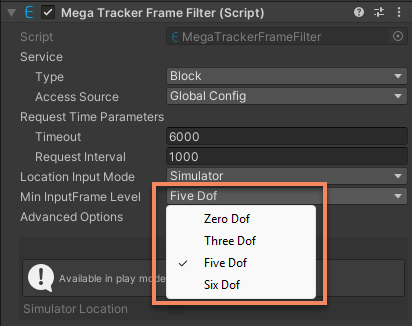
Mega can run on almost all types of frame data sources, but different frame data sources have different impacts on the tracking effect.
By default, Mega will select the highest-level frame data source supported by the device for tracking. The session supporting Mega under the default configuration has already configured frame data sources that support 6DoF and 5DoF.
To support a certain level of frame data source during Mega runtime, two conditions need to be met:
The required frame data source is in the optional frame data source group of the session.
MegaTrackerFrameFilter.MinInputFrameLevel is greater than or equal to the CameraTransformType level of the required frame data source. For example, to support 3DoF tracking in the default session, you need to:
Add ThreeDofCameraDeviceFrameSource to the frame data source group of the session.
Modify MegaTrackerFrameFilter.MinInputFrameLevel to ThreeDof. Another example, to remove 5DoF tracking support in the default session, you need to:
Remove InertialCameraDeviceFrameSource from the frame data source group of the session.
Modify MegaTrackerFrameFilter.MinInputFrameLevel to SixDof (even if you don't modify it, 5DoF won't be used because there is no 5DoF frame data source). When there is no available frame data source that meets the conditions, the session assembly will fail.
Understanding the Current System Status
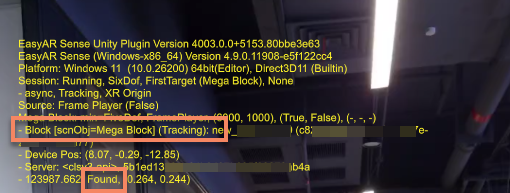
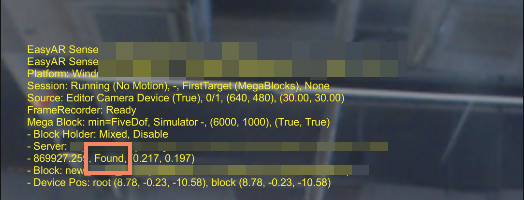
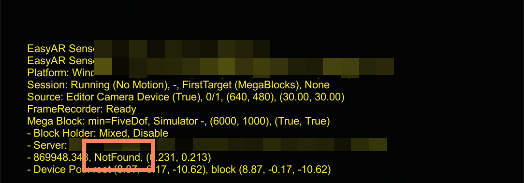
Under the default session configuration, UI messages will be displayed on the screen, which contain information about the Mega tracking status.
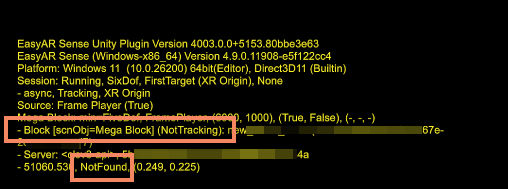
When the localization is successful, the Mega service information will contain the status text Found; when the localization fails, the Mega service information will contain the status text NotFound.
The loaded blocks will be displayed as Block [scnObj=<objName>] (<trackingStatus>): <name> (<id>). Here, <objName> is the name of the scene object corresponding to the block, <name> is the name of the block, and <id> is the ID of the block. trackingStatus can be Tracking or NotTracking, indicating whether the current block is being tracked or not.
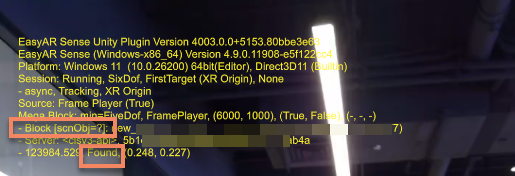
When the localization is successful, the information of the located but unloaded blocks will be displayed as Block [scnObj=?]: <name> (<id>).
Tip
NotFound is a normal status and often appears during the entire operation of Mega. When this status appears, the tracking continues. Usually, there is no need for special handling of the NotFound status in application development.
You can use the MegaTrackerFrameFilter.LocalizationRespond event to obtain the current localization status and thus understand whether the system has found the tracking target.
The following code shows how to use this event and the handling methods for common abnormal statuses that the application needs to pay attention to:
private void Awake()
{
    megaTracker.LocalizationRespond += HandleLocalizationStatusChange;
}

private void HandleLocalizationStatusChange(MegaLocalizationResponse response)
{
    var status = response.Status;
    wakingUpCount = status == MegaTrackerLocalizationStatus.WakingUp ? wakingUpCount + 1 : 0;
    if (wakingUpCount >= 5)
    {
        // The service is waking up, and the end - user needs to wait
    }

    if (status == MegaTrackerLocalizationStatus.QpsLimitExceeded)
    {
        // QPS limit exceeded, and some end - users may fail to localize randomly (overall tracking quality decreases)
        // Usually, you need to pay to increase the QPS limit to ensure the tracking quality under the current user volume
    }

    if (status == MegaTrackerLocalizationStatus.ApiTokenExpired)
    {
        // Token expired, which only occurs when using the Token interface to access the service
        // To solve this problem, the application needs to request its own backend to obtain the Token and call MegaTrackerFrameFilter.UpdateToken to update it
    }
}
If the application often encounters the MegaTrackerLocalizationStatus.RequestTimeout status, it usually indicates that the network connection between the device and the service is poor. It is recommended to optimize the network environment to improve the tracking quality. In scenarios where the network condition cannot be improved, you can consider increasing the request timeout time.
Note
You cannot obtain the pose returned by the localization through this event.
In fact, the pose returned by the localization is not needed in application development. EasyAR will calculate a more accurate pose through local algorithms after the localization returns and provide it to developers. This pose is already reflected in the block's transform. You can refer to Obtaining the Session's Running Results.
Pause and Resume
Mega's tracking and positioning functions can be paused and resumed respectively.
Pause Tracking
You can pause tracking by setting MegaTrackerFrameFilter.enabled to false.
By default, after tracking is paused, the content under all block nodes will be hidden.
Pause Localization
Setting MegaTrackerFrameFilter.EnableLocalization to false can pause the localization.
Warning
Always use the latest version of the SDK when developing Mega applications.
Warning
Pausing the localization will affect the tracking effect, and it is generally not recommended to modify it. Please use it under the guidance of EasyAR technical support.
If the localization has been paused during the execution of the application, please be sure to mention this when reporting issues to EasyAR.
Service and Request Control
You can control the behavior of requesting services by modifying the parameters of the MegaTrackerFrameFilter component.
Select the positioning library
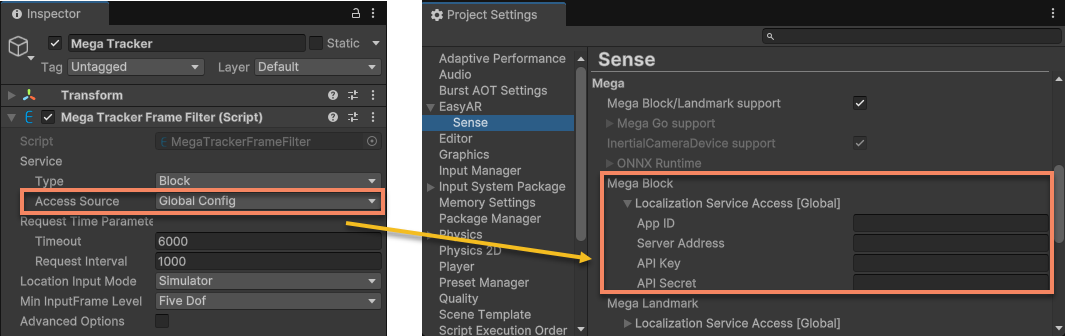
Select the Mega Tracker object under the session. Modifying the options under Service allows you to adjust the connected positioning library. This option needs to be set before the session starts.
In the default configuration, Access Source is Global Config. The service configuration uses the global configuration, and the service parameters can be modified in EasyAR > Sense > Mega > Mega Block in Project Settings. This configuration will affect all sessions that use this global configuration.
Tip
The service configuration can be obtained from the EasyAR Development Center.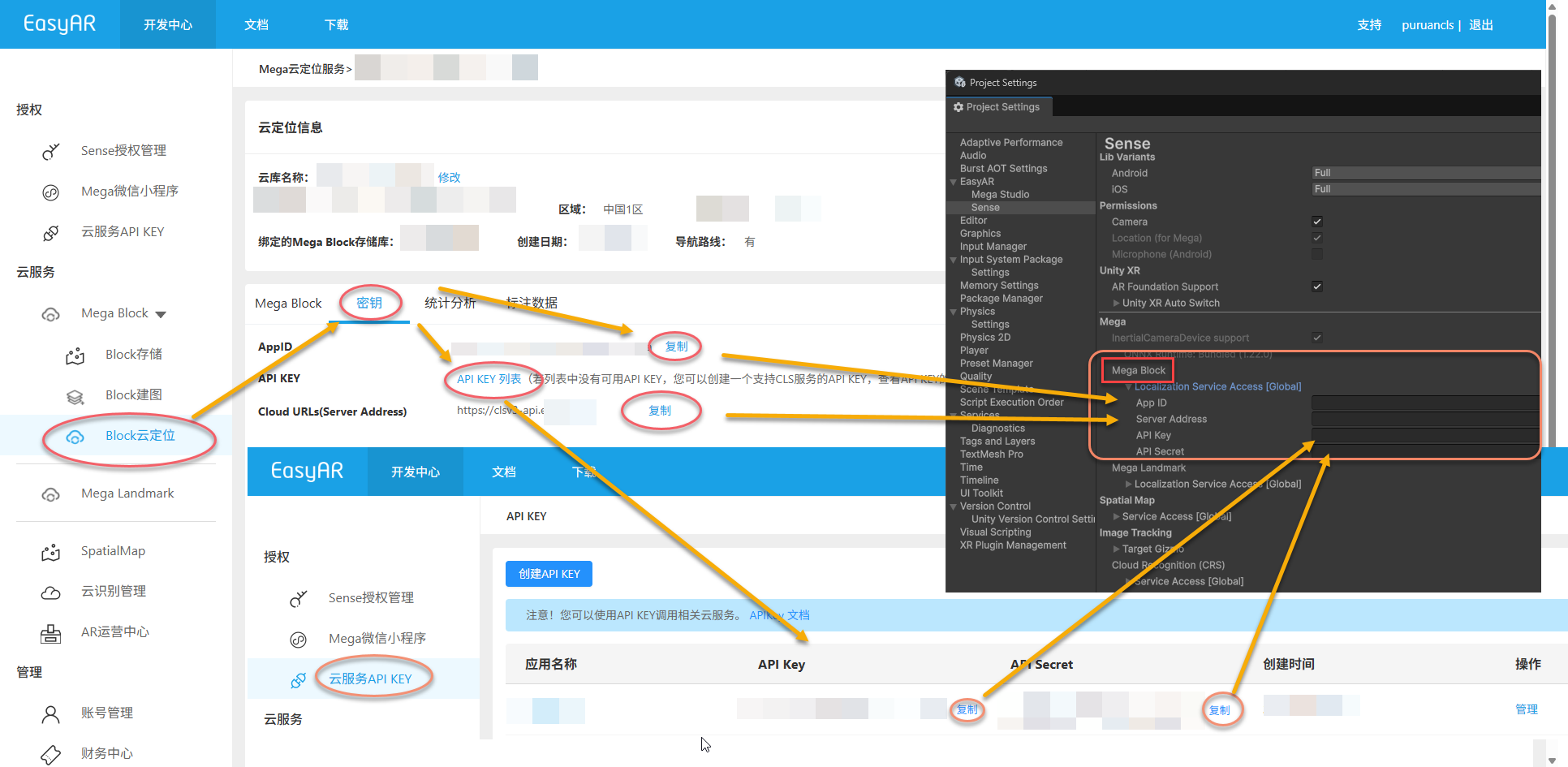
If you need to use different positioning libraries in different sessions, you can set Access Source to API Key, and then modify the service parameters below.
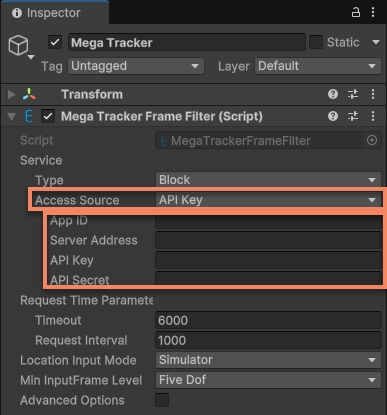
In the script, you can modify MegaTrackerFrameFilter.ServiceAccessSource and MegaTrackerFrameFilter.ServiceAccessData to achieve the same effect.
For example, the following code shows how to configure the tracker to connect to the service using runtime parameters before the session starts:
megaTracker.ServiceType = easyar.MegaApiType.Block;
megaTracker.ServiceAccessSource = easyar.MegaServiceAccessSourceType.APIKey;
megaTracker.ServiceAccessData = new easyar.APIKeyAccessData
{
    ServerAddress = serverAddress,
    APIKey = apiKey,
    APISecret = apiSecret,
    AppID = appID
};
Request Interval and Timeout
Select the Mega Tracker object under the session, and modify the options under Request Time Parameters to adjust the time interval and timeout for requesting the service.
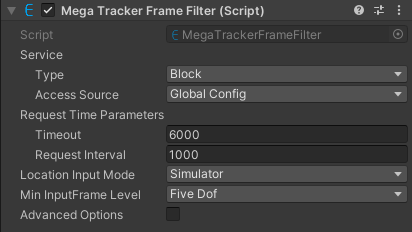
In the script, you can modify MegaTrackerFrameFilter.RequestTimeParameters to achieve the same effect.
Warning
Modifying the request interval will affect the tracking effect, and it is generally not recommended. Please use it under the guidance of EasyAR technical support.
If the request interval has been modified during the execution of the application, please be sure to mention this when reporting issues to EasyAR.
Switch the Localization Library
You can use MegaTrackerFrameFilter.SwitchEndPoint to switch the localization library at runtime. When using this interface, the camera view and the session will not be interrupted.
Related Topics
- Best Practices for AR Sessions in Mega introduces how to create and configure AR sessions for Mega.
- Adding Mega Tracking Targets explains how to add Mega tracking target blocks and how to load block models in the Unity Editor for development assistance.
- Adding a Group of Frame Data Sources describes how to modify the frame data source group of a session.
- Obtaining the Session's Running Results details how to obtain the tracking results of a session component.
- UI Messages explains how to use UI messages to display the session status.