Introduction to the headset extension package template
The com.easyar.sense.ext.hmdtemplate package provides examples and templates for headset extension development. It is an SDK implementation and also includes examples for application developers.
Template contents
The package structure follows the Unity recommended file layout:
.
├── CHANGELOG.md
├── Documentation~
├── Editor
├── LICENSE.md
├── package.json
├── Runtime
└── Samples~
    └── Combination_BasedOn_HMD
Some important contents are as follows:
- Runtime: the folder that stores runtime platform assets. This is the most important folder in the template.
- Samples~: the folder that stores all examples in the package. It contains examples for downstream use and can be used as demos for testing the extension. To develop this example in place, change the folder name to
Samples. The Client.Pack method automatically renames it toSamples~when packaging a new release. - Editor: the folder that stores edit-time platform assets. The scripts in this folder are mainly used to create menu items.
- package.json: the manifest file of the package.
Creation process of the template example
-
In the
Hierarchyview:- Right-click in a blank area, and add ARSession through the menu
EasyAR Sense>Mega>AR Session (Mega Block Default Preset). - Select AR Session (EasyAR) and right-click, then add an ImageTrackerFrameFilter to the session through the menu
EasyAR Sense>Image Tracking>Frame Filter : Image Tracker. - Select AR Session (EasyAR) and right-click, then add a DenseSpatialMapBuilderFrameFilter to the session through the menu
EasyAR Sense>SpatialMap>Frame Filter : Dense SpatialMap Builder. - Select AR Session (EasyAR) and right-click, then add a SparseSpatialMapBuilderFrameFilter to the session through the menu
EasyAR Sense>SpatialMap>Frame Filter : Sparse SpatialMap Builder. - Select AR Session (EasyAR) and right-click, then add and keep only the HMD Template FrameSource through the menu
EasyAR Sense>Extensions>Frame Source : HMD Template (keep it only).
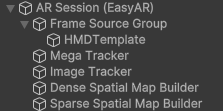
- Right-click in a blank area, and add ARSession through the menu
-
In the
Hierarchyview, right-click in a blank area and add an ImageTargetController to the session through the menuEasyAR Sense>Image Tracking>Target : Image Target.Configure ImageTargetController:
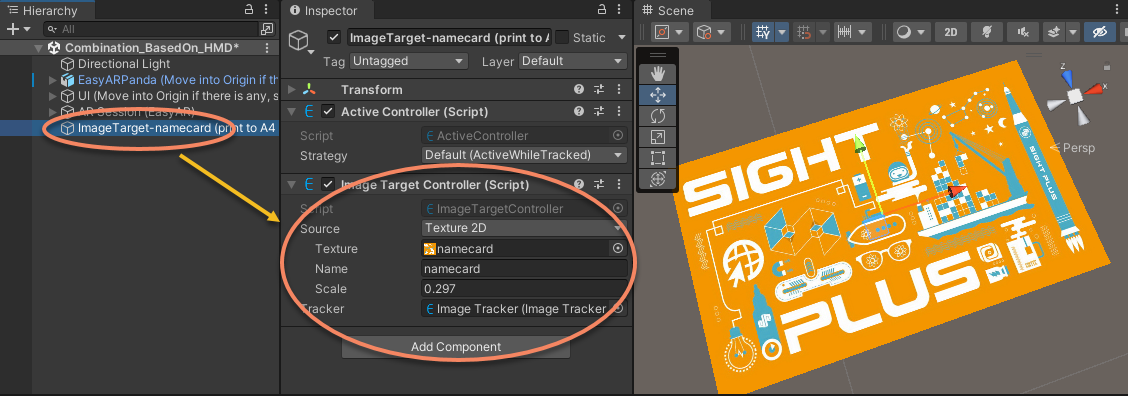
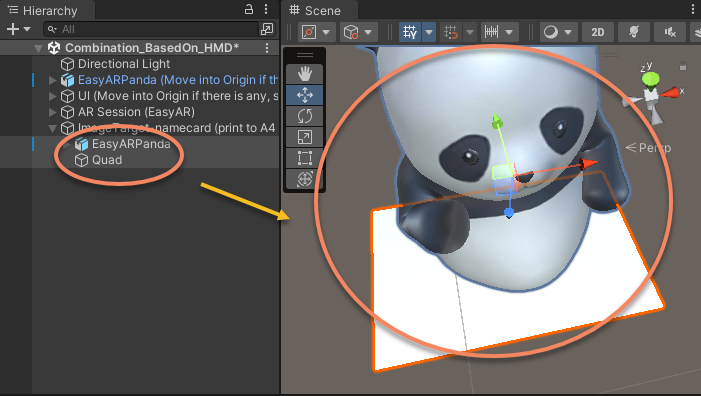
After completing the configuration above, the image displayed in the
Sceneview is a gizmo. In this example, a quad is used to display a virtual object with the same image.Add the virtual object displayed on the target:
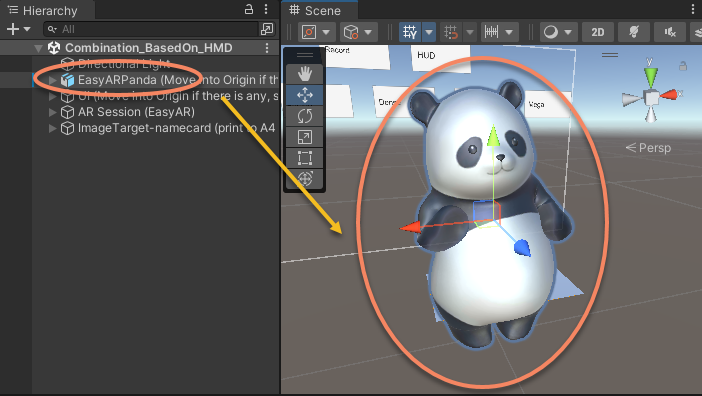
Add a model as the motion tracking origin reference
This model is important to both developers and downstream users. It is used to decouple device motion tracking from EasyAR algorithms.
Add the UI for feature selection
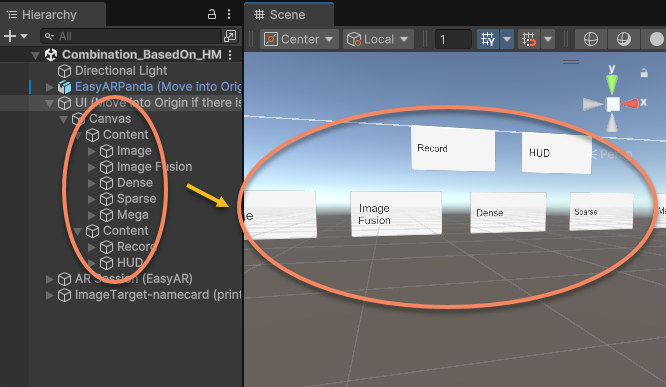
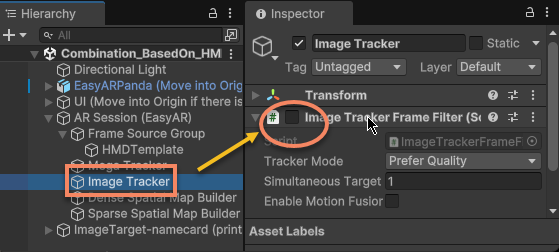
Disable EasyAR features enabled at startup and enable them through UI switches
For example, image tracking can be disabled at startup by setting the corresponding component's enable to false:
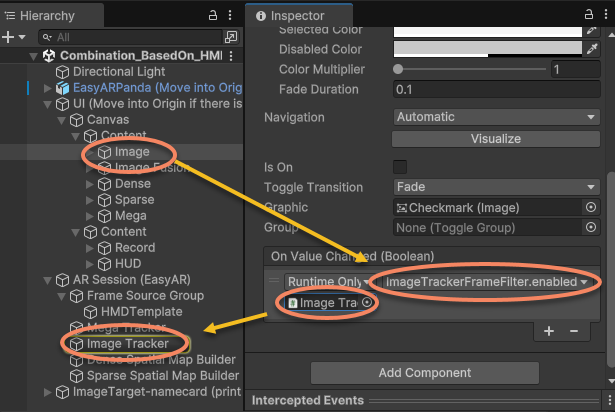
Then add UI switch handling:
Related topics
- Enable headset support for EasyAR describes how to use this template to create a new headset extension package
- Bring-up verification describes how to use the examples provided by this template to verify the correctness of the input extension
- Publish extension package describes how to complete final packaging and distribution based on this template