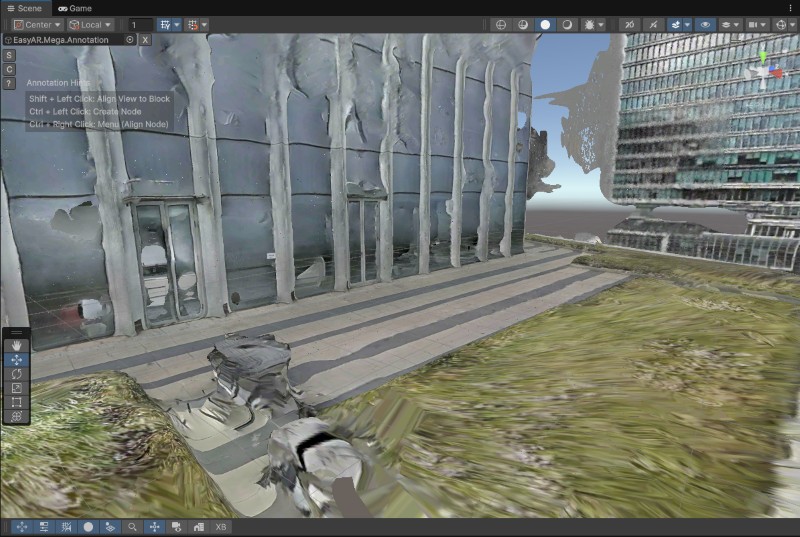
Use XGRIDS LCC 3D Gaussian Splatting data
This document describes how to align XGRIDS LCC 3D Gaussian Splatting data to block mesh in the Unity editor to assist application development.
Important
This article applies only to users who use XGRIDS devices for acquisition and, after mapping is complete, need to load and browse both Mesh and LCC 3DGS in the Unity editor. Mapping results from other devices do not contain LCC 3DGS data and cannot use the method described in this article to load LCC 3DGS.
Before you begin
- Use XGRIDS devices to acquire spatial data and export LCC files
- Load 3D real-world mesh
- LCC Unity SDK development quickstart
Important
Because XGRIDS may modify its data and SDK behavior, if the description below is inconsistent with the official documentation, use the official XGRIDS documentation as the reference.
If you encounter problems when using XGRIDS LCC 3DGS data, contact XGRIDS technical support.
Align LCC 3DGS and Mesh data
In the Unity editor, use the Mega tool to load and render Mesh, and use the LCC SDK to load and render LCC 3DGS.
Configure LCC SDK components
In Hierarchy, add the LCC Manager and LCC Renderer components provided by LCC Unity SDK.
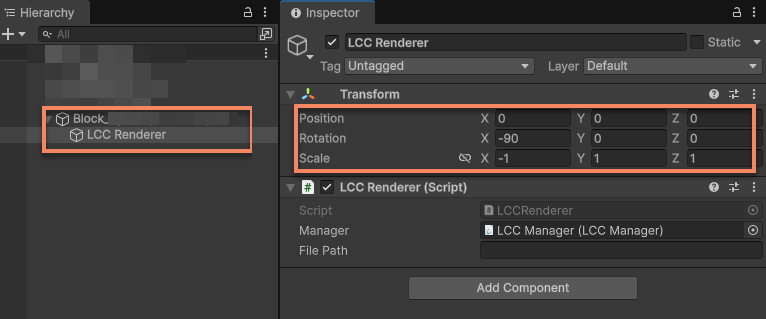
Drag LCC Renderer under the corresponding Block node as its child node, so that the Transform of LCC 3DGS relative to the Block remains unchanged.
Then modify the Transform of LCC Renderer:
- Change
Positionto(0, 0, 0) - Change
Rotationto(-90, 0, 0) - Change
Scaleto(-1, 1, 1)
Important
According to the official XGRIDS documentation, because the coordinate system definition of the underlying data differs from Unity, you must modify the Rotation and Scale of the Transform of LCC Renderer according to the official LCC Sample. Otherwise, 3DGS cannot align with Mesh.
If the XGRIDS data coordinate system changes and the data still cannot align after the modifications above, contact XGRIDS technical support. The EasyAR data coordinate system definition usually does not change.
Add the editor scene camera synchronization script to Camera
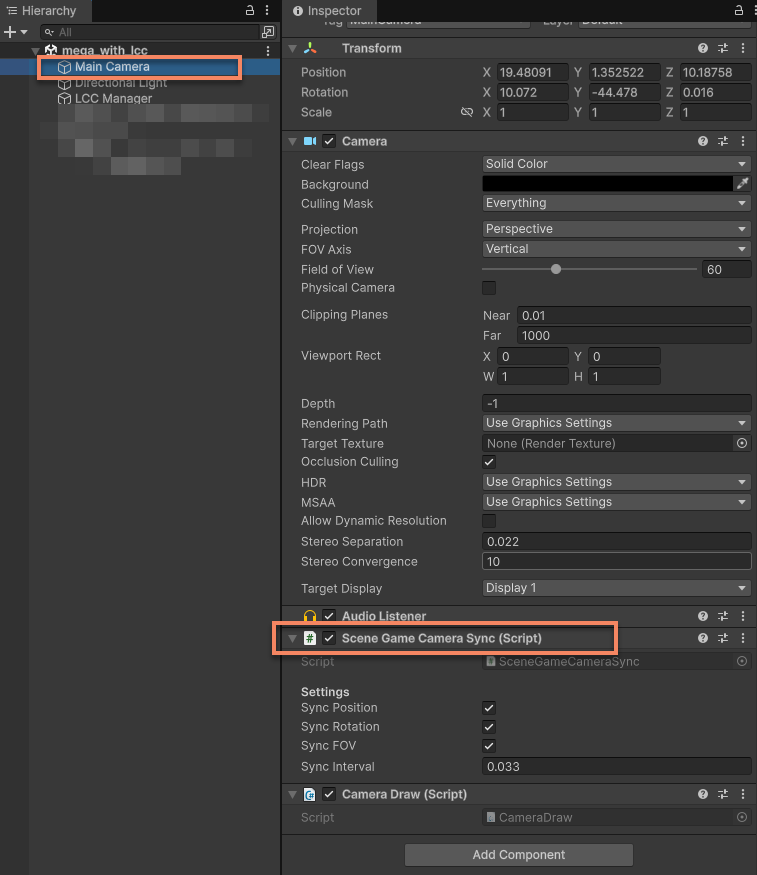
Add the SceneGameCameraSync script provided in the LCC Unity SDK Sample to the scene camera.
Important
In edit mode, this script is required to synchronize the pose and FOV of the editor scene camera before 3DGS can be rendered. In play mode, this script must be Disabled.
After completing the operations above, you can align the two data sets after loading both 3DGS and Mesh. At this time, check whether 3DGS is aligned with Mesh. After data alignment, the 3DGS rendering result should completely overlap the Mesh rendering result.
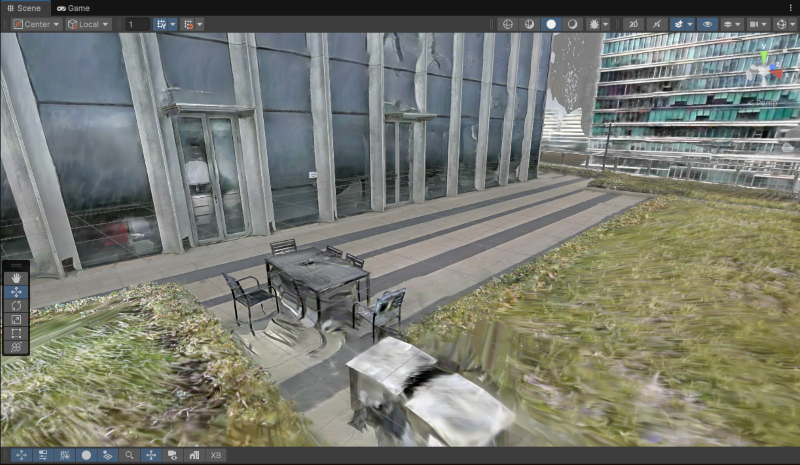
Rendering 3DGS and Mesh at the same time is feasible, but the visual effects interfere with each other. When placing content, it is recommended to display only one of them.
View LCC 3D Gaussian Splatting
In scenes where you need to view LCC 3DGS, it is recommended to hide Mesh and display only the 3DGS rendering result to avoid visual interference from Mesh.
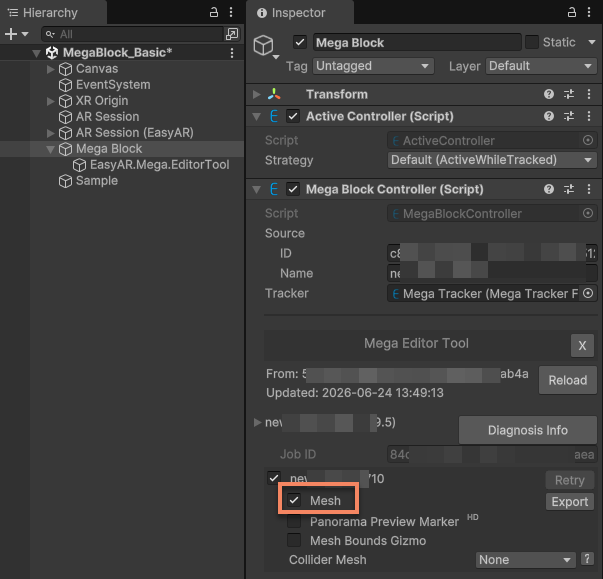
Uncheck the Mesh option to hide Mesh.
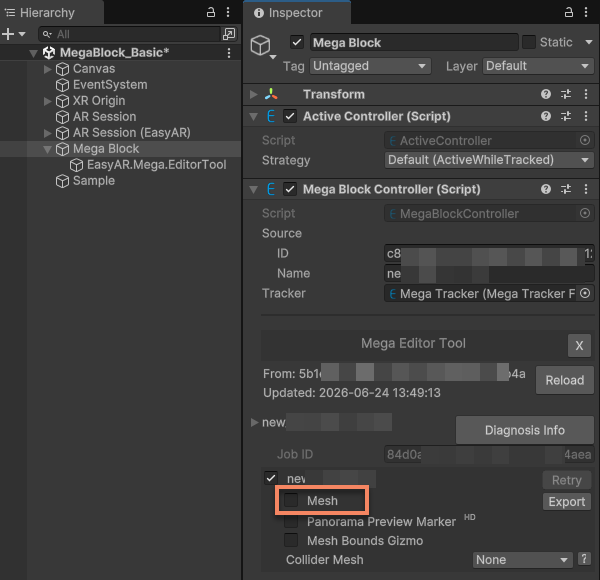
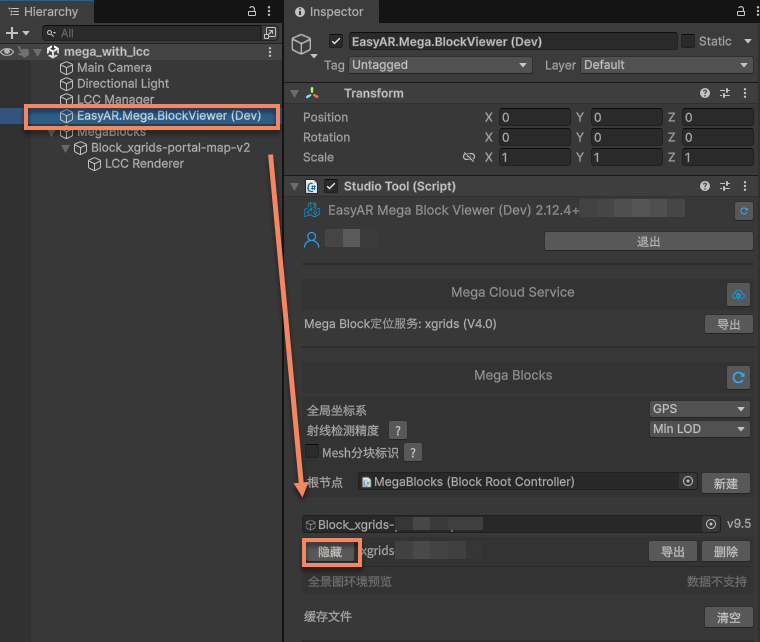
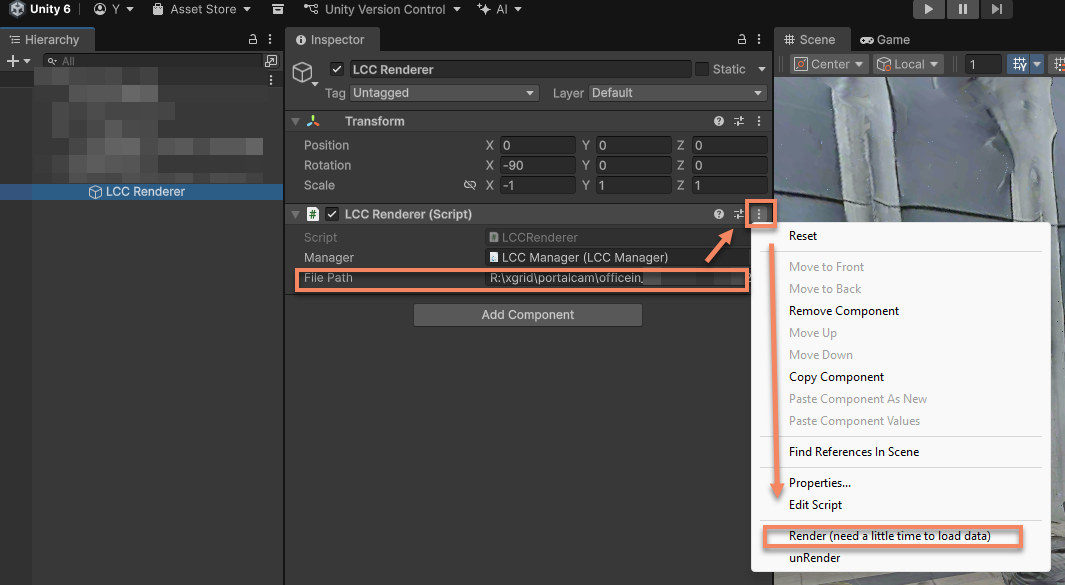
Then enter the correct path of the LCC file in the LCC Renderer Inspector panel, click the More (⋮) button in the upper-right corner, and click Render to trigger 3DGS rendering.
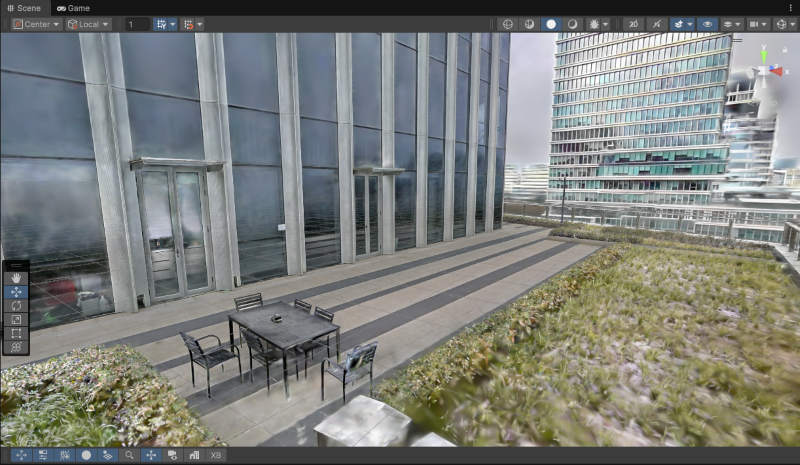
At this time, only the 3DGS rendering result is displayed.
View 3D real-world mesh
Viewing the 3D real-world mesh makes operations such as content annotation more convenient.
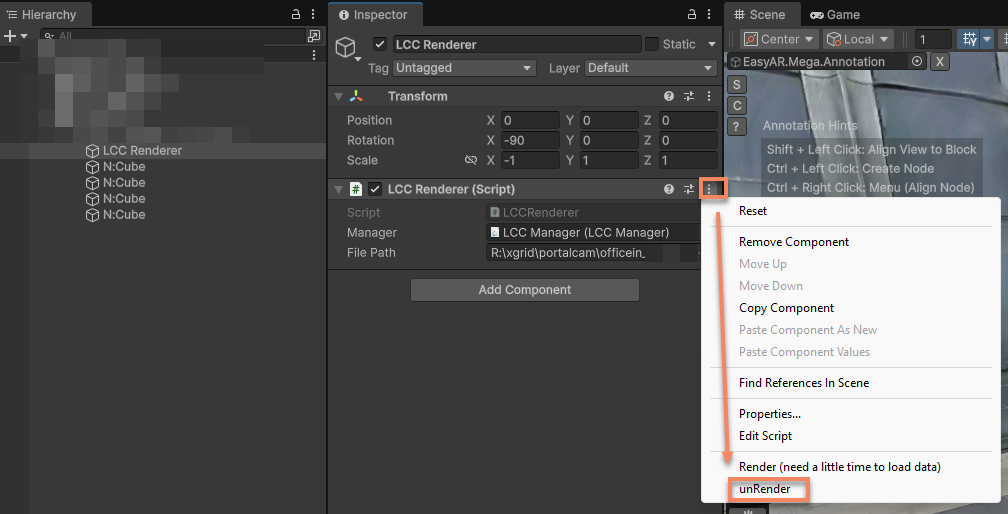
In the LCC Renderer Inspector panel, click the More (⋮) button in the upper-right corner, then click unRender to stop 3DGS rendering.
Select the Mesh option to show Mesh.
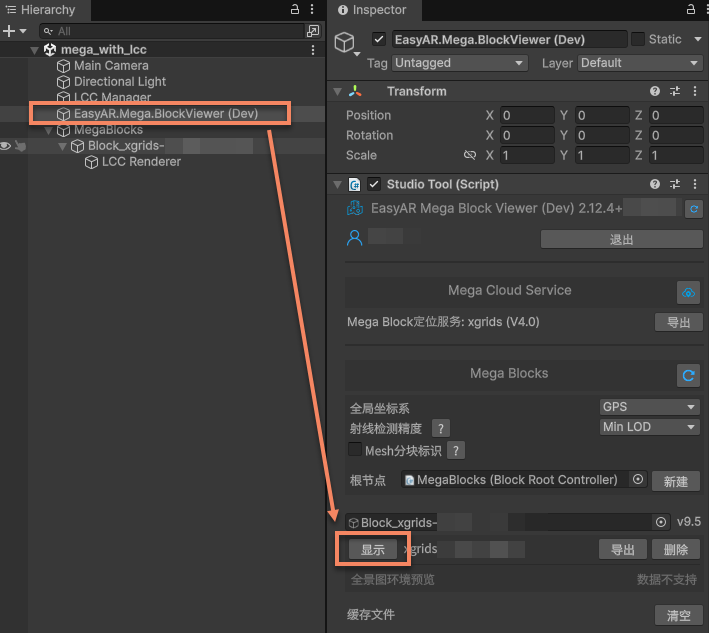
At this time, only Mesh is rendered in the editor.