Simulate running in the Unity editor
This document guides you through simulating real-scene localization in the Unity editor, helping you complete static alignment checks for virtual content before the mini program goes online.
Before you begin
Be able to use Mega Studio in Unity.
Use the Mega Toolbox tool to collect simulation run data.
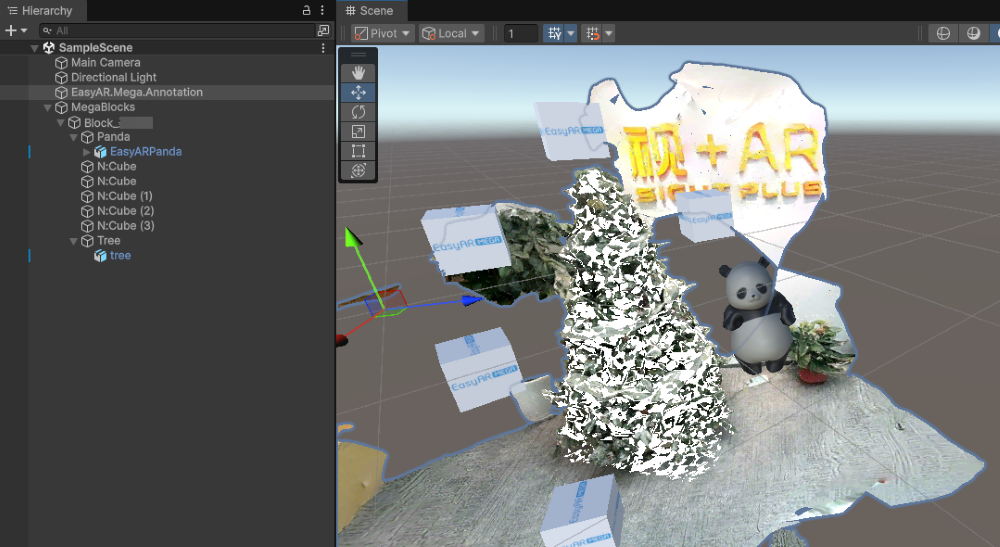
Create 3D content aligned with the real scene, for example:
Important
Using EIF data recorded onsite can visually verify whether the virtual content placement is accurate.
However, because the xr-frame and Unity platform environments are different, code script logic and rendering results cannot be verified in simulation runs.
Simulation run
Create a Sense license
Because a simulation run in Unity requires EasyAR Sense, you need to prepare a Sense license (it can be a trial license).
In EasyAR Developer Center, select [Sense license management] > [Create a new Sense license key]:
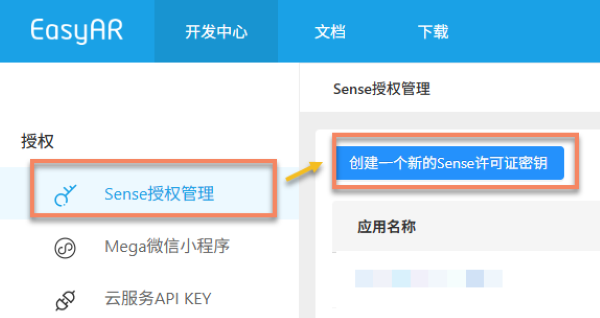
Select EasyAR Sense Personal Edition.
Select ‘No’ for the ‘Whether to use sparse space’ option.
Fill in any application name, iOS Bundle ID, and Android Package Name.
Click OK. The requested license will then appear in Sense license management in Developer Center.

In EasyAR Developer Center, select the Sense license requested during preparation.

Click copy:

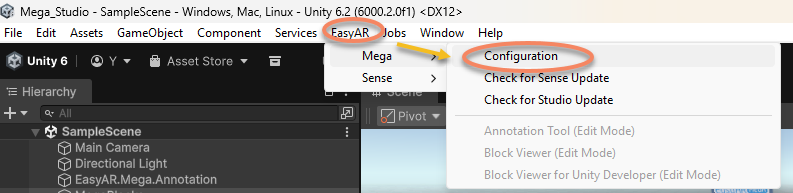
Click [EasyAR] > [Mega] > [Configuration] in the menu bar at the top of the Unity editor to enter the configuration page:
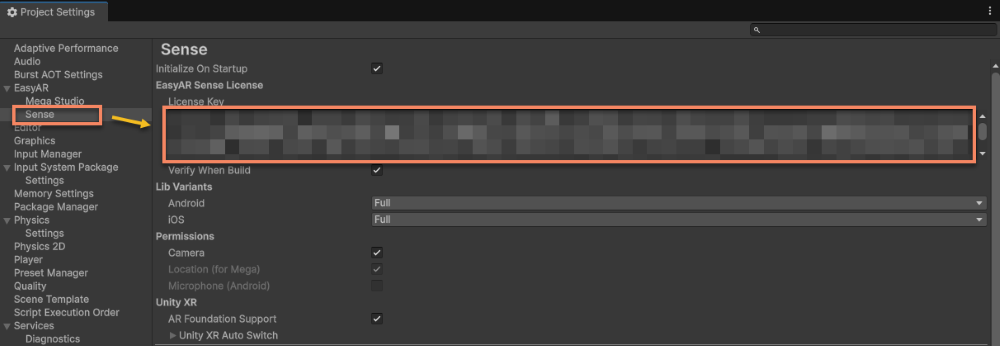
Click Sense on the left to configure it, and enter the Sense license.
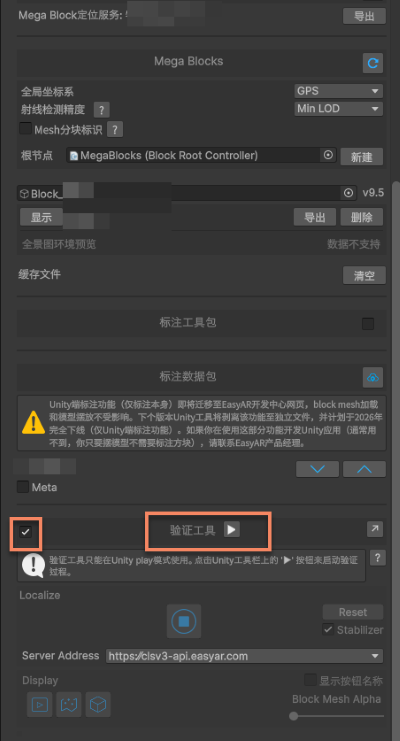
Enable the verification tool and click Run.
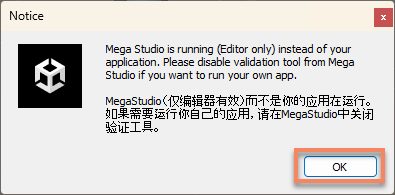
Click OK in the pop-up window.
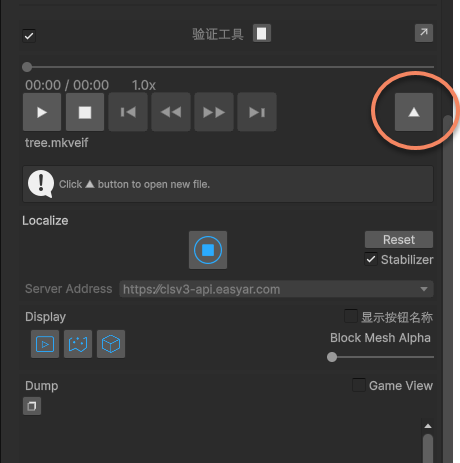
Click the load button to load the EIF file.
Select the EIF file saved during preparation (with suffix
.eifor.mkveif).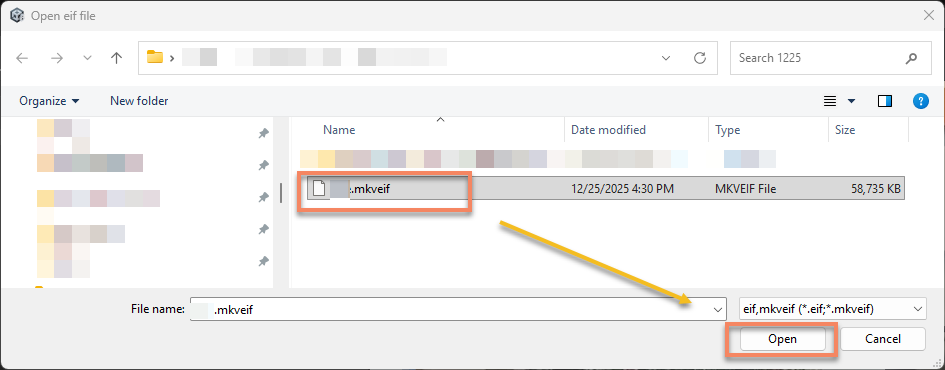
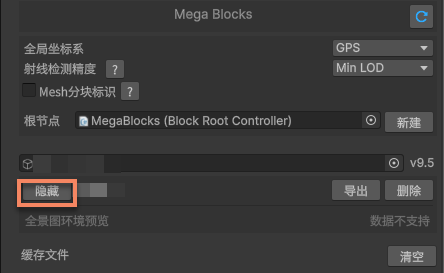
Hide Block Mesh.
You can set all Block Mesh to hidden.
You can set Block Mesh Alpha to 0 in the verification tool, making it transparent.
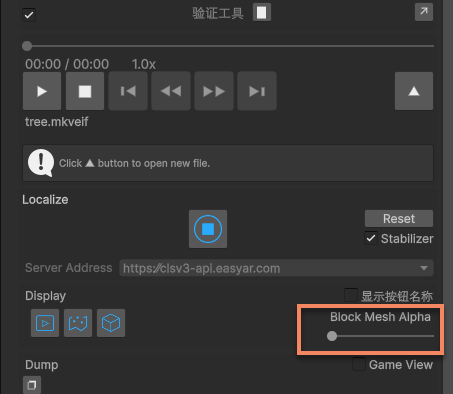
Drag the control bar to the far left.
Play EIF
Important
When playing EIF in the Unity editor, the SDK and input frame data used are both different from those used by the xr-frame mini program, so this method:
✅ Can be used to visually verify whether the virtual content placement is accurate and verify the localization accuracy of the cloud localization service at that location.
❌ Cannot be used to verify the final effect of the xr-frame mini program running on a real device.
How it works and expectations: when Unity plays EIF data, the EasyAR SDK calls the recorded input frame data and sends real cloud requests to the configured localization service.
If localization succeeds and remains stable: the model position is accurate and there is no drift, so the scene can be expected to achieve a relatively ideal effect in the xr-frame mini program as well.
If localization fails or behaves abnormally: the model jumps frequently, shifts, or cannot localize, which usually means the xr-frame mini program will face similar issues when running on a real device.