Create and upload annotations with Unity Editor
This article introduces how to create and upload annotations with Mega Studio in Unity Editor.
Before you begin
Be able to use Mega Studio in Unity
Prepare a model: use the model used in the sample project (a cute panda), or use the small robot model used in the official xr-frame Demo, or refer to GLTF formats and supported extensions loadable by XRFame to prepare a model file that meets xr-frame requirements.
Import the model file into Unity.
Tip
The Mega plugin already adds a dependency on com.unity.cloud.gltfast, so you can directly drag the model file into Unity Assets.
Why annotations are needed
EasyAR Mega Annotation (EMA) can be used to synchronize spatial positions across platforms with different coordinate system definitions.
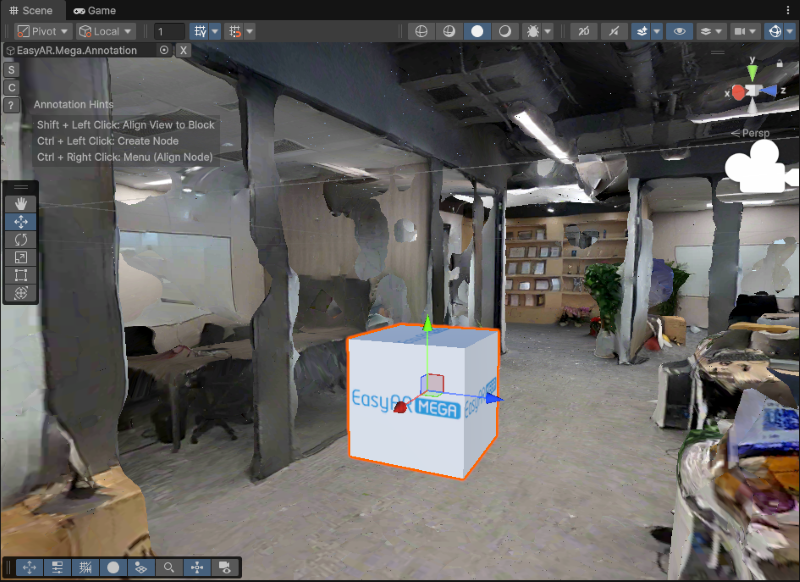
The local coordinate system of an annotation in the Unity environment: the positive X direction points backward, the positive Y direction points upward, and the positive Z direction points right.
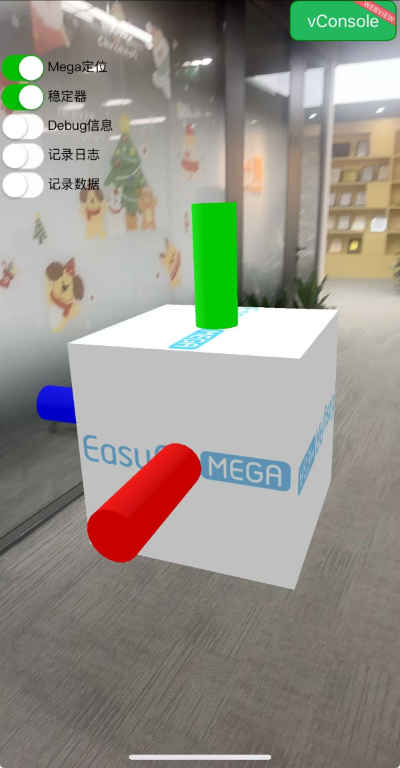
The local coordinate system of an annotation in the xr-frame environment: the positive X direction points backward, the positive Y direction points upward, and the positive Z direction points left.
The above direction difference comes from the different coordinate system definitions used by Unity and xr-frame (left-handed/right-handed systems).
Using EMA to synchronize spatial positions has the following significant advantages:
- Simplified development process: automatically handles cross-platform coordinate conversion, avoiding the cumbersome logic and error-prone nature of manual calculation.
- Improved debugging efficiency: it can be loaded directly in MegaToolbox, making real-device testing and data verification faster.
Operation steps
Create annotation tool
Right-click in Unity's Hierarchy panel, then select EasyAR Mega > Tool > Annotation Tool (Edit Mode) in sequence.
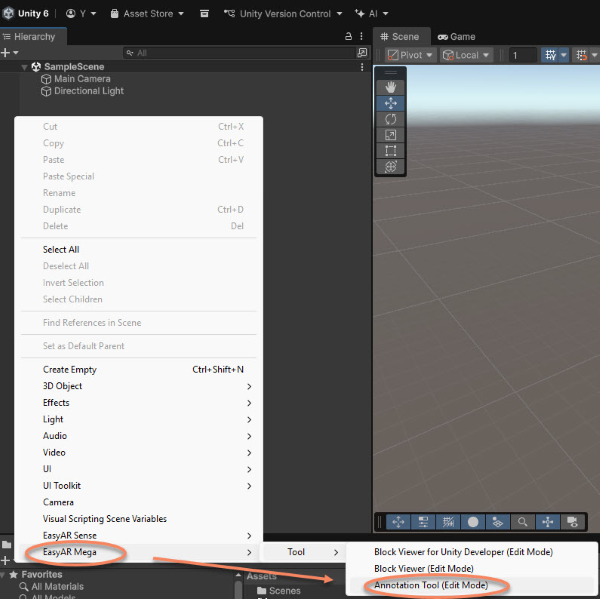
After creation is complete, two nodes, EasyAR.Mega.Annotation and MegaBlocks, are generated in the scene.
Select the EasyAR.Mega.Annotation node. Username/email and password input boxes will appear in its Inspector panel.
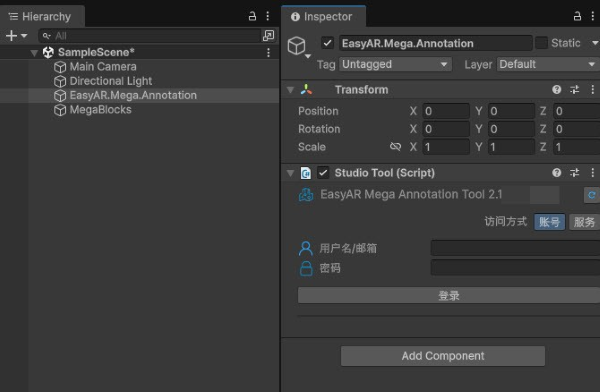
Log in to account
Enter the EasyAR account and password, then click login. If successful, the Studio tool will appear in the Inspector panel.
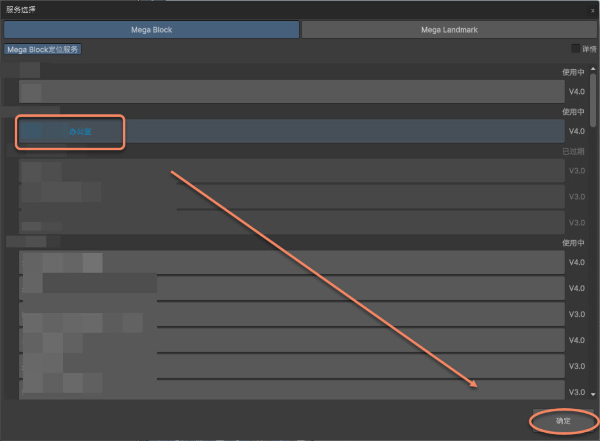
Select Mega cloud localization database
Click the icon on the right side of Mega Cloud Service.

Select the database to use.
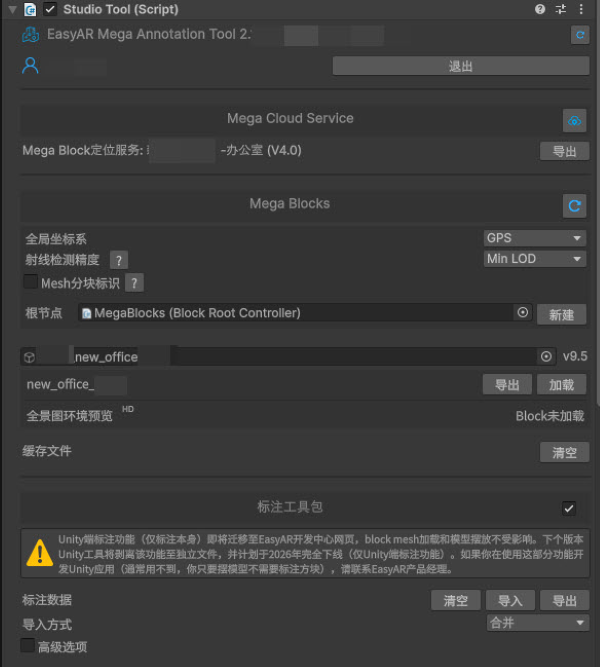
After the localization database and Mega Blocks information are loaded successfully, the Studio tool panel is shown as follows.
Load Block dense model
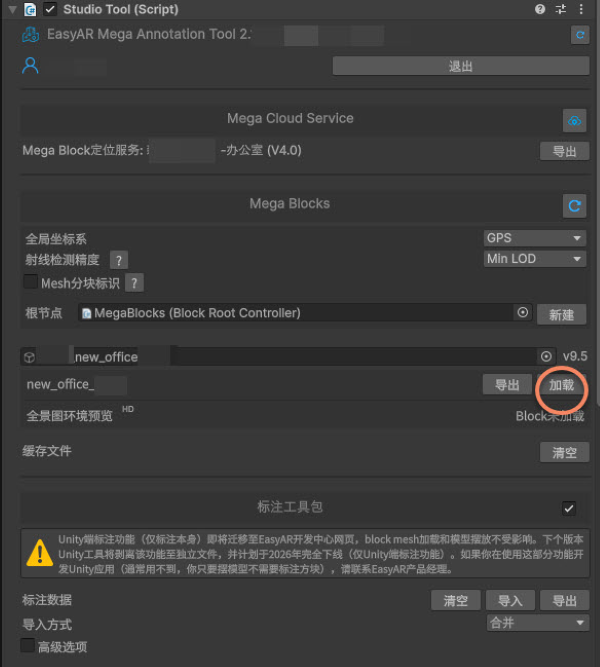
Click Load on the right side of the Block name to dynamically load the dense model of that Block.
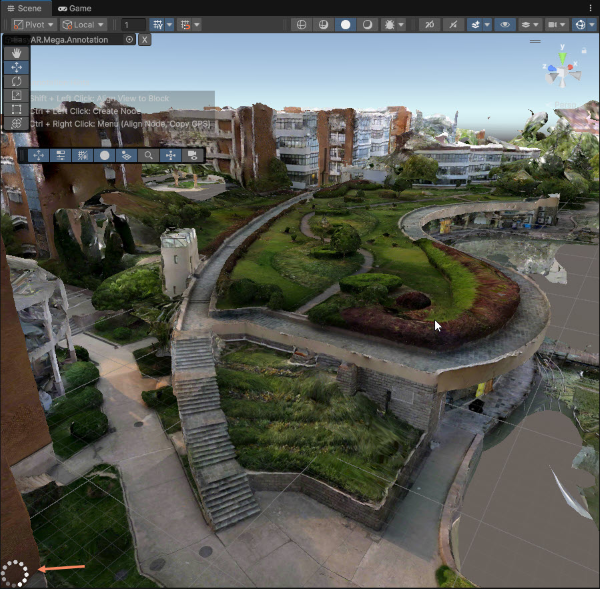
After the model finishes loading, it appears in the Scene tab. Note that when the indicator shown in the lower-left corner appears, the model in the current view has not finished loading. Wait a moment until the indicator disappears, which means loading is complete.
Create annotation
In the scene, hold Ctrl (Windows) / Command (Mac), then left-click the location where an annotation is needed.
Use model
Drag the imported model to the scene node as a child node of the annotation.
Set all Position and Rotation values in the model's Inspector panel to 0. Scale can be adjusted as needed.
Note
EMA carries all coordinate transformation logic. Setting the model Position and Rotation to 0 makes the model's geometric center exactly coincide with the annotation point. All translation and rotation adjustments should be completed by operating its parent node, the annotation node.
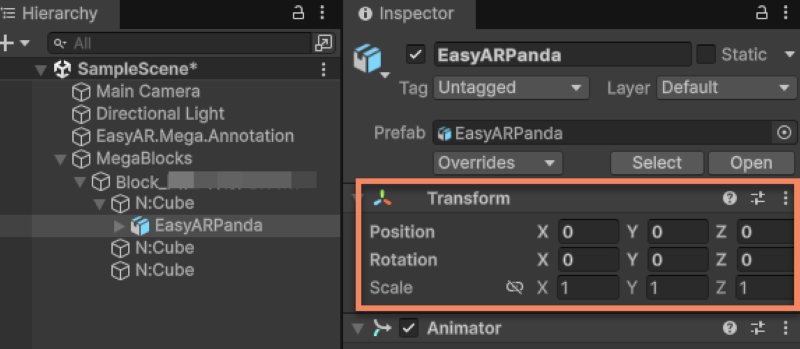
[Optional] Precisely adjust model position
If you need to precisely adjust the model position and orientation, see how to use the Unity editor to precisely align 3D content with the real scene.
Create annotation data package
Click the icon on the right side of the annotation data package in the Inspector panel.
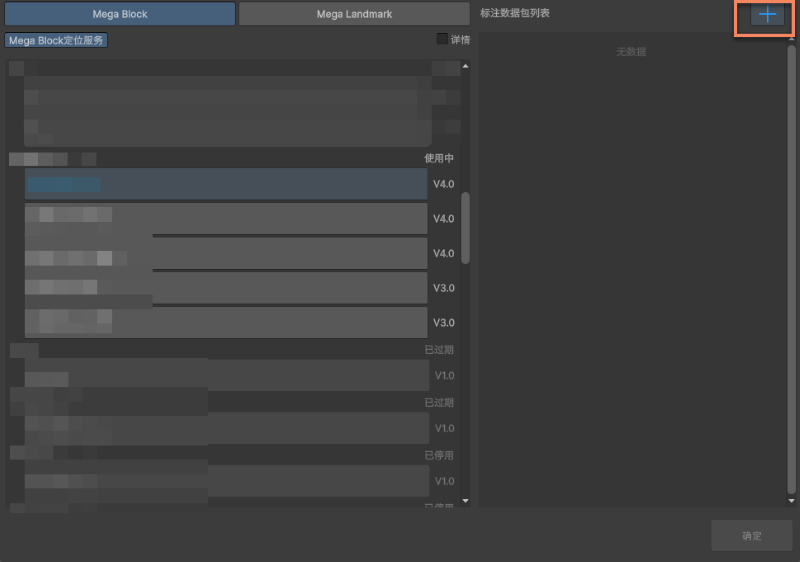
Enter the name of the annotation data in the box, then click the check mark on the right.
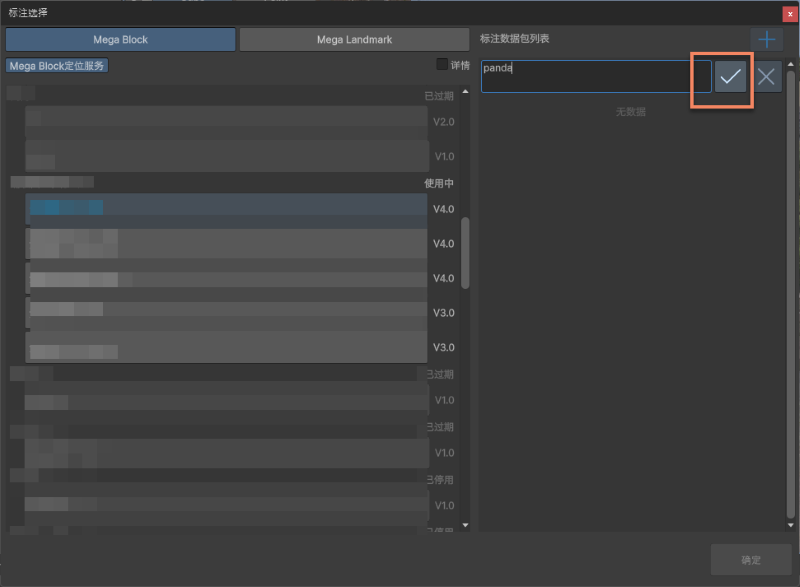
After creation succeeds, it should look as shown. Then click Confirm below.
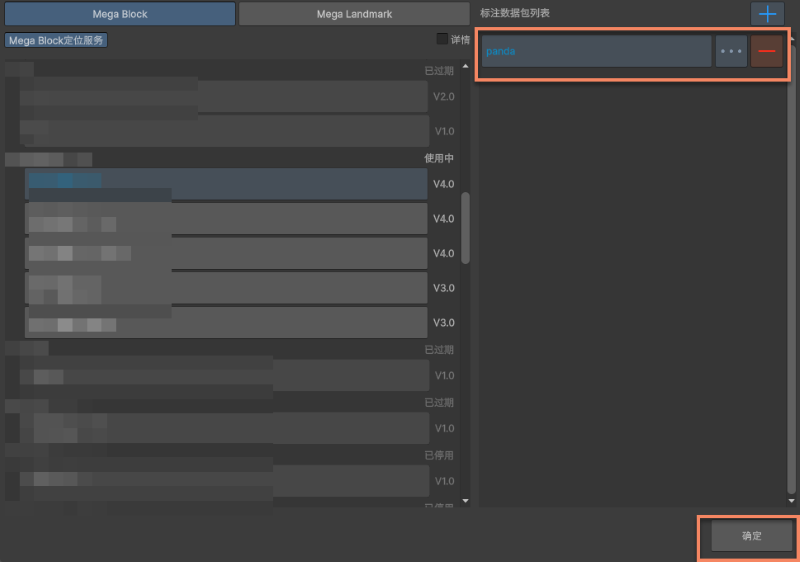
Click the upload icon to upload.
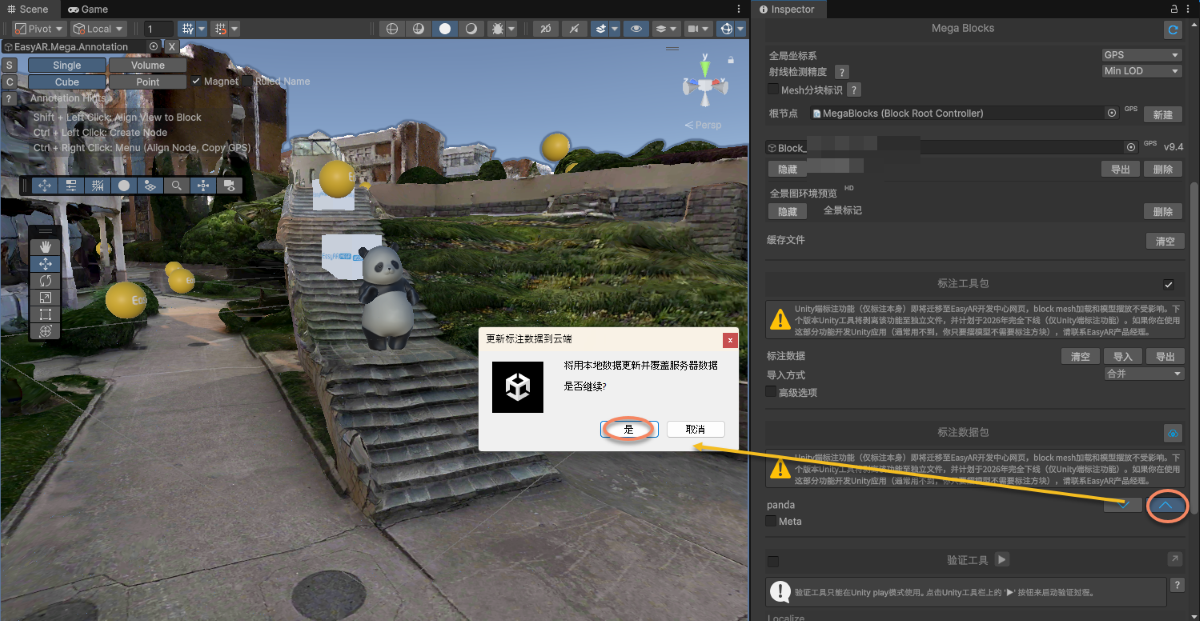
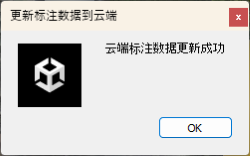
A prompt appears after upload succeeds.
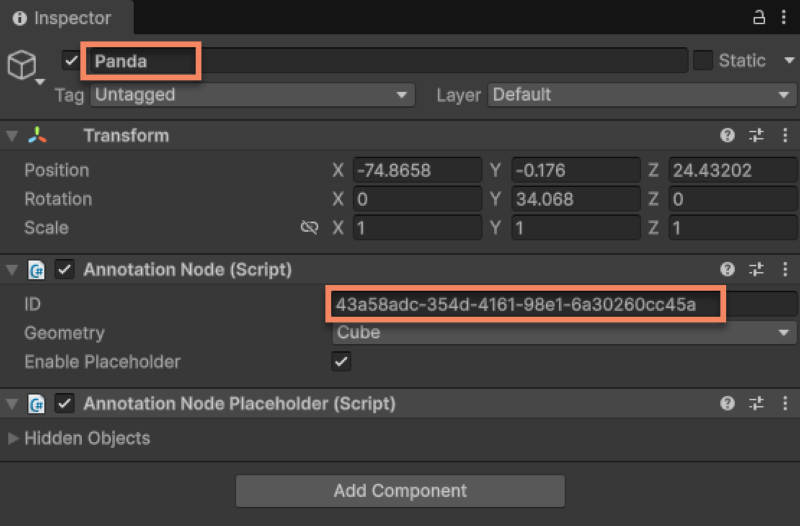
Record annotation ID
You need to record the name or ID of the annotation data to load the corresponding annotation data in xr-frame.
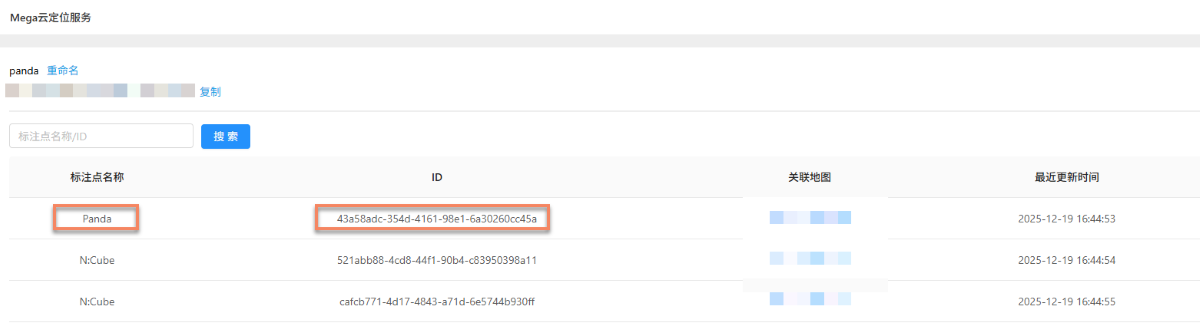
After upload succeeds, you can also see the corresponding information in the cloud localization database.
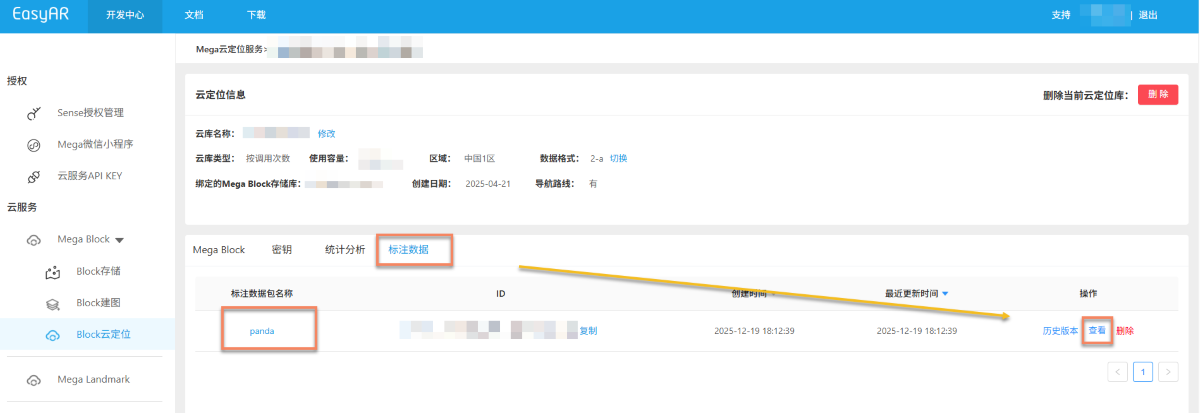
You can also view the uploaded annotation data name and ID here.
Next steps
- Create 3D content aligned with the real scene using Unity Editor
- Try simulated running in Unity Editor
- Run the complete sample project