Run the WeChat Mini Program Mega plugin sample project completely
This article describes how to run the WeChat Mini Program Mega plugin sample project completely, including annotation usage.
Before you begin
Complete quickly run the sample project.
Complete place 3D content with Mega Studio in Unity to obtain the annotation data package ID and annotation point ID.
The ID of [Block cloud localization] > [Annotation data] in the cloud localization library list is the annotation data package ID.
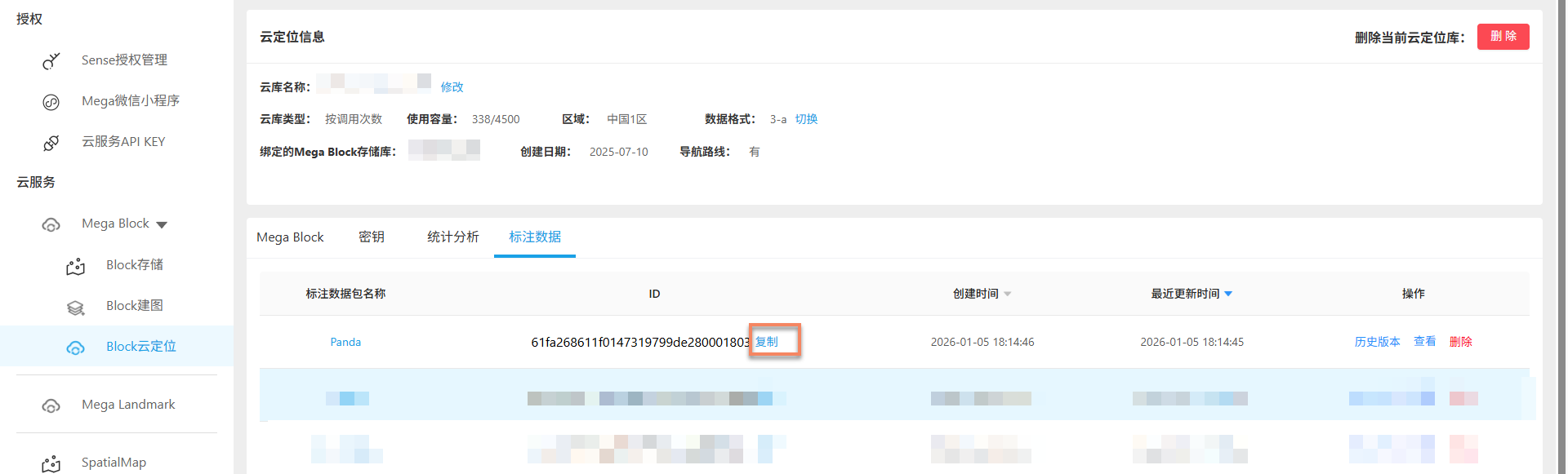
Click [View] on the right to view the uploaded annotation data name and ID. The ID in the list on this page is the annotation point ID.
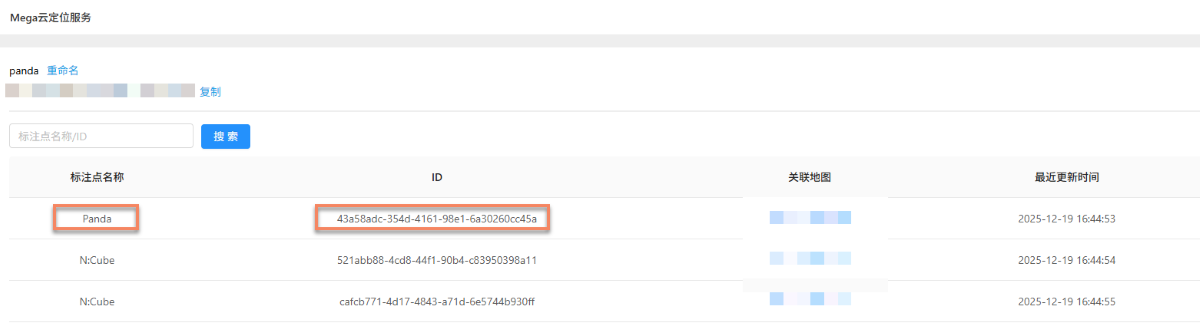
Configure the Mega annotation data package ID
Fill in the annotation data package ID in miniprogram/components/sample-data/easyar-settings.ts:
/** 填 Mega 标注数据包 ID */
export const MegaAnnotationId: string = "";
Configure the model displayed at the annotation point
In miniprogram/components/sample-data/annotation-metadata.ts, configure the annotation to replace by changing key to the annotation point id. If multiple annotations need to be replaced, separate them with commas.
export const AnnotationMetaData: Record<string, any> = {
    /** 填标注点 ID */
    "aaaaaaaa-bbbb-cccc-dddd-123456789012": {
        assetId: "panda",
        scale: "1 1 1"
    },
    "aaaaaaaa-bbbb-cccc-dddd-123456789013": {
        assetId: "panda",
        scale: "1 1 1"
    }
};
For how to record and match annotation point IDs, see confirm annotation data.
Run on a real device
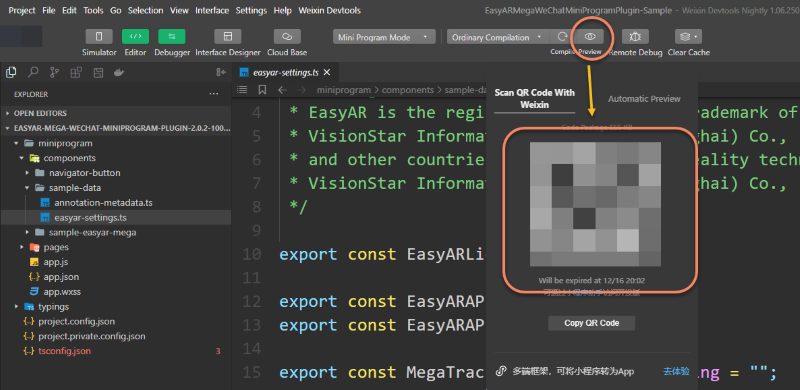
Click the real-device preview button in the top bar of the Mini Program developer tool, and load it by scanning the QR code.
Note
The xr-frame component with AR functionality cannot be directly simulated in the developer tool.
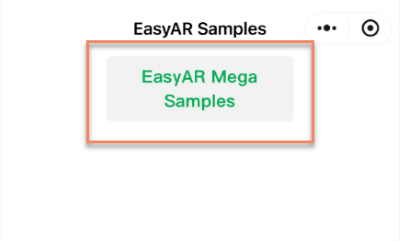
Click EasyAR Mega Samples to enter the AR scene of the sample project.
The message
EasyAR Session is initializingon the screen indicates that WeChat plane detection is initializing.Tip
Make sure to test in a well-lit environment and avoid large solid-color walls or solid-color floors.
Swing steadily left and right toward the ground or another plane to speed up this process.
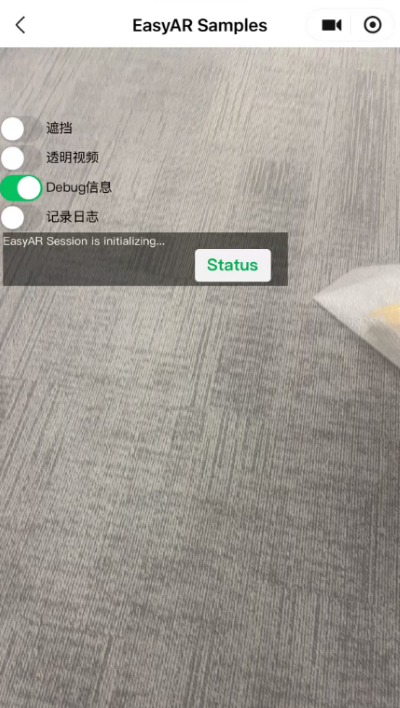
After initialization is complete, hold the phone vertically so that the camera captures a normal real-world view. When localization succeeds,
Foundappears in the debug information, and the status indicator in the lower right turns green.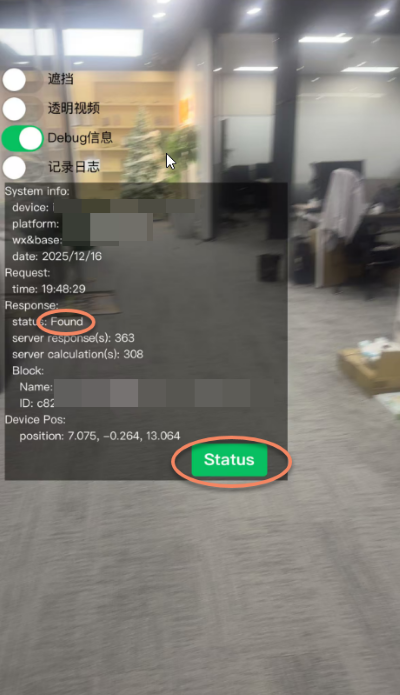
A GLTF model or cube is loaded and rendered at the annotation position, depending on whether
assetIdis configured.Runtime effect: