WeChat Mini Program Mega plugin sample project
This article explains in detail how to use each feature shown in the sample project, including implementation methods and notes.
Before you begin
- Be able to use the Unity editor to create and upload annotations, and record the annotation names and their IDs.
- Be able to use the Unity editor to create 3D content aligned with the real scene.
- Be able to run the complete sample project.
How to display a model at an annotation position
Precisely place and upload annotations in the Unity editor, and record the annotation name and its ID
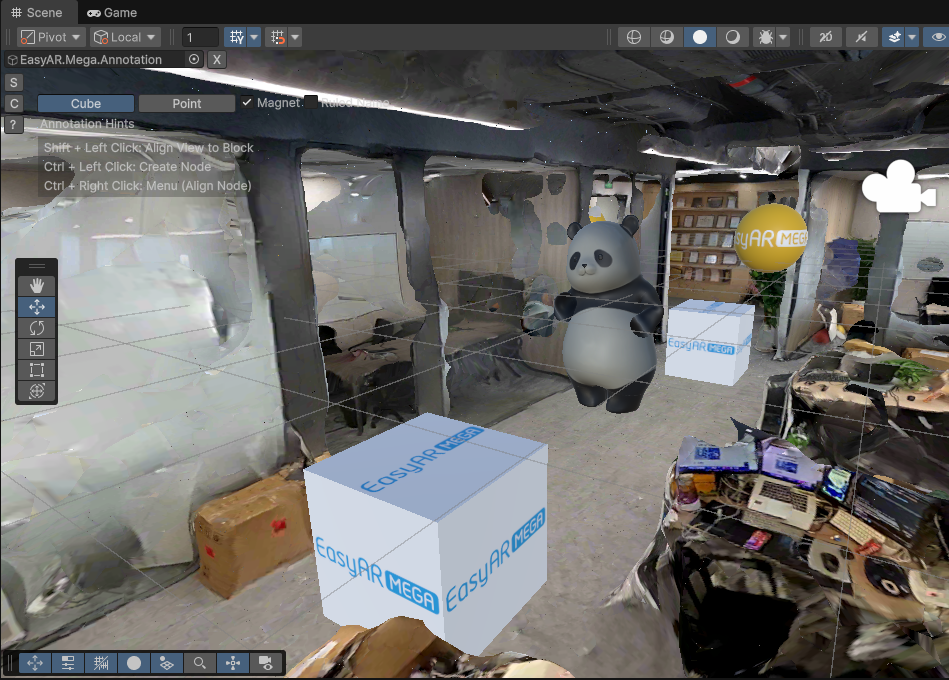
Add GLTF model assets
Add the model asset to
sampleAssetsinminiprogram/components/sample-easyar-mega/index.ts.const sampleAssets = { your_model_name: { assetId: "your_model_asset_id", type: "gltf", src: "url/model.glb", options: {} } }Load the added model asset
Load the model in the
loadAsset()function inminiprogram/components/sample-easyar-mega/index.ts.async loadAsset() { try { await scene.assets.loadAsset(sampleAssets.your_model_name); } catch (err) { console.error(`Failed to load assets: ${err.message}`); } }Configure the annotations to replace
Configure the annotations to replace in
miniprogram/components/sample-data/annotation-metadata.ts. If multiple annotations need to be replaced, separate them with commas.export const AnnotationMetaData: Record<string, any> = { "aaaaaaaa-bbbb-cccc-dddd-123456789012": { assetId: "panda", scale: "0.5 0.5 0.5" }, "aaaaaaaa-bbbb-cccc-dddd-123456789013": { assetId: "your_model_asset_id", scale: "1 1 1" } };Replace annotations and load models
In the callback after EMA is loaded, use the xr-frame "factory method"
scene.createElement(xrFrameSystem.XRGLTF, options)to create the model node.Parameters:
xrFrameSystem.XRGLTF: specifies that the element type to create is a GLTF model.options: initialization configuration items corresponding to component properties.
Key properties in the code:
"model": required. Points to the loaded asset ID (asset-id)."anim-autoplay": optional. Specifies the name of the animation to play automatically after loading."scale": optional.assetInfo.scaleor "1 1 1".name: required. Annotation name.
Caution
Pay attention to distinguishing string and non-string property keys, and fill them in exactly as shown in the sample.
Mount the model under the annotation node with
xrNode.addChild(child).To ensure the GLTF model looks the same under loaders on different platforms, rotate the loaded model 180 degrees around the Y axis in place.
if (assetInfo && assetInfo.assetId && assetInfo.assetId.trim().length > 0) {
    model = scene.createElement(
        xrFrameSystem.XRGLTF,
        {
            /** assetId from the previous step */
            "model": assetInfo.assetId,
            /** The model animation to play can be specified here */
            "anim-autoplay": assetInfo.animation ? assetInfo.animation : "",
            "scale": assetInfo.scale ? assetInfo.scale : "1 1 1",
            name: emaName
        }
    );
    xrNode.addChild(model);
    /**
     * Because GLTF loaders behave differently, to keep the model orientation in xr-frame exactly consistent with the Unity rendering result
     * The loaded model needs to be rotated 180 degrees around the Y axis in place
     */
    let modelTransform = model.getComponent(xrFrameSystem.Transform);
    let currentRotation = modelTransform.quaternion.clone();
    let targetRotation = currentRotation.multiply(new xrFrameSystem.Quaternion().setValue(0, 1, 0, 0));
    modelTransform.quaternion.set(targetRotation);
}
Run on device
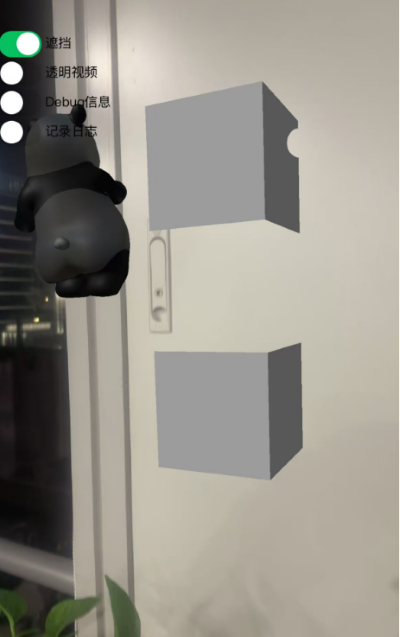
The result of running on device is shown below, and can be compared with the position in the Unity editor in Step 1:
Turn on the transparent video button on the left. A cube with transparent video material appears at the origin of the world coordinate system, the position with coordinates
(0, 0, 0).Note
The origin position may be a random position in space. You can use annotations to place the occlusion model at the desired position. For details, see create and upload annotations with the Unity editor.
Turn on the occlusion button on the left. At the world coordinate origin, the position with coordinates
(0, 0, 0), a panda model and vertically stacked cubes appear. The middle cube has occlusion material, and there is a static panda model with occlusion material on the other side.Note
The origin position may be a random position in space. You can use annotations to place the occlusion model at the desired position. For details, see create and upload annotations with the Unity editor.
How to play transparent video at an annotation position
Load a video asset whose type is
video-texture.async loadAsset() { const videoTexture = { assetId: "fireball", type: "video-texture", // 视频资源 URL src: "url/video-resource.mp4", options: { autoPlay: true, loop: true, } }; try { // 加载 video-texture 类型资源 await scene.assets.loadAsset(videoTexture); } catch (err) { console.error(`Failed to load video texture: ${err.message}`); } }Modify the EMA load callback
In the EMA load callback, use
scene.createElement(xrFrameSystem.XRMesh,options)to create a simple geometry, assign theeasyar-video-tsbsmaterial to it, and changeuniformtou_baseColorMap:video-{$assetId}.Parameters:
xrFrameSystem.XRMesh: specifies that the created element type is a basic geometry.options: initialization configuration items, corresponding to the component properties.
Key properties in the code:
"geometry": "cube": uses the cube geometry data built into xr-frame."material": "easyar-video-tsbs": specifies a predefined material. Based on the name, this is presumed to be a special material that supports video textures."uniforms": "u_baseColorMap:video-{$assetId}":
Caution
Be careful to distinguish between string and non-string property keys, and fill them in exactly as shown in the example.
This is a dynamic binding of a material parameter.
It maps the video asset (texture) named
video-{$assetId}to the base color map of the material.Effect: this creates a cube whose surface is playing the video.
model = scene.createElement(xrFrameSystem.XRMesh, {
    geometry: "cube",
    material: "easyar-video-tsbs",
    uniforms: "u_baseColorMap:video-fireball",
});
xrNode.addChild(model);
Note
When using
video-texture, if the console shows the warningwx.createVideoDecoder with type: 'wemedia' is deprecated, ignore it.We have confirmed with the official WeChat team that this warning does not affect usage.
Run on a real device
How to place an occlusion model aligned with space
Precisely place the model used for occlusion and upload the annotation.
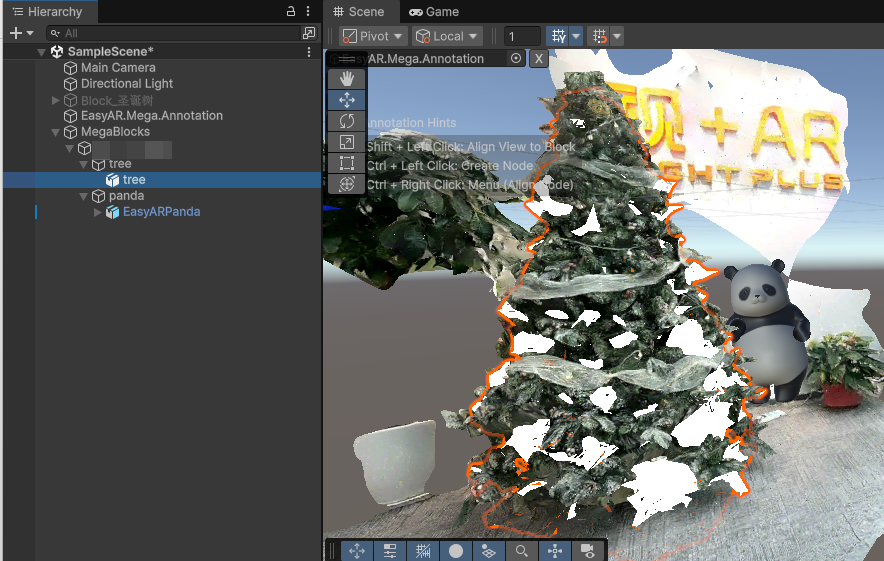
Load the GLTF used as occlusion in the xr-frame Mini Program.
Load the model resource through
scene.assets.loadAsset()(manual unloading is required).const sampleAssets = { occlusion1: { assetId: "occlusion1", type: "gltf", src: "url/occlusion1.glb", options: {} } } async loadAsset() { if (!scene) {console.error("Empty scene"); return;} try { await scene.assets.loadAsset(sampleAssets.occlusion1); } catch (err) { console.error(`Failed to load assets: ${err.message}`); } }At runtime, load the model in the EMA loading callback and assign the occlusion material
Use
scene.createElement(xrFrameSystem.XRGLTF,options)in the EMA loading callback to create the model node.Parameters:
xrFrameSystem.XRGLTF: specifies that the created element type is a GLTF model.options: initialization configuration items, corresponding to component properties.
Key properties in the code:
"model": required, points to the loaded resource ID (asset-id)."scale": optional,assetInfo.scaleor "1 1 1".name: required, annotation name.
Caution
Pay attention to distinguishing string and non-string property Keys, and fill them in exactly as shown in the example.
Mount the model under the annotation node with
xrNode.addChild(child).To ensure that the GLTF model looks the same under loaders on different platforms, rotate the loaded model 180 degrees around the Y axis in place.
Finally, use
model.getComponent(xrFrameSystem.GLTF).meshes.forEach((m: any) => {m.setData({ neverCull: true, material: occlusionMaterial });}to modify the GLTF model material.Note
Loading, registration, unregistration, and unloading of the
easyar-occulusionmaterial are controlled by AR Session.Use the model at the annotation position as occlusion:
if (...) {
    model = scene.createElement(
        xrFrameSystem.XRGLTF,
        {
            "model": assetInfo.assetId,
            "scale": assetInfo.scale ? assetInfo.scale : "1 1 1",
            name: emaName
        }
    );
    /**
    * Because GLTF loaders behave differently, to keep the model orientation in xr-frame exactly consistent with the Unity rendering result,
    * sometimes the loaded model needs to be rotated 180 degrees around the Y axis in place
    */
    let modelTransform = model.getComponent(xrFrameSystem.Transform);
    let currentRotation = modelTransform.quaternion.clone();
    let targetRotation = currentRotation.multiply(new xrFrameSystem.Quaternion().setValue(0, 1, 0, 0));
    modelTransform.quaternion.set(targetRotation);
    // Note: the material must be changed after modifying Transform
    if (assetInfo.assetId == 'occlusion1') {
        // Get the occlusion material provided by the Mega plugin
        let occlusionMaterial = scene.assets.getAsset("material", "easyar-occlusion");
        // Modify the occlusion material
        model.getComponent(xrFrameSystem.GLTF).meshes.forEach((m: any) => {
            m.setData({ neverCull: true, material: occlusionMaterial });
        });
    }
}
Run on a real device
Compare it with the simulated runtime result in the Unity editor.