Quickly run the WeChat mini program Mega plugin sample project
This article describes how to quickly run the sample project of the WeChat mini program Mega plugin. You will learn how to:
- Set up and configure the development environment of the sample project.
- Run part of the sample features: use Mega cloud localization.
- Display the mask file from mapping results.
Before you begin
- Refer to Can my localization feature be used? to confirm that the localization library has been correctly created and maps have been added.
Confirm that the mini program owner is an enterprise entity
Important
The Mega mini program plugin only supports WeChat mini programs with an enterprise entity. Mini programs with an individual entity type cannot use the Mega mini program plugin.
You need to confirm that Settings > Basic Information > Entity Information in the mini program backend shows enterprise legal person or individual industrial and commercial household.
Because Mega features are provided as a mini program plugin, you must have a WeChat mini program with an enterprise entity as the host environment.
Even if you only want to run the sample project we provide, you still need to configure your own WeChat mini program AppID to debug and preview in the developer tool.
Download the sample project
Go to the development tool download page.
After confirming the EasyAR Privacy Policy, click download.
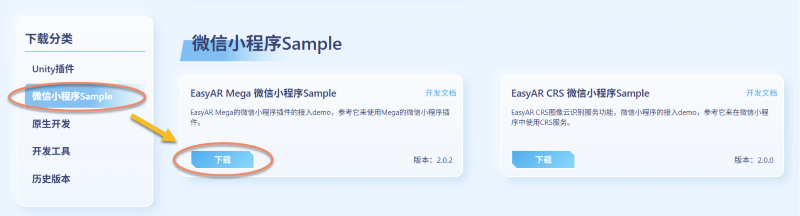
After the download is complete, extract the
.zippackage locally.
Configure the sample project
Log in to WeChat Mini Program Developer Tools.
Use WeChat Mini Program Developer Tools to import the sample project.
- After opening Developer Tools, click the import button and select the locally extracted directory.
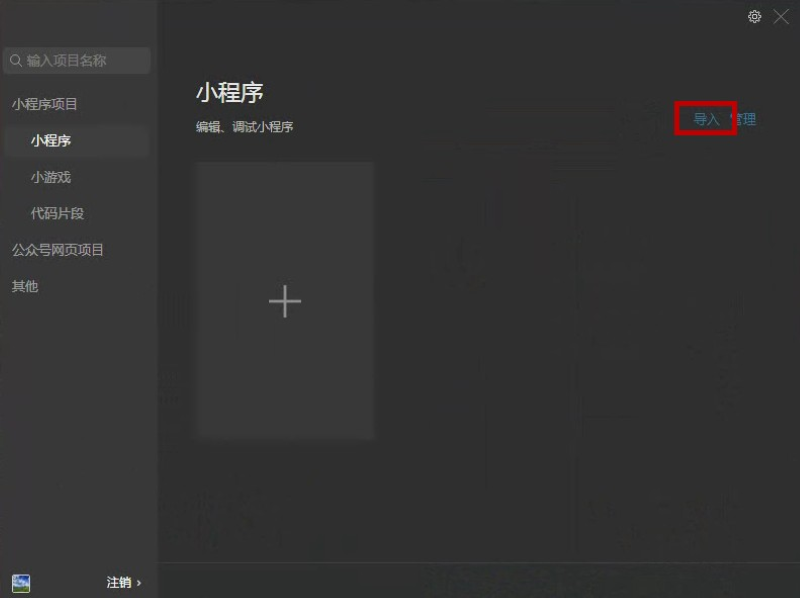
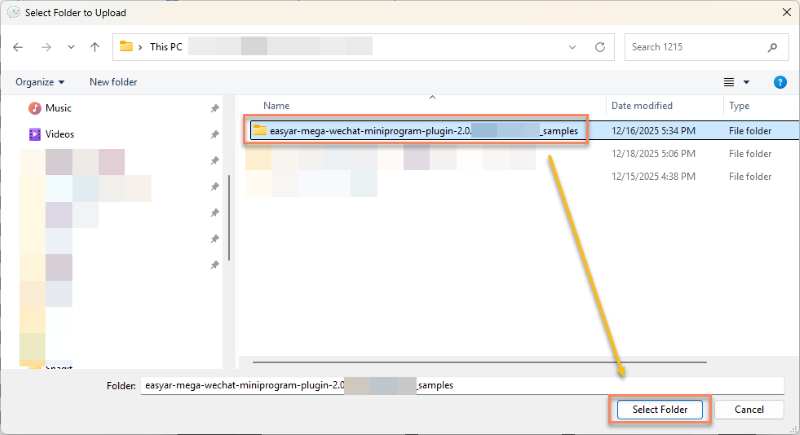
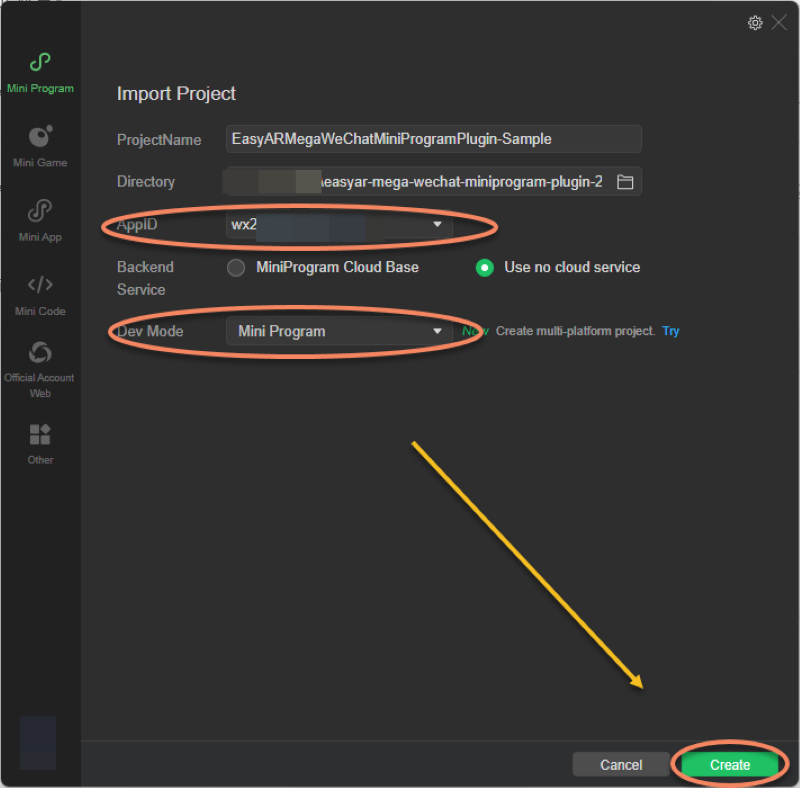
- Make sure the AppID is the same as the AppID filled in when applying for the Mega license, set the development mode to Mini Program, and click Create.
Note
An inconsistent AppID will cause license verification to fail
Configure Mega license and cloud service
Open
miniprogram/components/sample-data/easyar-settings.tsand fill in the corresponding fields according to the license and service information from the preparation steps:- Mega license
/** 您的小程序 Mega 许可证 */
export const EasyARLicenseKey: string = "";
How to obtain a Mega WeChat Mini Program license
In EasyAR Developer Center, select Mega WeChat Mini Program.

The Mega WeChat Mini Program license to use should exist in the list. If no available license exists, check whether your account is the same account used to create the Mega localization database.
Click the Mini Program name to obtain its Mega license. Click Copy on the right, paste it into
easyar-settings.tsas the value ofEasyARLicenseKey, and confirm that its associated AppID exactly matches your WeChat Mini Program AppID.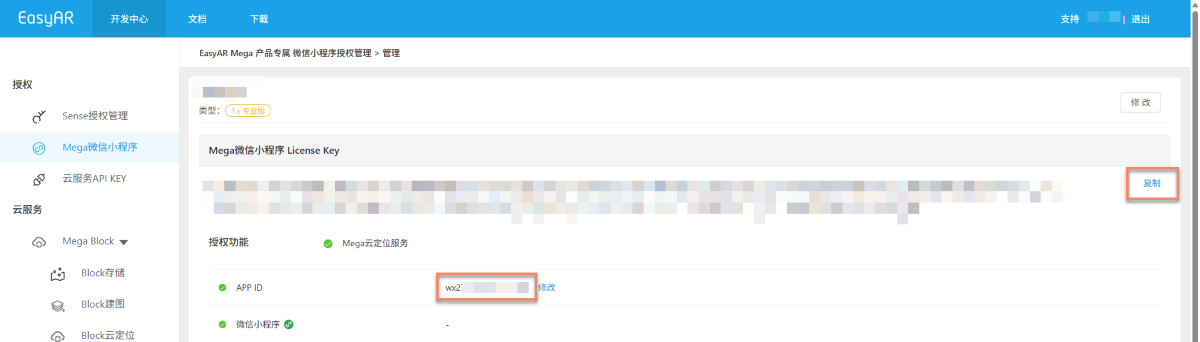
- Cloud service API Key and Seceret
/** 您的云服务 API Key 及 Seceret */
export const EasyARAPIKey: string = "";
export const EasyARAPISecret: string = "";
How to obtain cloud service API Key and Seceret
In EasyAR Developer Center, select Cloud Service API KEY.
If you have previously created a cloud service API Key and Seceret, click Copy on the right in sequence and paste them into
easyar-settings.tsas the values ofEasyARAPIKeyandEasyARAPISecret.
If you have not created a cloud service API Key and Seceret before, create them as follows:
In EasyAR Developer Center, select Cloud Service API KEY > Create API KEY.


Enter the application name, select the cloud services to use: Mega Block and/or Mega Landmark, and click Confirm.
- Cloud service ServerAddress and AppID:
/** 您的 Mega 云定位库的 ServerAddress 及 AppID */
export const MegaTrackerServerAddress: string = "";
export const MegaTrackerAppID: string = "";
How to obtain the ServerAddress and AppID of a Mega cloud localization database
In EasyAR Developer Center, select Block Cloud Localization, then select your Mega cloud localization service group.

Select your Mega cloud localization database:


Click Key, then obtain the AppID and Server Address of the cloud localization database below in sequence. Click Copy on the right and paste them into
easyar-settings.tsas the values ofMegaTrackerAppIDandMegaTrackerServerAddress.Quickly verify with the mask file from mapping results
You can download the
glbmask file from the mapping result through the Mask file download entry of the cloud localization database, display the real-world 3D white model, and check model-to-real-world alignment during quick running without creating annotations.Note
This download method applies only to mapping results from mapping version 9.6 or later.
In the cloud localization database, find the Block to test, and click Mask file download in the Action column of that row. At runtime, test in the scene corresponding to this Block.
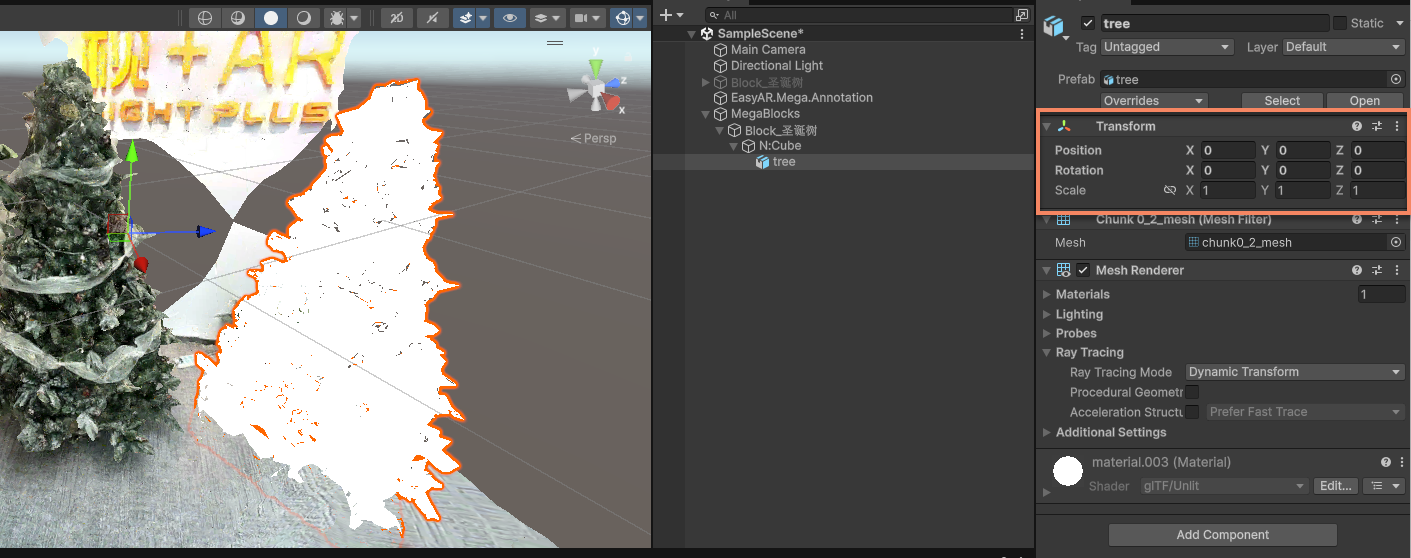
In the popup, select Low precision and click the corresponding Download button to reduce loading and rendering overhead on the phone.
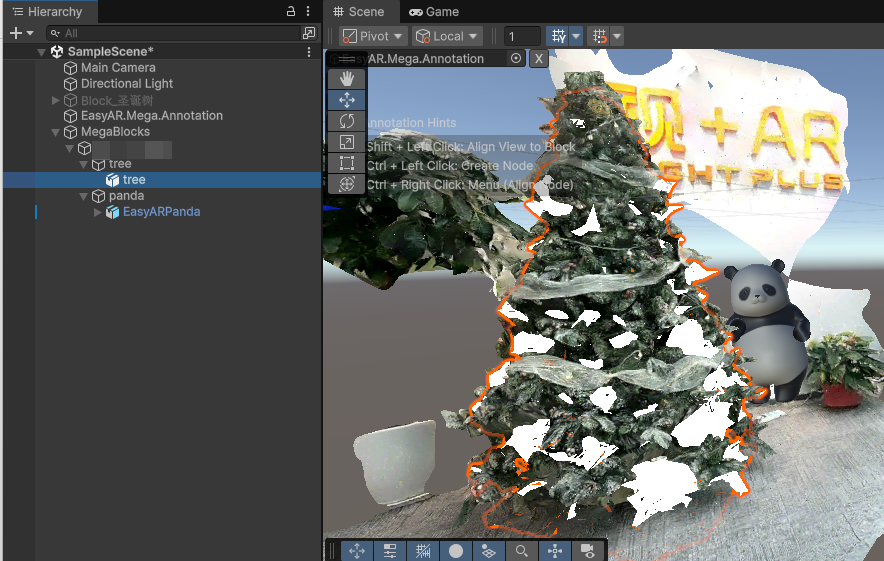
Put the downloaded
glbfile in theassetsdirectory of the Mini Program project, which isminiprogram/assets/in the sample project. Keep the model's original position, rotation, and scale, and display the white model with its ordinary visible material.The sample project already includes logic for loading, displaying, and releasing the mask file. Put the downloaded
glbfile, such asocclusion_mesh_sd.glb, inminiprogram/assets/, then fill in the path relative to the Mini Program project root insampleAssets.occlusionMesh.srcinminiprogram/components/sample-easyar-mega/index.ts:src: "assets/occlusion_mesh_sd.glb",Keep the
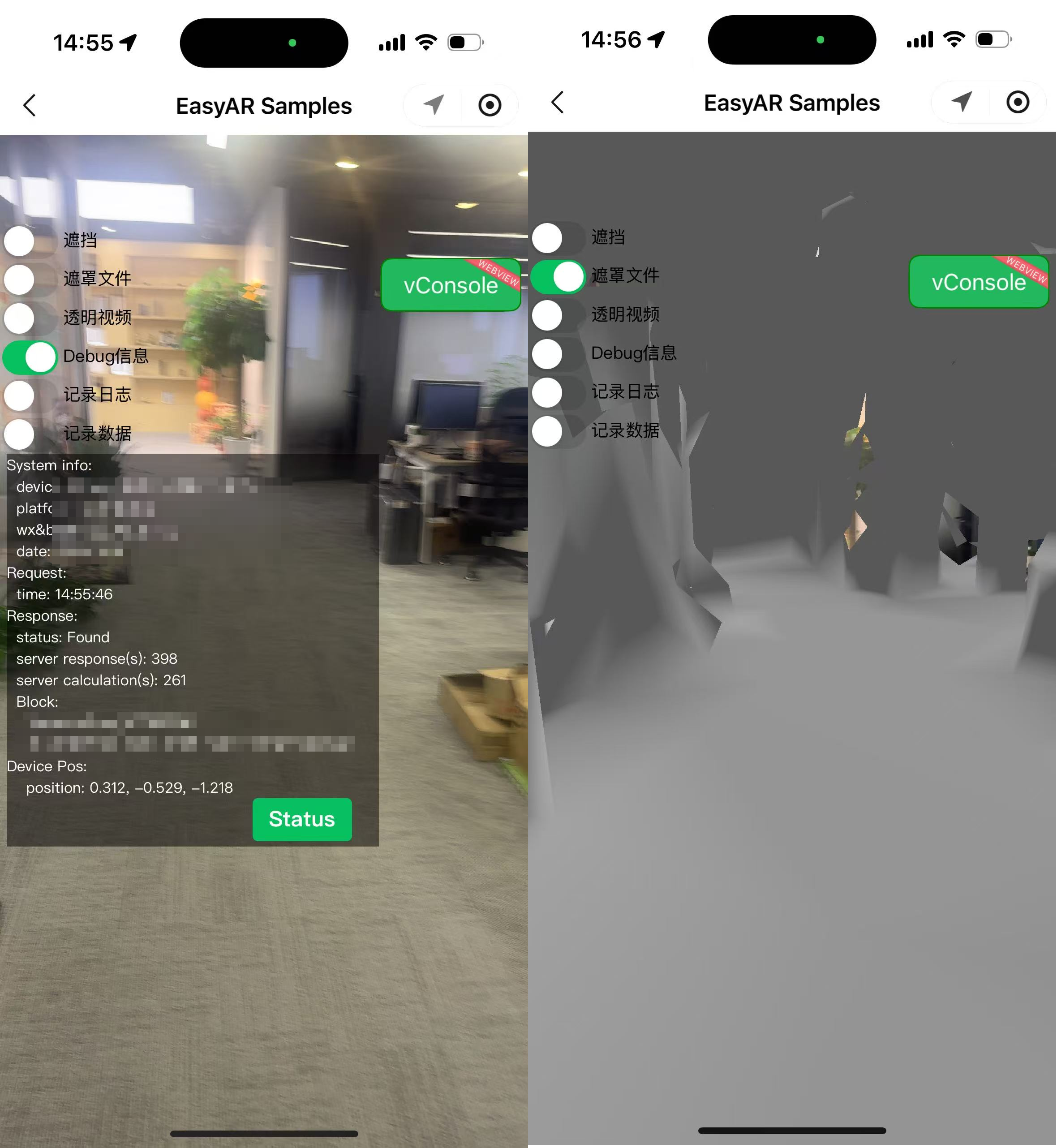
assetId,type, andoptionsofsampleAssets.occlusionMeshunchanged. After running the sample, turn on the Mask file switch on the page to view the model.
Run the sample on a real device
Click the real-device preview button in the top bar of the Mini Program developer tool, and load it onto the development phone by scanning the QR code.
Caution
You cannot directly simulate and run xr-frame components with AR features in the developer tool.
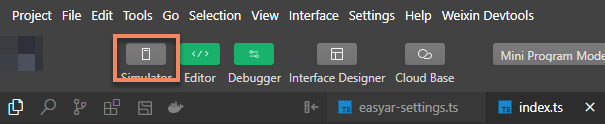
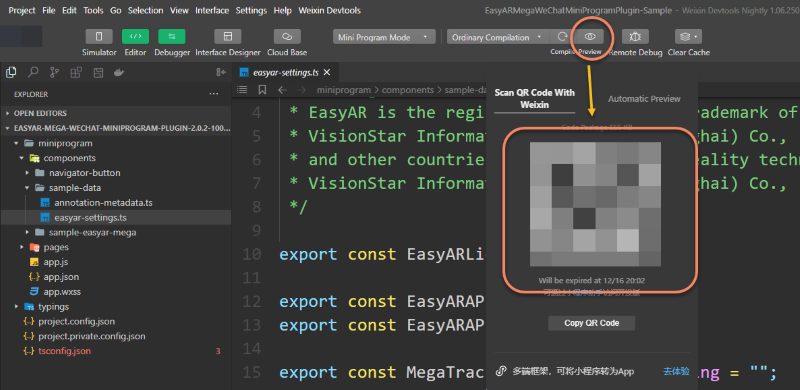
Note
When you run the sample project in WeChat Developer Tools for the first time, if you have not obtained plugin permission, the tool usually shows a popup indicating that the plugin is not authorized. You can authorize it automatically through WeChat Developer Tools, or refer to plugin access process
Click EasyAR Mega Samples to enter the AR scene of the sample project.
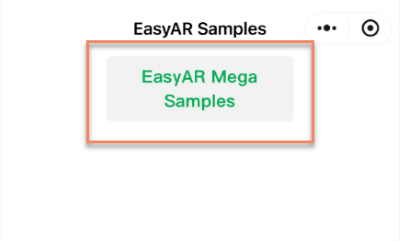
Note
If you cannot enter the AR scene of the sample project, it may be because the current device does not support WeChat's visual algorithm component VisionKit. For details, refer to device restrictions.
The prompt
EasyAR Session is initializingon the screen indicates that WeChat plane detection is initializing.Tip
Make sure to test in a well-lit environment and avoid large plain-color walls or plain-color floors.
Swing left and right at a constant speed toward the ground or another plane to speed up this process.
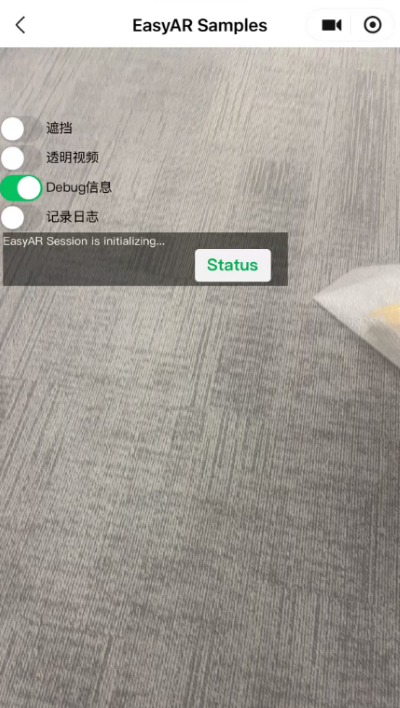
After initialization is complete, hold the phone upright so the camera captures a normal real-world view. When localization succeeds,
Foundappears in the Debug information, and the status indicator in the lower right changes from white to green.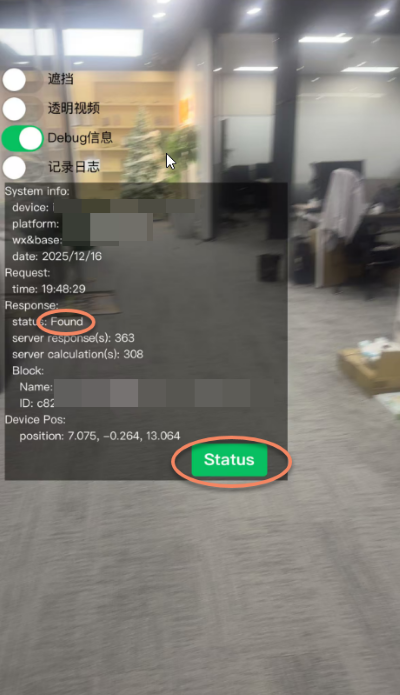
View the occlusion effect
After completing the previous mask file display configuration, when the model is loaded and successfully localized to the corresponding Block, you can see the 3D white model overlaid on the camera image.
Next steps
- Use Mega Studio in Unity
- Place 3D content with Unity Editor
- Create content aligned with the real world
- Load 3D content in the WeChat Mini Program
- Implement occlusion in the WeChat Mini Program
- Complete and run the sample project
- Integrate the EasyAR Mega WeChat Mini Program plugin